


Pre-fill forms with URL query parameters
URL query parameters let you pre-fill form fields on an upload form by adding data to the end of your form's link. They are available on the Business and Premium plans, and most field types can be pre-filled. File Upload fields, Authorization Checkbox fields, and layout blocks have no Query parameter setting.
How URL query parameters work
A URL query parameter is a key and value pair added to the end of your form's link. When someone opens a link that includes query parameters, EZ File Drop reads each parameter and fills the matching form field with its value.
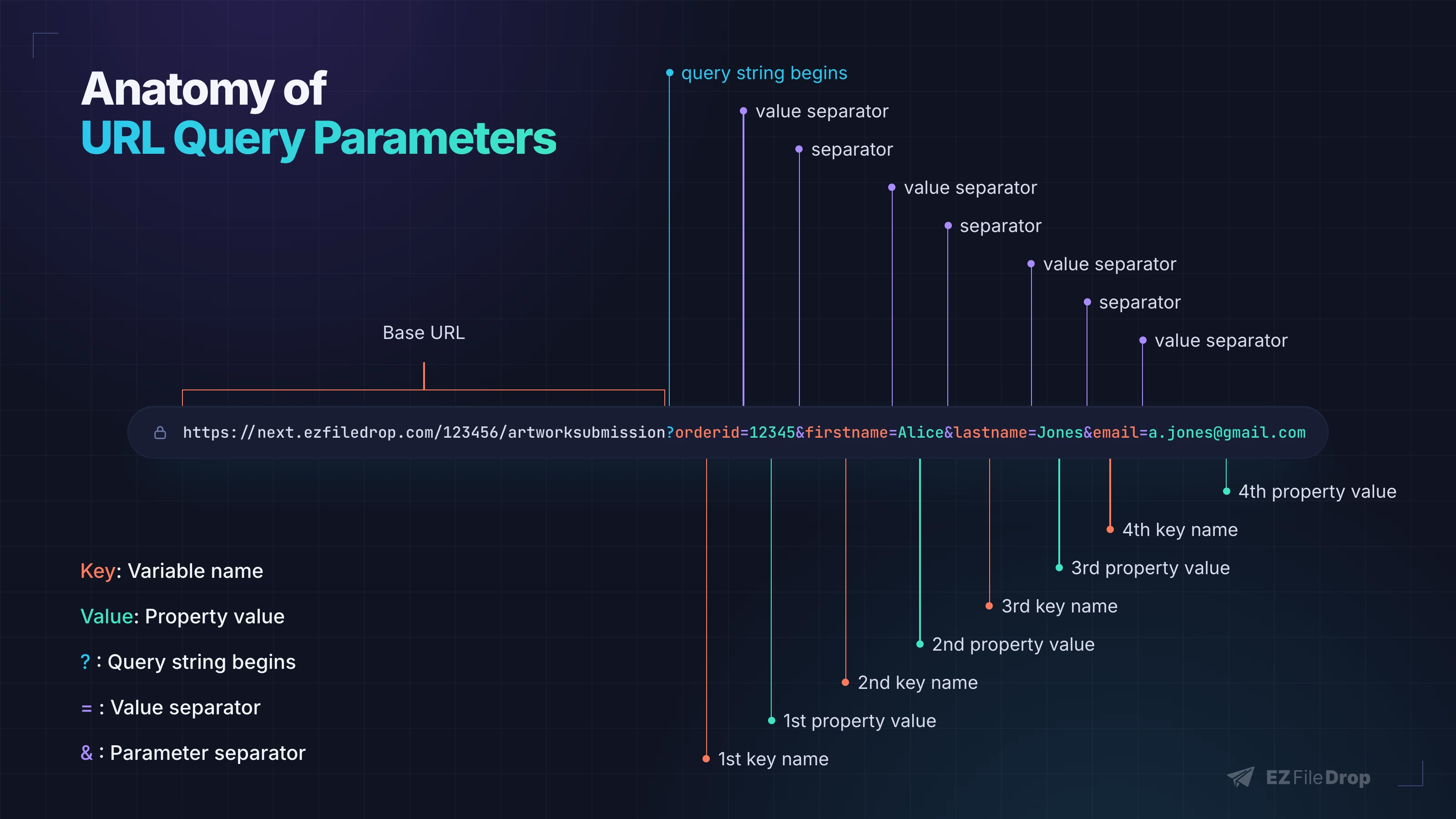
A link with query parameters has four parts:
- Everything before the question mark is your form's normal share link.
- A question mark (
?) marks where the query string begins. - Each parameter is a key and a value joined by an equals sign (
=), likename=Alice. - Multiple query parameters are separated by an ampersand (
&).
For example, a link ending in ?orderid=12345&firstname=Alice pre-fills the field keyed orderid with 12345 and the field keyed firstname with Alice.
Set a query parameter key on a form field
- Open your form and go to the Build tab, then Field Options.
- Click the field you want to pre-fill. Its settings open under Field Properties in the Field Options panel.
- Expand the Advanced section.
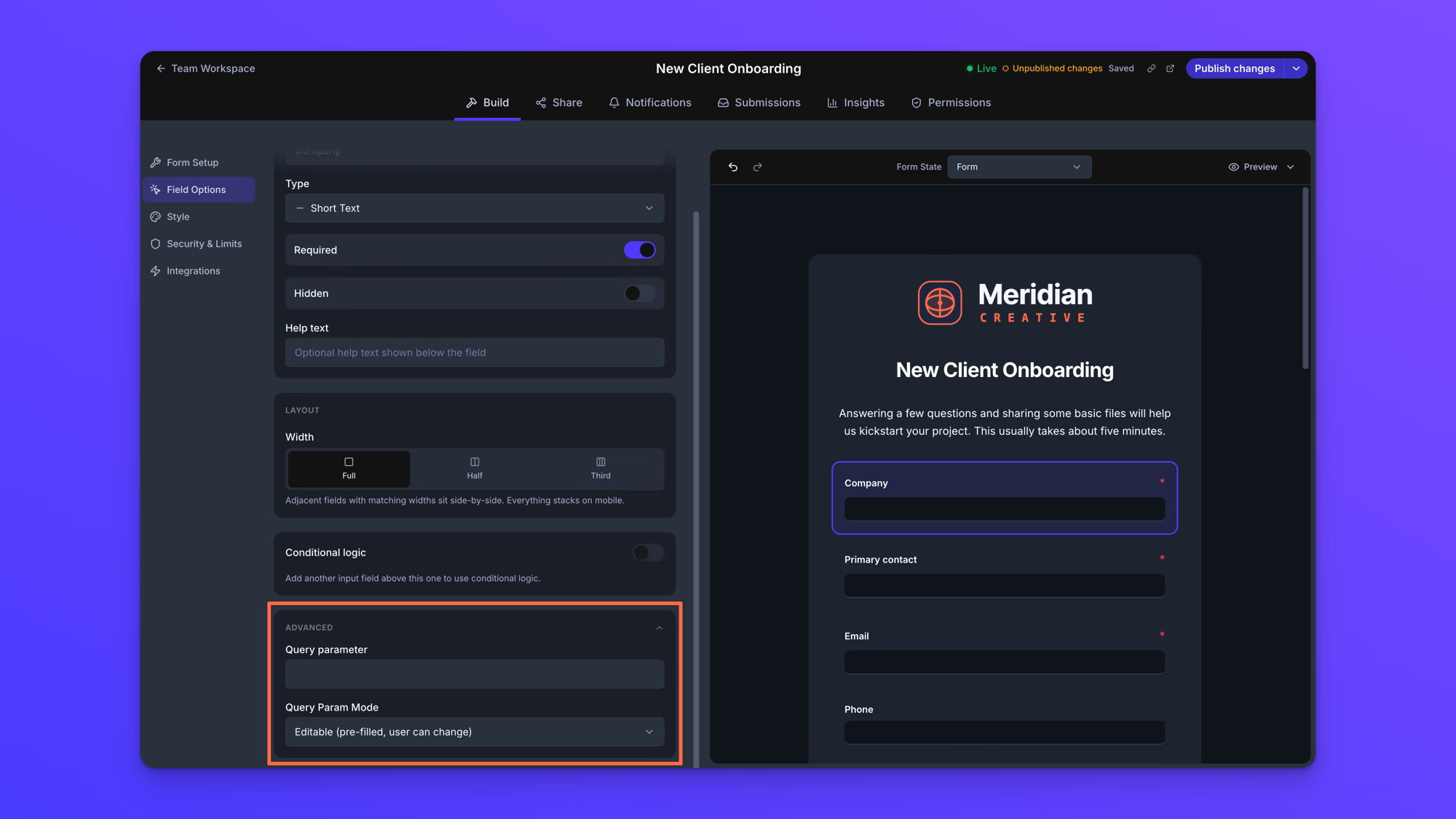
- In the Query parameter field, enter the key you will use for this field in the URL. Keys are case-sensitive, and we recommend lowercase keys with no spaces. The key does not have to match the field's Label. The Query parameter mode selector appears once a key is entered.
- Set the Query parameter mode. This controls what uploaders see when the field is filled by a query parameter: Editable (pre-filled, user can change), Locked (pre-filled, user cannot change), or Hidden (pre-filled, not visible). A locked field shows its value dimmed and cannot be edited.
- Changes save automatically. A Live form keeps showing its last published version until you click Publish changes in the top right.
Build a link with query parameters
- Open the Share tab and copy your form's link with Copy URL.
- Add a question mark (
?) to the end of the link. - Add each field's key and value joined by an equals sign, like
orderid=12345. - Separate additional parameters with an ampersand (
&). - Open the finished link in a browser to confirm each field fills the way you expect.
If a value contains spaces or special characters like & or #, encode them so the link reads correctly. A space is encoded as %20, so the value Jane Doe is written as ?name=Jane%20Doe. A plus sign is read as a space, so a value that needs a literal plus, like the phone number +15551234567, is written as ?phone=%2B15551234567.
How field types handle values
Most fields that collect a typed value fill with the value exactly as it appears in the link. A few field types handle values in their own way:
- Phone fields reformat the value to match the field's phone format. If the field's format is set to US / North America, a link with
?phone=1234567890fills the field as (123) 456-7890. - Date, number, and rating fields take the value exactly as it appears in the link, with no checking. A date that is not in the format the field expects, or a rating outside 1 to 5, leaves the field looking empty on the form while the value from the link is still submitted.
- Dropdown and radio button fields only accept a value that exactly matches one of the field's options, including capitalization. If the value doesn't match an option, the field is left empty and the field's Query parameter mode does not apply.
- Checkbox fields accept a comma-separated list of option values, like
?colors=Red,Blue, and spaces after the commas are fine. Values that match an option are checked and values that don't match are dropped. The parameter is only ignored when no values match, and in that case the field's Query parameter mode does not apply. - File Upload fields, Authorization Checkbox fields, and layout blocks like headings and dividers have no Advanced section and no Query parameter setting, so they can't be pre-filled.
Pass data without showing it on the form
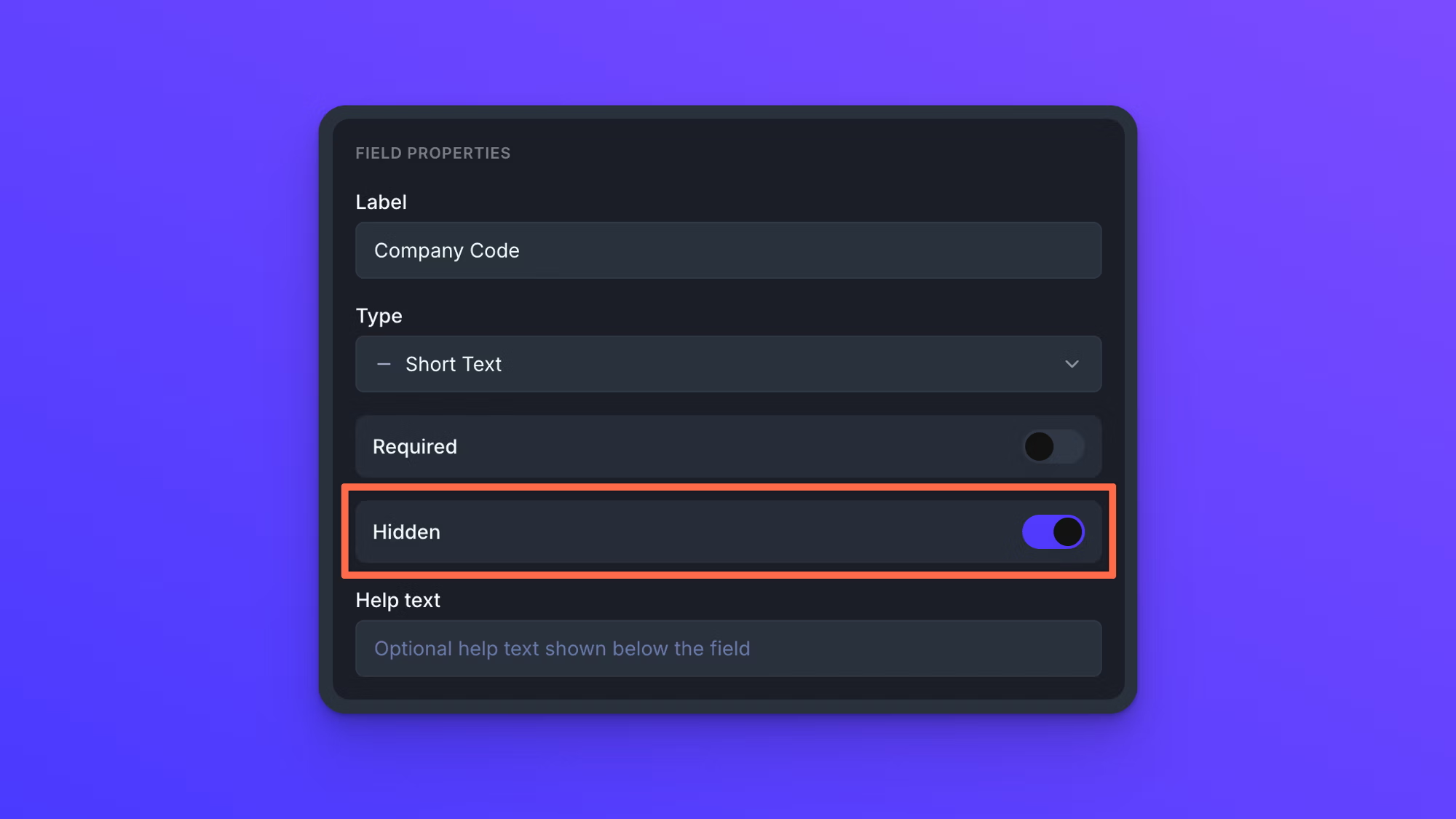
Setting a field's Query parameter mode to Hidden (pre-filled, not visible) collects data through a link without showing anything to the uploader. This is not the same as a field's Hidden toggle, which sits beside Required and takes the field off the form for everyone whether or not a link fills it. Both are available on the Business and Premium plans.
Set a field's Query parameter mode to Hidden (pre-filled, not visible) and the field does not appear on the upload form when its value arrives through the link. When the form is submitted, the hidden field's data is still included with the submission. You can use that data in email notifications and in dynamic file organization, including dynamic subfolders and file renaming. Hidden fields are useful for passing record IDs, order numbers, or customer details from another app.
To use a hidden field:
- In Field Options, click the field you want to hide.
- Expand the Advanced section and enter the field's key in the Query parameter field.
- Set the Query parameter mode to Hidden (pre-filled, not visible).
- Pass its value through the link:
?yourkey=yourvalue.
Example workflow
Meridian Creative collects artwork through an upload form. Their ordering system generates a personalized link for each order by appending the order ID to the form's link, like ?orderid=12345, and the matching field's Query parameter mode is set to Hidden (pre-filled, not visible). When a client opens their link and uploads artwork, the order ID travels with the submission without ever appearing on the form. It shows up in the notification email and names the subfolder the files are delivered to, so every upload lands in a folder that matches its order.
Why a value didn't fill
If you open a link and a field stays empty, check these causes:
- The key in the link doesn't exactly match the field's Query parameter key. Keys are case-sensitive, so a link containing
Name=will not fill a field whose key isname. - The value is empty. A parameter with no value, like
?orderid=, is ignored, and the field stays visible and editable. - The same key appears more than once in the link. Only the first value is used.
- A dropdown, radio button, or checkbox value doesn't exactly match one of the field's options.
- The value contains unencoded spaces or special characters.
- No key is set on the field. On the Starter plan the Query parameter setting is locked in the builder, so a key can't be set, and keys already saved on a form stop filling while the form is on that plan. Query parameters are available on the Business and Premium plans.
- The form's latest changes haven't been published.
- The form is embedded with the fallback iframe code, which cannot pass the parameters through. The default embed code passes them from your page's address.
Behavior notes
- Query parameters work on a form's own share link and on a form embedded on your website. Parameters on your own page's address pre-fill an embedded form, using the same keys you set on the form's fields. This works with the embed code. It does not work with the fallback iframe code, which cannot pass the parameters through.
- An upload form can support any number of query parameters in one link, separated by ampersands.
- You can pre-fill visible fields and pass hidden data in the same link.
- A value that arrives from a link can be read by conditional logic, including on a field whose Query parameter mode is set to Hidden (pre-filled, not visible). See Show or hide fields with conditional logic.
- On a multi-page form, a link fills fields on every page when the form opens, not only the first page. See Build a multi-page form.
- A field's Query parameter mode only takes effect when the link fills that field with a query parameter. Editable (pre-filled, user can change) is the default mode.
- Keys are case-sensitive. Use lowercase keys with no spaces, and use the same keys everywhere, to avoid mismatches.
- A query parameter key is only used in the URL. It does not change the field's Label or how the field appears on the form.
- If an uploader returns to a partially completed form, values from query parameters take precedence over their saved values.