


Share your form
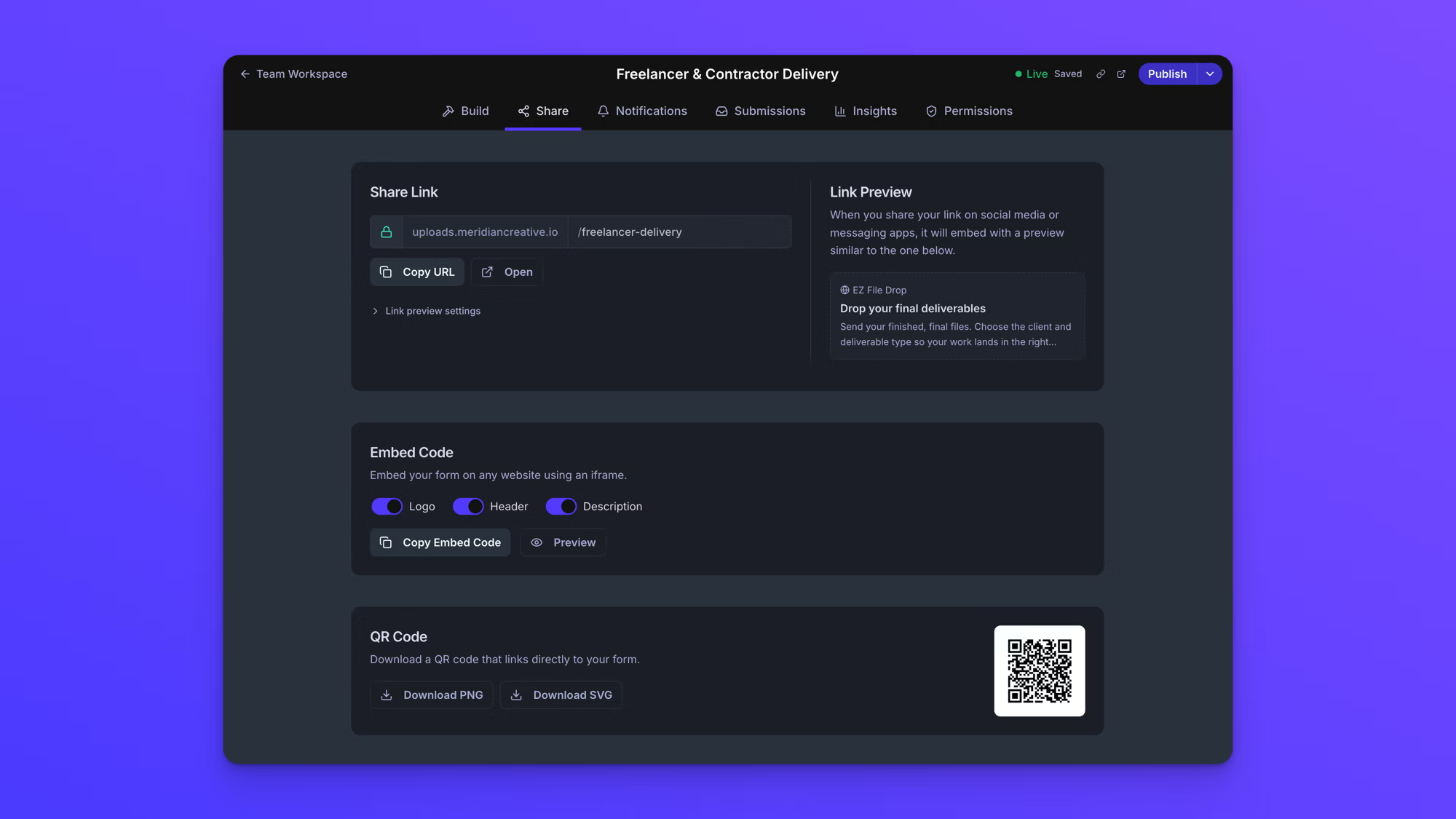
Every upload form has its own link and its own QR code, both on the form's Share tab, and both available on every plan. The same tab holds the embed code for putting the form on your own website.
A form has to be published before any of this works. Anyone who opens a Draft form's link sees a message reading "This form is not accepting submissions yet." rather than the form, and the Share tab says as much at the top: "This form is in draft mode. Your share links and embed code will not work until you publish the form." See Form statuses.
Open the Share tab
- On the Upload Forms page, open your form.
- Click Share in the row of tabs at the top.
Your form's link
A form's link is made of three parts: the domain it runs on, a short code that identifies your team, and the form's own URL slug. The domain and the team code are the same on every form your team owns, so the slug is the part that makes each form's link its own. The slug is taken from the form's name when you create the form. Renaming the form afterward does not change it.
Copy URL copies the whole link. The button reads Copied for a moment afterward and a message confirms it. Open opens the published form in a new tab, exactly as an uploader sees it.
Anyone with the link can upload. There is no account, no app, and no sign-in of any kind for the people sending you files.
Change your form's URL
You can change the slug, the last part of the link. The team code in front of it is set when your account is created and cannot be changed.
The slug is locked while the form is published. The field shows a padlock, and hovering it gives the reason: "The URL is locked while this form is published. Unpublish the form to change it."
- Click the dropdown arrow beside Publish changes, then click Unpublish. The form goes back to Draft.
- On the Share tab, click into the slug and type the new one.
- If the form has been published before, a "Change this form's URL?" dialog appears. Read it and confirm.
- Publish the form again.
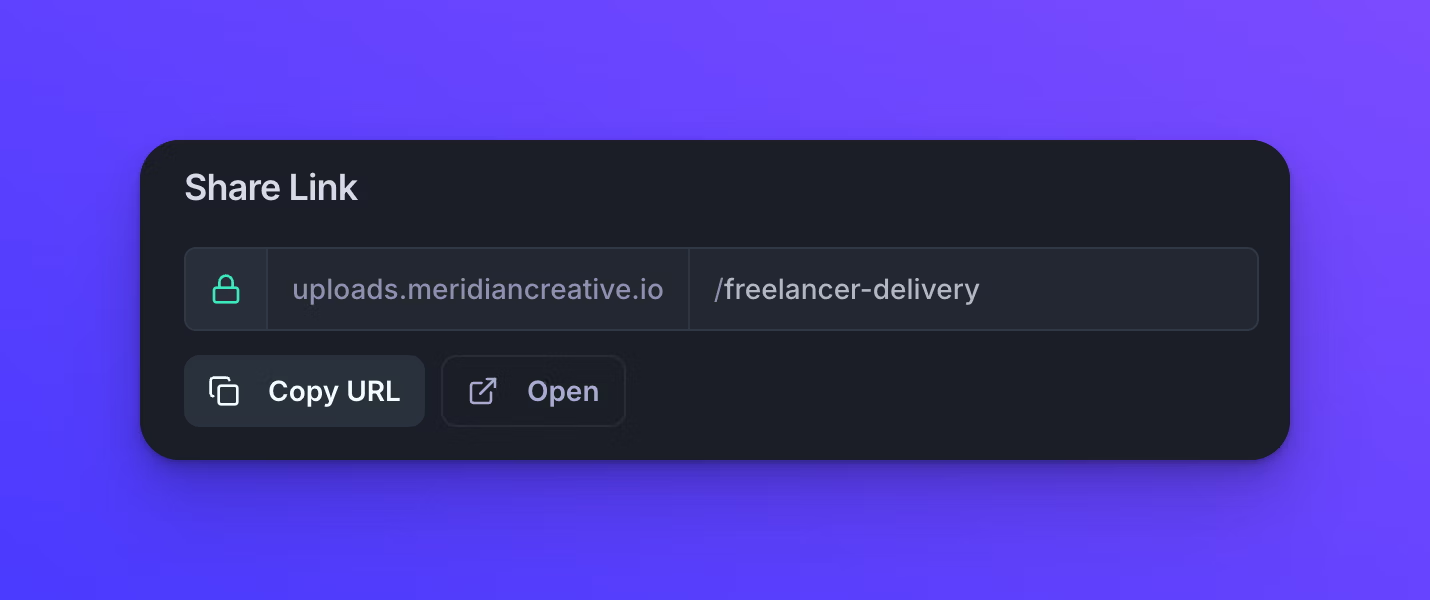
Changing the slug breaks the old link the moment you do it. Nothing forwards, so anyone still holding the old link will not reach your form. Update the link everywhere you have shared it, download the QR code again, and copy the embed code again.
What you type is tidied as you type it. Capitals become lowercase, spaces become hyphens, anything that is not a letter, a number, or a hyphen is dropped, and repeated hyphens collapse into one. The limit is 60 characters, and the slug cannot be empty. If another form on your team already uses it, a message reads "That URL is already in use by another form".
Run the link on your own domain
If your team has a custom domain set up and working, the domain at the front of the URL field becomes a dropdown listing the domains you can use. Without a working custom domain there is no dropdown, and the domain stays as plain text.
The domain is locked while the form is published, the same as the slug is, so moving a form that is already live onto a custom domain takes three steps.
- Click the dropdown arrow beside Publish changes, then click Unpublish. The form goes back to Draft.
- On the Share tab, click the domain and pick the one you want.
- Publish the form again.
Nothing asks you to confirm, because moving a form onto a custom domain does not break anything. The form's original EZ File Drop link keeps working alongside the new one, so anything you shared beforehand stays valid.
Custom domains are available on the Premium plan. See Set up a custom domain.
Control how your link looks when it is shared
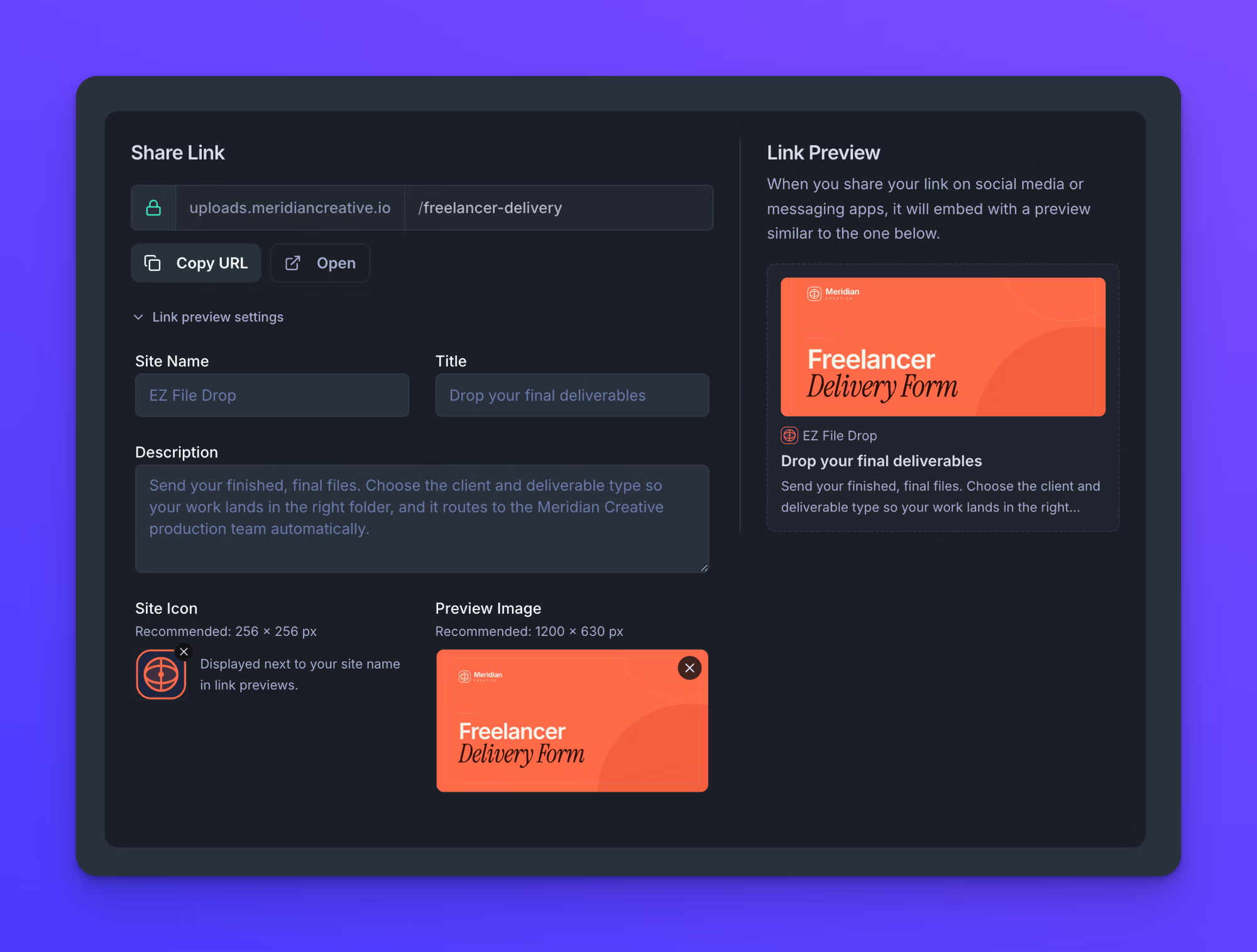
Paste a link into a message, an email, or a social post and most apps show a preview card in place of the raw address. Link preview settings, below the URL field, is what that card reads from. It is available on every plan, and the Link Preview card beside it shows roughly what people will see.
Click Link preview settings to open it. There are five settings.
- Site Name is the small line above the title. Left empty, it reads "EZ File Drop".
- Title is the bold line. Left empty, it falls back to the title set in Form Setup, then to the form's name.
- Description is the paragraph beneath. Left empty, it falls back to the description set in Form Setup, then to "Upload files securely."
- Site Icon is the small icon beside the site name. The panel recommends 256 × 256 pixels, and the file has to be under 2 MB.
- Preview Image is the large image on the card. The panel recommends 1200 × 630 pixels, and the file has to be under 5 MB.
Both image fields take any image file, and we recommend a WebP, PNG, or JPG.
These save on their own a moment after you type, and a "Saving…" indicator appears while they do. Saving is not publishing. The card other apps build comes from your form's last published version, so publish the form after changing anything here. The form does not mark these as unpublished changes, so nothing prompts you to.
Apps cache previews, so an app that has already seen your link may keep showing the old card for a while after you publish. Most have their own tool for clearing it.
Download the QR code
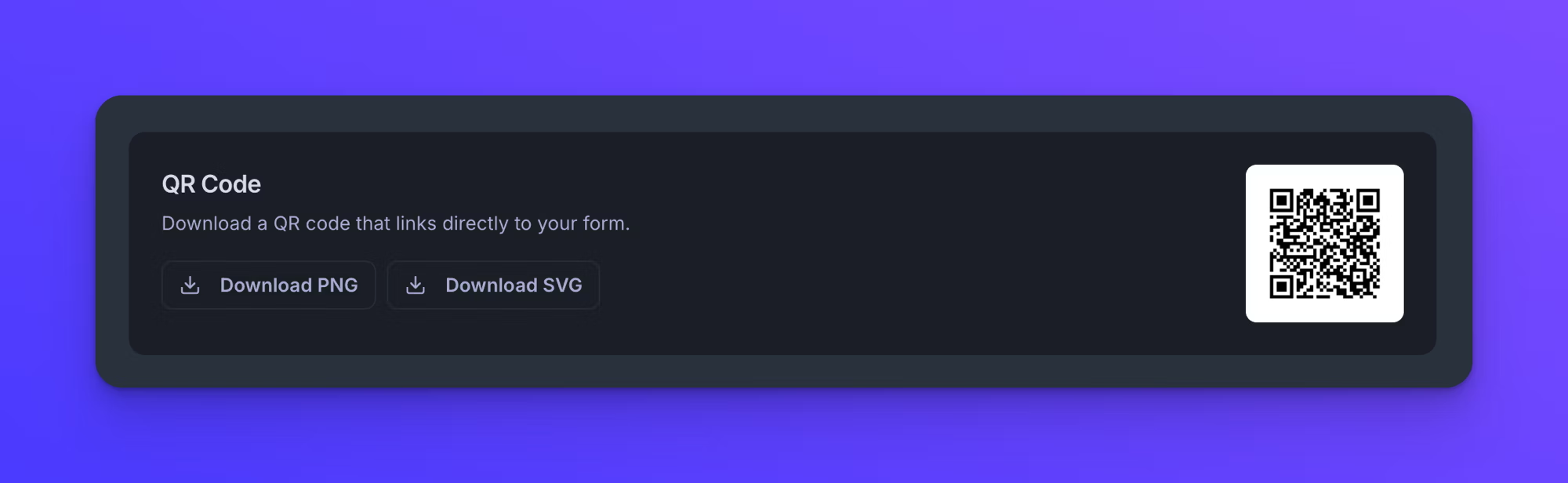
Every form has a QR code, on every plan, and it points at the form's current link.
- Download PNG gives a 1024 pixel square image. Use it on slides, in a document, or anywhere an image is what is wanted.
- Download SVG gives a vector file that stays sharp at any size. Use it for anything printed large, like signage, a banner, or a table card.
Both files are named after the form's slug.
The code follows the form's current link, including a custom domain if the form is on one. If you change a form's URL, download the code again, because the one you already have points at a link that no longer works.
QR code scans are counted on their own. Someone arriving from the QR code is counted both as a visit and as a QR code scan on the form's Insights tab, so the two never double up. See Form insights.
Test a link that pre-fills fields
If any field on the form has a query parameter key set, a box headed "Test URL with query parameters" appears under the link, with a Copy test URL button. The test URL is your form's link with a sample value filled in for every key you have set, so you can open it and check that each field fills the way you meant it to.
It is your real form, not a sandbox. Anything submitted through the test URL is a real submission and is delivered to your upload destination like any other. See Pre-fill forms with URL query parameters.
Behavior notes
- A Draft form's link and QR code both exist and can both be copied, but neither reaches a working form until you publish.
- Copying a link, downloading a QR code, and changing the link preview settings change nothing about how files are delivered. The form's upload destination, notifications, and file organization are set in the Build tab.
- Team members with Viewer access to a form can copy its link, open it, and download its QR code, but cannot change the URL or the link preview settings. See Set form permissions.
- To put the form on a page of your own instead of sending people to its link, see Embed a form on your website.