


Manage your subscription
The Billing page holds your current plan, your payment method, your billing details, and every invoice EZ File Drop has issued you. Only team owners can change anything here.
Open your billing settings
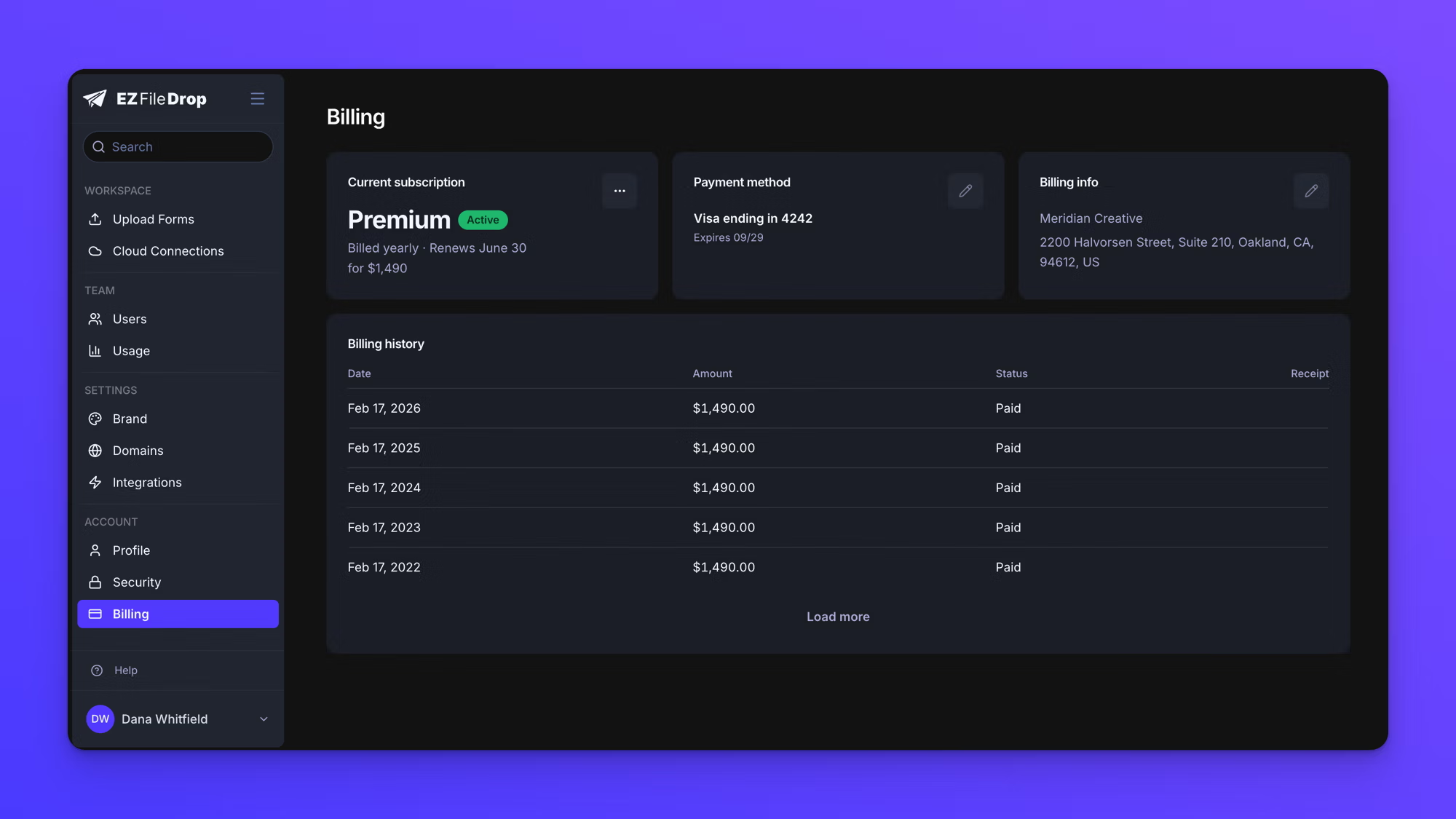
In the left sidebar under ACCOUNT, click Billing. Three cards sit across the top of the page: Current subscription, Payment method, and Billing info, with Billing history below them.
The Current subscription card names your plan, says whether it is billed monthly or yearly, and gives the date and amount of your next renewal.
Change your plan
- In the left sidebar under ACCOUNT, click Billing.
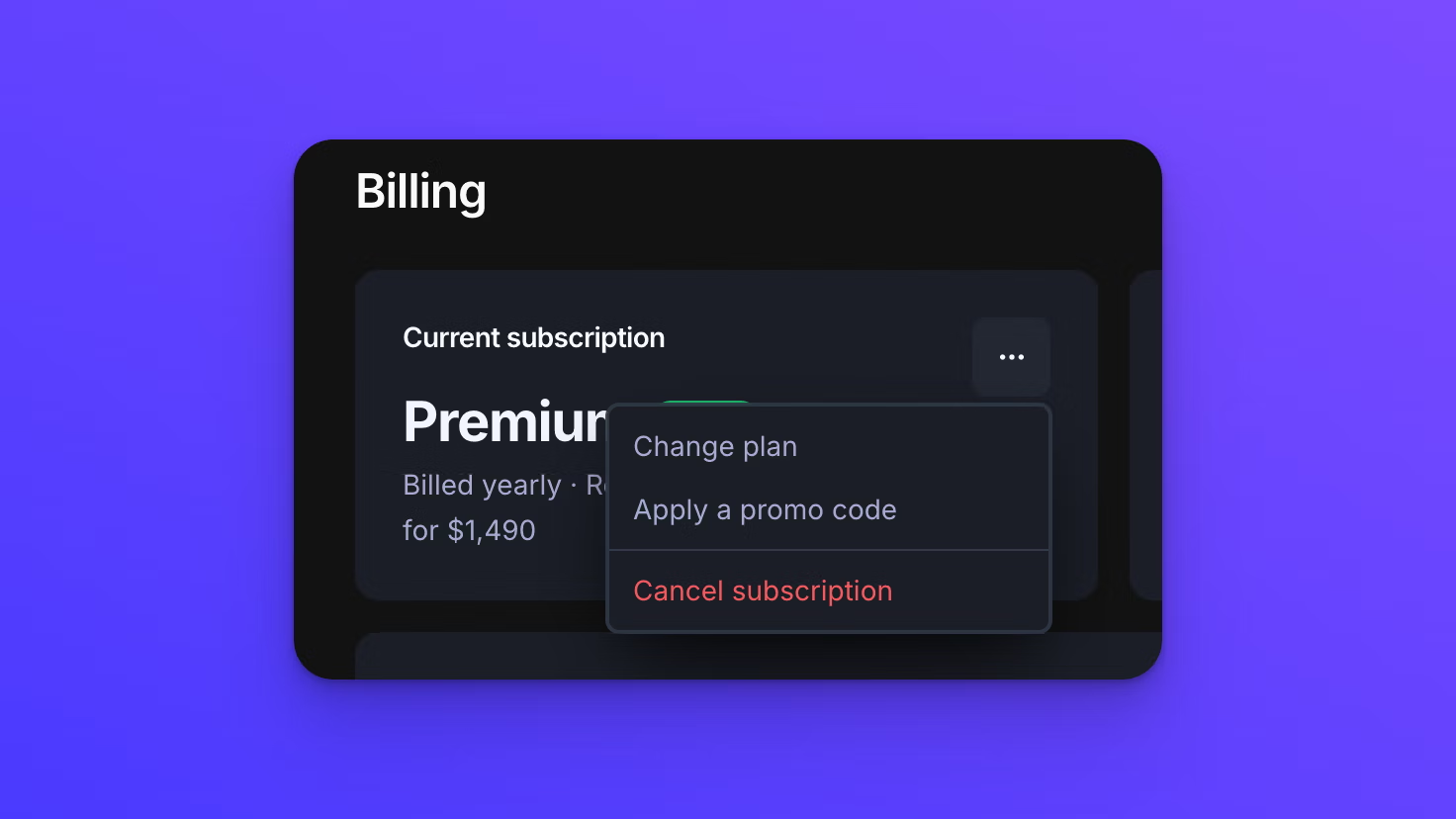
- Click the three-dot button on the Current subscription card.
- Click Change plan.
- Choose Annual or Monthly at the top of the dialog.
- Click the switch button on the plan you want.
When a plan change takes effect
Upgrading takes effect immediately. You are charged a prorated amount covering the rest of the current billing period, and the features on the higher plan are available as soon as the payment goes through.
Downgrading takes effect at the end of your current billing period. Nothing changes until that date, and there is no refund or credit for the part of the period you have already paid for. You keep everything on your current plan until the change takes effect.
You can only have one downgrade scheduled at a time. If one is already pending, EZ File Drop returns "You already have a plan change scheduled. Cancel it before scheduling a different one."
Downgrading to Starter
Starter is a single-user plan, so moving to it from Business or Premium ends team access. EZ File Drop shows you what you will lose and asks you to type DOWNGRADE before it schedules the change.
On the date the downgrade takes effect:
- Every other user on the team is removed.
- The forms they own in the team workspace are reassigned to you and set to "Draft". Each one needs an upload destination chosen again and a fresh publish.
- The forms in their private workspaces are permanently deleted, along with their submission records.
- Features that are not part of Starter stop working. That covers embedding, password protection, file type restrictions, submission limits and scheduling, URL query parameters and hidden fields, custom domains on share links and email, and custom branding on your forms.
Your settings are switched off rather than deleted. Custom colors, fonts, logos, and the rest stay stored against your forms, so upgrading again brings them back rather than making you rebuild them. The user removals and the deleted private forms are permanent.
Switch between monthly and annual billing
Open the Change your plan dialog the same way, use the Annual and Monthly toggle at the top, then choose your current plan again at the new interval. Switching interval on the same plan takes effect immediately with a prorated adjustment.
Apply a promo code
- In the left sidebar under ACCOUNT, click Billing.
- Click the three-dot button on the Current subscription card.
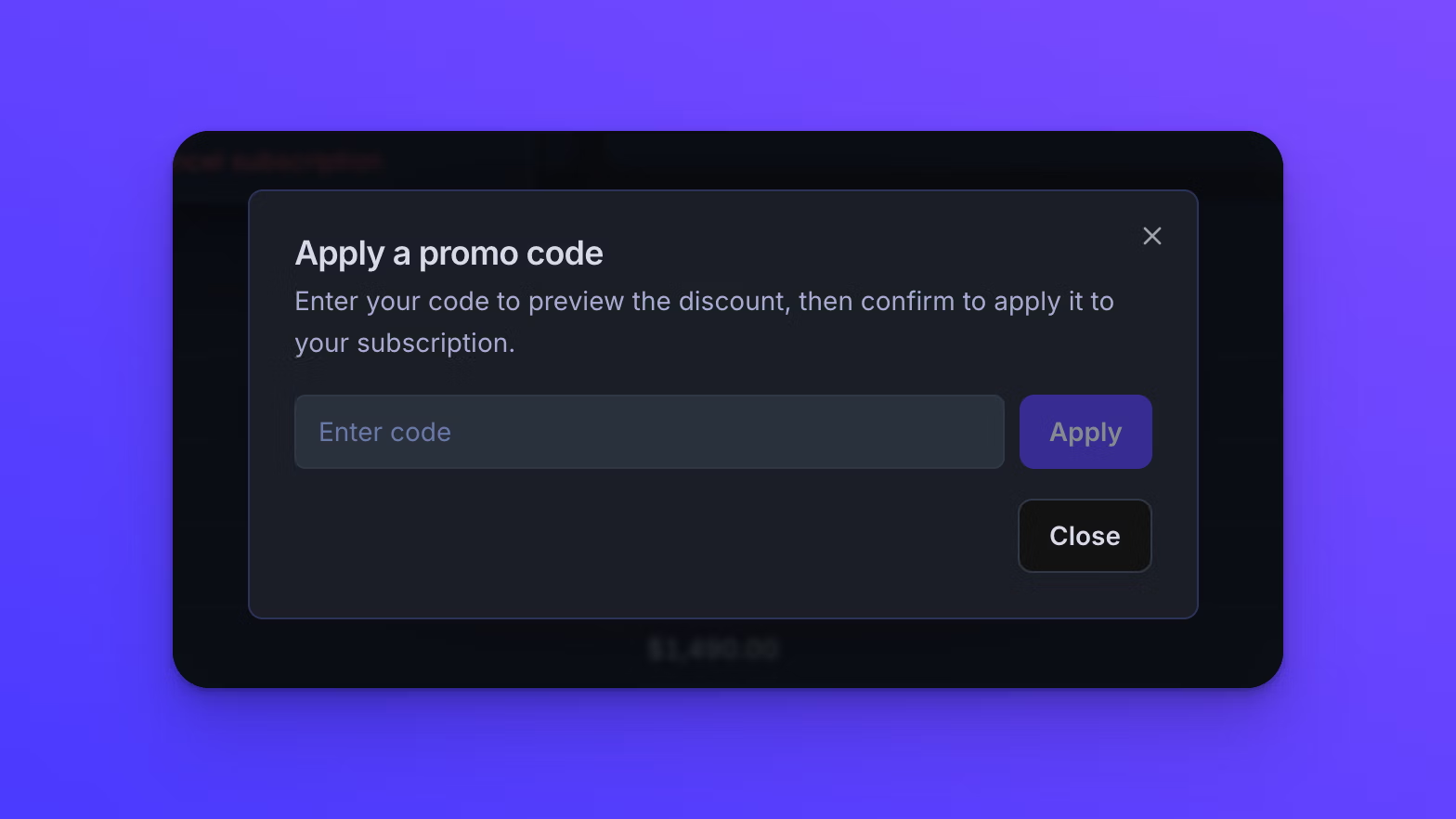
- Click Apply a promo code.
- Type your code and click Apply. EZ File Drop shows the discount the code will apply so you can check it before committing.
- Click Confirm to apply it to your subscription.
A code that is not recognized, or that is no longer active, returns "That promo code isn't valid."
Update your payment method
Click the pencil control on the Payment method card. The card form opens inside EZ File Drop, and reads "Enter a new card. Your existing card will be replaced." Enter the new card and save. The card you had saved is replaced rather than kept alongside the new one.
Update your billing details
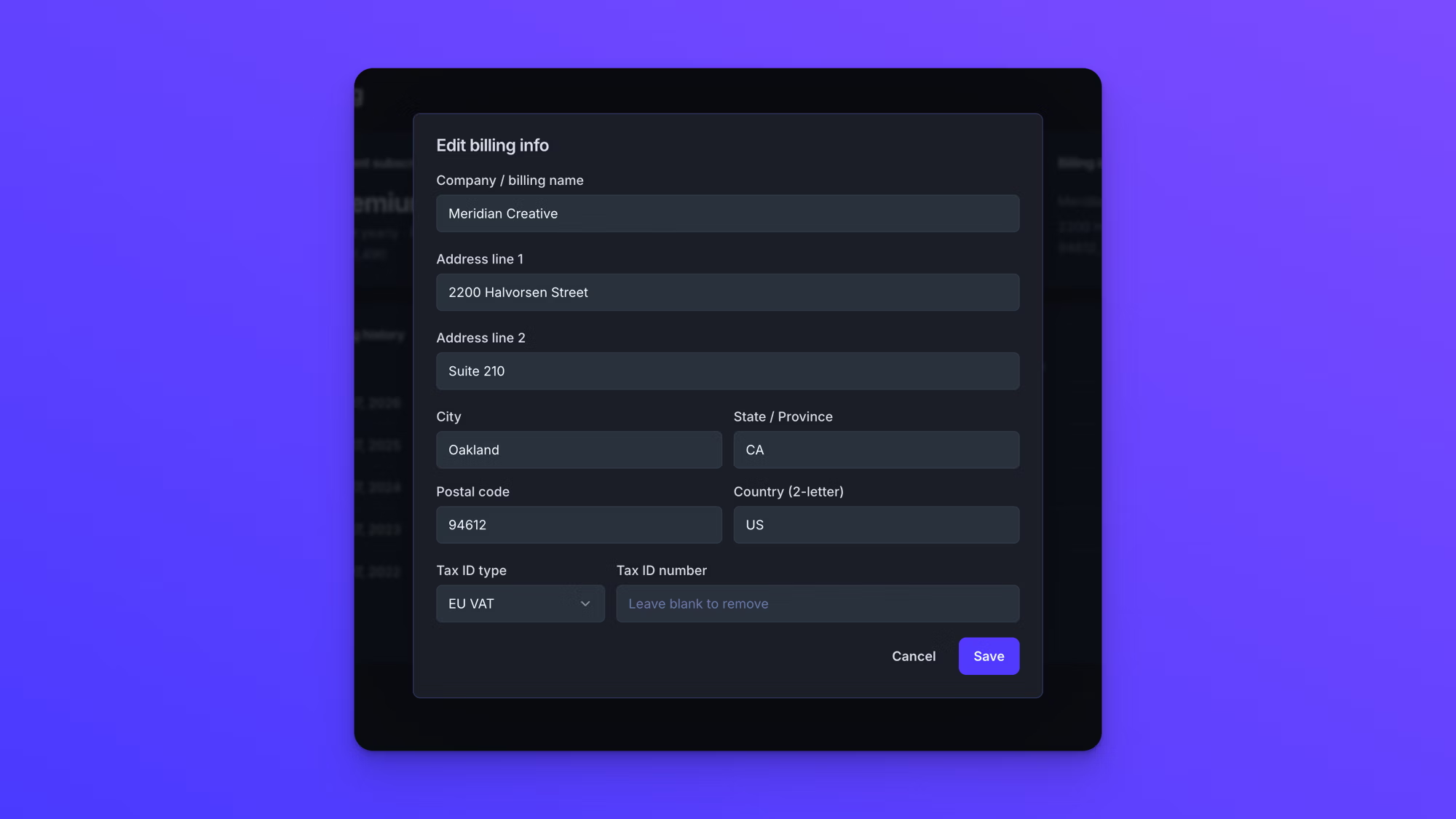
Click the pencil control on the Billing info card. You can set a company or billing name, two address lines, city, state or province, postal code, and a two-letter country code. These details appear on your invoices.
To record a tax ID, choose a Tax ID type and enter the number in Tax ID number. The list covers EU VAT, UK VAT, US EIN, Canada BN, Canada GST/HST, Australia ABN, New Zealand GST, Switzerland VAT, Norway VAT, Singapore GST, India GST, Japan Corporate Number, Brazil CNPJ, Mexico RFC, and South Africa VAT. Leaving Tax ID number empty removes a tax ID you had saved before.
Find an invoice
Billing history lists each charge with its date, amount, and status. Click the download control in the Receipt column to open that invoice as a PDF. The control is absent on any invoice that does not have a PDF yet. Load more extends the list past the most recent five.
Behavior notes
- Only team owners can change the plan, apply a promo code, update the payment method, or edit billing details. A team member who tries gets "Only team owners can manage billing."
- Changing your plan never deletes your forms or your submission history. The one exception is a downgrade to Starter, which deletes other users' private forms as described above.
- An upgrade takes effect as soon as it is paid for, so there is no waiting period before a newly unlocked feature can be used on an existing form. The form still needs publishing for the change to reach anyone uploading.