


Create and manage color libraries
A color library saves your brand's colors so you can pick them from a swatch instead of typing a hex code every time you style a form. Change a color in the library later and every form using it changes with it. Color libraries are available on the Business and Premium plans.
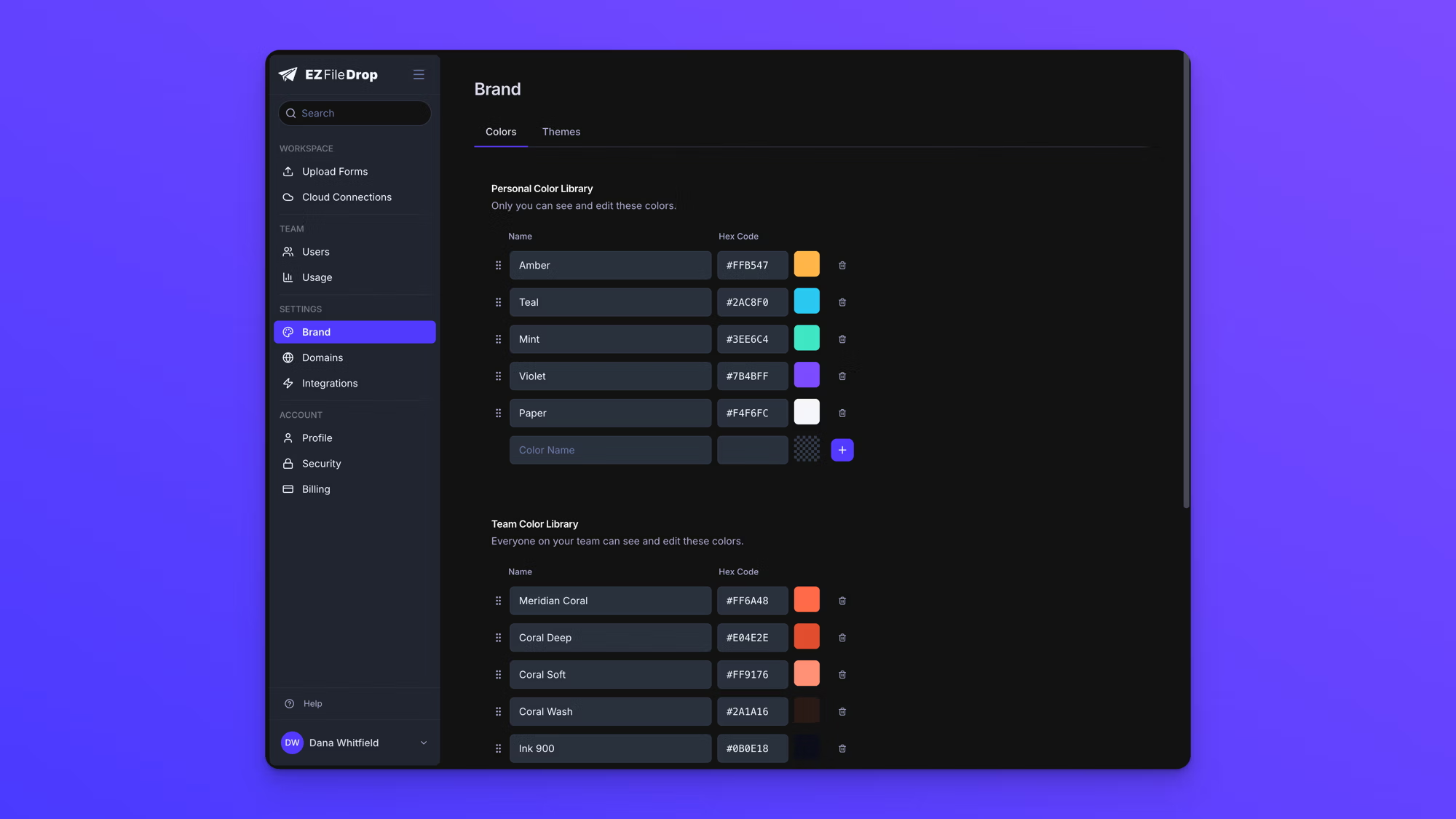
There are two libraries. Your Personal Color Library is visible only to you. Your Team Color Library is shared with everyone on your team. Both live on the Brand page, and the colors in them appear in the color pickers in a form's Style panel.
Open your color libraries
- In the left sidebar, under Settings, click Brand.
- Select the Colors tab.
Personal Color Library sits at the top of the page, with Team Color Library below it. The Team Color Library appears once your team has a second user, including someone you have invited who has not accepted yet. On a team of one you see only the personal library.
Add a color
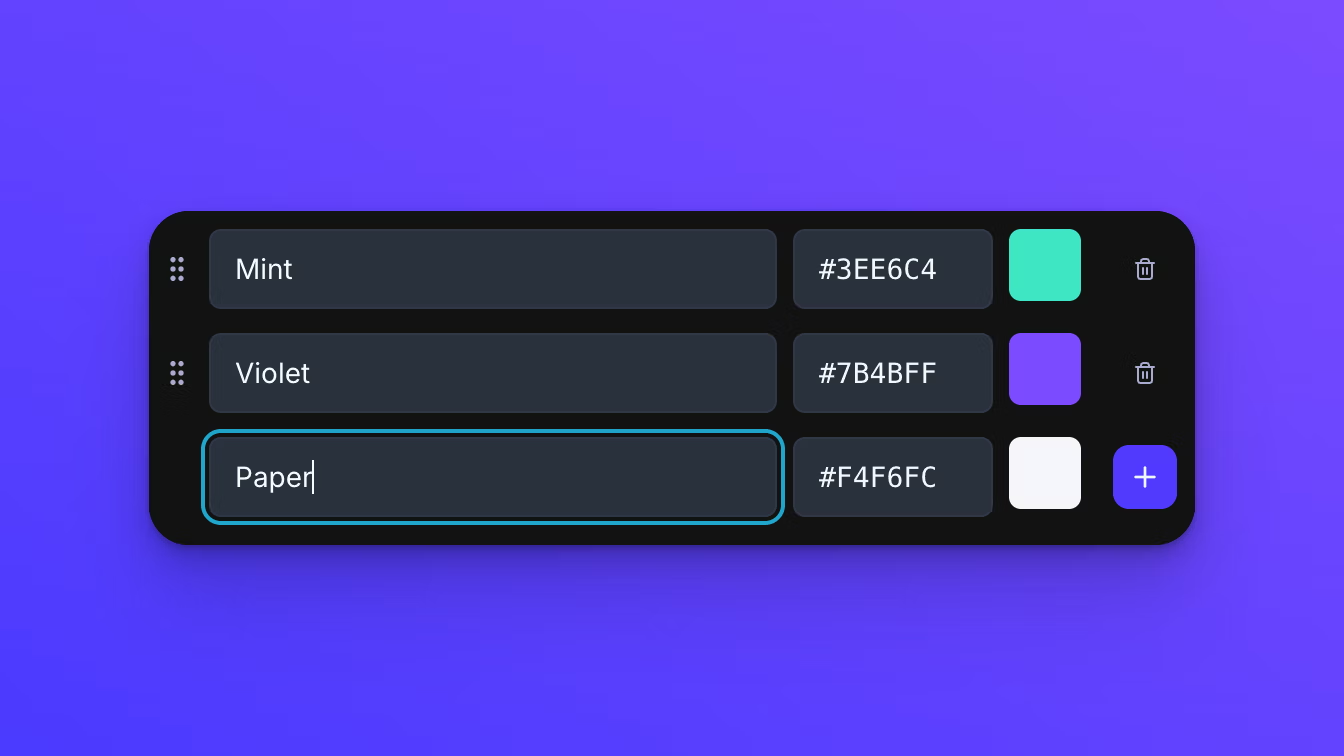
Both libraries work the same way, and each has an empty row at the bottom of its list.
- In the empty row, type a name for the color under Name.
- Enter the color's hex code under Hex Code. The # is added for you, so type the six characters.
- Click +.
The color is saved to the library and is available in the form builder right away. A name is optional. If you leave Name empty, the color is listed by its hex code instead.
Use your colors when you style a form
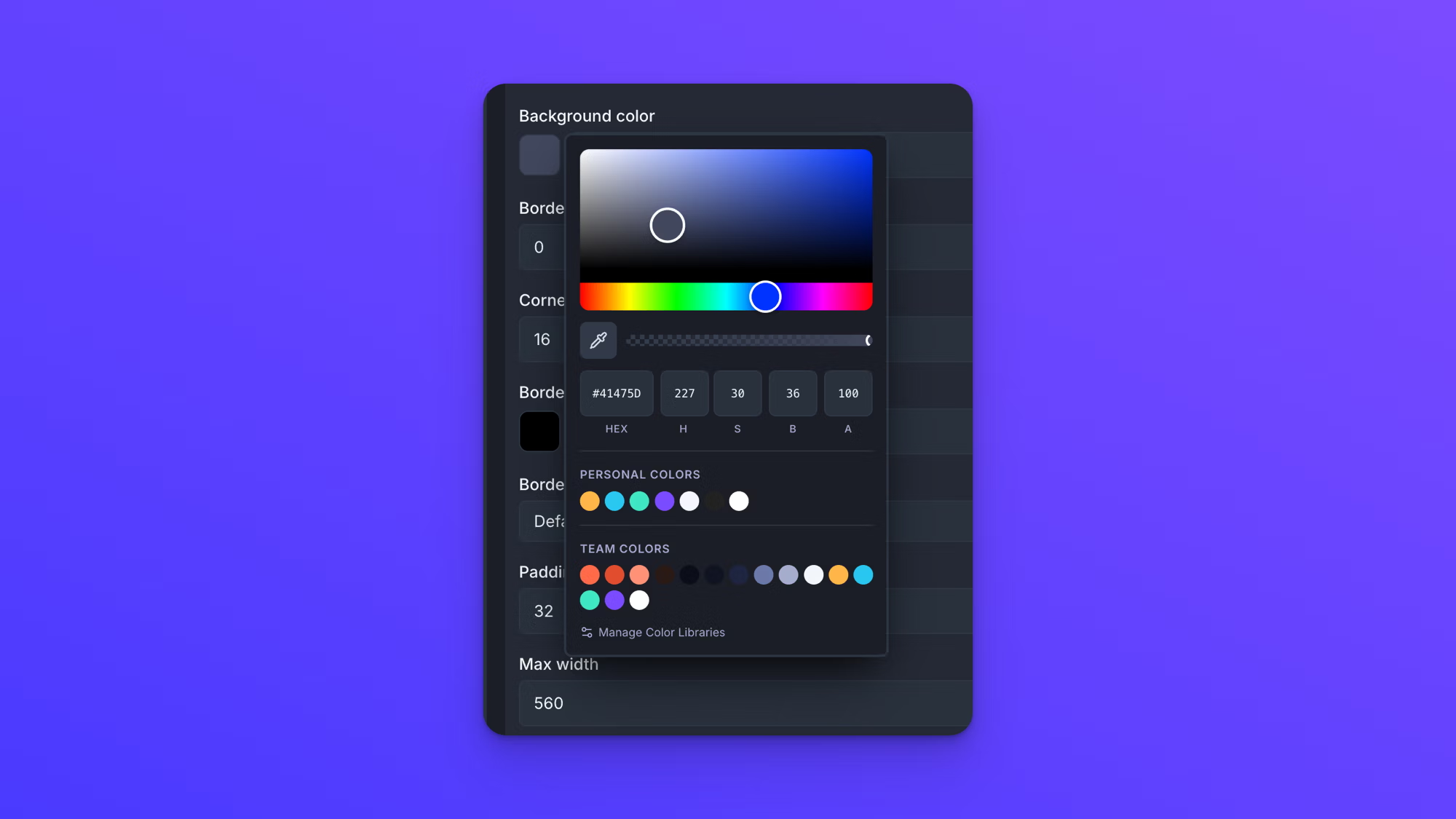
Your saved colors appear in the color pickers in a form's Style panel.
- On the Upload Forms page, open your form.
- In the Build tab's left menu, click Style.
- Open the color picker on any color setting.
Your saved colors are listed below the picker under Personal Colors and Team Colors. Click a swatch to apply that color. Manage Color Libraries at the bottom of the picker opens the Brand page in a new tab.
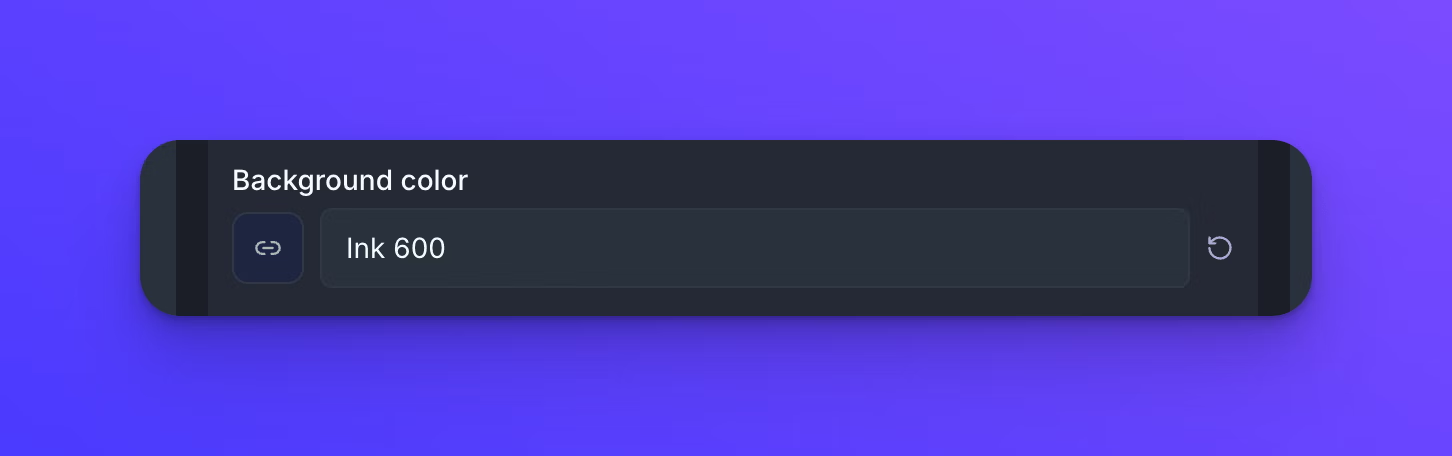
When you pick a color from one of your libraries, the field shows that color's name instead of its hex code, with a link icon on the swatch beside it. Click into the field to see the hex code again. A color you set by typing a hex code shows the hex code, even when the same color is saved in one of your libraries.
The name is worked out from your own libraries, so a teammate looking at the same form sees the hex code rather than the name when the color is in your Personal Color Library rather than the team's. The form itself looks identical to both of you.
The swatches appear on the color settings throughout the Style panel, including the custom color in Quick Settings and every color setting under Advanced Element Styling. For those two sections, see Style your form and Advanced form styling.
Rename, reorder, or delete a color
Colors are edited in place, on their own row.
To rename a color, click its name and type. The change is saved when you click away or press Enter. Renaming a color does not change any form. The name is a label for your own use and is never stored on a form.
To reorder a library, drag a row by the handle at its left. The order you set here is the order the swatches appear in the color pickers in the form builder.
To delete a color, click the trash icon at the right of its row. It is removed right away, with no confirmation step. Deleting a color does not change how any form looks. Forms that used it keep the color they are showing, and the color is no longer offered as a swatch.
Changing a color's hex code is different from the three actions above, because it changes the forms that use that color.
Change a color everywhere it is used
Changing a color's hex code updates every form that uses that color.
- In the left sidebar, under Settings, click Brand, then select the Colors tab.
- Click the color's hex code and type the new one.
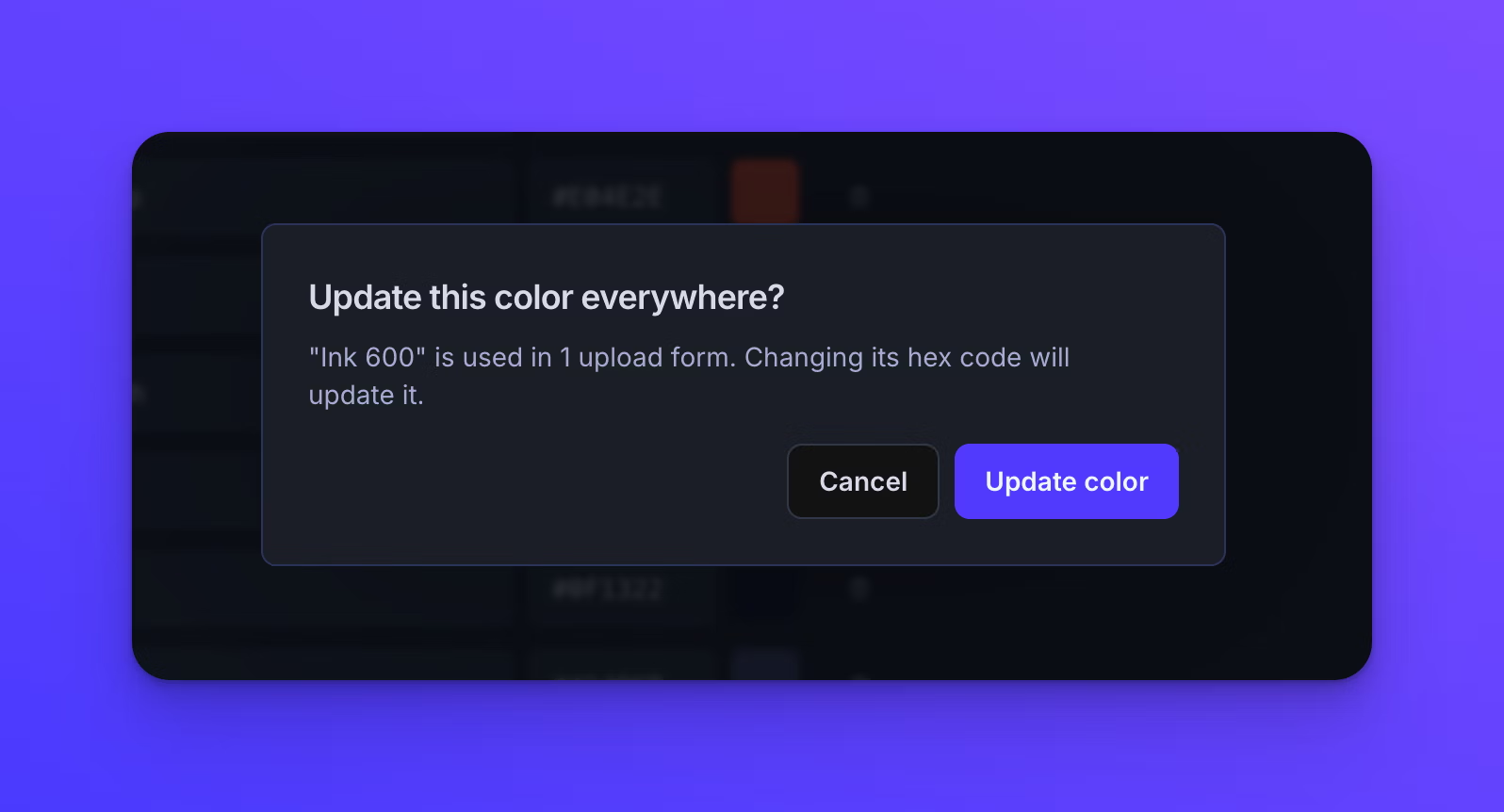
- Update this color everywhere? tells you how many upload forms use the color. Click Update color to make the change, or Cancel to leave the color as it was.
Every form using the color is updated, including forms that are already Live. Those forms do not need to be published again for uploaders to see the new color.
A form is updated when someone picked that color from a library while styling it. A color that was set by typing a hex code is left alone, even when the hex code is the same.
Behavior notes
- Your Personal Color Library belongs to your user account, so it is available in every workspace you work in.
- Any member of your team can add, edit, reorder, and delete colors in the Team Color Library, and changing one updates every one of your team's forms that uses it.
- Renaming a color changes nothing on any form, and deleting a color changes nothing on any form. Only a change to a color's hex code reaches your forms.
- Typing a hex code into a color setting does not connect that form to a saved color, even when the code matches one of your saved colors exactly. Only picking the color from the library does that.
- To hold one form to a fixed color, set that color by typing its hex code rather than picking it from the library.
- There is no limit on how many colors a library can hold.