


Connect multiple cloud accounts
Connect as many cloud accounts as you need, across any mix of providers, and point each upload form at whichever one you choose. This is useful when you keep clients, departments, or projects in separate accounts and want each form's files delivered to the right place.
Connecting multiple accounts means connecting your own accounts. EZ File Drop only delivers to accounts you connect and authorize yourself. It never reaches into anyone else's cloud storage.
Connect another account
- In the left sidebar, click Cloud Connections. Any accounts you've already connected appear under Your Connections.
- Click Connect new cloud account.
- Choose the provider you want, then complete that provider's connection steps.
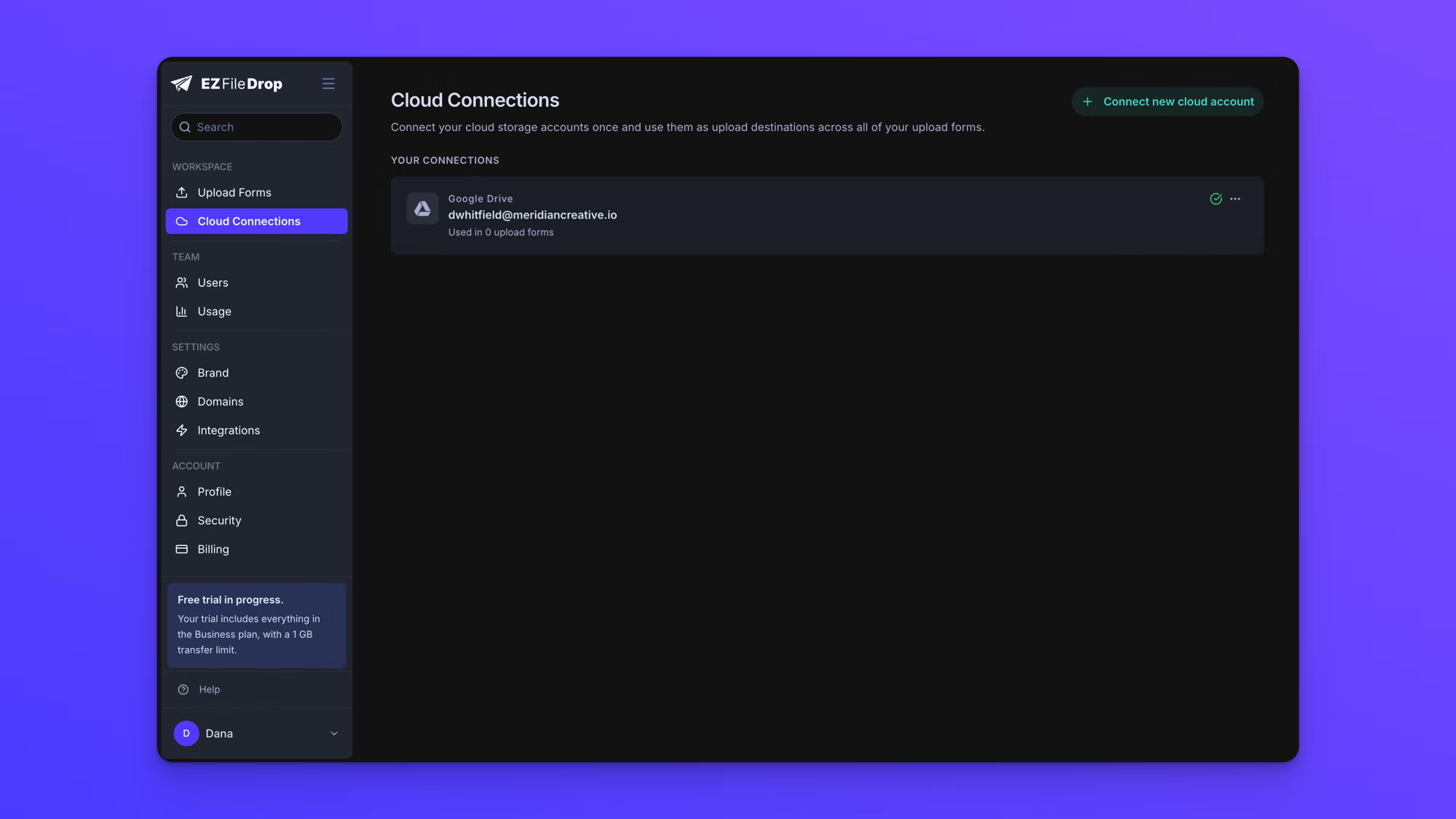
You can repeat this for accounts on the same provider or different providers. For example, you can connect two separate Google Drive accounts, or a Google Drive account and a Dropbox account, side by side. For the steps to connect each provider, see the individual connection docs.
Route a form to a specific account
Each form delivers to one destination that you pick when you build it.
- Open the form you want, then go to its Build tab.
- Choose the destination account from your connected accounts.
- Publish the form.
Different forms can use different accounts. One form can deliver to a client's Dropbox while another delivers to your own Google Drive, all from the same login.
Naming and telling accounts apart
Each connection shows the provider and the account it belongs to, so two accounts on the same provider are easy to tell apart when you pick a destination. Connect each account under the login that owns it.