


Form statuses
Every upload form has a status. A form is either Live or in Draft, and its status tells you which. A Live form has a working link that people can use to upload files. A form in Draft already has its link too, but until you publish, anyone who opens it sees a short message that the form is not accepting submissions yet. Once a form is Live, its status also tells you whether your latest edits are live or still waiting to be published. There are three statuses in all: Draft, Live, and Live with unpublished changes.
Where you see a form's status
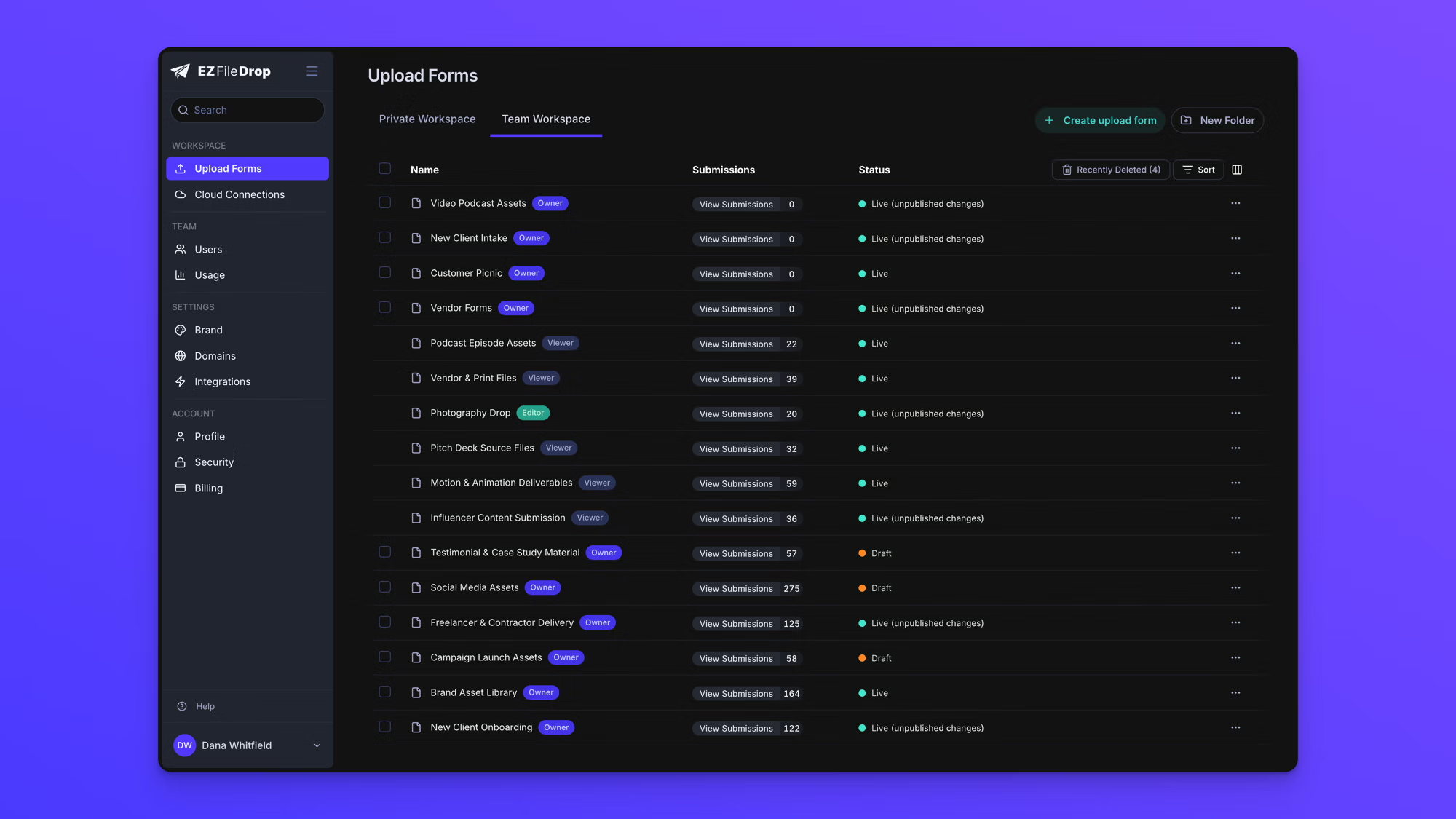
You can see a form's status in two places. On the Upload Forms page, each form lists its status alongside its name and submission count.
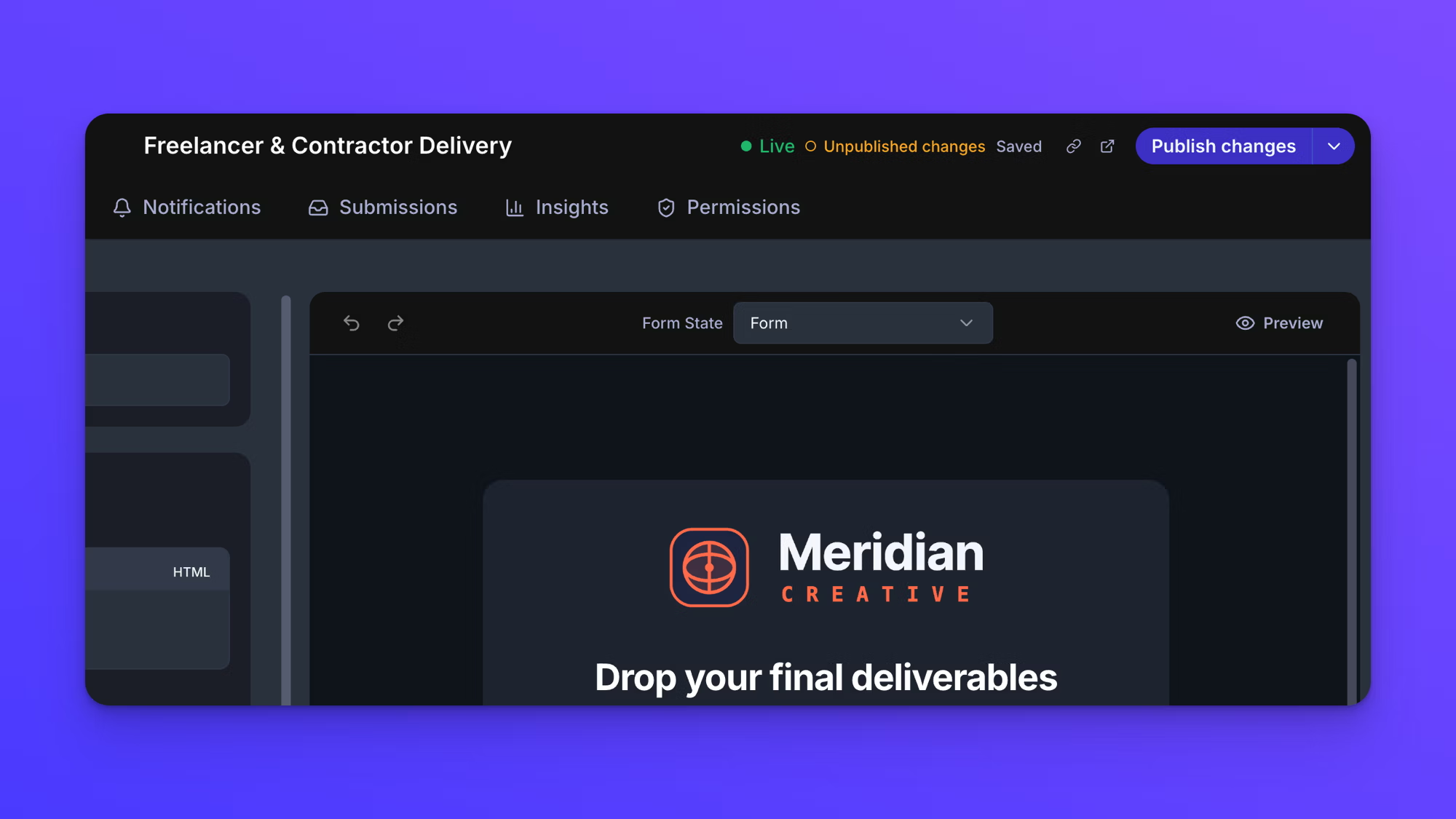
When you open a form in the builder, its current status shows in the top right, next to the Saved indicator and the Publish button.
Draft
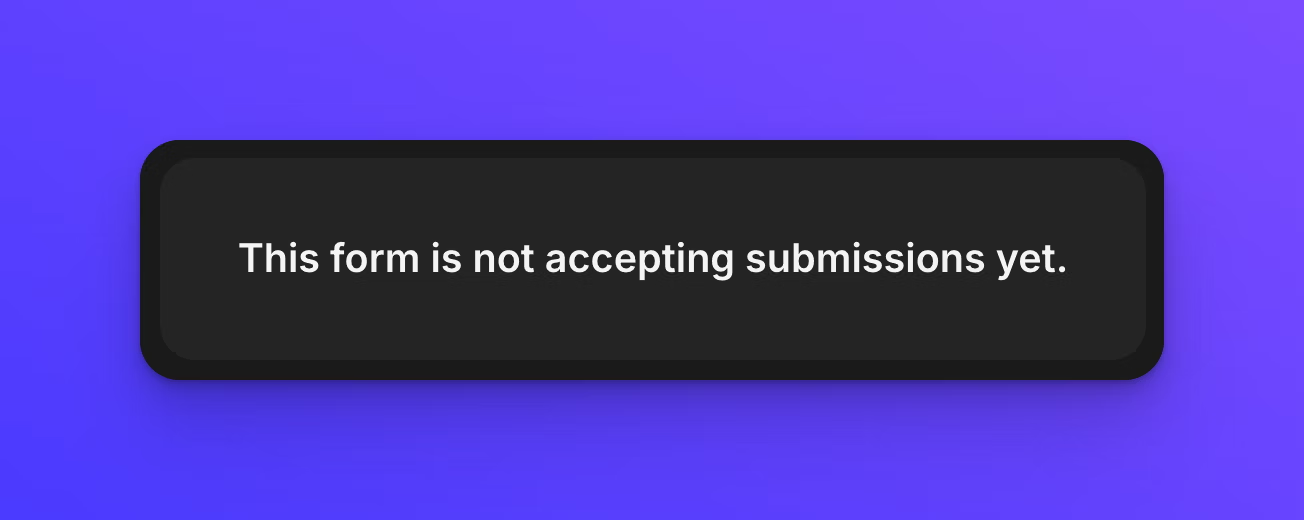
A Draft form has not been published yet. Its link is already active, but anyone who opens it sees a message that reads "This form is not accepting submissions yet." instead of the upload form. Every new form starts as a Draft, and it stays a Draft until you publish it for the first time. Draft is shown with an amber dot next to the word Draft.
While a form is a Draft you can build and edit it freely. None of your changes are visible to anyone until you publish, so a Draft is the safe place to set up a form before it goes live.
Live
A Live form is published. Its link works, and anyone you share it with can upload files that are delivered to the form's upload destination. Live is shown with a green dot next to the word Live.
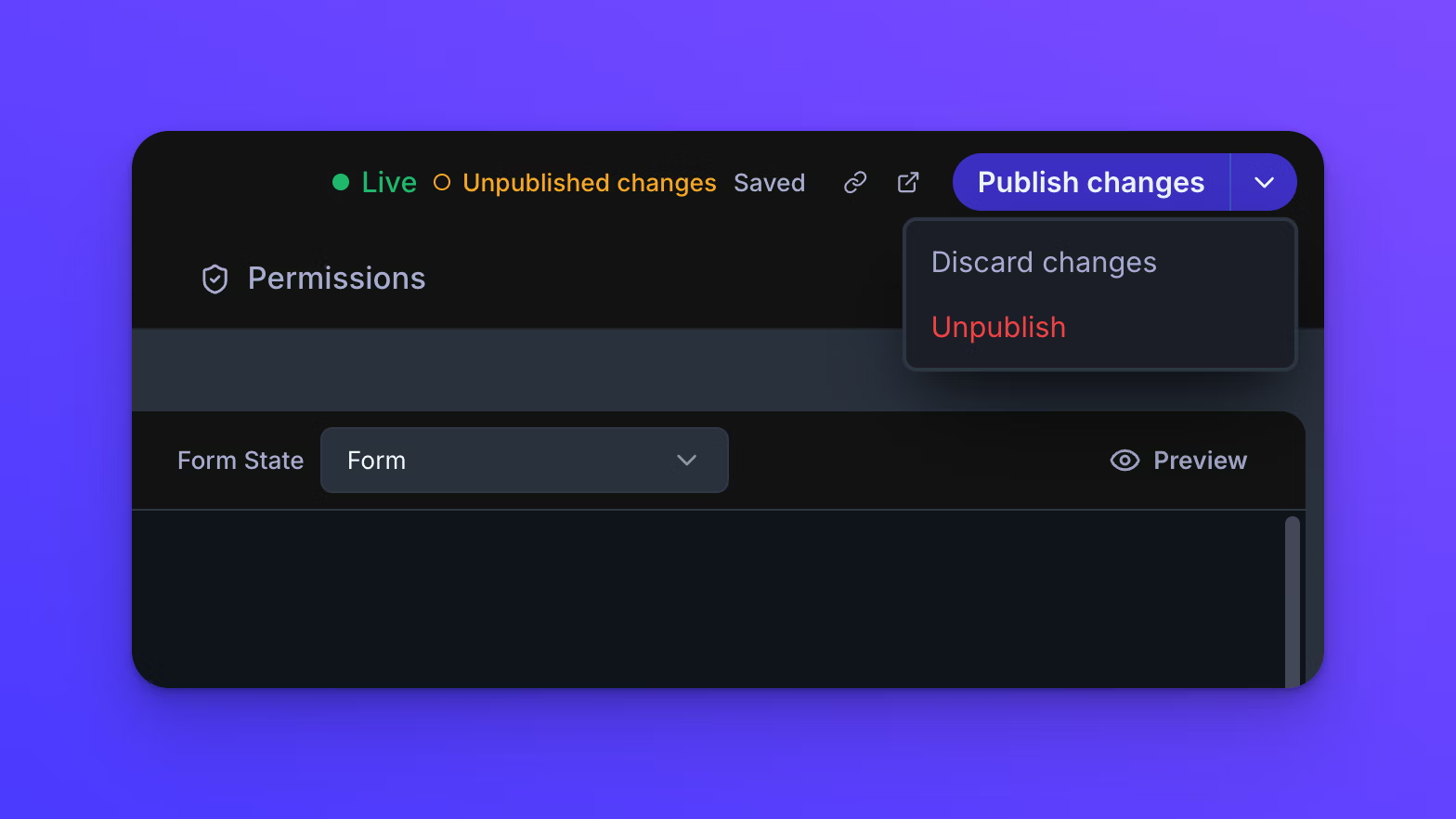
A form becomes Live the first time you click Publish in the form builder. It stays Live until you unpublish it. To unpublish a Live form, click the dropdown arrow beside the publish button, then click Unpublish and confirm. Unpublishing returns the form to Draft, so its link shows the not-accepting-submissions message again until you publish it another time.
Live with unpublished changes
When you edit a form that is already Live, the form stays Live and its link keeps working on the last published version, while your new edits are saved but not yet published. The form builder shows the form is Live alongside an "Unpublished changes" note, marked with a hollow amber dot, the same color as the Draft dot but unfilled, and the publish button reads Publish changes.
This means editing a Live form never takes it offline. Uploaders continue to see and use the last published version until you click Publish changes, at which point your edits go live.
Saved is not the same as published
The builder shows "Saving…" while your latest edits are being stored, then "Saved" once they are. Neither shows when there is nothing to save. Saved is not the same as published. Saved means your work is kept so you will not lose it. Published means your edits are live for uploaders. A Live form with unpublished changes is fully saved but not fully published, which is why the builder shows both the Saved indicator and the Unpublished changes note at the same time.
If you leave a form that has unpublished changes, a "You have unpublished changes" dialog stops you on the way out. It confirms the form is still live and working, that your edits are saved but not yet visible to uploaders, and offers Keep editing, Leave without publishing, and Publish changes. It appears when you leave the form entirely, not when you move between its tabs.