


Static IP delivery
Static IP delivery sends your team's FTP, FTPS, and SFTP deliveries from two static IP addresses, so a server that only accepts connections from known IP addresses can receive your files. Static IP delivery is an add-on for the Business and Premium plans.
Some FTP, FTPS, and SFTP servers only accept connections from IP addresses on an allowlist. This is common when an IT team manages the server. Without static IP delivery, EZ File Drop's deliveries don't come from a fixed address, so a server set up this way turns them away.
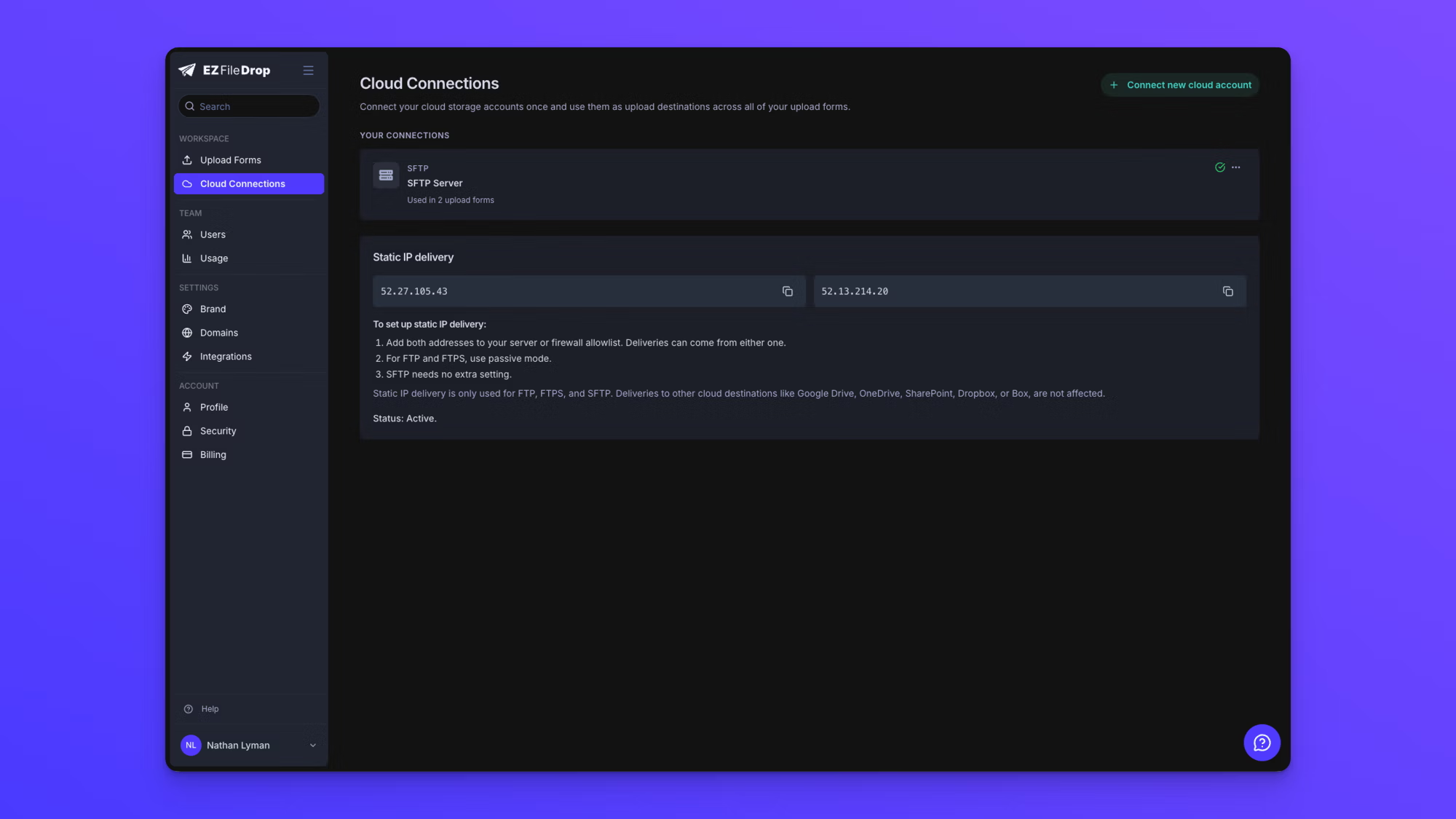
With static IP delivery on, every FTP, FTPS, and SFTP delivery from your team comes from one of these two static IP addresses:
- 52.27.105.43
- 52.13.214.20
Add both to your server's allowlist. A delivery can come from either address, so both need to be allowed.
What static IP delivery covers
Static IP delivery covers every FTP, FTPS, and SFTP connection on your team, on every upload form, in every workspace. There is no setting to turn it on for a single form or a single connection.
Test Connection and folder browsing for FTP, FTPS, and SFTP connections also run from the static IP addresses. So once you've added both addresses to your allowlist, you can click Test Connection to check that your server accepts them. A passing test means your server is letting EZ File Drop connect.
Deliveries to Google Drive, OneDrive, SharePoint, Dropbox, and Box don't use the static IP addresses and work exactly as before. Static IP delivery also doesn't cover webhooks, Zapier, notification emails, or the uploader's own upload to EZ File Drop. It only covers the delivery from EZ File Drop to your FTP, FTPS, or SFTP server.
Turn on static IP delivery
Only team owners can turn on static IP delivery, and your team needs to be on a paid Business or Premium plan. Static IP delivery isn't available during the free trial.
- In the left sidebar, click Cloud Connections.
- Find the static IP delivery panel on your first FTP / SFTP connection and click [button label]. The panel's Learn more link opens this page.
- Review the Add static IP delivery? dialog. It shows the price, today's prorated charge, the included usage, and the overage rate.
- Click [confirm button label].
Static IP delivery starts right away. The Cloud Connections page then shows a Static IP delivery section with both addresses, a copy button next to each, short setup steps, and the status.
A user who isn't a team owner sees "Your team owner can turn this on." in the panel instead of the button.
Set up your server
Your server or firewall must allow connections from both static IP addresses before deliveries from EZ File Drop can get through.
- Add both 52.27.105.43 and 52.13.214.20 to your server or firewall allowlist.
- For FTP and FTPS, use passive mode, and allow your server's passive port range from both addresses. SFTP needs no extra setting.
- In EZ File Drop, run Test Connection on your connection. The test connects from the static IP addresses, so a passing test means your server is letting EZ File Drop connect.
Connect a server that already uses an allowlist
If your server already only accepts allowlisted IP addresses and isn't connected to EZ File Drop yet, turn on static IP delivery before you add the connection. A connection can only be saved after Test Connection passes, and Test Connection only runs from the static IP addresses once static IP delivery is on.
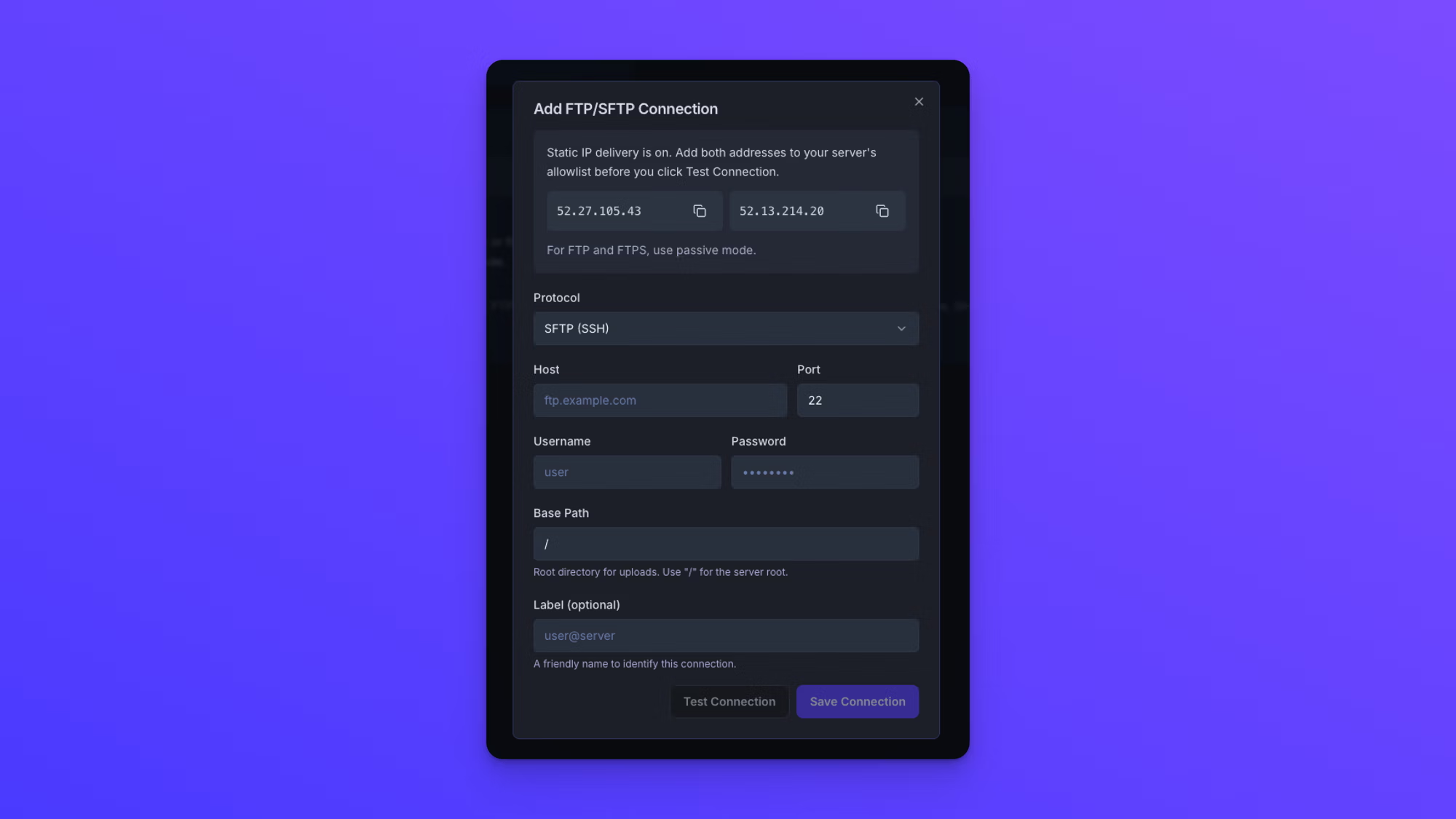
While static IP delivery is on, the Add FTP/SFTP Connection window lists both addresses at the top, each with a copy button, along with the note "Static IP delivery is on. Add both addresses to your server's allowlist before you click Test Connection." Allow both addresses on your server first, then fill in the connection details and click Test Connection. For the full connection steps, see Connect an FTP or SFTP server.
Pricing
Static IP delivery is an add-on with its own price on each plan:
- Business: $100 a month or $1,000 a year, with 100 GB of static IP delivery usage included each month.
- Premium: $200 a month or $2,000 a year, with 1 TB of static IP delivery usage included each month.
Static IP delivery is billed on the same schedule as your plan: monthly on a monthly plan, yearly on an annual plan. The first charge is prorated for the rest of your current billing period, and the Add static IP delivery? dialog shows that prorated amount before you confirm.
Static IP delivery usage above the included amount is billed at $10 per additional 50 GB, after the month ends. This is separate from the overage on your plan's monthly upload allowance, which is $15 per 50 GB. A team that goes over both in the same month pays $25 for each additional 50 GB: $15 for the upload allowance and $10 for static IP delivery.
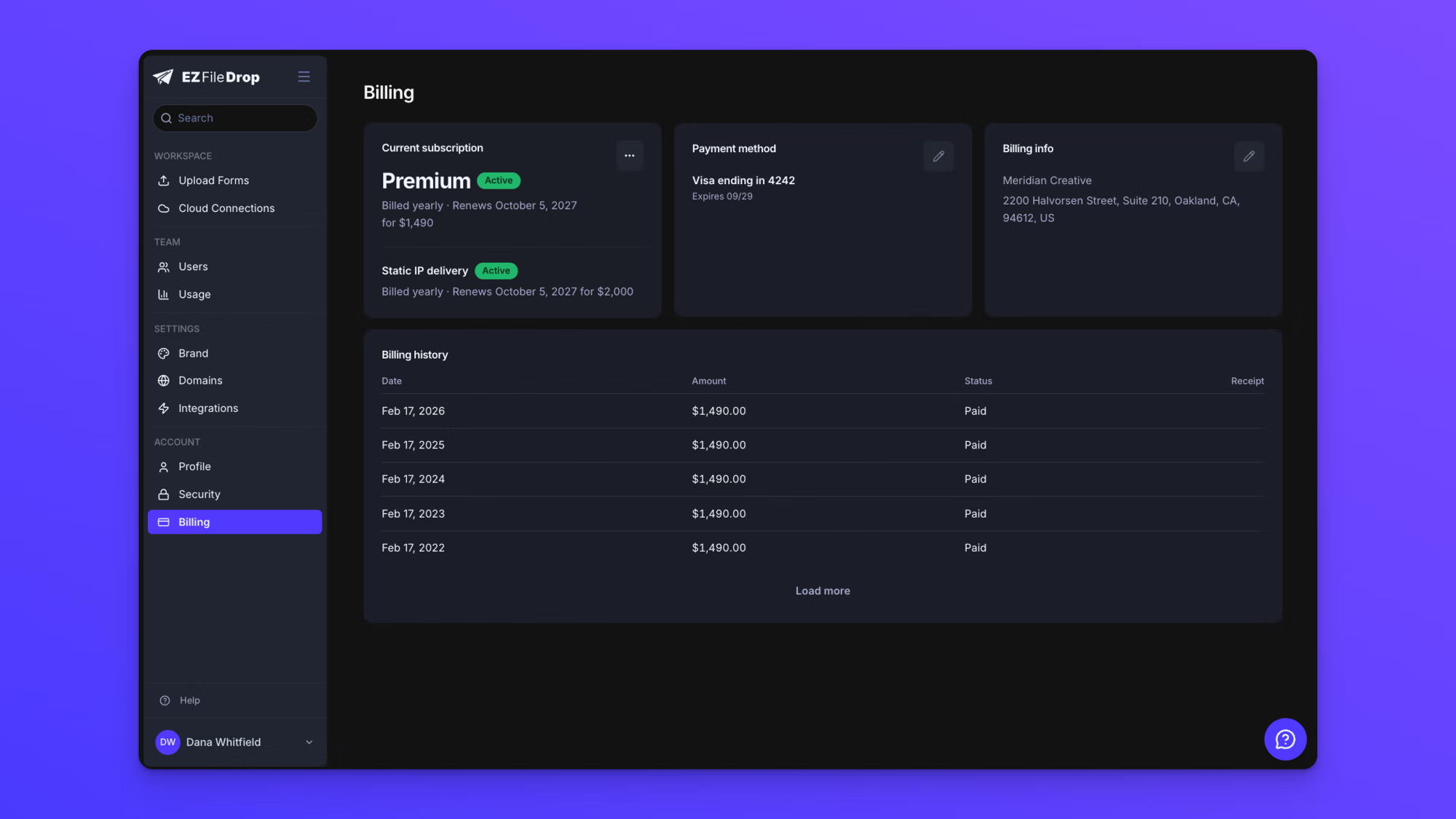
Once static IP delivery is on, it appears as its own line on the Current subscription card on the Billing page, with an Active badge, how it's billed, its renewal date, and its price.
Static IP delivery usage
Each plan includes a monthly amount of static IP delivery usage: 100 GB on Business and 1 TB on Premium. Usage is the total size of the files delivered through static IP delivery in a calendar month, measured in UTC. Each file is counted once, when its delivery succeeds, so retrying a delivery doesn't count it twice. Included usage resets on the 1st of each month.
Static IP delivery usage is tracked separately from your plan's monthly upload allowance, and both apply. A file delivered to an FTP, FTPS, or SFTP server with static IP delivery on counts toward the upload allowance when the uploader finishes sending it, and toward static IP delivery usage when it's delivered.
To check your static IP delivery usage, click Usage in the left sidebar under TEAM.
Cancel static IP delivery
Only team owners can cancel static IP delivery. It's managed from the Billing page, where it appears as its own line on the Current subscription card with its renewal date and price.
- In the left sidebar under ACCOUNT, click Billing.
- Click the three-dot button on the Current subscription card.
- Click [cancel option label].
Static IP delivery stays on until the end of your current billing period, then ends. There's no refund for the rest of the period. Until the end date, the static IP delivery line on the Current subscription card reads "Ends on" followed by the date, and "It won't renew."
EZ File Drop sends an email confirming the cancellation, a reminder 7 days before static IP delivery ends, and a final email once it has ended.
Keep static IP delivery after cancelling
You can keep static IP delivery at any point before its end date. Click the three-dot button on the Current subscription card and click [keep option label]. Keeping it costs nothing extra at that moment, and it renews on its normal schedule.
When static IP delivery ends
When static IP delivery ends, FTP, FTPS, and SFTP deliveries go back to coming from EZ File Drop's regular network, which doesn't use static IP addresses. If your server only accepts allowlisted addresses, deliveries to it fail from that date. Once static IP delivery has ended, you can remove 52.27.105.43 and 52.13.214.20 from your allowlist.
Static IP delivery also ends if your whole subscription ends, on the same date. Moving to the Starter plan ends it at the end of your billing period, and the Starter downgrade dialog says "Static IP delivery will be disabled."
How the static IP addresses work
The two static IP addresses are used for every EZ File Drop customer who has static IP delivery. They aren't unique to your account. Adding them to your allowlist tells your server to accept connections from EZ File Drop's delivery system. Your server's own username, password, and folder permissions still decide who can sign in and what can be written, so nobody can reach your server just by connecting from the same addresses.
Deliveries run from two separate locations, each with its own address, so there's always a backup path. That's why both addresses need to be allowed.
Files take the same path as always. A file travels over an encrypted connection to a private staging area, gets delivered to your server, and the staged copy is then removed. SFTP and FTPS encrypt your credentials and files in transit to your server. Plain FTP does not, so SFTP or FTPS is recommended.
If Test Connection fails
If Test Connection fails after you turn on static IP delivery, check that both static IP addresses are allowed on your server or firewall, not just one. For FTP and FTPS, also check that passive mode is on and that your server's passive port range is allowed from both addresses. Then run Test Connection again.
If you contact support about a connection that still fails, include the connection's name and the message Test Connection shows.
Behavior notes
- A server that is only reachable over a VPN or an internal network can't receive deliveries, with or without static IP delivery. The server must be reachable from the public internet on its FTP, FTPS, or SFTP port, with both static IP addresses allowed.
- If deliveries to an allowlisted server start failing from a particular date, check the Billing page. If static IP delivery has ended, deliveries now come from addresses your server doesn't accept.
- When a delivery fails because the server turned it away, the files stay in staging, so you can retry the delivery for up to 30 days once both addresses are allowed.
- Static IP delivery is on or off for the whole team. While it's on, every FTP, FTPS, and SFTP connection, on every form and in every workspace, uses it.
- Static IP delivery usage is measured by calendar month in UTC, not by your billing cycle.
- Only team owners can turn on, cancel, or keep static IP delivery.