


Manage users
Team access lets you add up to 20 users to your EZ File Drop team. Each user signs in with their own account, connects their own cloud accounts, and gets their own private workspace. Team access is available on the Business and Premium plans.
Only team owners can invite users, delete users, or change a user's role.
Roles on a team
There are two roles on an EZ File Drop team: Team Owner and Team Member. Team owners can open the Users page, invite and delete users, change other users' roles, and manage billing. Team members cannot do any of those things, and the Users page does not open for them.
Everything beyond those account-level powers is controlled form by form through each form's permissions rather than by role. Being a team member does not limit what a user can be given access to.
A team can have more than one team owner, so the account is not tied to a single user. A team must always keep at least one.
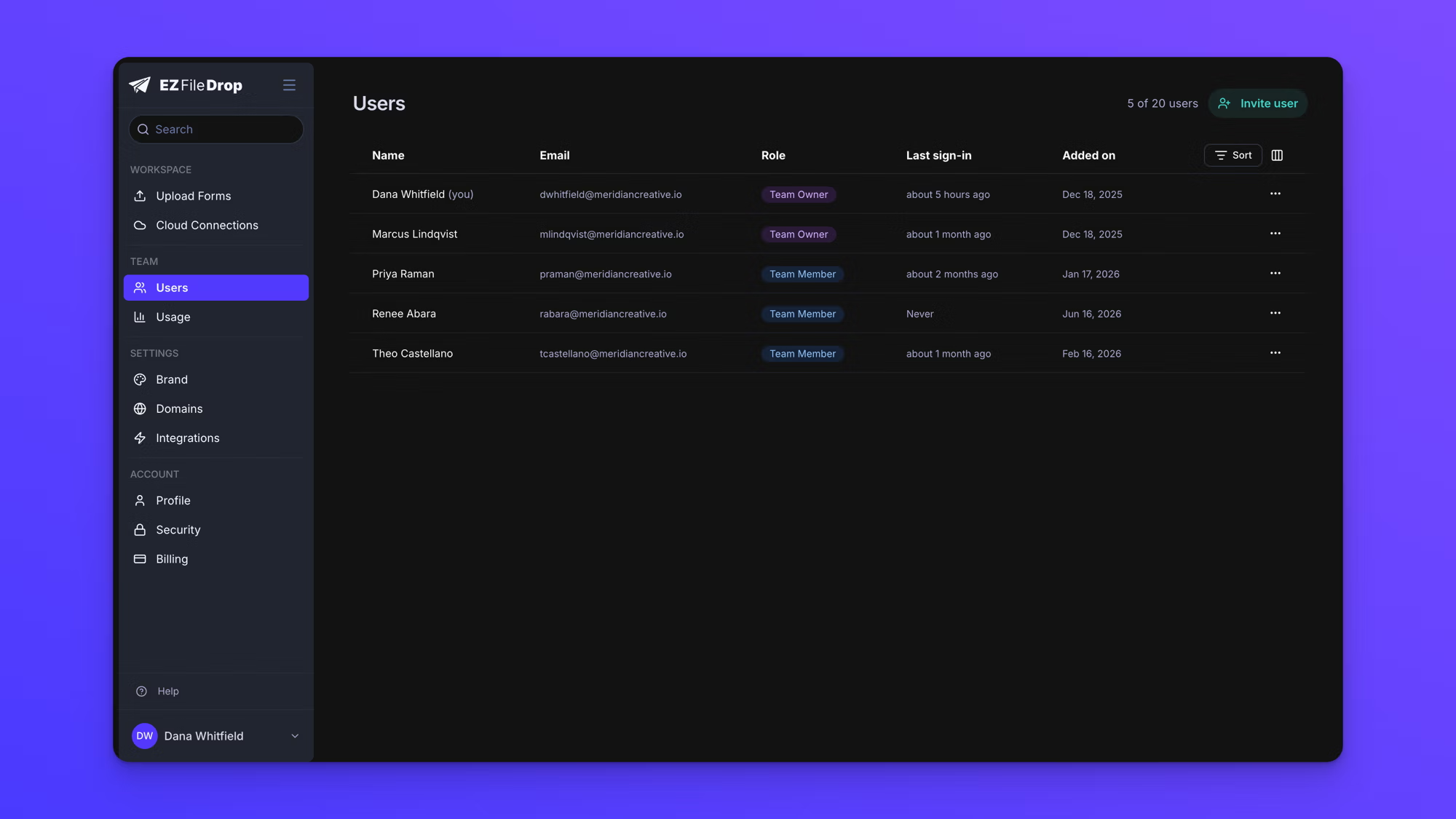
Invite a user to your team
- In the left sidebar under TEAM, click Users.
- Click Invite user.
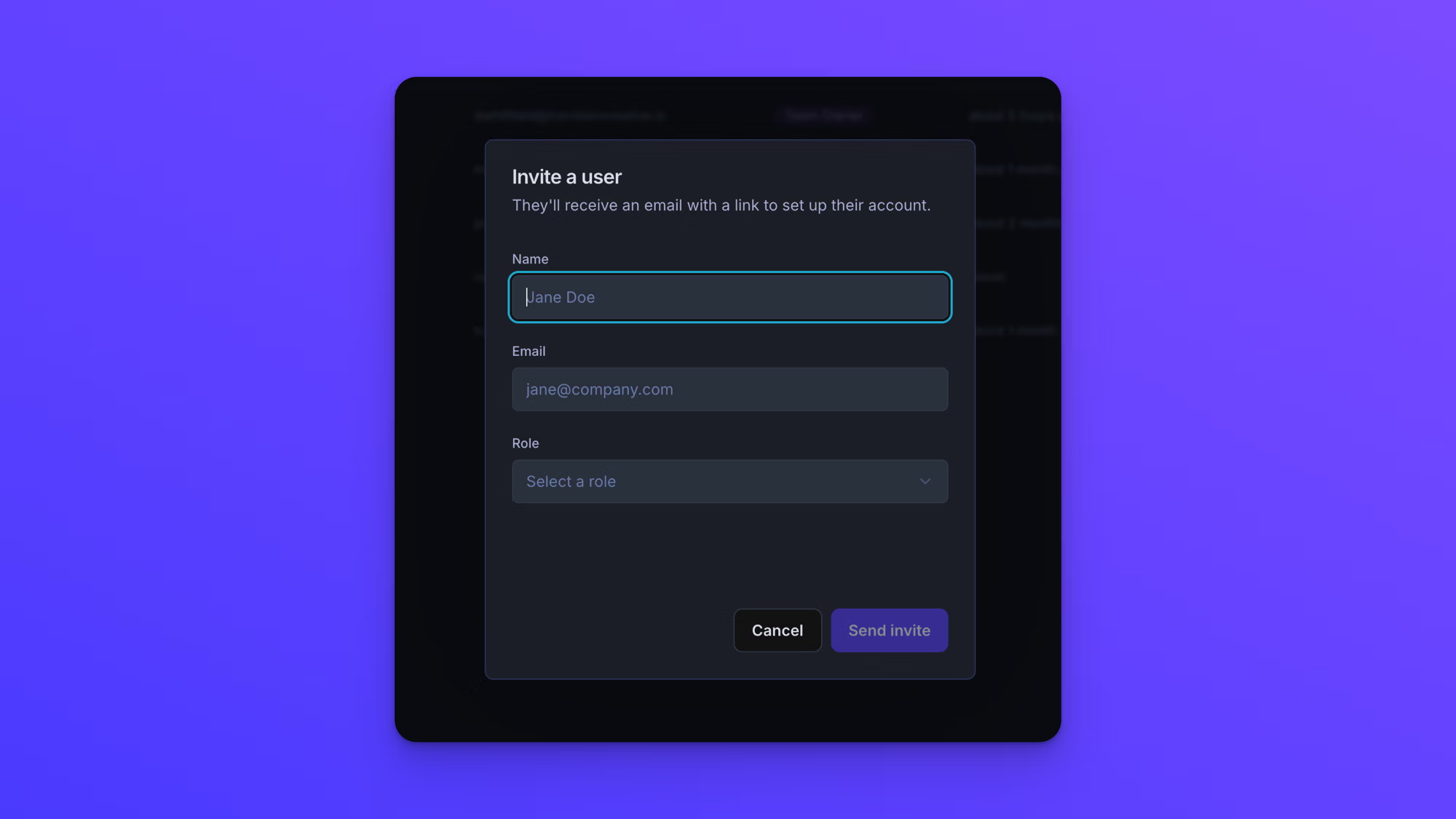
- Enter the user's Name and Email.
- Open the Role dropdown and choose Team Member or Team Owner.
- Click Send invite.
The invitation email arrives with the subject "You've been invited to" followed by your team name, and a button reading "Accept invite & set up account". The user sets their own password when they accept. The link expires 10 days after you send it.
Track pending invites
An invitation appears in the users list as soon as you send it. A pending invitation shows an amber dot to the left of the name, with the tooltip "Pending invite", and a dash in its Last sign-in column until the user accepts. An invitation past its 10-day window shows a red dot and the tooltip "Expired invite".
The three-dot button at the end of a pending invitation's row offers Resend invite, Copy invite link, a role change, and Cancel invite. Resend invite issues a fresh link and restarts the 10-day window. The option is then unavailable for 60 seconds, and counts down the wait before you can send again.
Cancel invite withdraws the invitation and removes the row.
Change a user's role
- In the left sidebar under TEAM, click Users.
- Find the user's row and click the three-dot button at the end of it.
- Click Make Team Owner to promote a team member, or Change to team member to remove a team owner's account-level powers.
The change takes effect immediately. The same menu works on a pending invitation, so you can correct a role before the user has accepted.
You cannot demote the last remaining team owner. Trying to returns "Your team must have at least one Team Owner. Promote another user to Team Owner first."
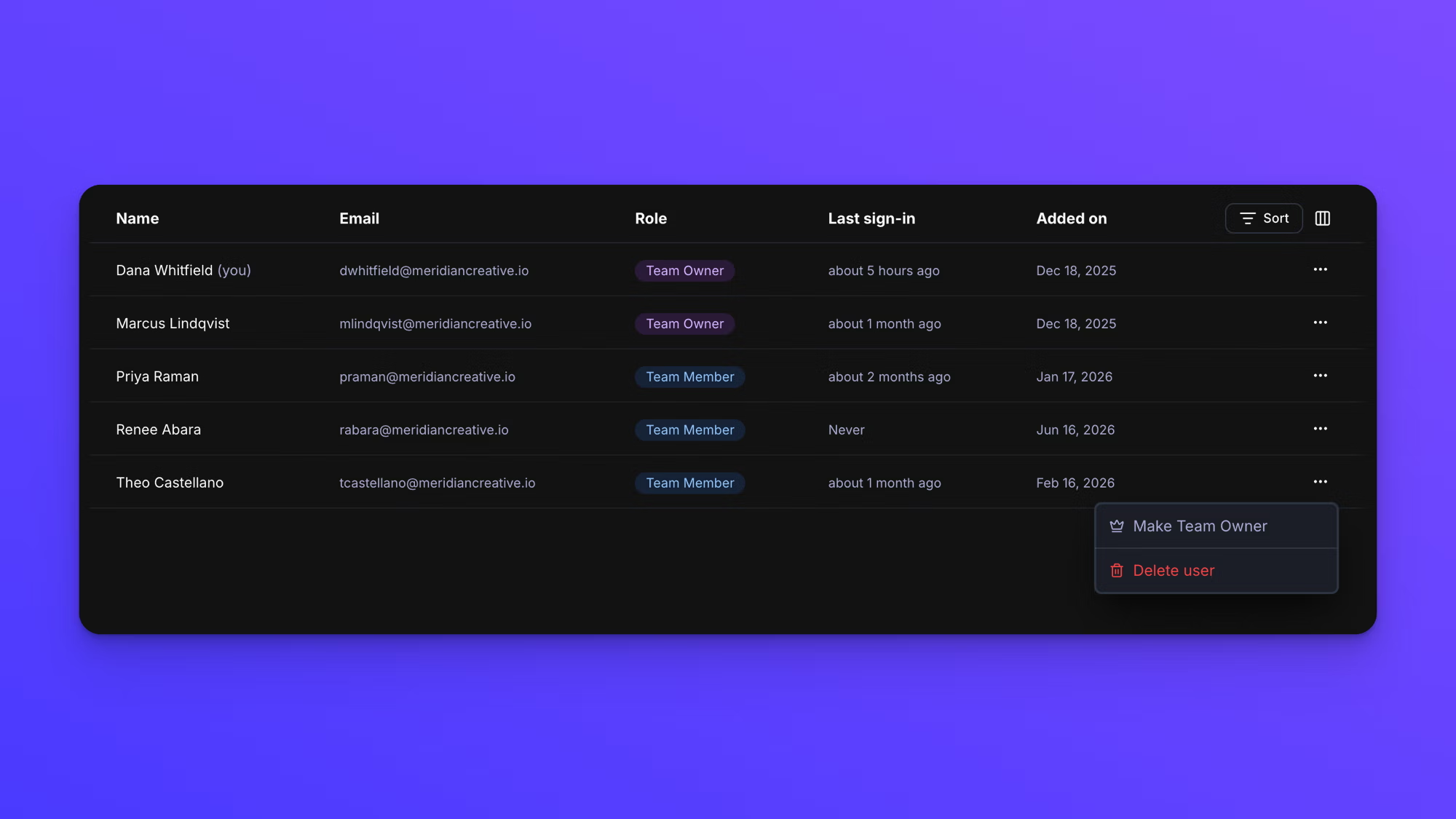
Read the users list
The users list has five columns: Name, Email, Role, Last sign-in, and Added on. "Never" in the Last sign-in column means the user has accepted their invitation and has an account, but has not signed in yet. That is different from a pending invitation, which shows a dash.
Sort orders the list by Name, Email, Role, Added on, or Last sign-in, with a direction control underneath.
The column control next to Sort decides which columns are shown and in what order. Name and Role are always shown. Email, Added on, and Last sign-in can be hidden, and dragged into a different order.
Seats and the user limit
The count at the top of the Users page reads "5 of 20 users" or similar. Business and Premium include up to 20 users. There is no per-seat charge, so a team of 3 and a team of 20 cost the same.
Pending invitations count against the total, because the seat is reserved when you send the invitation rather than when the user accepts. When every seat is taken, Invite user stops working and explains "Your team has reached its user limit. Delete or expire a user to free up a seat."
Team access on the Starter plan
Starter is a single-user plan and does not include team access. On Starter the Users page reads "No teammates yet" and explains that teams on a Business or Premium plan can add up to 20 users, with a link to switch plans. There is no Invite user button.
Behavior notes
- The Team Workspace tab on the Upload Forms page appears only once a second user exists on your team. Until then the page shows your private workspace on its own.
- Each user on the team connects their own cloud accounts. A form's files are delivered to whichever connected account is chosen in that form's upload destination settings, and that is not always the account of the user who built the form. It is worth checking on shared forms.
- The monthly upload limit covers the whole team rather than being divided per user.
- Team members cannot open the Users page.