


Password-protect a form
A password controls who can open your upload form. Anyone who follows the link is asked for the password before they can see the form or send you anything. Password protection is available on the Business and Premium plans.
You need an upload form to work in. If you have not made one yet, start with Create your first upload form.
Turn on password protection
- On the Upload Forms page, open your form.
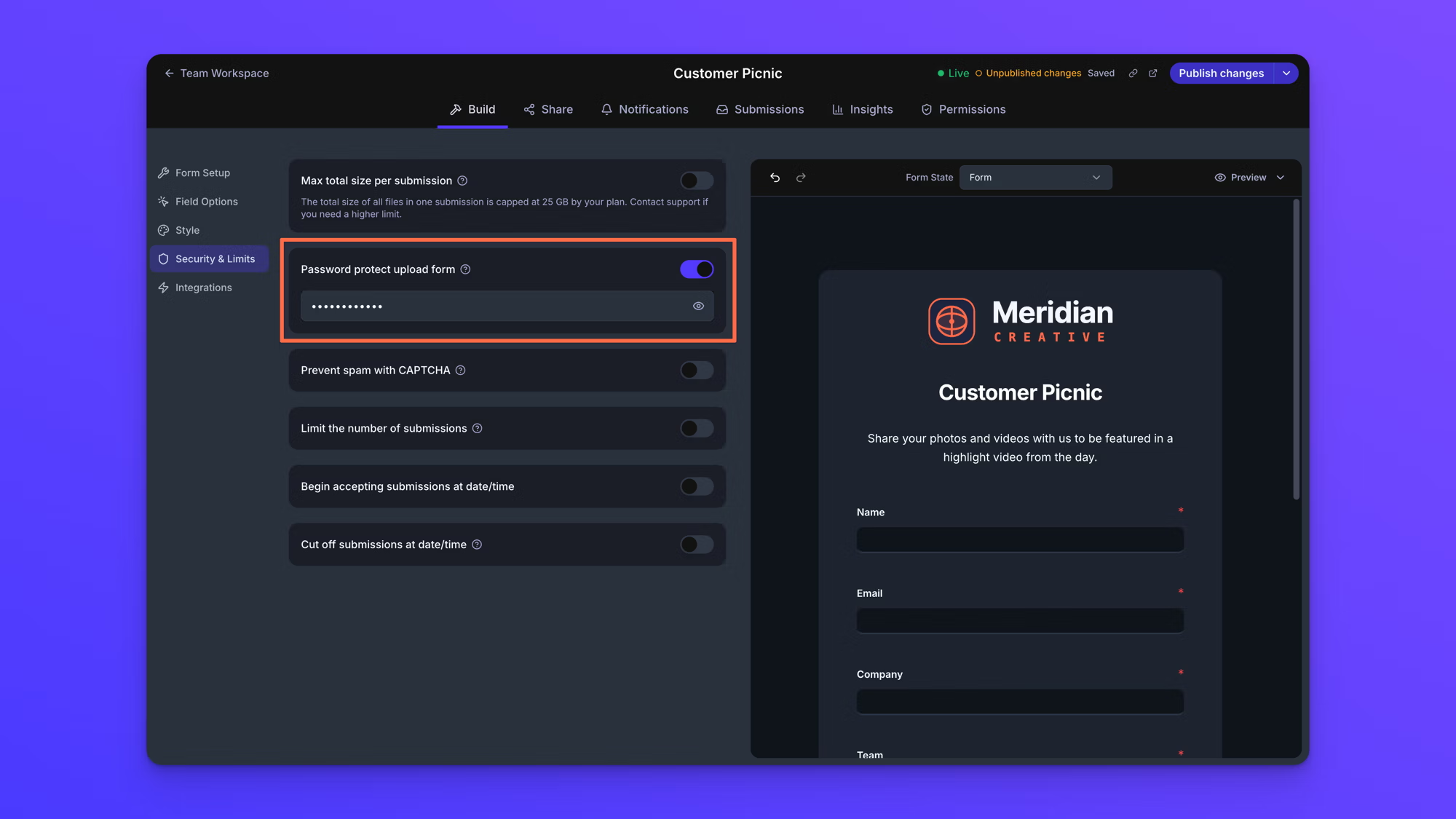
- In the Build tab, open Security & Limits.
- Turn on Password protect upload form.
- Type a password in the field that appears below the switch.
- Select Publish to make the change live.
The password takes effect for uploaders once the form is published. Until then the published form keeps working the way it did before.
See the password you set
The password field hides what you typed. Select the eye icon at the right of the field to show it. On a form whose password was set some time ago, the eye icon reports that the existing password can't be revealed. Type a new password over it to replace it.
Give the password to your uploaders yourself. EZ File Drop does not put it in the share link, and does not send it to anyone.
What uploaders see
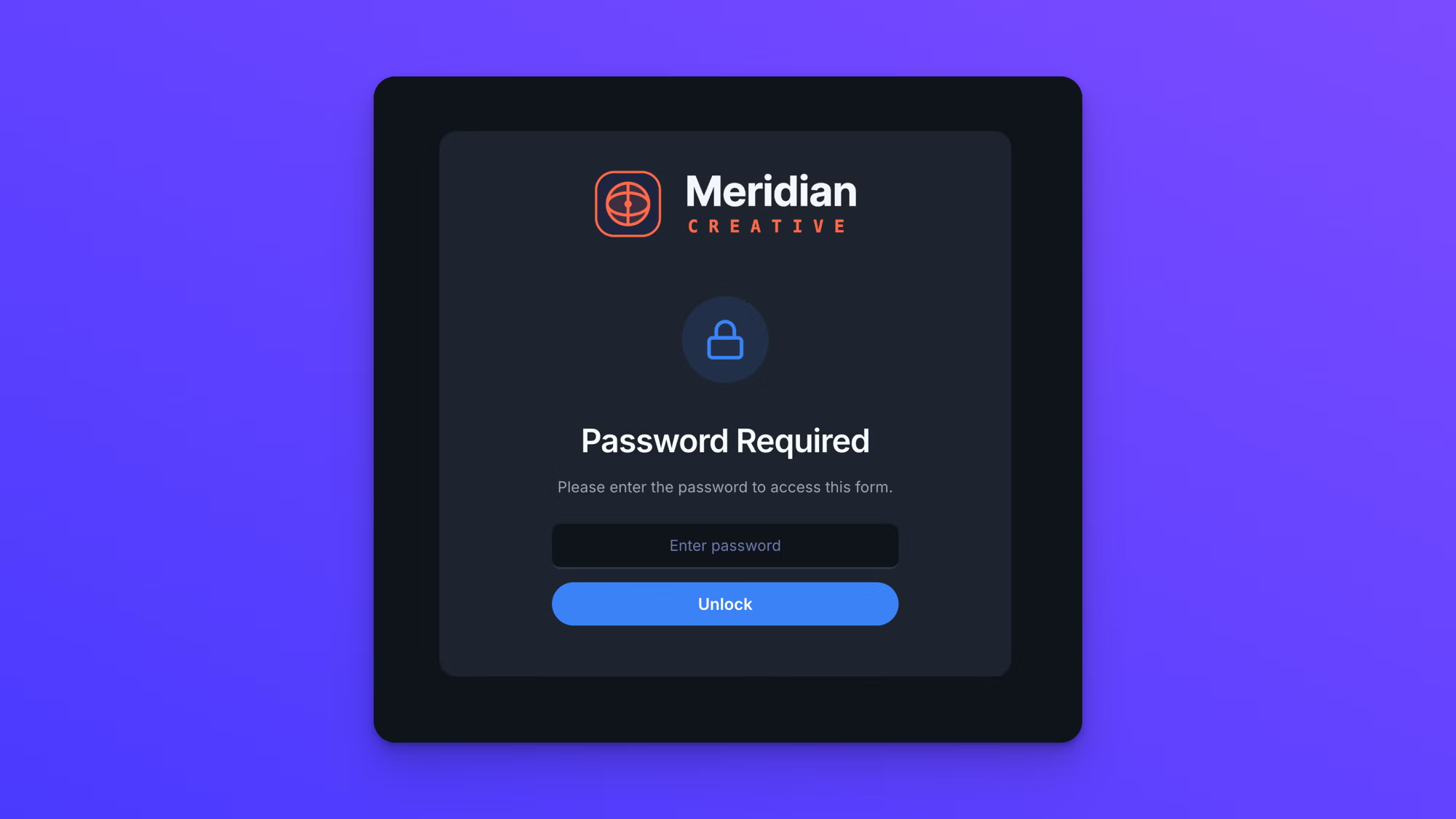
Instead of the form, uploaders get a card with your logo, the heading "Password Required", and the line "Please enter the password to access this form." They type the password into the field marked "Enter password" and select Unlock.
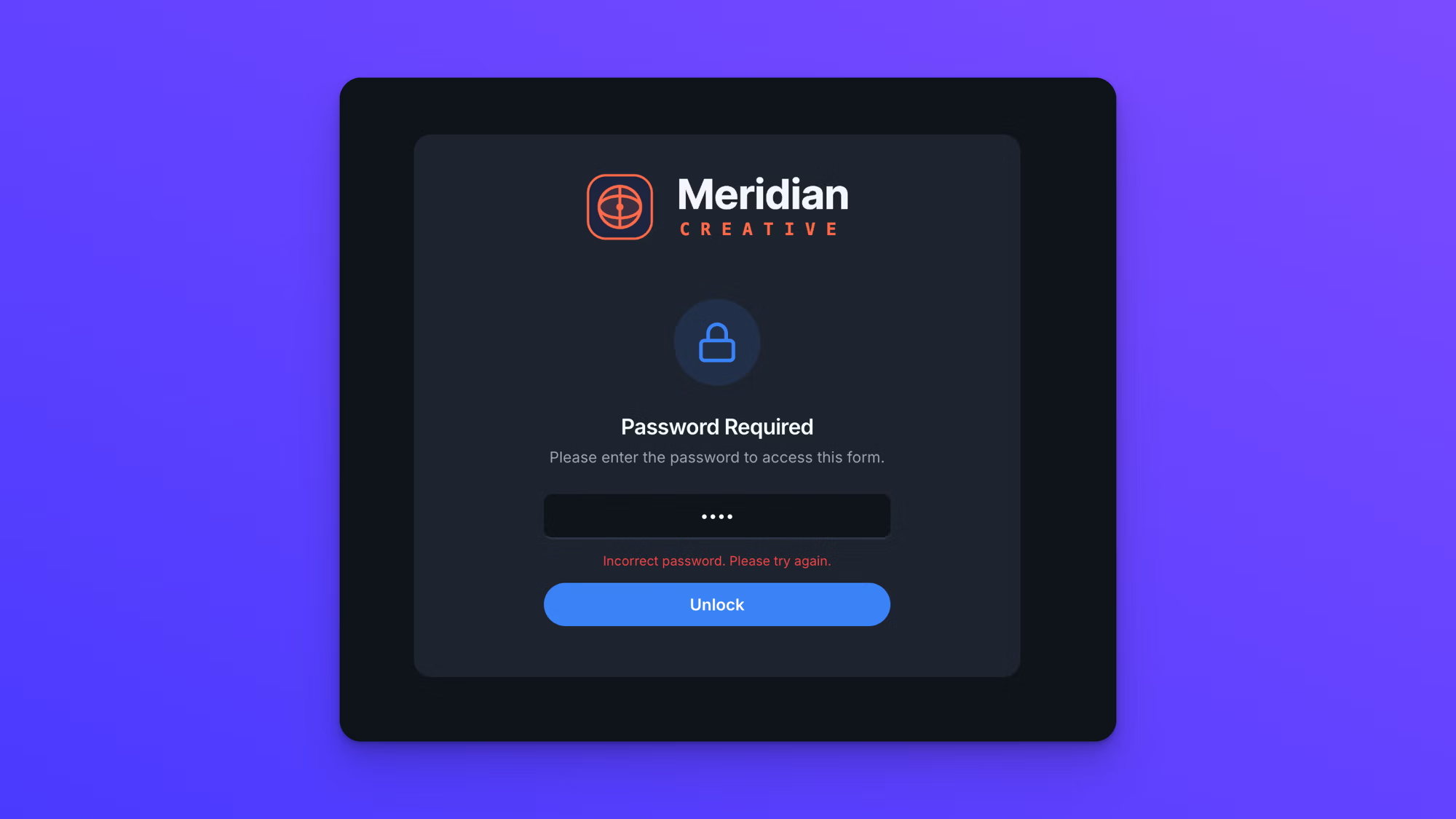
A wrong password leaves them on the same card with "Incorrect password. Please try again." in red beneath the field. They can try again straight away.
Uploaders enter the password every time
Unlocking a form lasts for that page view only. If an uploader reloads the page, opens the form in a new tab, or comes back tomorrow, they enter the password again.
Turn off password protection
Turn off Password protect upload form and publish the form. Uploaders reach the form without being asked for anything. Turning the switch off also clears the password you set, so turning protection back on later means choosing a new one.
Style the password screen
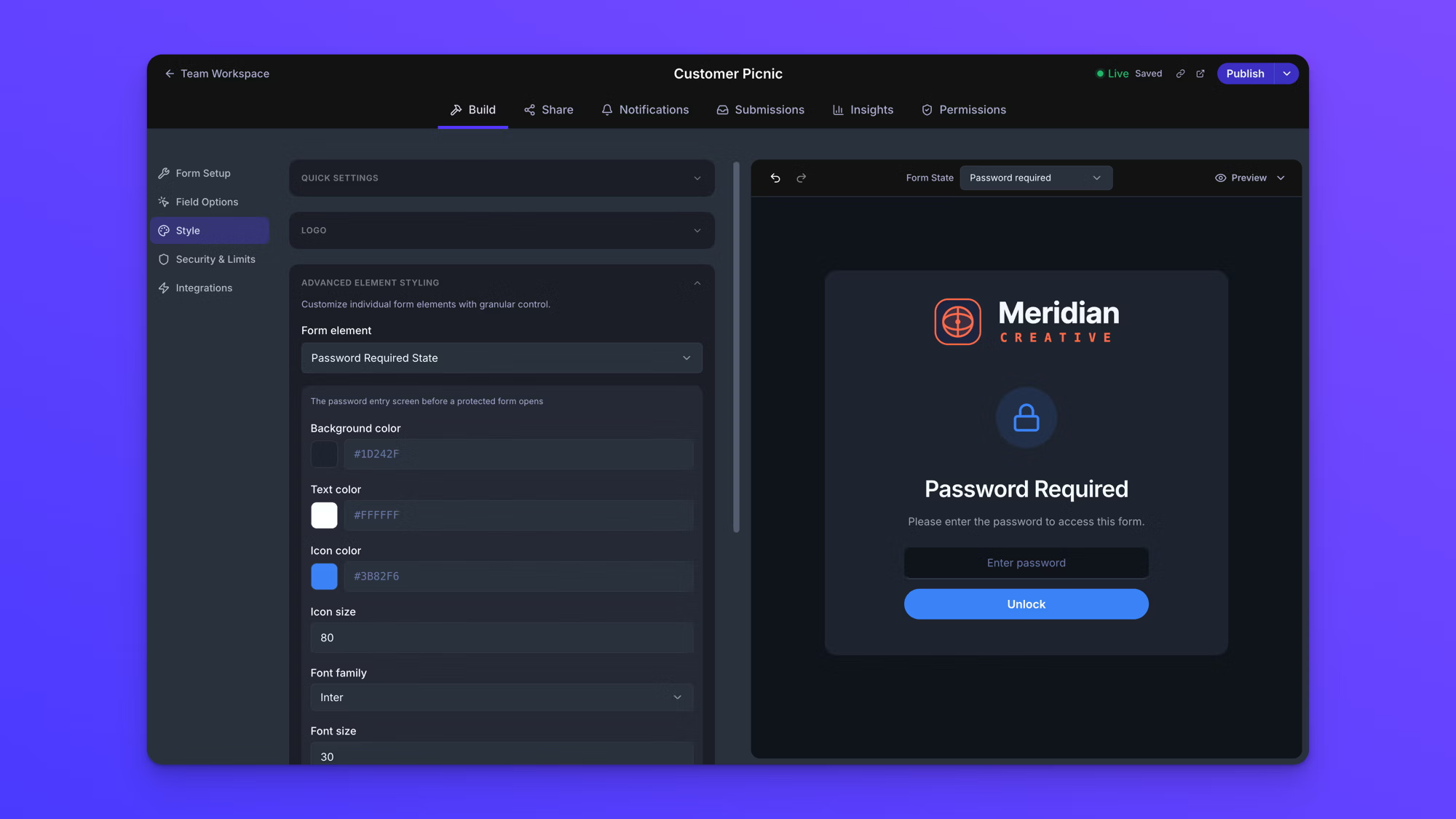
The password screen is a state of your form, so you style it the same way you style everything else. Switch the form canvas to the Password required state, then click an element on it to open its settings in Advanced Element Styling. Password Error State is styled separately, in the same panel. The form canvas has no state for it, so publish the form and enter a wrong password to see your changes. See See your form's states and Advanced form styling.
Behavior notes
- The heading and the line beneath it are fixed. You can change how the password screen looks, but not what it says.
- The password applies to your form everywhere it appears, including forms embedded on your own website. See Embed a form on your website.
- Password protection is part of the Business and Premium plans. If a form moves to the Starter plan, it stops asking for the password and opens to anyone with the link. The password you set is kept, and it starts working again on Business or Premium.
- Password protection controls who can open the form. It does not change how your files are handled once they are uploaded.