


Schedule a form to open and close
You can set a time for your form to start accepting submissions, a time for it to stop, or both. Before the opening time and after the cut off time, uploaders get a short message instead of the form. Scheduling is available on the Business and Premium plans.
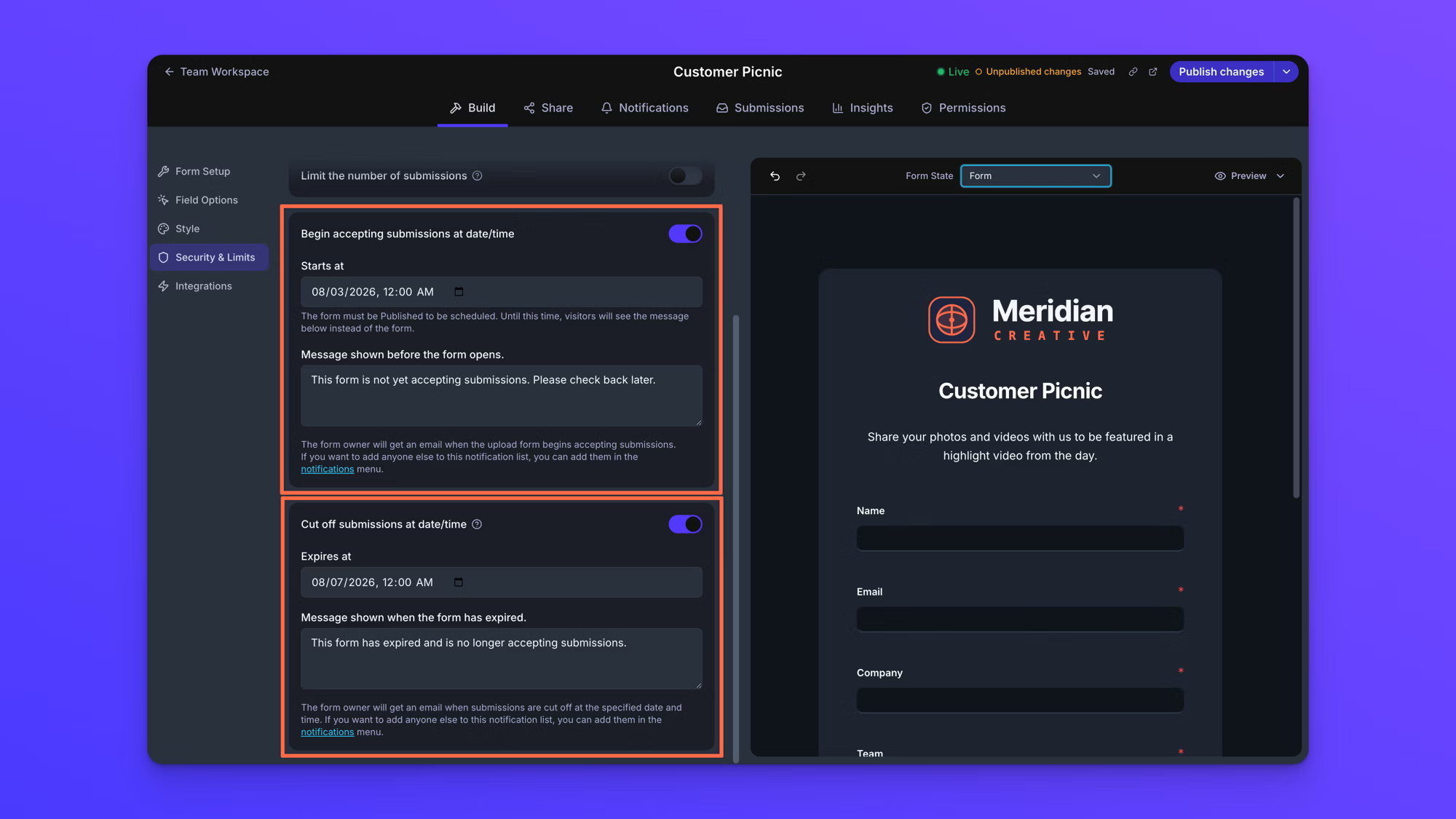
Both settings live in Security & Limits, and both need the form published to do anything. Turning on the opening time setting shows the note "The form must be Published to be scheduled."
Set an opening time
- On the Upload Forms page, open your form.
- In the Build tab, open Security & Limits.
- Turn on Begin accepting submissions at date/time.
- Set a date and time in Starts at.
- Edit Message shown before the form opens. if you want something other than the default, "This form is not yet accepting submissions. Please check back later."
- Select Publish.
Set a cut off time
- In the same panel, turn on Cut off submissions at date/time.
- Set a date and time in Expires at.
- Edit Message shown when the form has expired. if you want something other than the default, "This form has expired and is no longer accepting submissions."
- Select Publish.
Use one, or both
The two settings are independent. Set an opening time on its own for a form that should go live overnight, a cut off time on its own for an open form with a deadline, or both for a window.
If you set both, the cut off time has to be later than the opening time. EZ File Drop will not save a form where they are the other way around, or where the two times are identical. The message "The start time must be earlier than the cut-off time." appears under Starts at, whichever of the two you changed last.
The times use your time zone
The times you set use the Time Zone on your account, which you choose on the Profile page. If you have not set one, they use your browser's time zone instead. The setting names the time zone it is using directly above Starts at, so you can check it without leaving the panel.
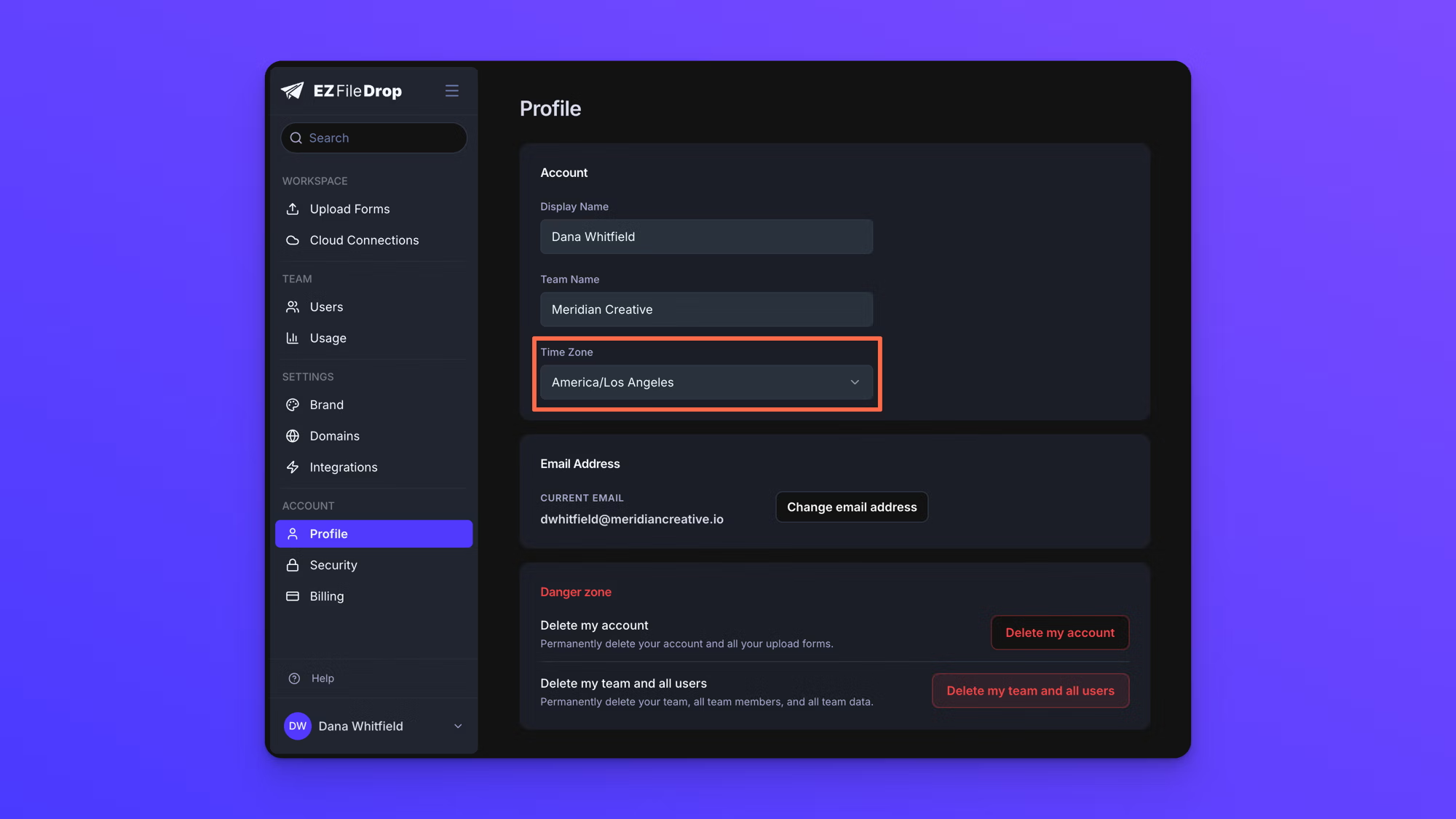
Uploaders elsewhere see the form open and close at the matching moment in their own local time, not at the clock time you typed. Meridian Creative, in California, sets a form to open at 12:00 AM on August 2. An uploader in New York can start uploading at 3:00 AM on August 2 their time.
Worth keeping in mind when your deadline matters to people in another time zone.
What uploaders see before the form opens
A card with a clock icon, the heading "Form Not Yet Open", and your message beneath it.

What uploaders see after the cut off
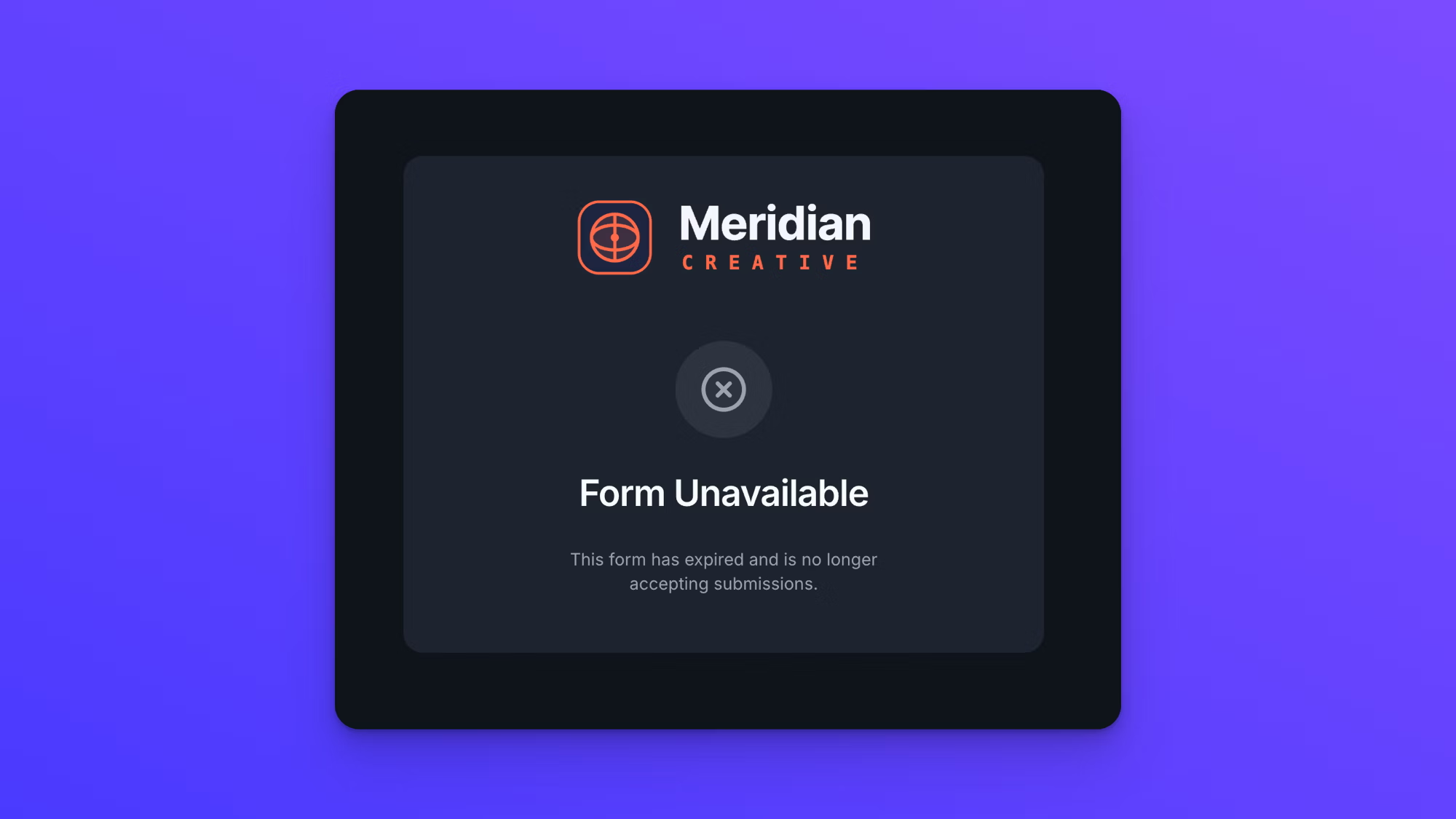
A card with a circled X icon, the heading "Form Unavailable", and your message beneath it.
A scheduled form is still Live
A published form waiting for its opening time has the Live status, the same as any other published form. It is not a Draft, and nothing about it needs fixing.
That matters when someone tells you their upload is not going through. There are two different reasons a form might not be taking submissions: it was never published, which is the Draft status, or it is published and outside its scheduled window. Check the status first, then the schedule. See Form statuses.
Get an email when the form opens and closes
You get an email within a minute of the form starting to accept submissions, and another within a minute of it cutting off. Moving the opening time to a later date arms the first email again. The cut off email is sent once per form, so a form given a new cut off time after the first one passed does not send a second one. To send these to other people as well, add them in the Notifications tab. See Set up email notifications.
Style the scheduled and cut off screens
Switch the form canvas to Scheduled - not live yet or Cut off time reached, then click an element to open its settings. See See your form's states.
Behavior notes
- The headings "Form Not Yet Open" and "Form Unavailable" are fixed. The sentence beneath each one is yours.
- Times set on a Draft form are saved, but nothing happens until you publish. The same is true of a change to a Live form. Until you publish it, uploaders are still held to the times you published last.
- Turning either switch on fills the date field with tomorrow's date to start from. Change it before you publish.
- A form past its cut off time and a form that has hit its submission limit both show "Form Unavailable". The sentence beneath tells them apart. See Restrict file types and set upload limits.
- Scheduling is part of the Business and Premium plans. If a form moves to the Starter plan, its opening and cut off times stop applying: a form that had closed starts accepting submissions again, and a form waiting to open opens straight away. The times you set are kept, and they start working again on Business or Premium.