


Connect an FTP or SFTP server
Connect your own FTP or SFTP server once, then use it as the delivery destination for any of your upload forms. Files uploaded through a form route to the server you connect here.
Unlike the cloud storage providers, an FTP or SFTP server doesn't use a sign-in window. You enter the server's connection details directly. You'll need the protocol your server uses, the host address, the port, and a username and password with permission to write files.
You connect a server from Cloud Connections, not from inside a form. After it's connected, it becomes available as a destination every time you build or edit a form.
Connect your server
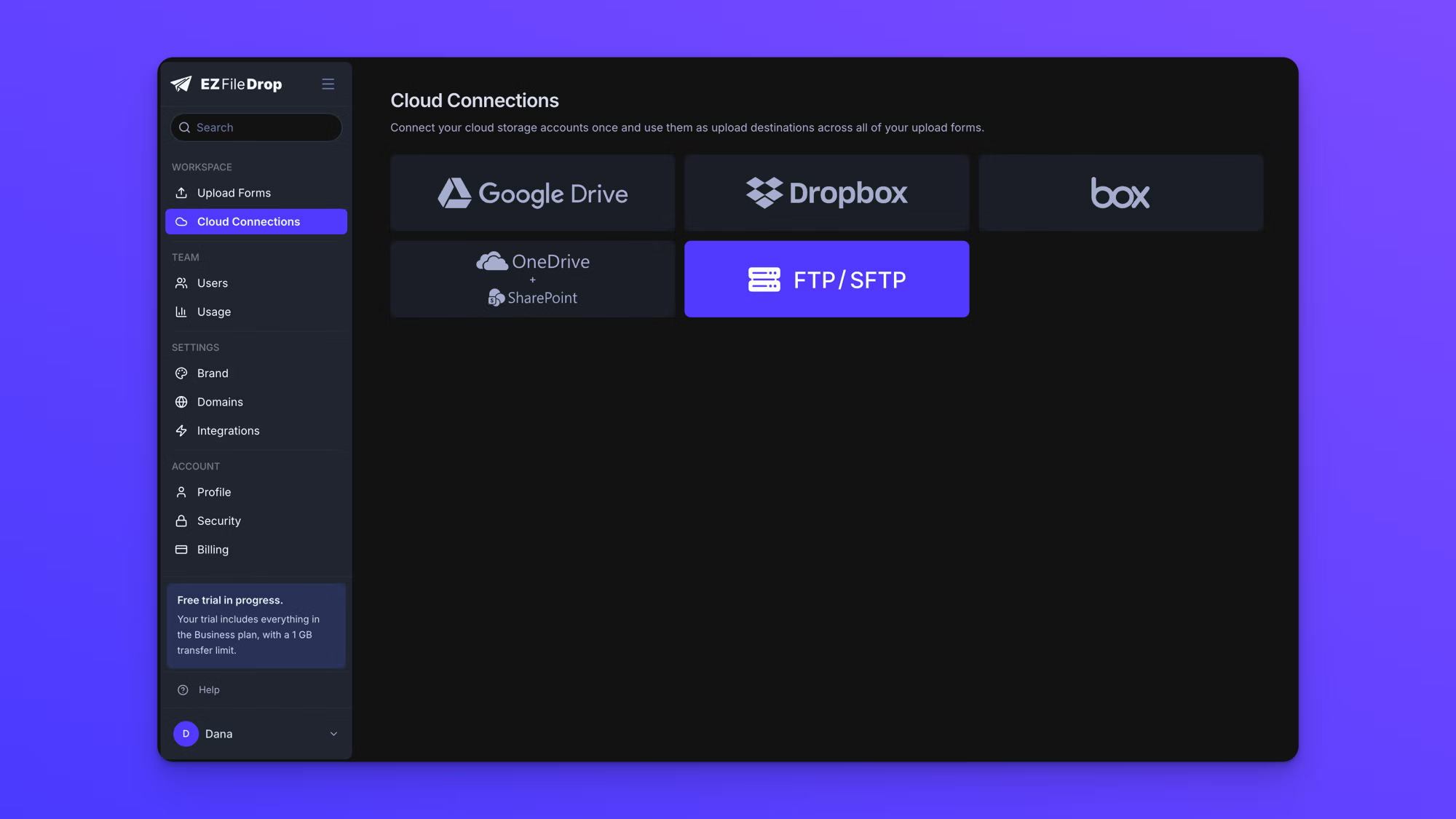
- In the left sidebar, click Cloud Connections.
- Choose FTP / SFTP. The first time you connect, the cloud provider options appear right on the Cloud Connections page. If you already have an account connected, click Connect new cloud account at the top right first, then choose it from the dialog that opens. The Add FTP/SFTP Connection window opens.
- Choose your Protocol from the dropdown, then fill in the connection fields:
- Host is your server address, for example ftp.example.com.
- Port is the port your server uses for the protocol you chose.
- Username and Password are the credentials for an account that can write files to the server.
- Base Path is the root directory uploads are written to. Use / for the server root.
- Label (optional) is a friendly name to help you identify this connection later.
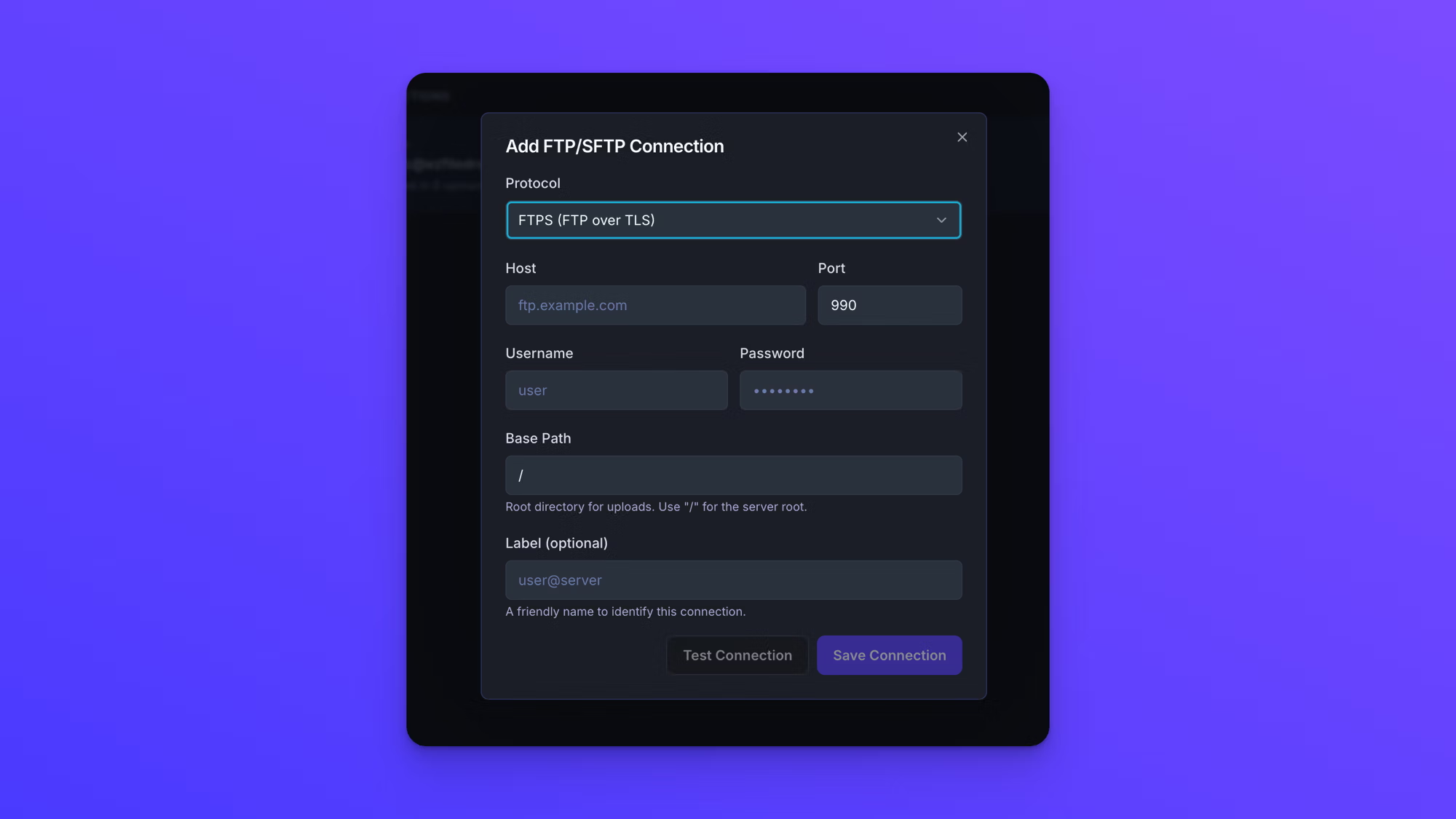
- Click Test Connection to confirm the details work.
- Click Save Connection. The server is added to Cloud Connections and appears under Your Connections.
If the connection fails
If Test Connection fails, check that the protocol, host, and port match your server's settings, that the username and password are correct and can write files, that the Base Path exists on the server, and that any firewall on the server allows the connection. Correct the details and test again.
What happens on delivery
When a form delivers a file, that file is written to the Base Path on your server and removed from EZ File Drop automatically after delivery.
Use the server on a form
A connected server isn't tied to any single form. Open any form's Build tab and choose your server as the destination. The same server can be the destination for as many forms as you like.
To connect more than one server or account, see Connect multiple cloud accounts.