


Create and manage themes
A theme saves a form's element styling under a name so you can apply the same look to your other forms. A form that uses a theme stays linked to it, so updating the theme updates every form using it. Themes are available on the Business and Premium plans.
What a theme includes
A theme stores everything you have set under Advanced Element Styling: the page behind the form, the form card, the field types and their labels, the File Upload area, the submit button, the layout blocks, and the form's states.
A theme does not store the rest of the Style panel. These settings stay on each form and are not carried over when you apply a theme:
- Quick Settings, meaning Mode, Style, Color, Font, and Display input field placeholder text
- The Logo section, including your uploaded logo and the Hide Logo toggle
- Custom CSS
Because the logo is not part of a theme, applying a teammate's theme to your form leaves your own logo in place. For the settings a theme does not cover, see Style your form.
Save a theme
- On the Upload Forms page, open the form whose styling you want to save.
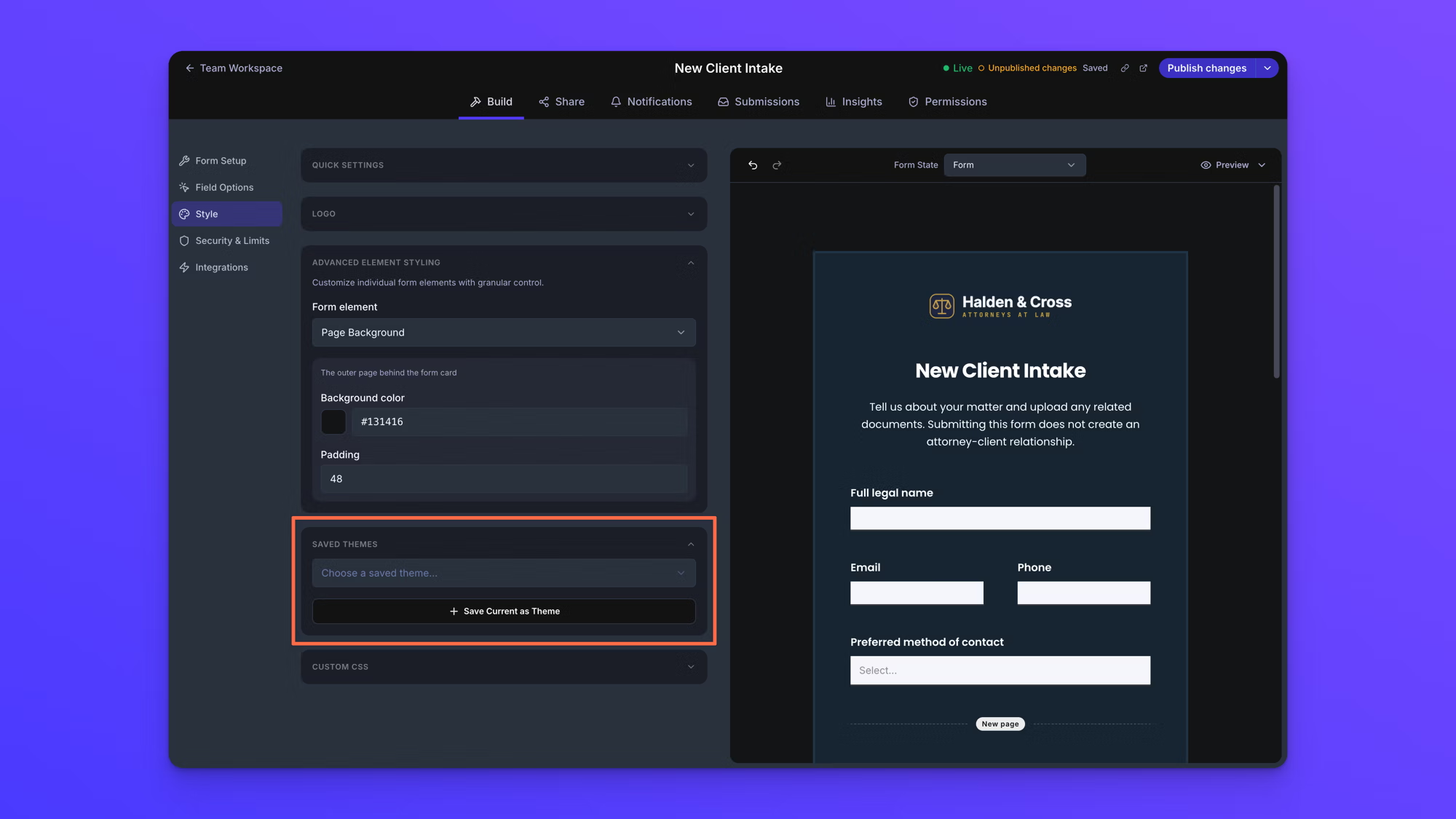
- In the Build tab's left menu, click Style, then expand Saved Themes near the bottom of the panel.
- Click Save Current as Theme.
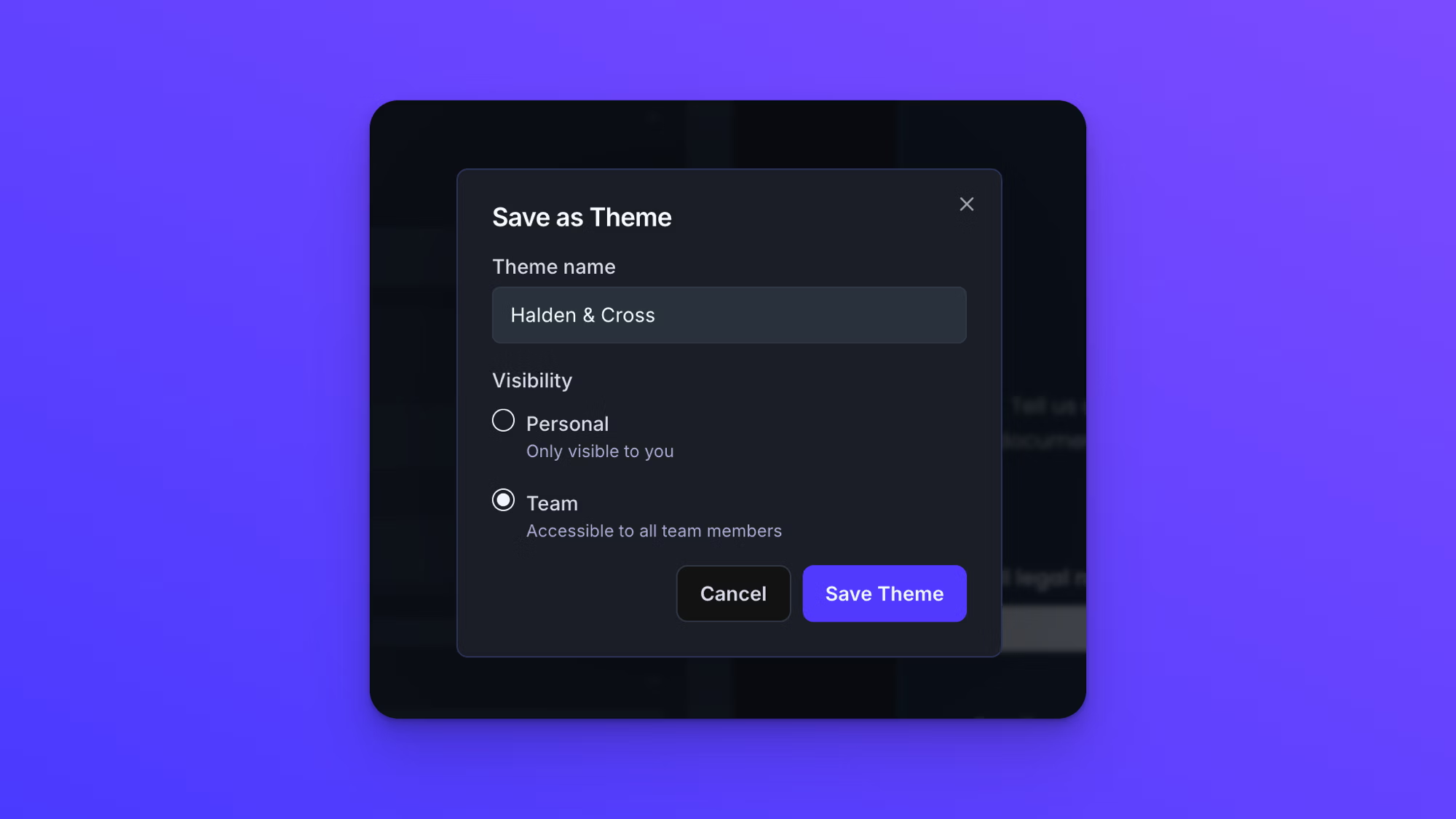
- In Save as Theme, type a name under Theme name.
- Under Visibility, choose Personal to keep the theme to yourself, or Team to make it available to everyone on your team.
- Click Save Theme.
The Visibility choice appears once your team has a second user, including someone you have invited who has not accepted yet. On a team of one, the dialog tells you the theme will be saved as a personal theme, and the choice is made for you.
Apply a theme to a form
- On the Upload Forms page, open your form.
- In the Build tab's left menu, click Style, then expand Saved Themes.
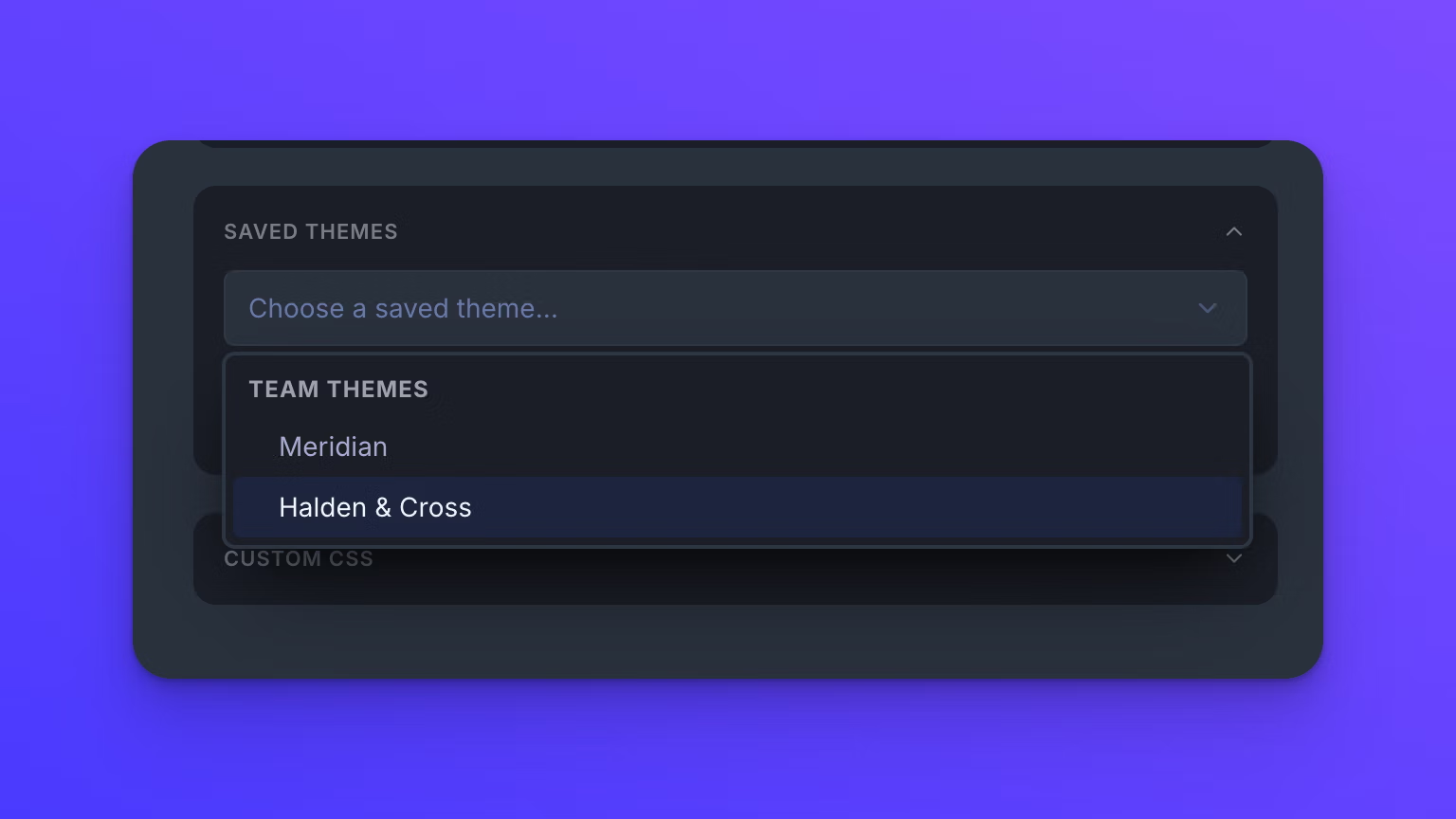
- Choose a theme from the dropdown. Themes are grouped as My Themes for your personal themes and Team Themes for your team's.
The theme is applied as soon as you choose it, and the form canvas updates to show it. Applying a theme replaces all of the form's element styling, with no confirmation and no undo, so it is worth applying a theme before you spend time on Advanced Element Styling rather than after.
Style changes are saved automatically, but uploaders do not see them until you publish. A Live form keeps showing its last published styling until you click Publish changes in the top right.
Update a theme and every form using it
A form that uses a theme follows that theme rather than keeping its own copy of the styling, so editing the theme changes every form linked to it.
- Open any form that uses the theme and go to the Style panel in its Build tab.
- Change any setting under Advanced Element Styling.
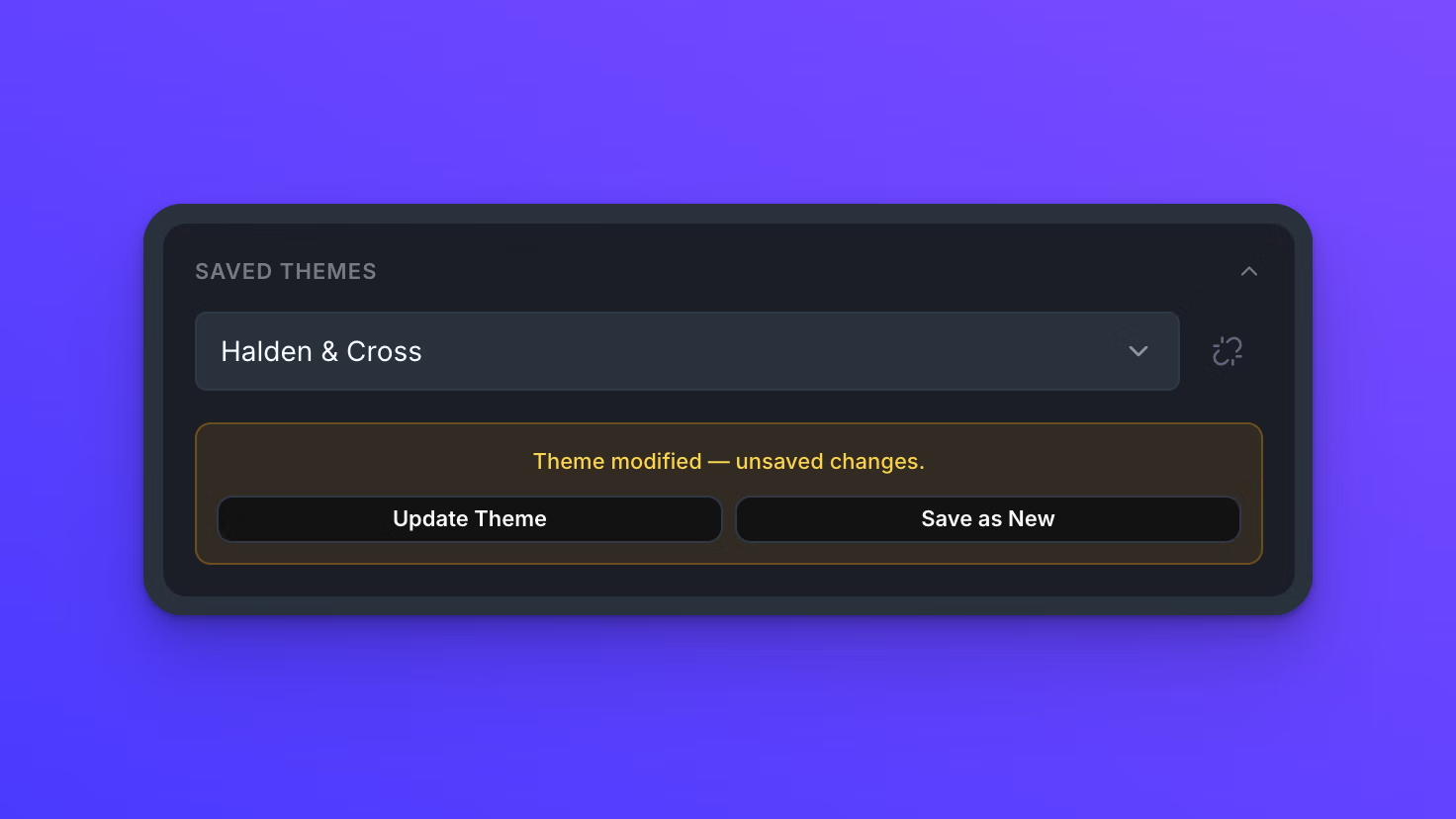
- Saved Themes now shows that the theme has unsaved changes, along with two buttons. Click Update Theme to apply your change to every form using this theme, or Save as New to create a separate theme with the change and leave the original as it was.
Update Theme reaches published forms without republishing them. Once a form has been published with a theme applied, later changes to that theme appear on the form's live page right away. That includes your teammates' forms if the theme is a team theme, so it is worth checking the Linked Forms count on the Brand page before you update a shared theme.
Stop a form from following a theme
To take a form off a theme without changing how it looks, open Saved Themes and click the detach icon beside the theme dropdown. Its tooltip reads Detach from theme.
The form keeps exactly the styling it has. Nothing reverts to a default. From that point the form holds its own copy of the styling, and later changes to the theme no longer reach it. Click Publish changes to apply the detachment to the form's live page.
If you leave the Style panel with unsaved theme changes
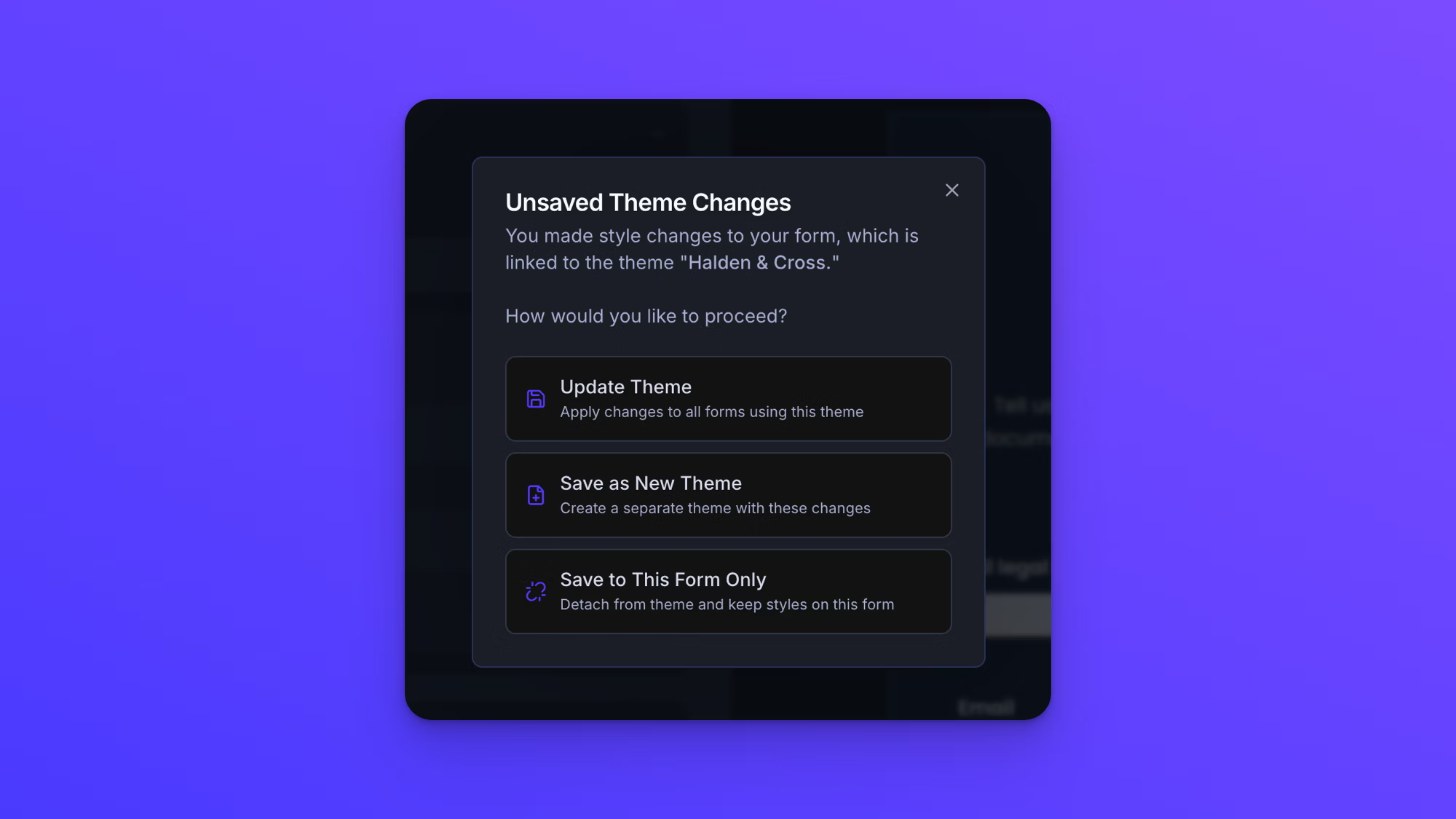
If you switch to another section of the Build tab, or close the Style panel, while a theme has unsaved changes, Unsaved Theme Changes appears with three choices:
- Update Theme applies your changes to all forms using this theme.
- Save as New Theme creates a separate theme with these changes.
- Save to This Form Only detaches this form from the theme and keeps the styles on the form.
Rename, share, or delete a theme
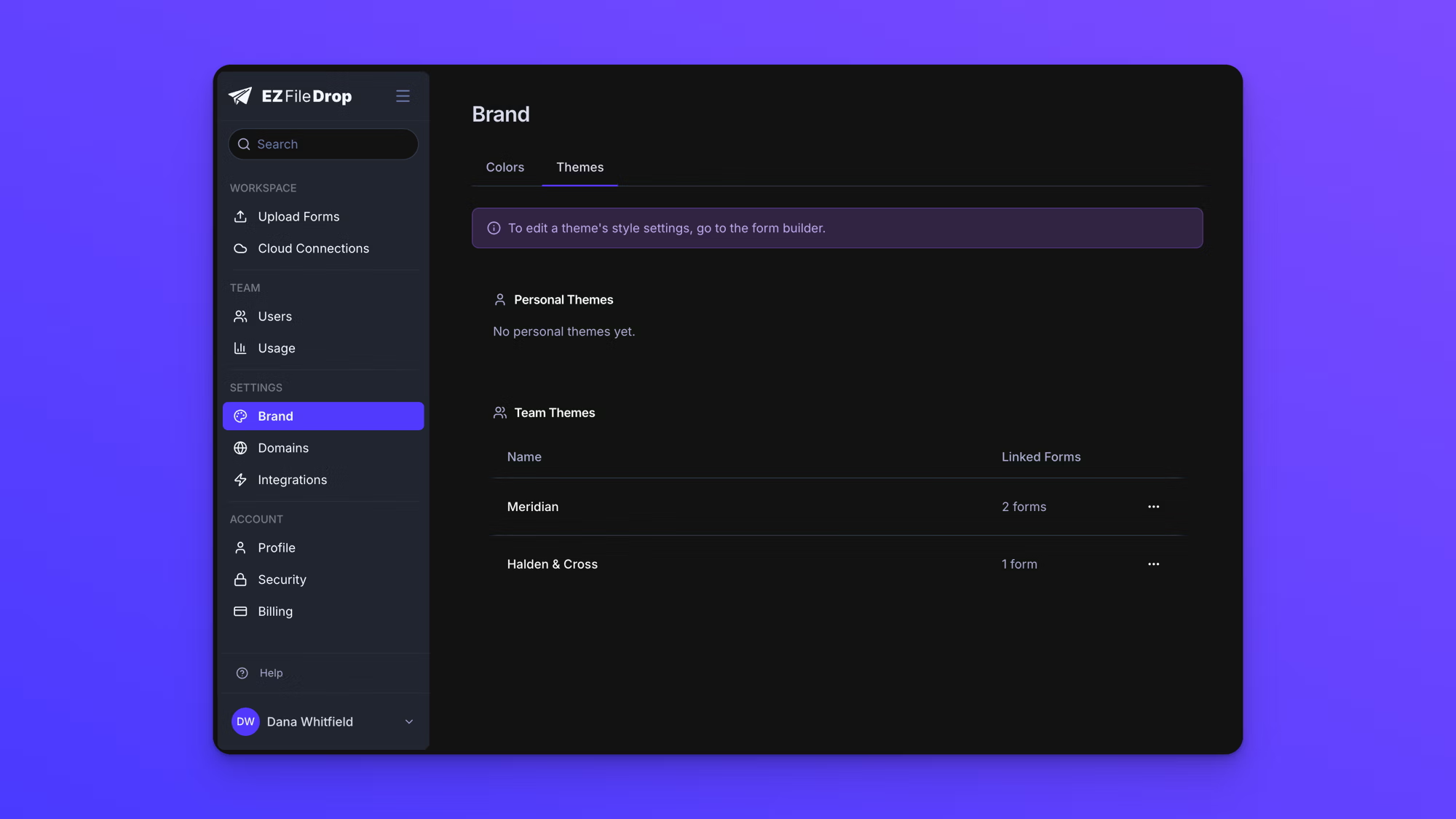
Themes are managed on the Brand page.
- In the left sidebar, under Settings, click Brand.
- Select the Themes tab.
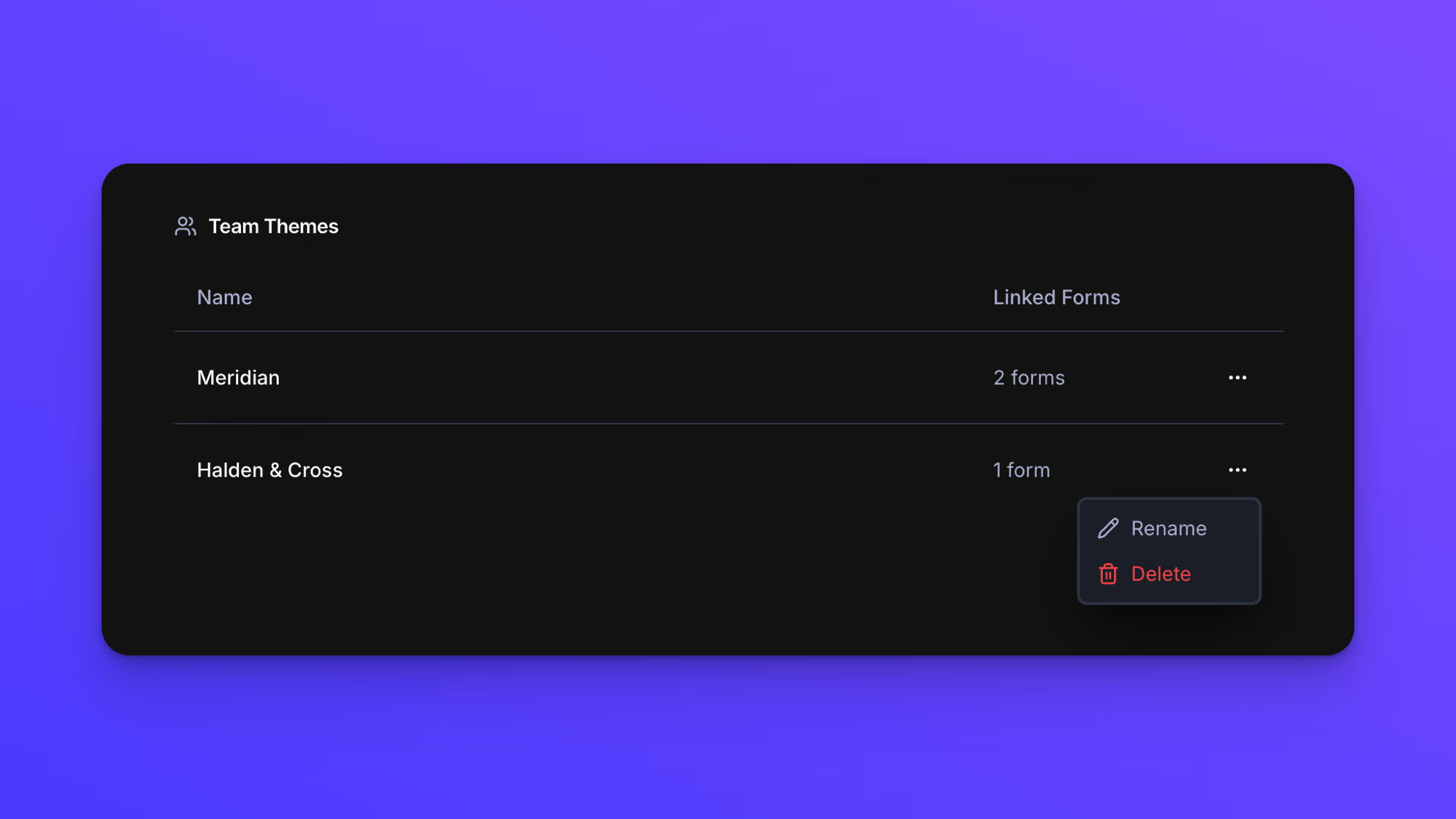
Personal Themes and Team Themes are listed separately, each theme with a Linked Forms count. Click the ... menu on a theme's row for its options.
Rename renames the theme in place. This is the only place a theme can be renamed.
Share with Team moves a personal theme into Team Themes, where everyone on your team can apply it. It appears on personal themes only. Sharing cannot be undone, and a team theme cannot be moved back to being personal.
Delete removes the theme. Delete Theme? asks you to confirm and tells you that forms using the theme are detached and keep their current styles.
A theme's style settings are not edited on this page. To change how a theme looks, open a form that uses it and edit the styling in the form builder.
Behavior notes
- Linked Forms counts every form using the theme, whether the form is Live or still in Draft. A team member who can see only some of the team's forms may see a lower count than a teammate.
- Any member of your team can create, apply, rename, edit, and delete a team theme. There is no owner-only restriction.
- Personal Themes are visible only to you. Team Themes appears once your team has a second user, including someone you have invited who has not accepted yet.
- Deleting a theme does not change how any form looks. Each linked form keeps the styling it had when the theme was deleted.
- To reuse individual brand colors rather than a whole set of styling, save them to a color library instead. See Create and manage color libraries.
- There is no limit on how many themes you can save.