


Save form data to a text file
A form's submissions can be delivered with a text file containing that submission's form data, sitting alongside the uploaded files. It gives you the answers people gave without opening EZ File Drop.
This setting applies to the whole form, unlike the dynamic subfolder and file naming settings, which are set on each File Upload field.
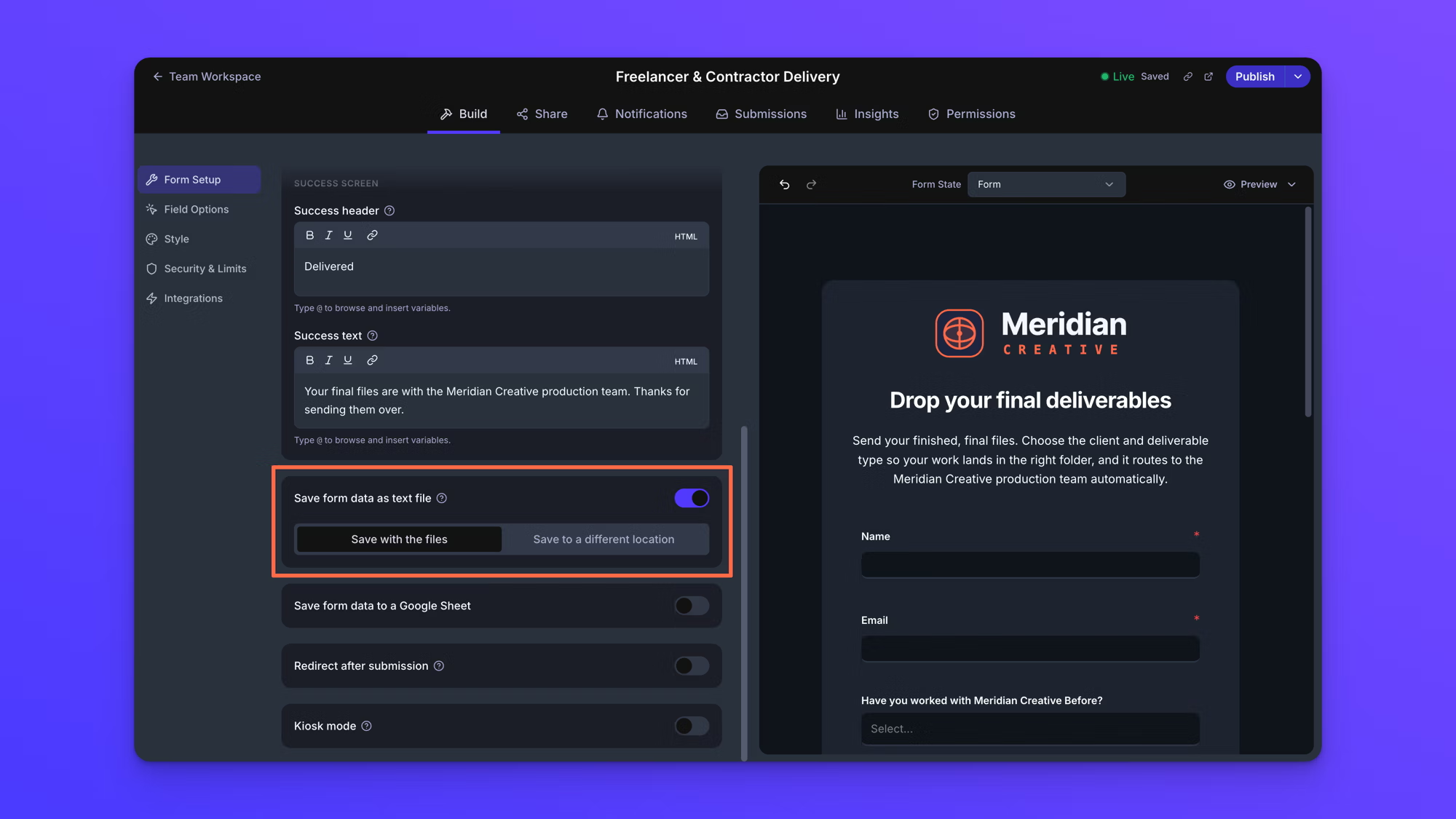
Turn on the text file
- On the Upload Forms page, open your form.
- In the Build tab, open Form Setup.
- Scroll to Save form data as text file and turn it on.
The setting is off until you turn it on, and the location options appear only once it is on.
Choose where the text file is delivered
Two options appear once the setting is on.
- Save with the files delivers the text file to the same place as that submission's uploaded files. If the File Upload field uses dynamic subfolders, the text file follows them.
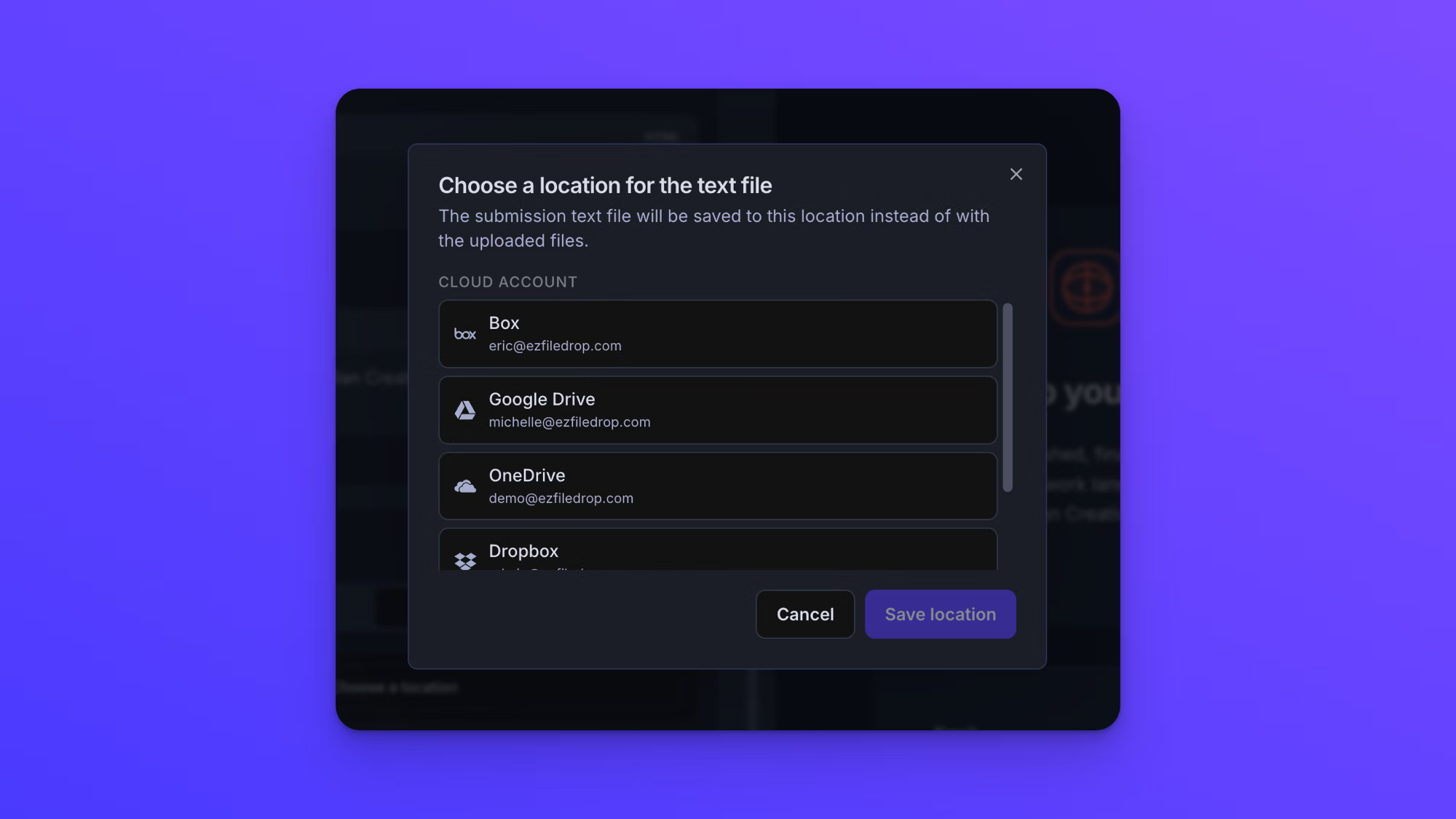
- Save to a different location delivers it to one folder you choose, in any cloud account you have connected. Every submission's text file goes there, no matter where the files went.
To use a separate folder, click Save to a different location, then Choose a location, and pick a folder. Once it is set, the card shows the cloud account and folder name with a Change button beside it.
What the text file contains
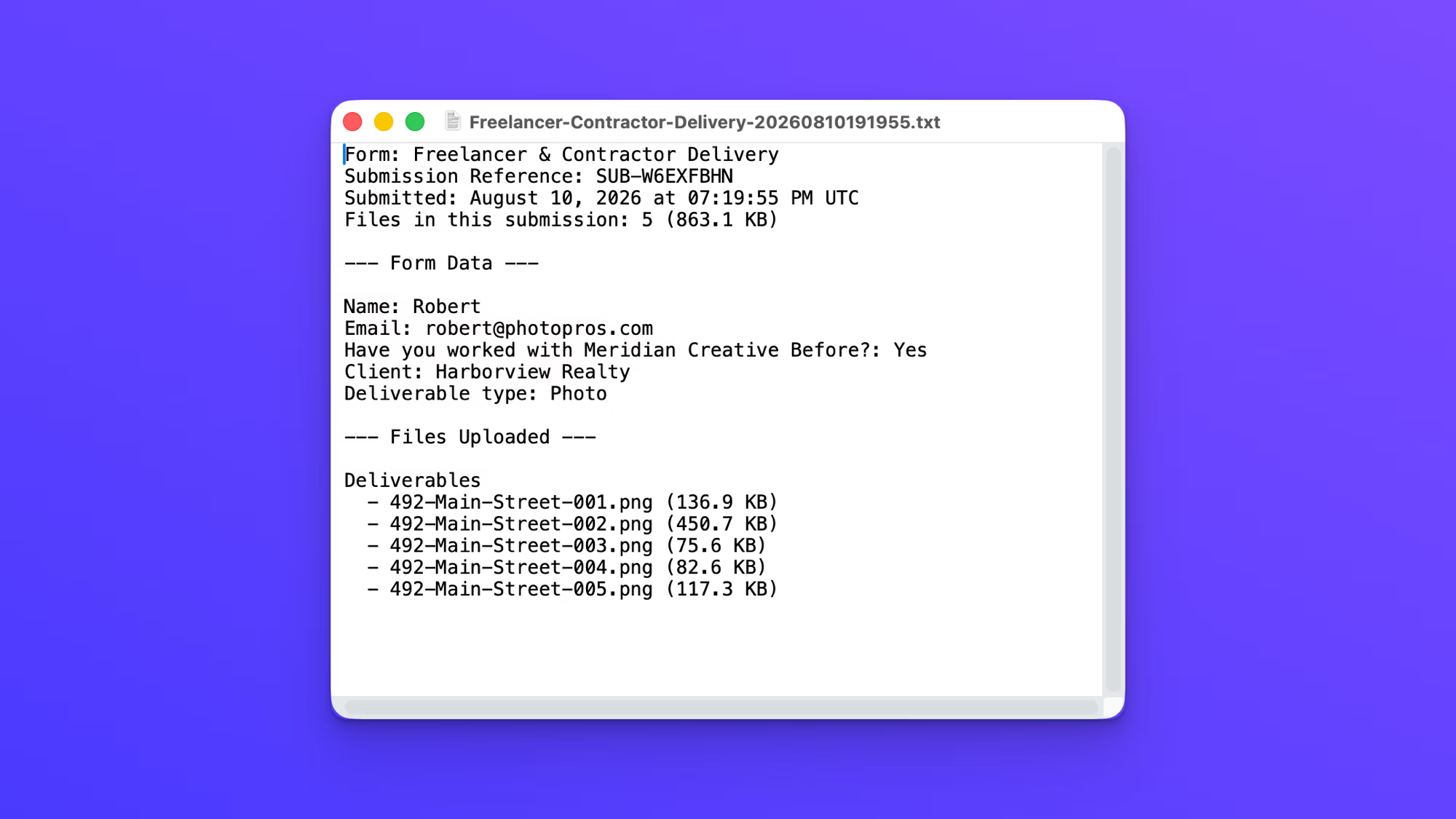
The file is plain text and opens in any text editor. It has three parts.
The top identifies the submission: the form's name, a submission reference code, the date and time it was submitted, and how many files came in with their total size.
A "Form Data" section lists every field on the form with the answer that person gave, one field per line, in the order the fields appear on your form.
A "Files Uploaded" section lists the uploaded files grouped by the File Upload field they came through, each one with its file size.
How the text file is named
The file is named after the form, followed by the date and time the submission arrived. A submission to a form named Freelancer & Contractor Delivery produces a file along the lines of "Freelancer-Contractor-Delivery-20260807203722.txt", where the trailing digits are the year, month, day, hour, minute, and second.
Because the time is part of the name, each submission produces its own file and no submission overwrites another, even when they all go to the same folder.
Behavior notes
- The text file is written for each submission, so a form with many submissions produces many text files.
- The file is plain text with a .txt extension, so it opens anywhere without special software.
- Changes are saved automatically, but a Live form keeps using its last published setup until you click Publish changes.
- Turning the setting off stops new text files from being written. Text files already delivered are not affected.