


Connect Dropbox
Connect a Dropbox account once, then use it as the delivery destination for any of your upload forms. Files uploaded through a form route to the Dropbox account you connect here.
You connect an account from Cloud Connections, not from inside a form. After it's connected, it becomes available as a destination every time you build or edit a form.
Connect your account
- In the left sidebar, click Cloud Connections.
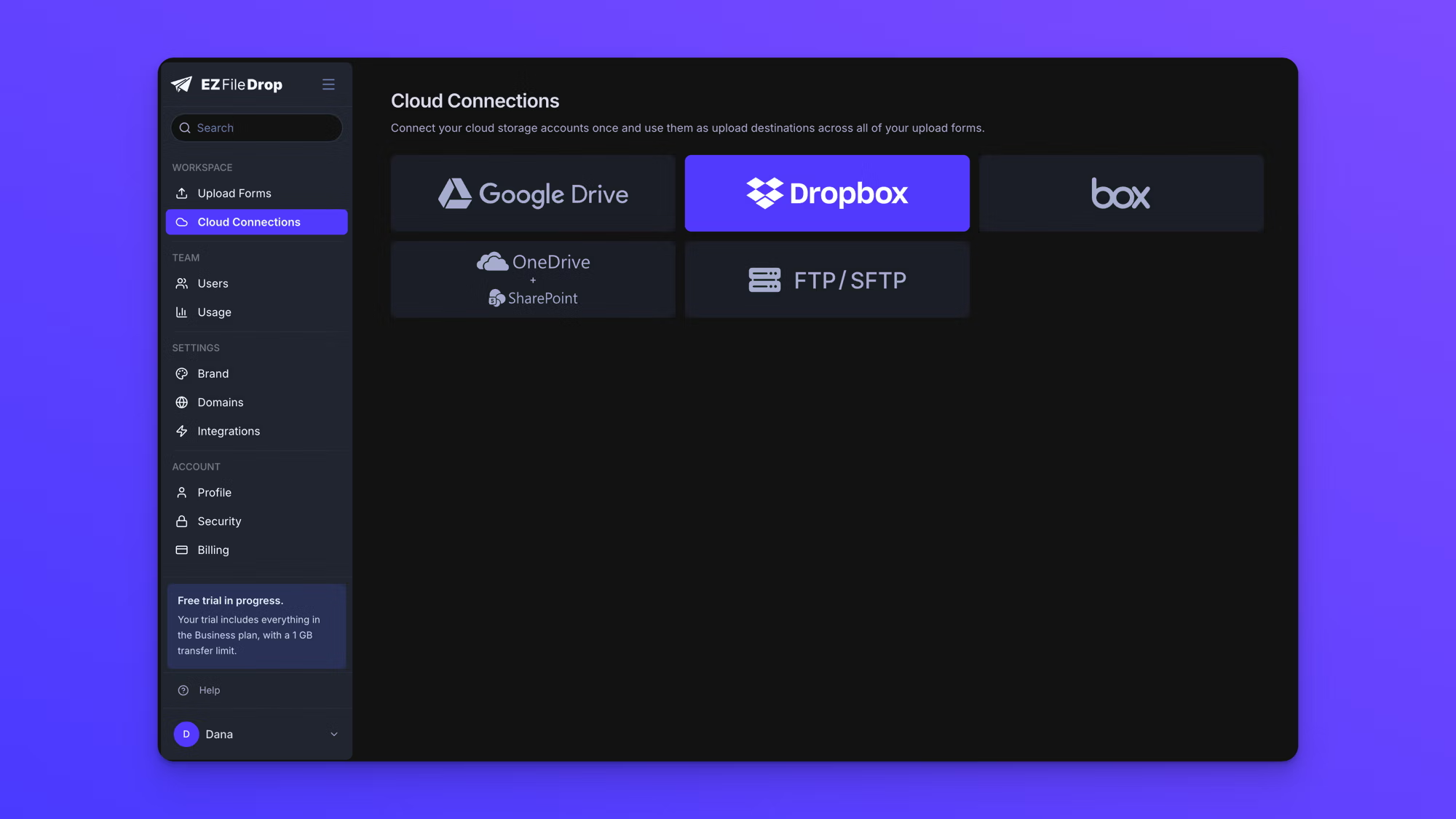
- Choose Dropbox. The first time you connect, the cloud provider options appear right on the Cloud Connections page. If you already have an account connected, click Connect new cloud account at the top right first, then choose Dropbox from the dialog that opens.
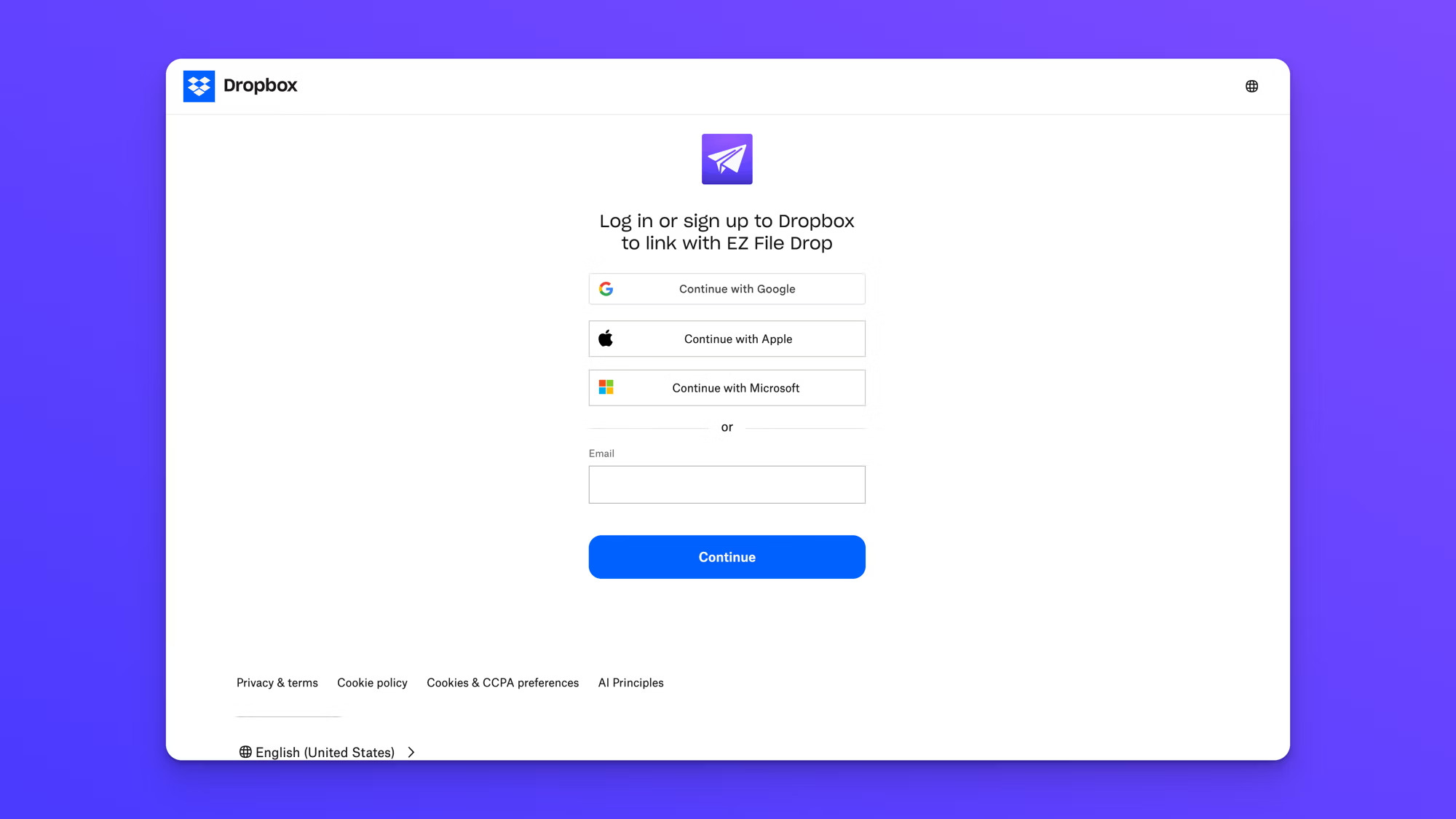
- A Dropbox window opens to log in or sign up to Dropbox and link with EZ File Drop. Sign in with the Dropbox account you want to use. You can continue with Google, Apple, or Microsoft, or enter your Dropbox email and continue.
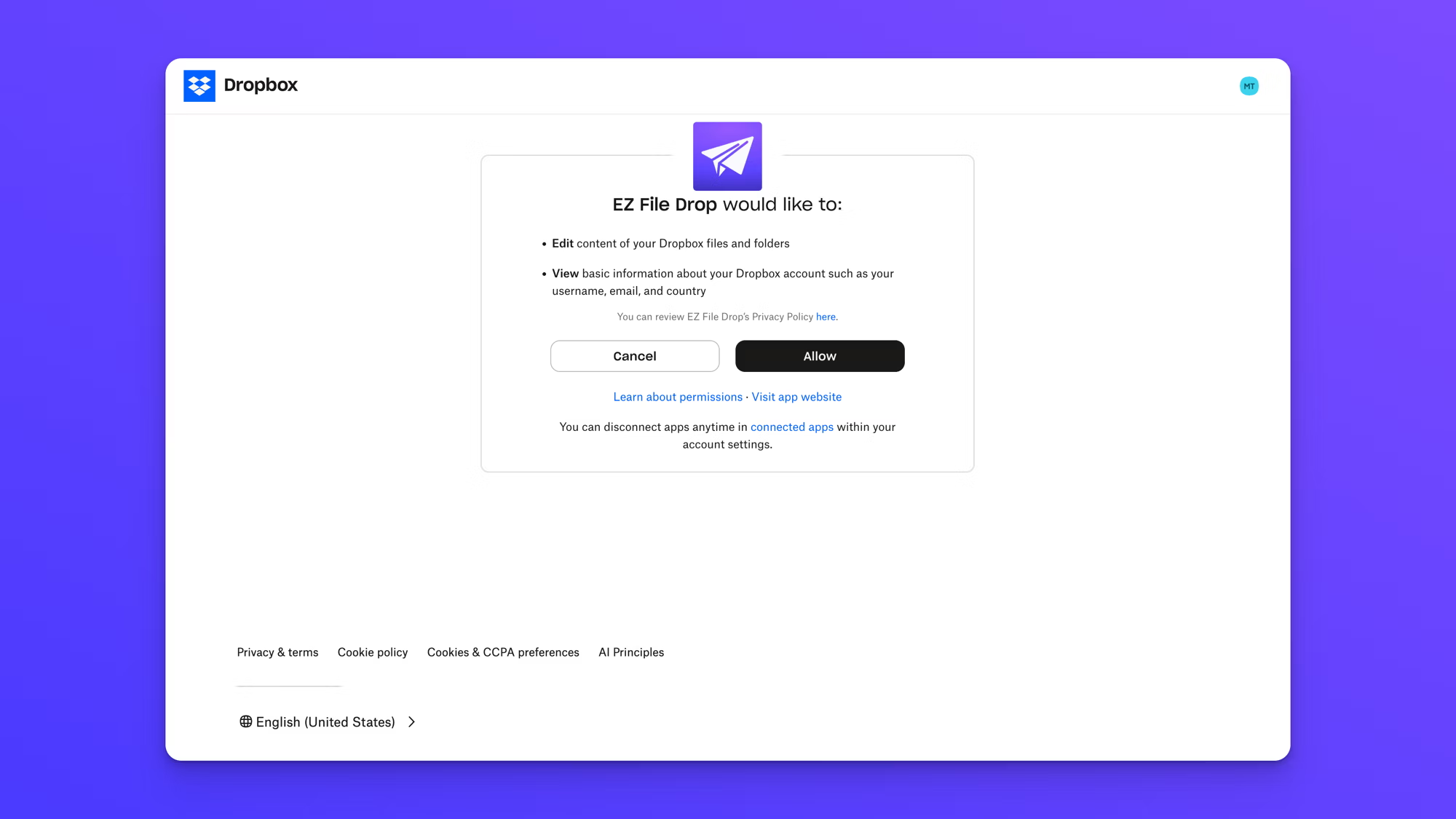
- Review the access Dropbox is granting and click Allow. EZ File Drop asks to edit the content of your Dropbox files and folders and to view basic account information such as your username, email, and country.
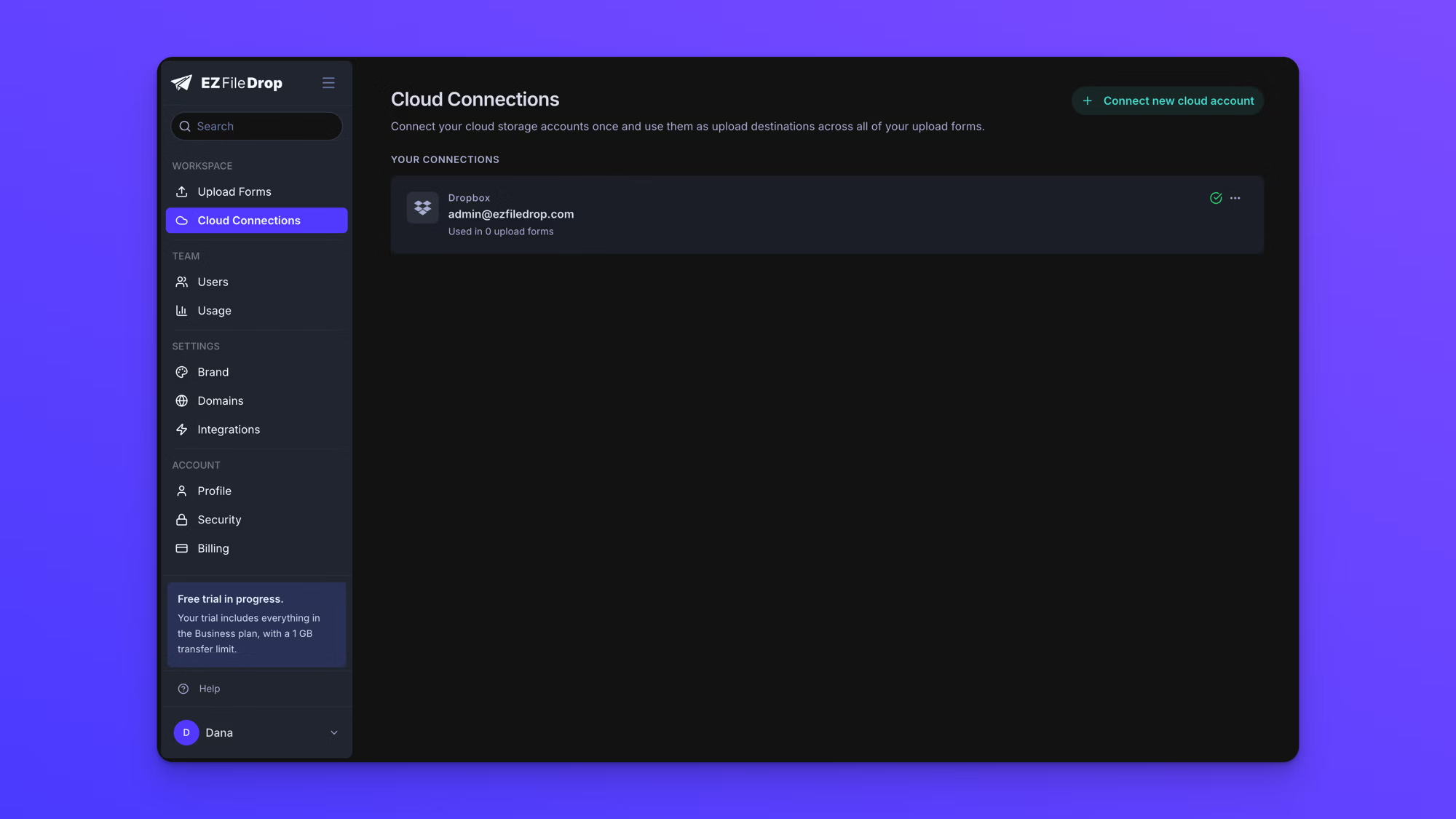
- Dropbox returns you to Cloud Connections, where the account now appears under Your Connections.
What EZ File Drop can access
When you connect, Dropbox asks you to approve access to your files and folders. This access looks broad because you can point a form at any folder you own as its destination, and EZ File Drop needs permission to write files there. EZ File Drop uses that permission only to deliver uploads: it writes the files people send through your forms, and it creates subfolders when a form organizes files. It also reads basic account information such as your username, email, and country to set up the connection. It does not read or browse the files you already keep in Dropbox. When a form delivers a file, that file is placed in the folder you chose and removed from EZ File Drop automatically after delivery.
Use the account on a form
A connected account isn't tied to any single form. Open any form's Build tab and choose your Dropbox account as the destination. The same account can be the destination for as many forms as you like.
To connect more than one Dropbox account, see Connect multiple cloud accounts.