


Rename incoming files
File naming settings change the file name before a file is delivered to your upload destination. You can add a prefix to the front of the original name, or replace the name entirely. Either one can be built from your form's field values, from text you type, or from a combination of the two, so file names can carry the answers people gave on the form. Both are available on the Business and Premium plans.
File naming is set per File Upload field, so a form with two File Upload fields can name each one's files differently.
Before you start, you need a File Upload field with an upload destination already chosen, and at least one other field on the form to draw values from. See Add form fields.
Find the File Naming settings
- On the Upload Forms page, open your form.
- On the form canvas, click the File Upload field whose files you want to rename. The left panel switches to Field Options.
- Scroll to the Upload Destination card and find File Naming, below the dynamic subfolder settings.
File Naming appears only after a destination folder is chosen.
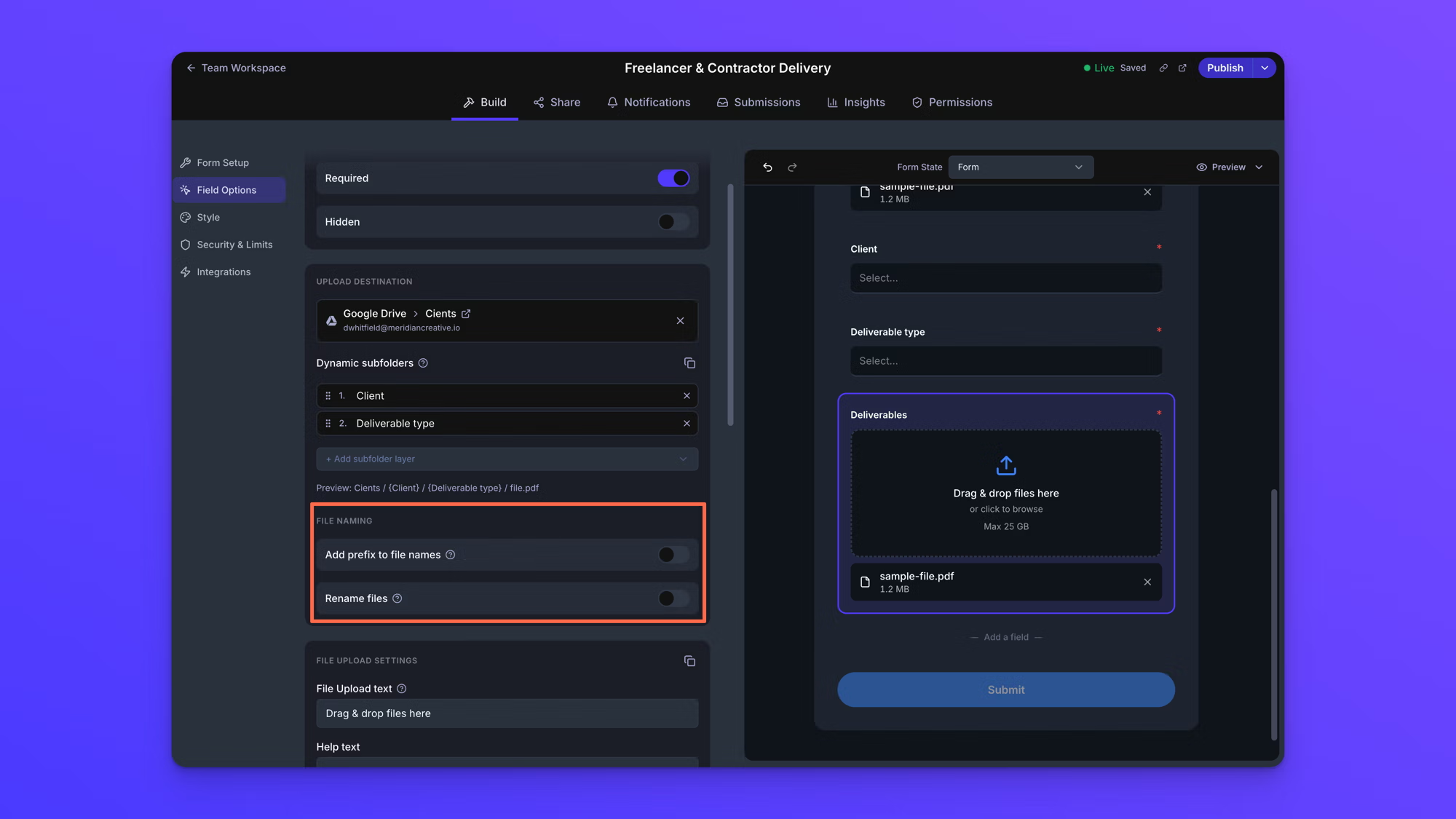
Add a prefix to file names
A prefix keeps the original file name and puts your text in front of it.
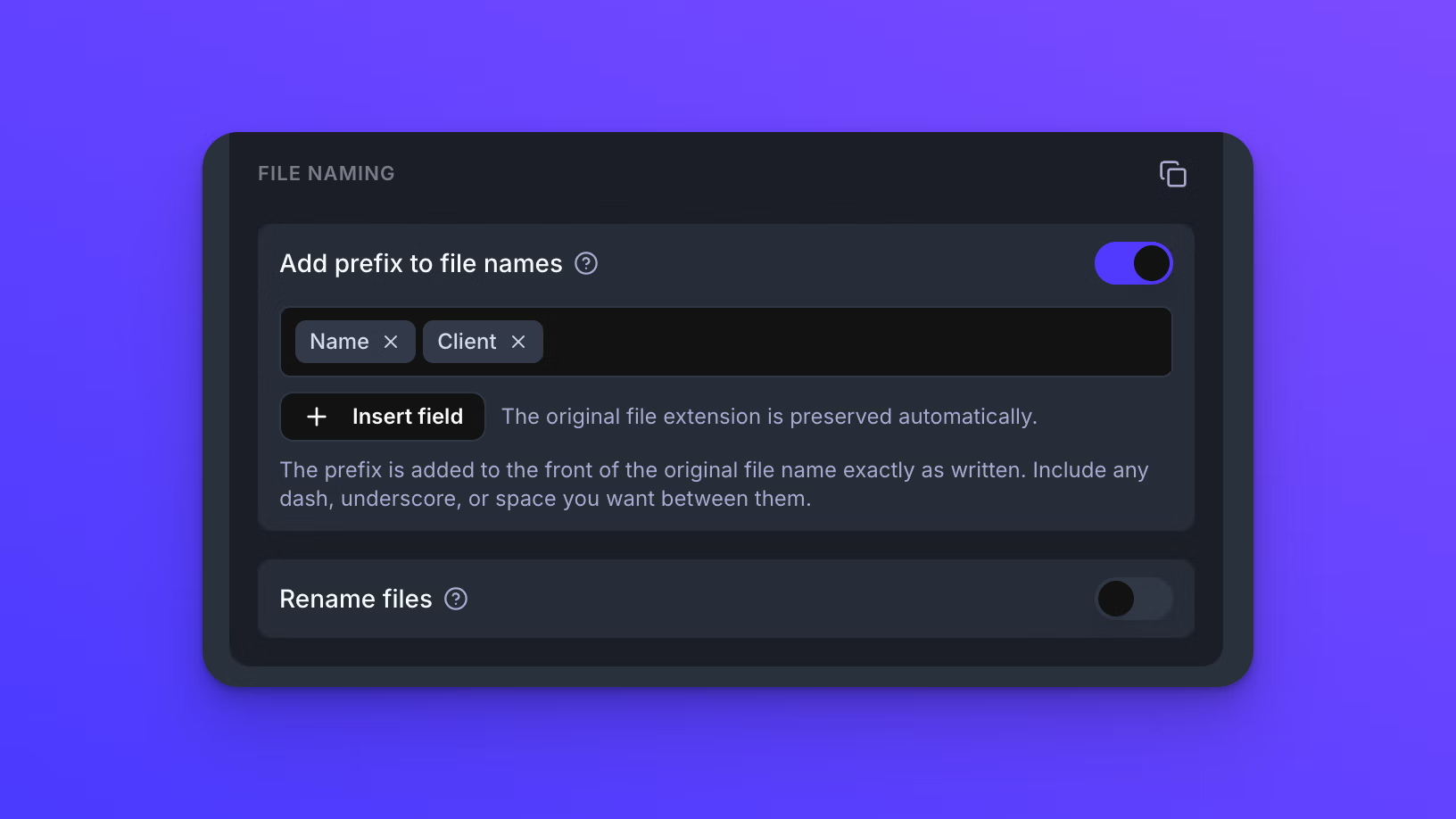
Turn on Add prefix to file names. The box below builds the prefix out of two ingredients. Use either one on its own, or both together in whatever order you want.
- Form field values. Click Insert field and pick a field. It drops into the box as a chip, and on each submission that chip is replaced by whatever that person entered in that field. Most often that is a Name field, so every file arrives carrying the name of the person who uploaded it. A Client field works the same way and puts their company name on the front of each file instead.
- Text you type. Click into the box and type. It comes out the same on every file.
Combine them freely. A Name chip, a typed hyphen, then a Client chip produces a prefix holding both answers with your separator between them.
The helper text reads "The prefix is added to the front of the original file name exactly as written. Include any dash, underscore, or space you want between them." Chips sit directly against each other, so type a dash or a space between them if you want one.
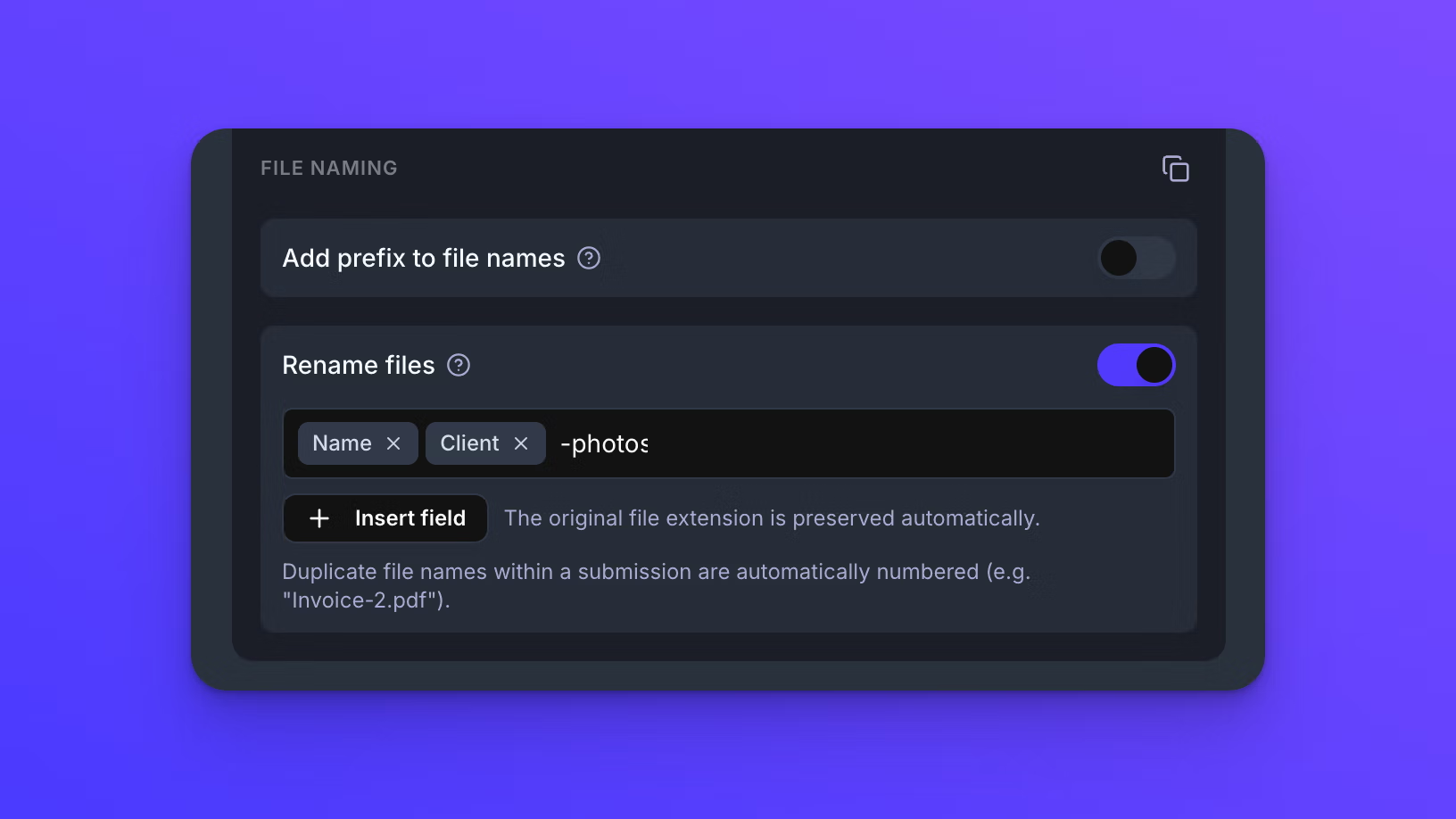
Replace the file name entirely
Rename files discards the original file name and builds a new one from scratch.
Turn on Rename files. The box uses the same two ingredients as a prefix: click Insert field to drop in a form field as a chip, and type any fixed text you want around it. Use either one on its own, or both together.
A Name chip followed by the typed word "deliverable" produces a file named with that person's name and that word. The original file extension is preserved automatically, so you never type it.
Because every file in a submission runs through the same template, a submission holding several files would otherwise produce several files with one name. Duplicate file names within a submission are numbered automatically so each one stays distinct.
Copy the setup to another File Upload field
Click the copy icon in the File Naming header, select another File Upload field, and paste the setup there. The Dynamic subfolders settings can be copied the same way.
Behavior notes
- Add prefix to file names and Rename files cannot both be on. Turning one on turns the other off.
- The original file extension is preserved automatically on both settings.
- Field values are inserted exactly as they were entered, so dropdown fields produce predictable names and fields people type into do not.
- Changes are saved automatically, but a Live form keeps using its last published setup until you click Publish changes.
- Only the form's owner can change the file naming settings. Other team members see the upload destination as read-only.
- Add prefix to file names and Rename files are available on the Business and Premium plans.