


Turn on kiosk mode
Kiosk mode sets a form up for a device that several people share, one after another. An iPad on a table at an event, a laptop at a front desk, a screen in a studio lobby.
Without it, whoever submits first leaves the success screen sitting there, and the next person has to know to start over. With it, the success screen counts down and the form clears itself, blank and ready. Kiosk mode is available on the Business and Premium plans.
Turn on kiosk mode
- On the Upload Forms page, open your form.
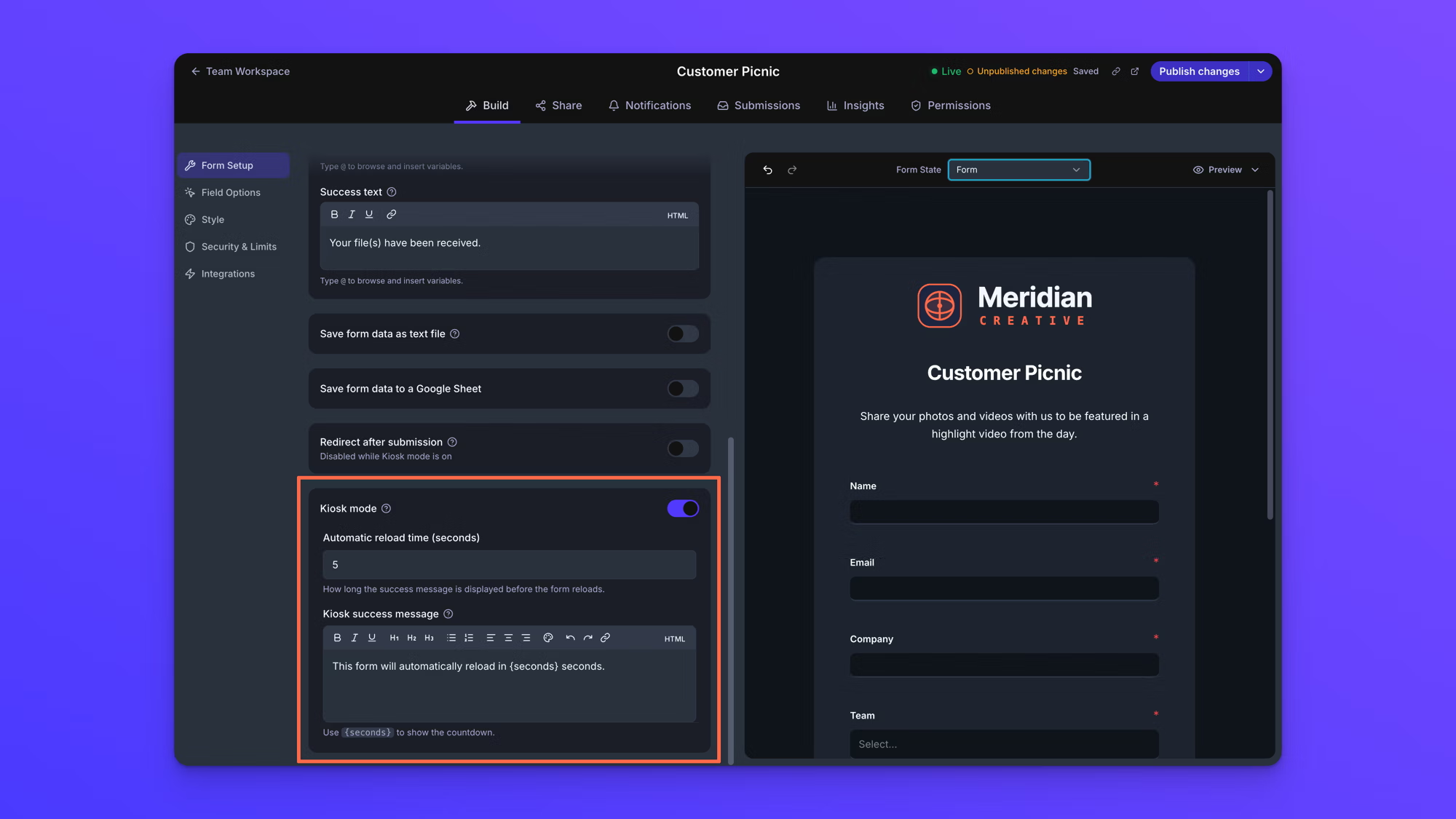
- In the Build tab, open Form Setup.
- Scroll to Kiosk mode and turn it on.
- Set Automatic reload time (seconds).
- Edit Kiosk success message if you want something other than the default.
- Select Publish.
Choose how long the success screen stays up
Automatic reload time (seconds) is how long uploaders see the success screen before the form clears. It starts at 5 seconds, the shortest you can set is 1, and there is no upper limit.
Five seconds is enough for someone to read a short confirmation and step away. Give it longer if your success message asks them to do something, like take a paper form from the table or check in with someone.
Write the countdown message
Kiosk success message is the line at the bottom of the success screen. Type {seconds} wherever you want the number to appear and it counts down in place, once a second, until the form clears.
The default is "This form will automatically reload in {seconds} seconds."
What uploaders see
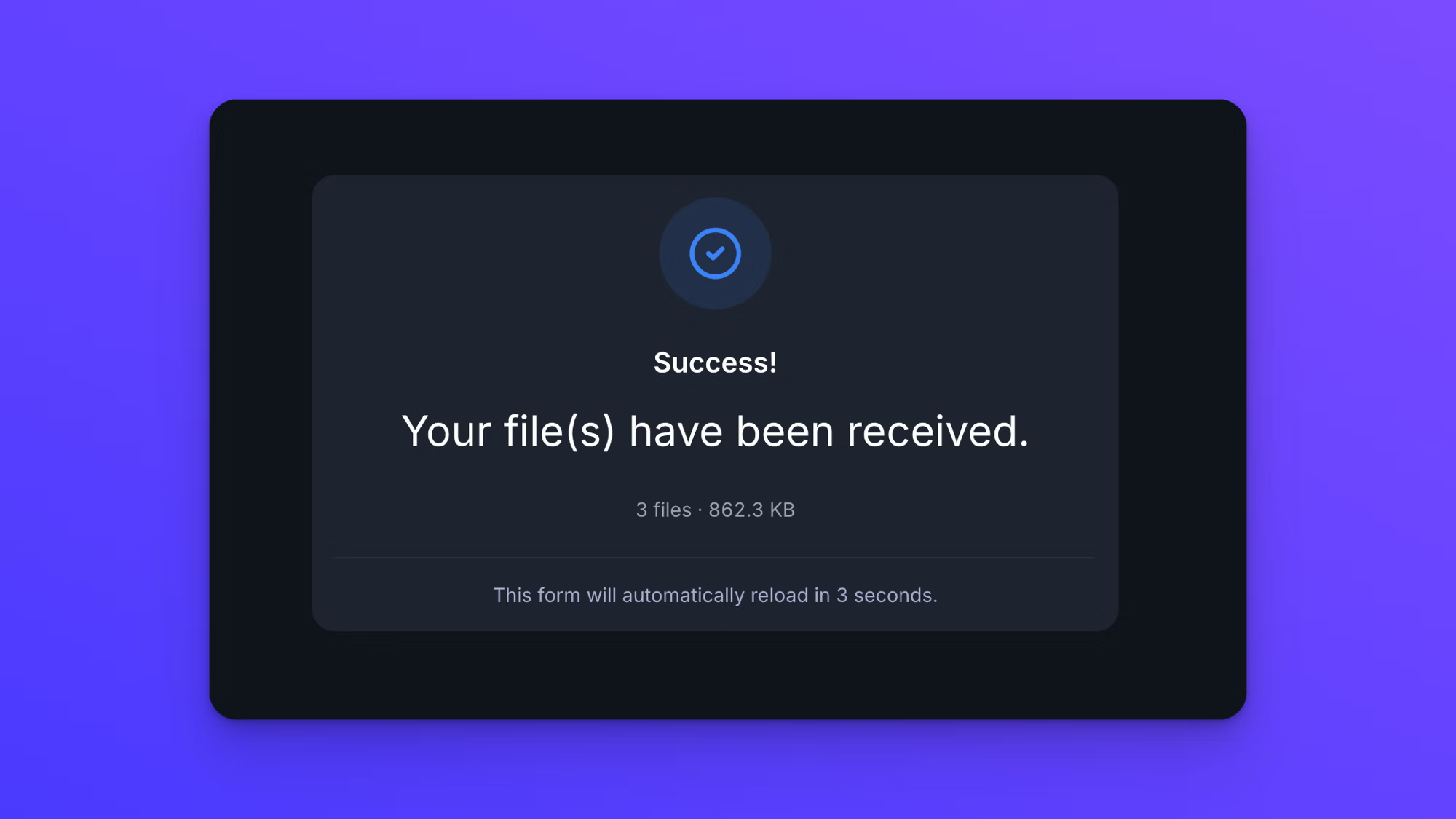
They get the normal success screen first: the confirmation icon, your Success header and Success text, and a line counting the files they sent and their total size. Your kiosk message sits below all of that, under a divider, with the countdown running.
When the countdown reaches zero, the form comes back empty. Every field is cleared and the files from the last submission are gone from the screen, so the next person never sees what the person before them typed.
Kiosk mode and redirects do not mix
A form can clear itself or send uploaders to a page of your own, not both. Turning on either one while the other is on asks you to confirm, and confirming turns the other off. With kiosk mode on, the redirect setting reads "Disabled while Kiosk mode is on". Turning kiosk mode on this way also clears the address you had saved, so enter it again if you go back to using a redirect. See Redirect uploaders after submission.
Behavior notes
- The form clears in place rather than loading again from scratch, so there is no waiting between one person and the next.
- Fields, files, and progress all reset together. Two things do not. On a multi-page form the next person starts on the page the last one finished on, so kiosk mode suits single-page forms best. On a form opened from a link that fills fields in, those values are cleared with everything else and only the first submission carries them. See Pre-fill forms with URL query parameters.
- The form canvas has no state for the kiosk success screen, and the countdown only appears once a submission has gone through. To see it running, publish the form and send a test submission. See See your form's states.
- Kiosk mode changes only what happens after a submission. It does not change how the form looks or behaves while someone is filling it in.
- Kiosk mode is part of the Business and Premium plans. If a form moves to the Starter plan, the countdown stops appearing and the form no longer clears itself, so the success screen stays up until someone reloads the page. Your settings are kept, and they start working again on Business or Premium.