


Set up dynamic file organization
Every file that comes in through a File Upload field is delivered to the destination folder you chose for that field. On a busy form, that means one folder holding everything, and sorting it out by hand afterward.
Dynamic subfolders remove that step. You choose which of your form's fields should name folders, and EZ File Drop builds the folder path inside your upload destination as each submission arrives.
Say your form has a Client field and a Deliverable type field, and its destination folder is named Clients. Point the first subfolder layer at Client and the second at Deliverable type, and a submission from Northwind marked Final Assets is delivered to Clients / Northwind / Final Assets. EZ File Drop creates whichever of those folders do not exist yet and delivers into them when they do, so the next Northwind submission joins the first instead of starting a second folder.
Because the folder names come from what people enter, the sorting happens as submissions arrive rather than after. Subfolders are set on each File Upload field, so a form with two File Upload fields can organize each one differently. Dynamic subfolders are available on the Business and Premium plans.
Before you start, you need a File Upload field with an upload destination already chosen. If you have not built a form yet, start with Create your first upload form. You also need at least one other field on the form for folders to be named after. See Add form fields.
Open the Upload Destination card
The Upload Destination card holds the destination folder, the dynamic subfolder settings, and the file naming settings for a single File Upload field.
- On the Upload Forms page, open your form.
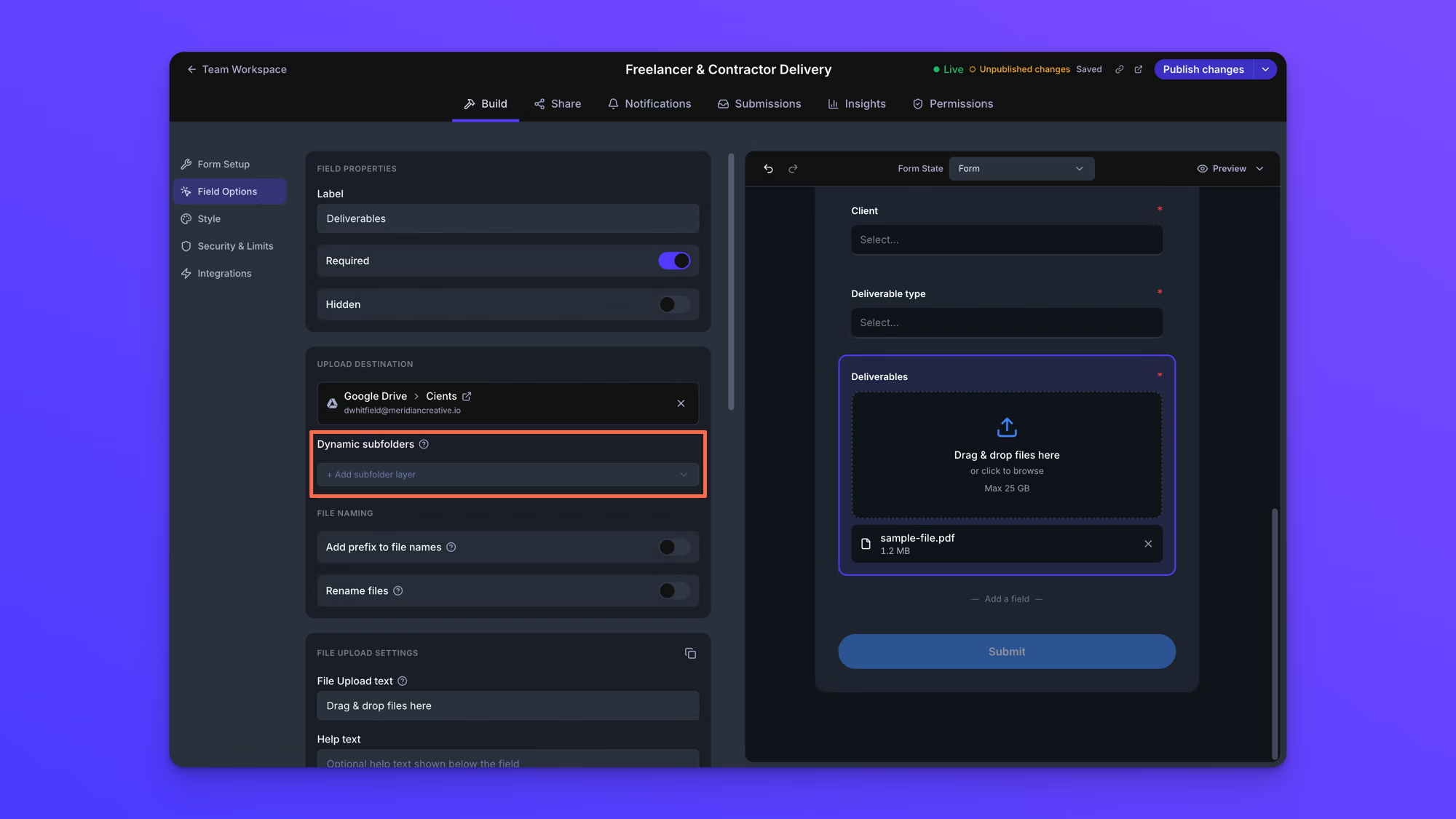
- On the form canvas, click the File Upload field you want to organize. The left panel switches to Field Options.
- Scroll to the Upload Destination card. It shows the cloud account and the folder this field's files are delivered to.
Dynamic subfolders appear only after a destination folder is chosen. If the card has no destination yet, set one first.
Add a subfolder layer
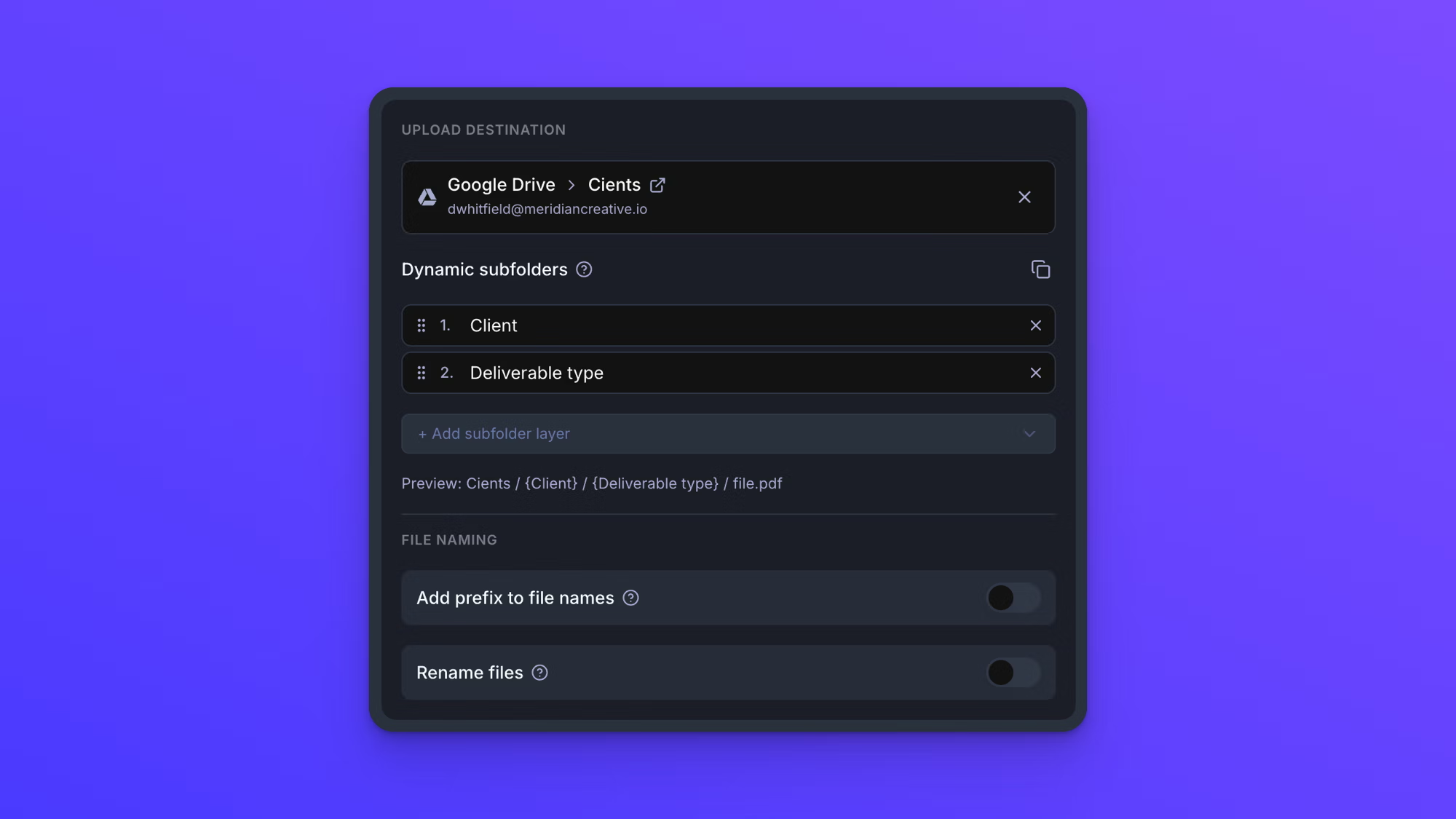
Each layer adds one folder level below your destination folder. You build them one at a time, top to bottom.
- Under Dynamic subfolders, click + Add subfolder layer.
- Choose what the layer is named after.
- Repeat until the path is as deep as you want it.
The "Preview" line below the layers shows the finished path with a sample file at the end. Two layers built from a Client field and a Deliverable type field read as "Clients / {Client} / {Deliverable type} / file.pdf", where Clients is the destination folder.
What a layer can be named after
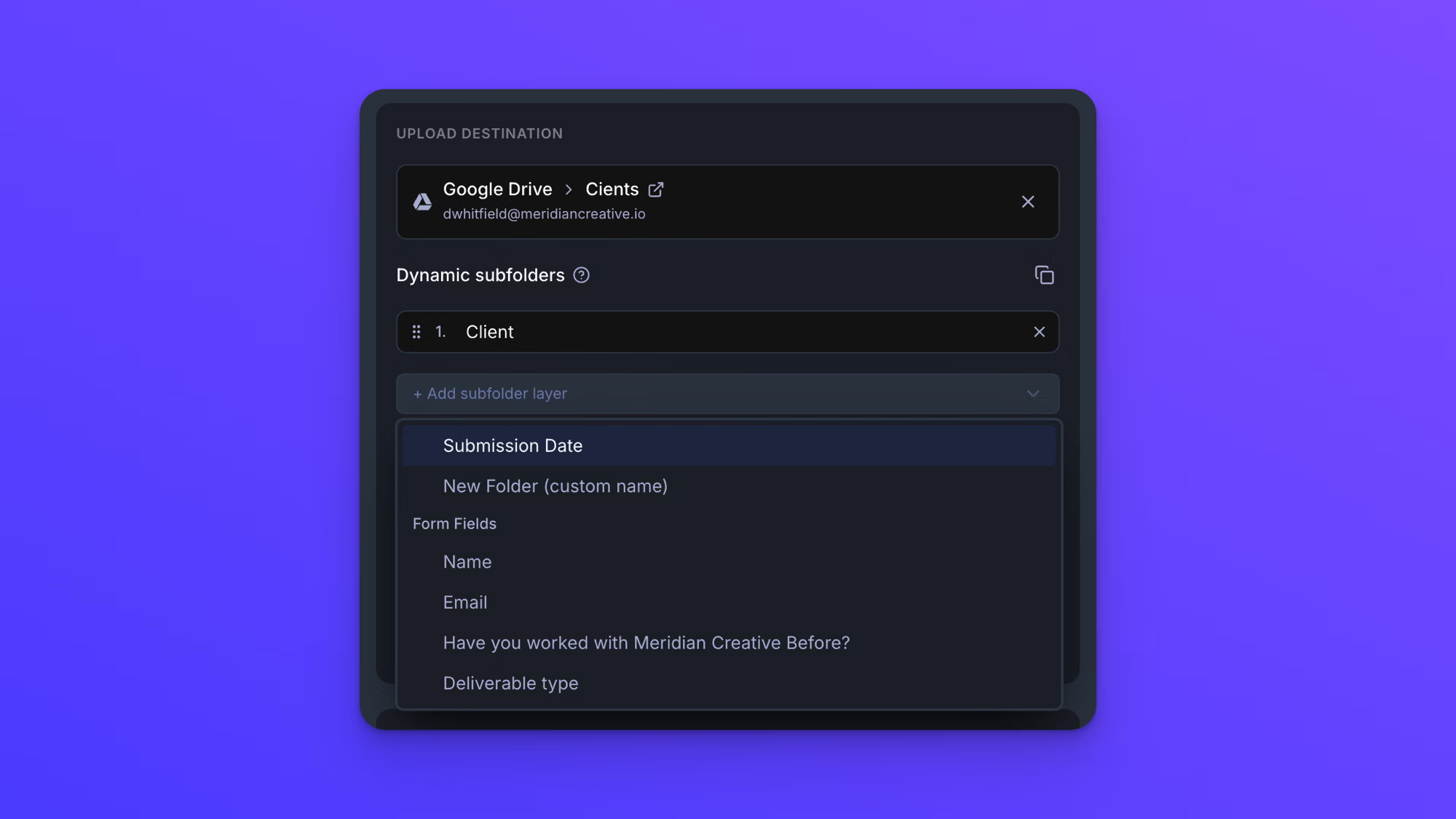
The + Add subfolder layer list offers three kinds of layer.
- Any form field, listed by its label under the "Form Fields" heading. Whatever someone enters in that field becomes the folder name.
- Submission Date, which names the folder after the date the submission arrived.
- New Folder (custom name), which lets you type a fixed folder name. Type the name and click Add. This layer is identical for every submission, which is useful for a wrapper folder that sits above the rest of the path.
File Upload fields and layout blocks cannot be used as a layer. Each form field can be used once per path, and Submission Date can be used once.
How existing folders are reused
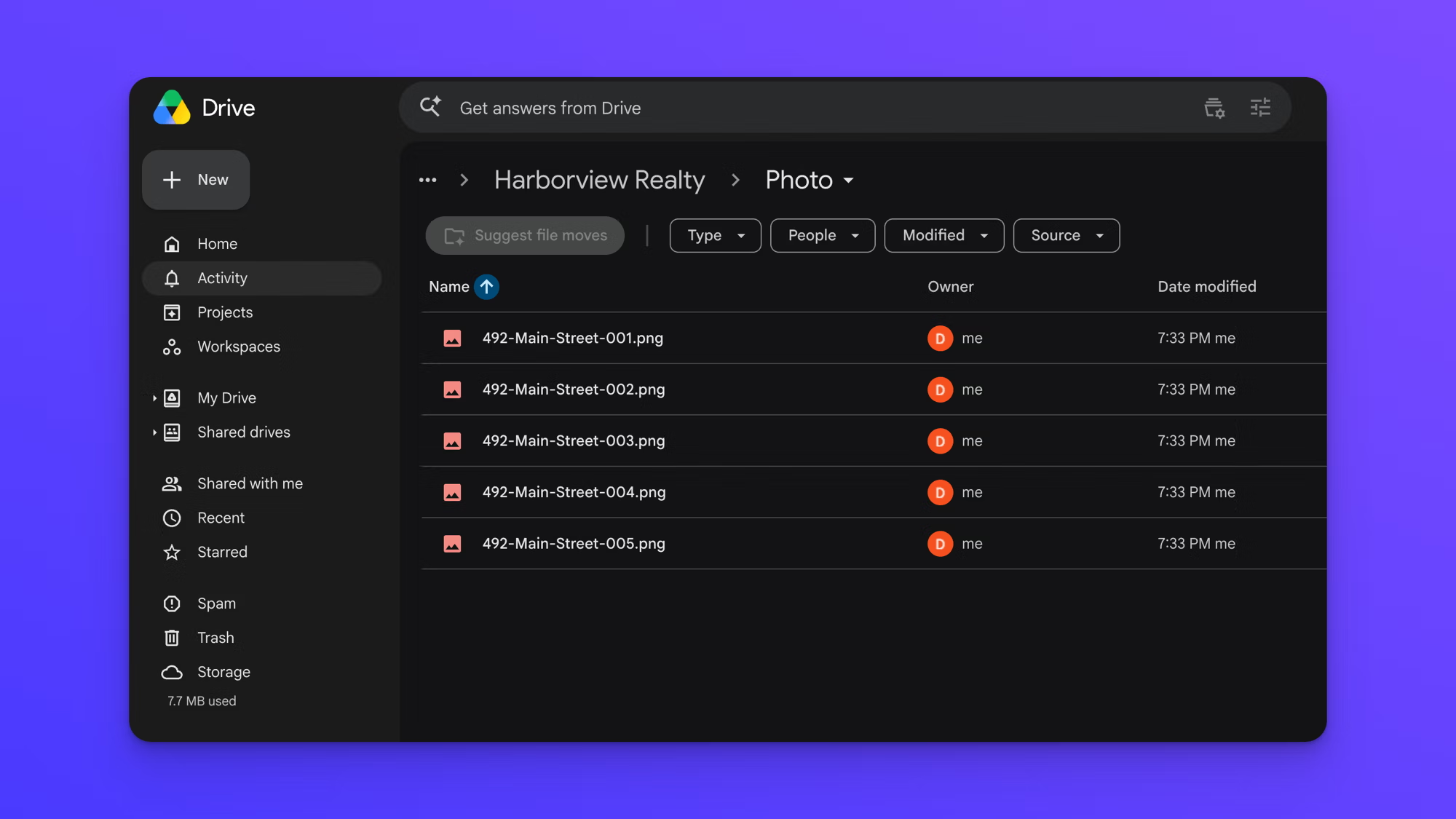
EZ File Drop builds the path one level at a time, and at every level it looks for a folder that is already there before it creates anything. If a folder with that exact name exists, the submission is delivered into it. If not, EZ File Drop creates it.
This happens at every layer, not just the first. A second submission for Northwind with a deliverable type of Final Assets is delivered into the existing Northwind folder, and then into the existing Final Assets folder inside it. Nothing is duplicated at any level, so a client folder that has been building for months keeps everything for that client in one place.
Matching is on the exact folder name, so two values that differ by even one character resolve to two different folders. A submission that says "Northwind" and one that says "Northwind Inc" are delivered to two separate folders.
That makes fields with a predefined set of answers, such as a dropdown, the best choice for driving subfolders. When people pick from options you wrote, the value is identical on every submission, so it resolves to the same folder every time. Fields people type into do work, and sometimes they are the only practical option, but each variation someone types creates another folder.
Reorder or remove a layer
Layers are numbered in the order they appear, and that order is the folder order. Layer 1 is the first folder below your destination folder.
- Drag a layer by the handle on its left to move it.
- Click the X on a layer to remove it.
The "Preview" line updates as you work, so you can check the path before you publish.
Copy the setup to another File Upload field
If your form has more than one File Upload field, you do not have to build the same path twice. Click the copy icon in the Dynamic subfolders header, select the other File Upload field, and paste the setup there. The File Naming settings can be copied the same way.
Behavior notes
- If a folder with that exact name already exists at that level of the path, the new files are delivered into it. EZ File Drop does not create a duplicate folder at any level.
- You can add as many layers as you want. Two or three covers most workflows.
- Changes are saved automatically, but a Live form keeps using its last published setup until you click Publish changes.
- Only the form's owner can change the upload destination, the dynamic subfolders, and the file naming settings. Other team members see the destination as read-only.
- Dynamic subfolders are available on the Business and Premium plans.