


View and manage submissions
Every upload form keeps its own record of what came in. The Submissions tab lists every submission that form has received, with the responses the person gave and a link to each file they uploaded. It is available on all plans.
You can read a submission here without opening your cloud storage, which is usually faster than going and looking.
Open a form's submissions
There are two ways in, and both land on the same tab.
- On the Upload Forms page, click View Submissions on the form's row. This opens the form directly on its Submissions tab.
- Or open the form and click Submissions in the row of tabs at the top.
The count at the top left shows how many submissions the form has received in total.
Read a single submission
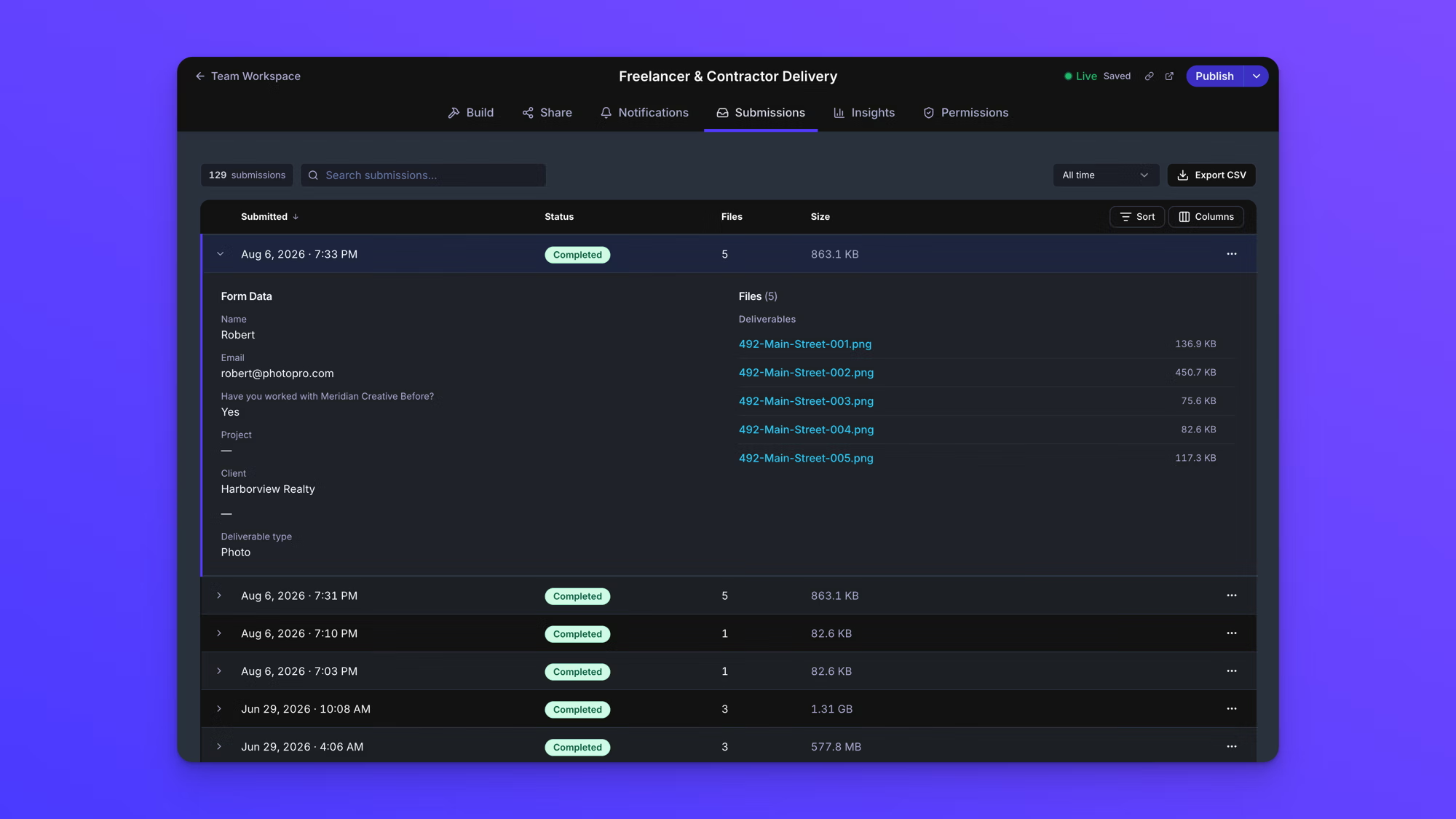
Submissions are collapsed by default so the list stays scannable. Click the chevron at the left of a row to expand it.
An expanded submission shows two panels. "Form Data" on the left lists each of the form's fields with the response that person gave. A field the person left blank shows a dash rather than being left out of the list, so what you see here always matches the form.
"Files" on the right lists every file that came in with the submission, grouped under the label of the File Upload field it was uploaded to. A form with two File Upload fields shows two groups here. Each file's name is a link, with its size beside it.
Open a file from a submission
Clicking a file name opens that file where it was delivered, in your own cloud storage. The link points at the file in your cloud account, and EZ File Drop does not proxy it or serve a copy of its own.
That means you need access to the cloud account the file was delivered to in order to open it. Someone who can see this tab but is not on the destination account will see the file's name and size here, and clicking the link will take them to that cloud provider's own permission screen. If a file link does not open, check your access to the destination account first.
Two kinds of file show as plain text instead of a link.
- A file that is still on its way to your upload destination is not clickable yet.
- A file delivered to an FTP or SFTP server has no link, because there is no web address to open. Collect it from the server.
Search and filter the list
Two controls narrow the list, and they work together.
The Search submissions... box matches text anywhere in a submission, not just names. It searches the submitter's name and email address, the submission code, the support reference, every response given on the form, and the names of the uploaded files. So searching for part of a file name finds the submission that file came in with.
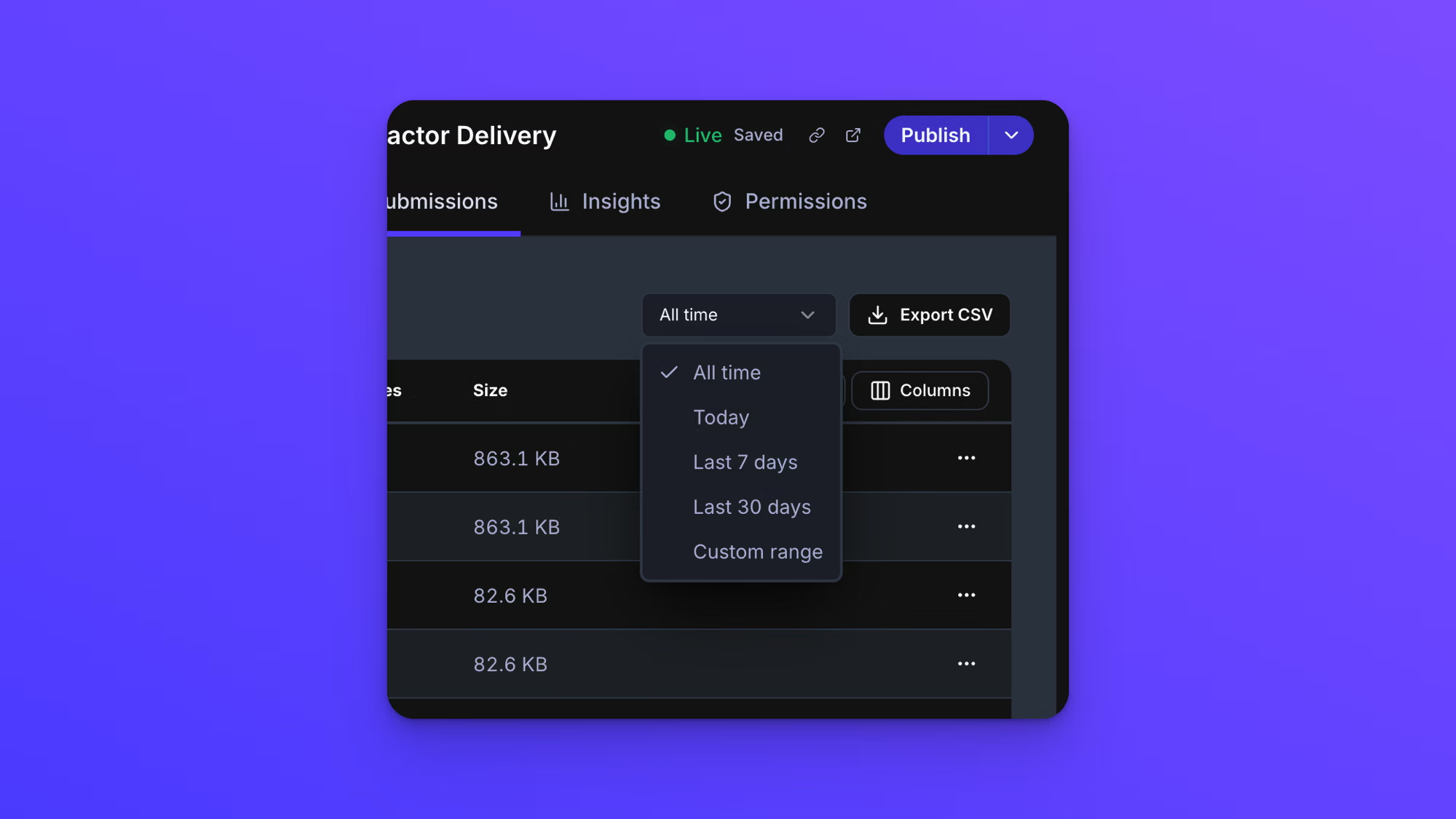
The date range dropdown, top right, defaults to "All time". The options are All time, Today, Last 7 days, Last 30 days, and Custom range. Custom range lets you set your own start and end dates. While a search is active the date filter is set aside, so a search always looks across every submission rather than only the selected range.
Sort the list
Click Sort to choose what the list is ordered by. The menu has two parts.
"Sort by" lists Submitted, Status, Files, and Size, along with any form field that holds a sortable response. Short text and long text fields are not offered, because free-form writing does not sort into anything useful.
"Sort direction" gives two choices, and their wording follows the column you picked. Sorting by Submitted offers "New to old" and "Old to new". Every other column offers "Z to A / High to low" and "A to Z / Low to high". A checkmark shows which one is active.
Choose which columns show
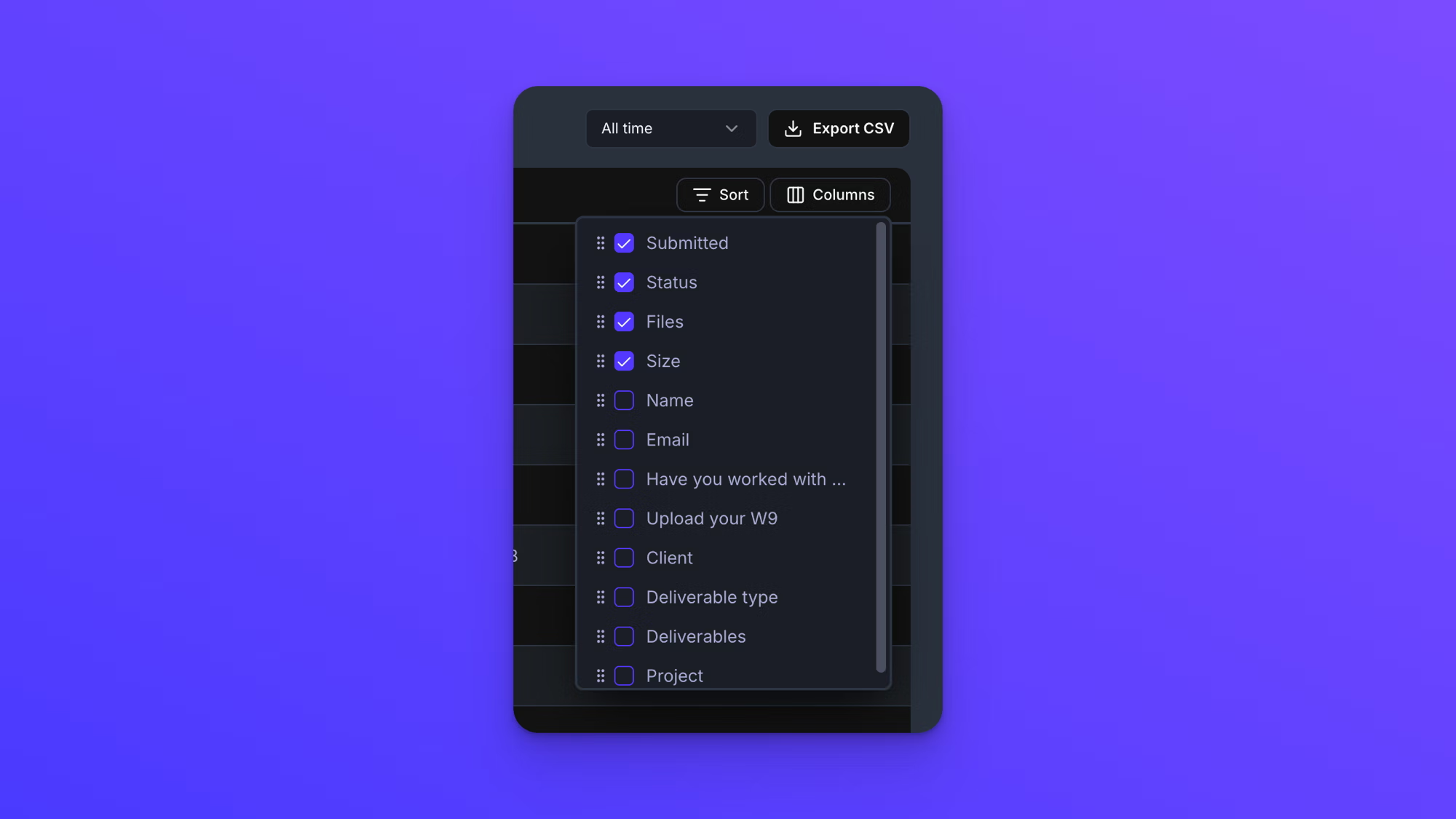
The list starts with four columns: Submitted, Status, Files, and Size. Every field on the form is also available as a column.
Click Columns to open the list. The four default columns are checked and every form field is listed below them unchecked. Check a field to add it as a column, uncheck one to remove it. Each entry has a drag handle on its left, so you can drag the list into the order you want the columns to appear in.
This is how you turn the submissions list into a table of the responses themselves. Adding a Client column, for instance, gives you a list you can scan by client instead of by date.
Your column choices, their order, and your sort setting are saved for you on that form. They follow you to another browser or computer, and they do not change what anyone else on your team sees.
What each status means
The Status column describes how far a submission got on its way to your upload destination. Expand a row for details.
- "Uploading" means the uploader's browser is still sending files. Files that haven't arrived yet read "not yet uploaded." This is normal, not an error.
- "Transferring" means every file was received and EZ File Drop is delivering them to your upload destination. If a transfer stalls for 15 minutes, the row shows "Transfer appears stuck." EZ File Drop retries automatically up to five times, so you don't need to do anything. To try right away, for example after reconnecting the destination account, click Retry Transfer.
- "Completed" means every file was delivered to your upload destination.
- "Incomplete" means some files were delivered, but at least one never finished uploading. This usually happens because the uploader closed their browser or lost their connection. Ask them to submit again to send the missing files. The form owner and failure recipients also get a Partial Upload email listing what's missing.
- "Failed" means either no files arrived or the destination refused the delivery. If nothing arrived, ask the uploader to submit again. If the destination refused the files, or a stuck transfer used up its automatic attempts, fix the cause and click Retry. The files are held for up to 30 days, so the uploader doesn't need to resubmit. See Fix upload errors.
Export submissions to CSV
Click Export CSV at the top right to download the form's submissions as a spreadsheet file. Exporting is available on all plans.
The file contains a Submitted column, then a column for every field on the form in the order the fields appear, then Status, File Count, and Total Size. Uploaded files appear as links in their own File Upload field's column, with several links separated by semicolons in the same cell. File names are not included, only the links. The download is named after your form and the date you exported it.
The export covers exactly what you are looking at. Whatever search text and date range are active when you click Export CSV apply to the file too, so narrow the list first if you only want part of it.
If the form has fields you deleted that still hold responses from older submissions, an "Export submissions" window opens first and asks whether to include them. Leave Include removed fields unchecked to export only your current fields, or check it to include the old ones, which are labeled "(removed)" in the file. Forms without that history export immediately with no window.
Remove a submission from the record
Removing a submission deletes it from EZ File Drop. Files already delivered to your cloud storage are not affected. They stay exactly where they were delivered. What is removed is the record here: the submission, its responses, and the list of its files.
- Click the three-dot menu at the right of the submission's row.
- Click Remove Entry from Database.
- The confirmation reads "This will permanently delete this submission and its associated files from the database. This action cannot be undone." The files it refers to are the file records in EZ File Drop, not the files in your cloud storage.
- Click Remove.
This cannot be undone. There is no trash or restore for submissions, so export first if you might need the record later.
Team members with view access do not see this option.
Get help with a submission
If something about a submission looks wrong, you can send it to support from the row itself rather than describing it from memory.
- Click the three-dot menu on the submission's row.
- Click Get help with this submission.
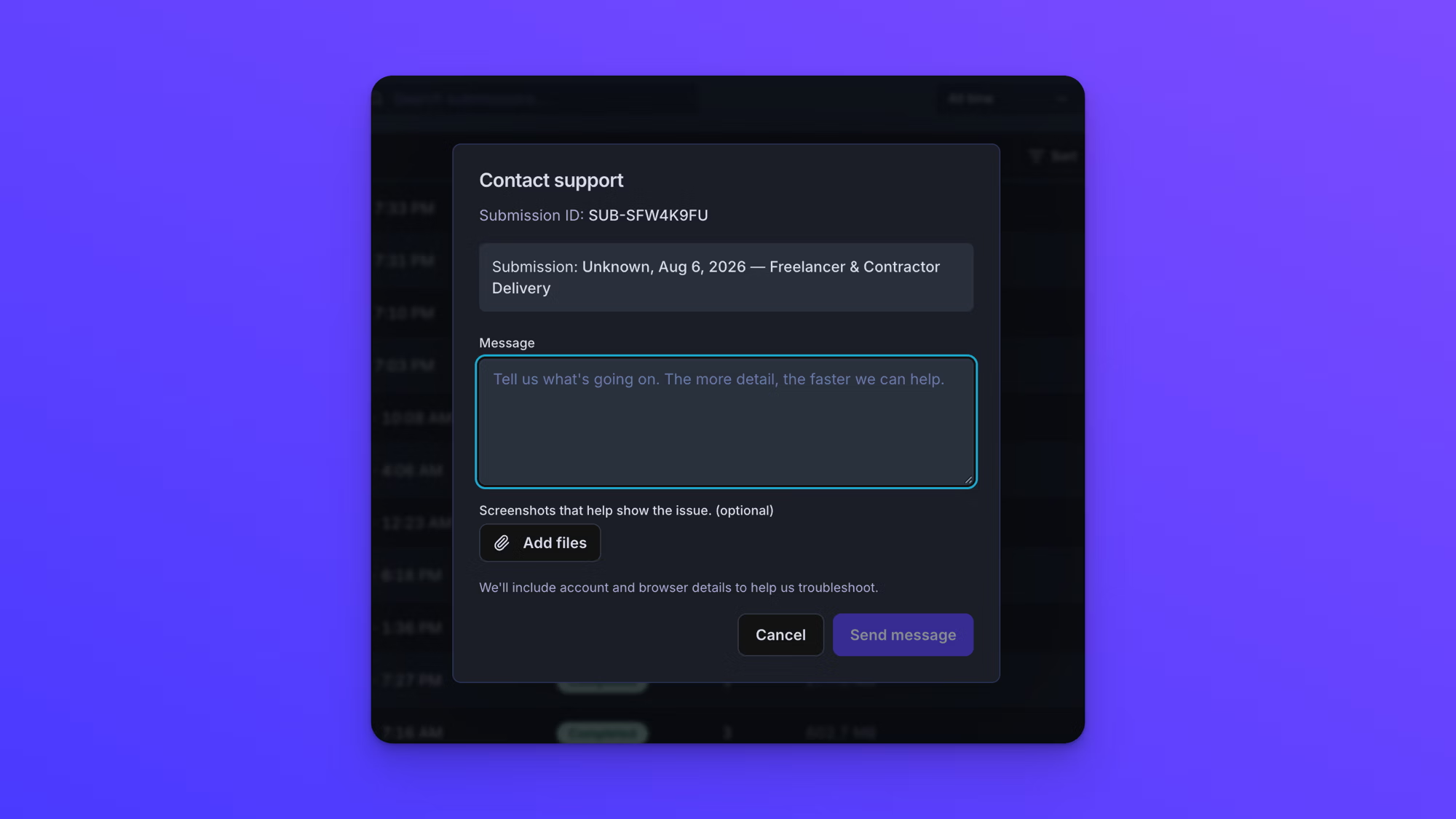
- The "Contact support" window opens with that submission's ID already filled in, along with its date and the form's name. Describe the problem in the Message box.
- To attach a screenshot, click Add files under "Screenshots that help show the issue. (optional)".
- Click Send message.
The window notes that account and browser details are included with your message, so you do not need to gather those yourself.
Behavior notes
- The Submissions tab is per form. Each form keeps its own record, and there is no combined list for your whole account.
- Submissions are kept until you remove them or the form is deleted. There is no automatic expiry on the record.
- The files themselves are a separate matter. EZ File Drop does not keep your files: a delivered file is removed from EZ File Drop about an hour after your cloud storage confirms it has it, and any file is removed after 30 days regardless. The record of the submission stays either way.
- Column choices and sort order change what you see. They do not change the underlying record, and nothing about them affects what an uploader sees.
- Deleting a form deletes its submissions with it.
- Who can open this tab is set per form and per person. See Set form permissions.