


Set form permissions
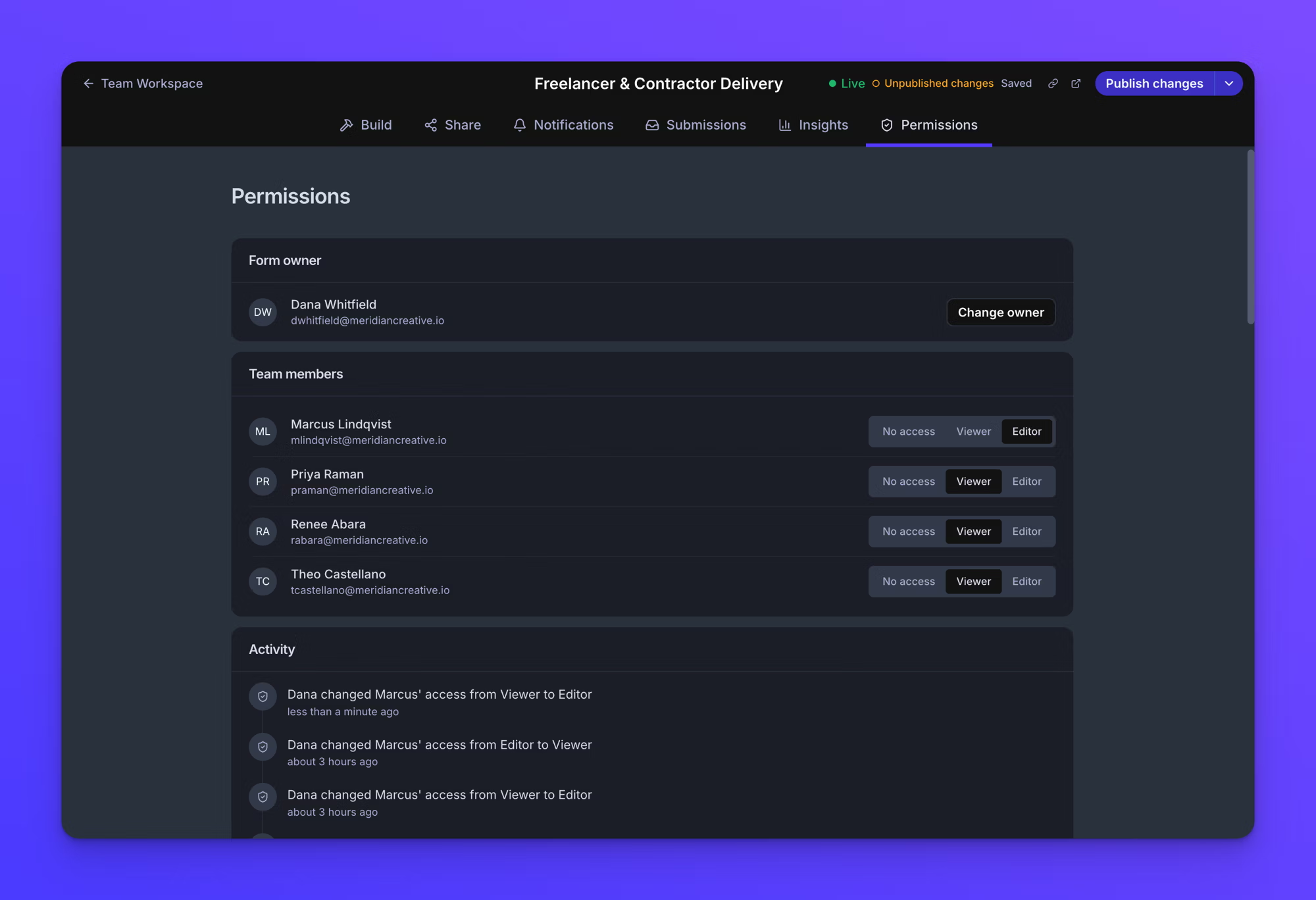
Form permissions control what each team member can do with a form in the Team Workspace. Each person has one of three access levels for each form, and you can also transfer ownership of a form to another team member. Only the form's owner can change a form's permissions.
The form must be in the Team Workspace. See Private and team workspaces.
Open the Permissions tab
- From the Team Workspace, open the form.
- Click the Permissions tab.
The Permissions tab appears only on forms in the Team Workspace, and only the form's owner can see it. Being a team owner does not grant access to another owner's form permissions.
The three access levels
Each person in the "Team members" section has one of three access levels for this form.
- No access removes the form from that person's Team Workspace. They cannot see or open the form.
- Viewer opens every part of the form read-only. A Viewer can see how the form is built, its notifications, its submissions, and its insights, and can view and download submissions, but cannot change or delete anything. Viewers see a notice on the form that reads "You have view-only access to this form." with a link to email you to request edit access.
- Editor can change how the form is built, manage its notifications, and manage its submissions, including deleting them. Editors cannot change the form's permissions, delete the form, or move it between workspaces.
Change a member's access
- On the Permissions tab, find the person in the "Team members" section.
- Select No access, Viewer, or Editor next to their name.
The change applies immediately and a confirmation message appears. Access changes are not form settings, so there is nothing to publish.
Someone you have invited who has not accepted yet appears in the list with "Invitation pending". You can set their access after they accept the invitation.
Change the form owner
- On the Permissions tab, click Change owner in the "Form owner" section.
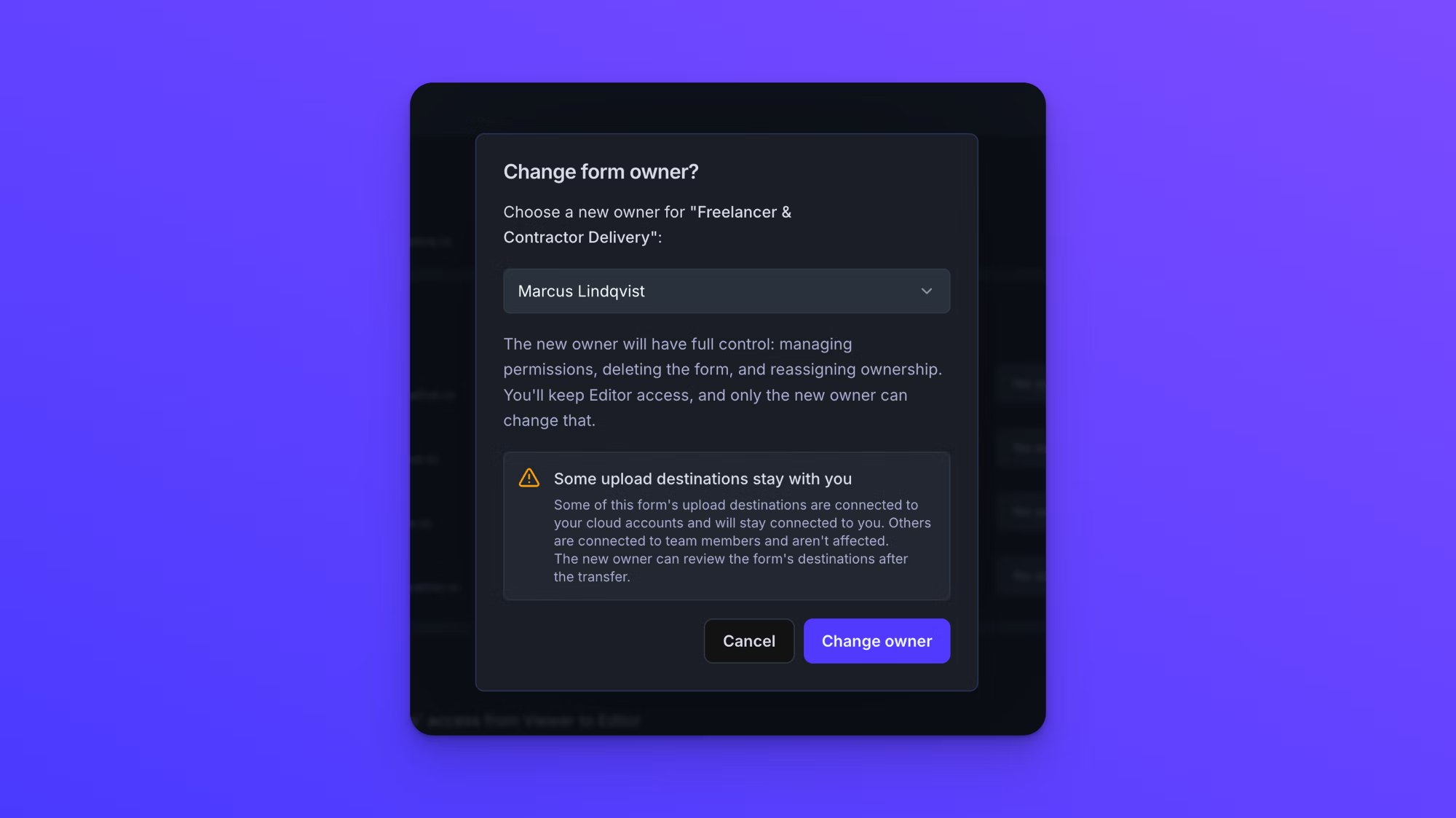
- In the "Change form owner?" dialog, select a team member.
- Click Change owner.
The new owner takes full control of the form: managing permissions, deleting the form, and reassigning ownership. You keep Editor access, and only the new owner can change that. The new owner receives an email letting them know the form is now theirs.
If any of the form's upload destinations are connected to your cloud accounts, they stay connected to you, and files keep being delivered there until the new owner connects the form to their own destinations. Destinations connected to other team members are not affected. The dialog tells you which of these applies to the form before you confirm.
Review the form's activity
The "Activity" section at the bottom of the Permissions tab lists what has happened on the form and who did it: access changes, ownership transfers, moves between workspaces, and edits to the form and its notification settings.
Behavior notes
- New forms created in the Team Workspace give every team member Viewer access by default. So does moving a form into the Team Workspace, and a new person joining your team receives Viewer access to the forms already there.
- Permissions are per person and per form. Changing one person's access on one form changes nothing else.
- If you set someone to No access while they have the form open, they are taken out of the form.
- Team owners have no built-in access to a form's permissions. Removing someone from the team entirely is a different action. See Remove a user and reassign forms.