

Getting Started

Form Builder
Sharing & Embedding
Submissions & Insights
Notifications
Custom Domains
Automation
Migration
Troubleshooting
Move a form between workspaces
You can move an upload form between your Private Workspace and the Team Workspace at any time, in either direction. Moving a form changes who on your team can see it, so a confirmation dialog explains what will happen before the move is made.
You can move only forms you own. The workspace tabs appear once your team has a second user. See Private and team workspaces.
Move one or more forms
- Open the Upload Forms page and select the workspace tab that holds the form.
- Check the box next to each form you want to move. Checkboxes appear only on forms you own.
- In the bar that appears at the bottom of the page, click Move to.
- Choose Move to Team Workspace or Move to Private Workspace. The menu offers the workspace the forms are not already in.
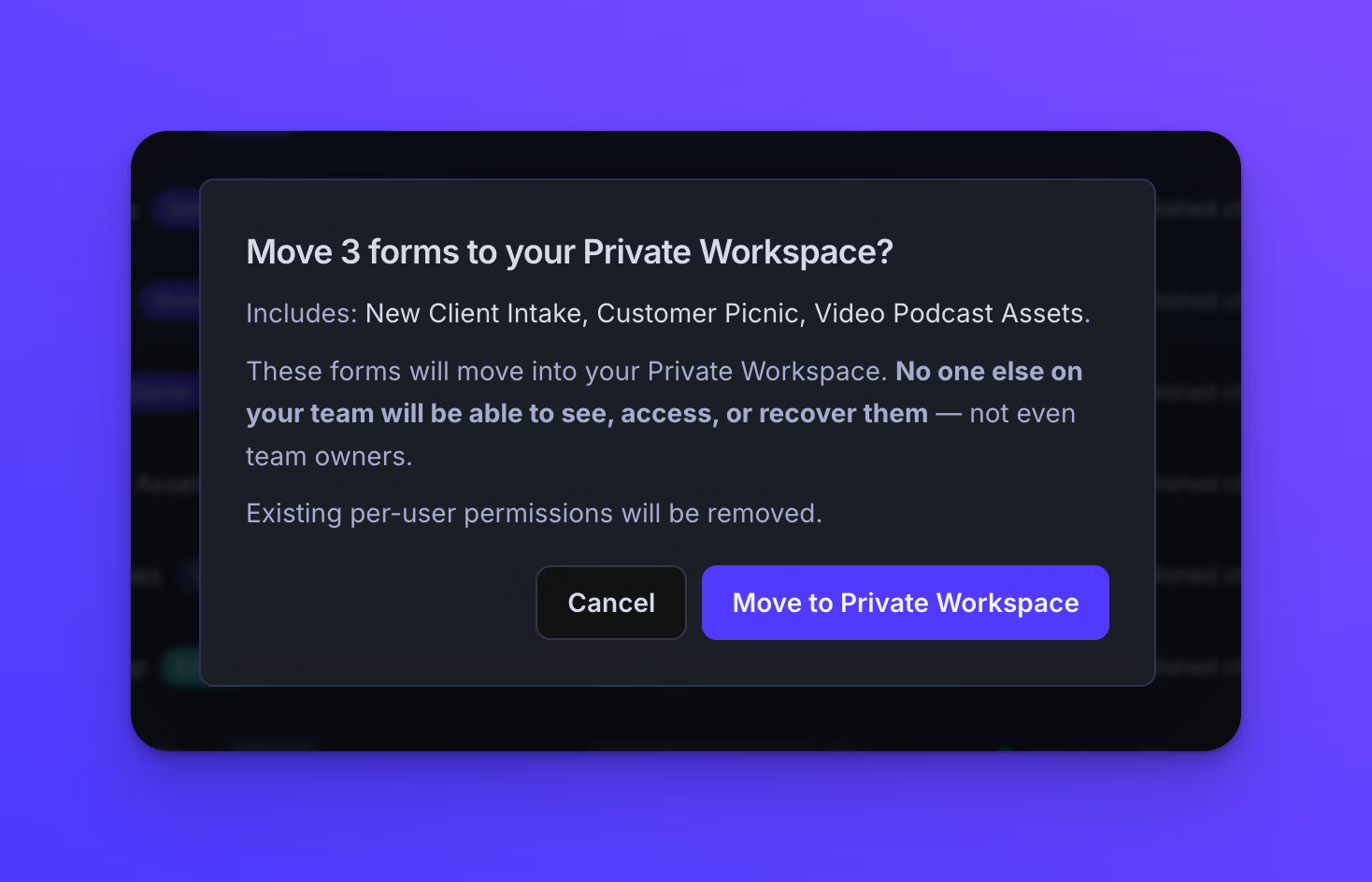
- Review the confirmation dialog and click Move to Team Workspace or Move to Private Workspace to finish.
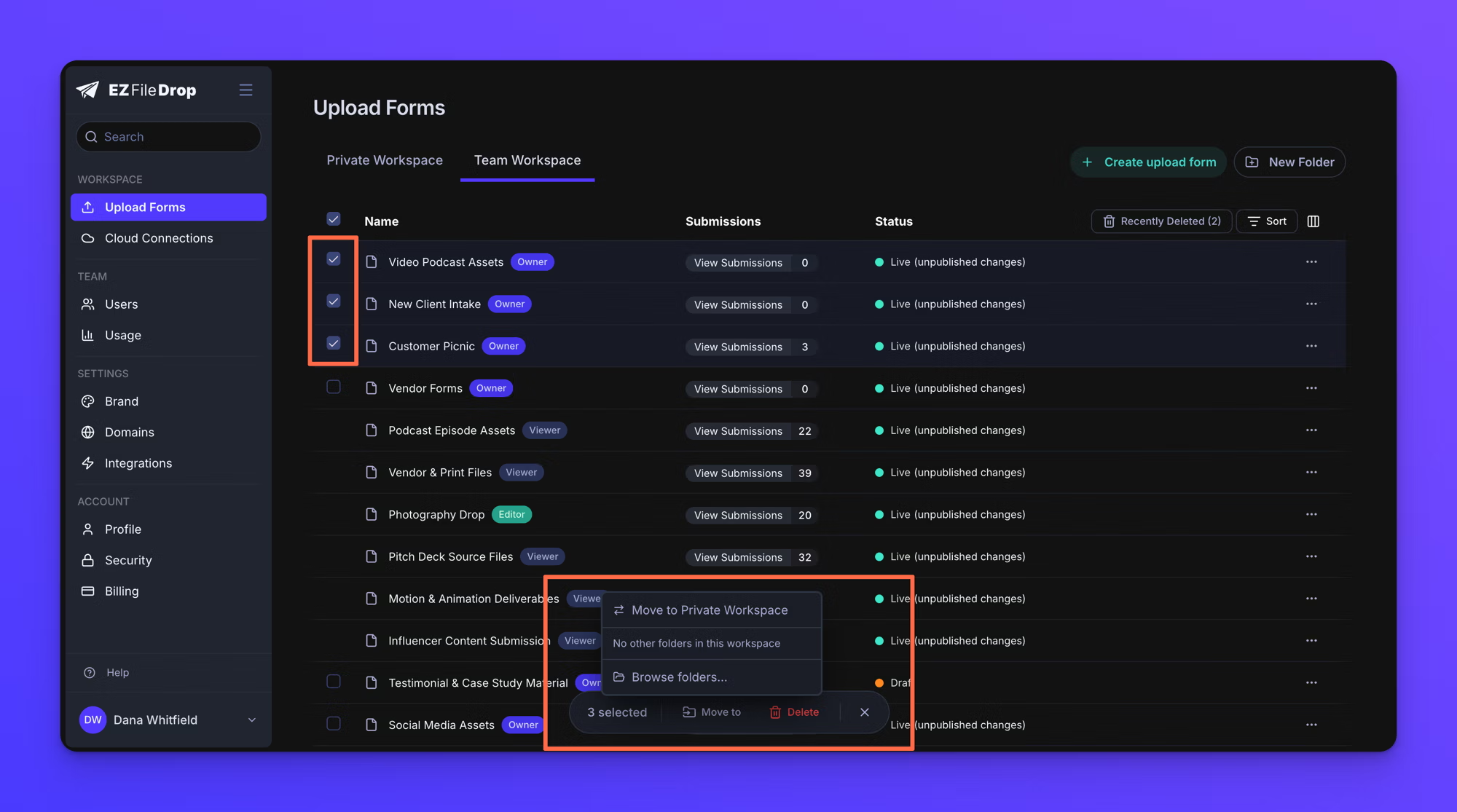
You can also drag the selected forms onto the other workspace's tab at the top of the page. The same confirmation dialog appears.
Behavior notes
- Moving a form to the Team Workspace gives every team member Viewer access to it by default. You can adjust each person's access afterward from the form's Permissions tab. See Set form permissions.
- Moving a form to the Private Workspace removes everyone's per-person access. Only you will be able to see, access, or recover the form, and that includes team owners.
- Moving a form does not change its status. A Live form stays Live, and its link keeps accepting uploads during and after the move. See Form statuses.
- Moving a form does not change its upload destination. Files keep being delivered to the same place.
- Folders are workspace-specific. A form that was in a folder leaves it and is placed at the root of the destination workspace.
- The Move to menu also lists the folders in the current workspace, so the same control moves forms into a folder without changing workspaces.
- Each move is recorded in the "Activity" section of the form's Permissions tab.