


Show or hide fields with conditional logic
Conditional logic shows or hides a field based on the answer someone gives to another field on the same form. Conditional logic is available on the Business and Premium plans.
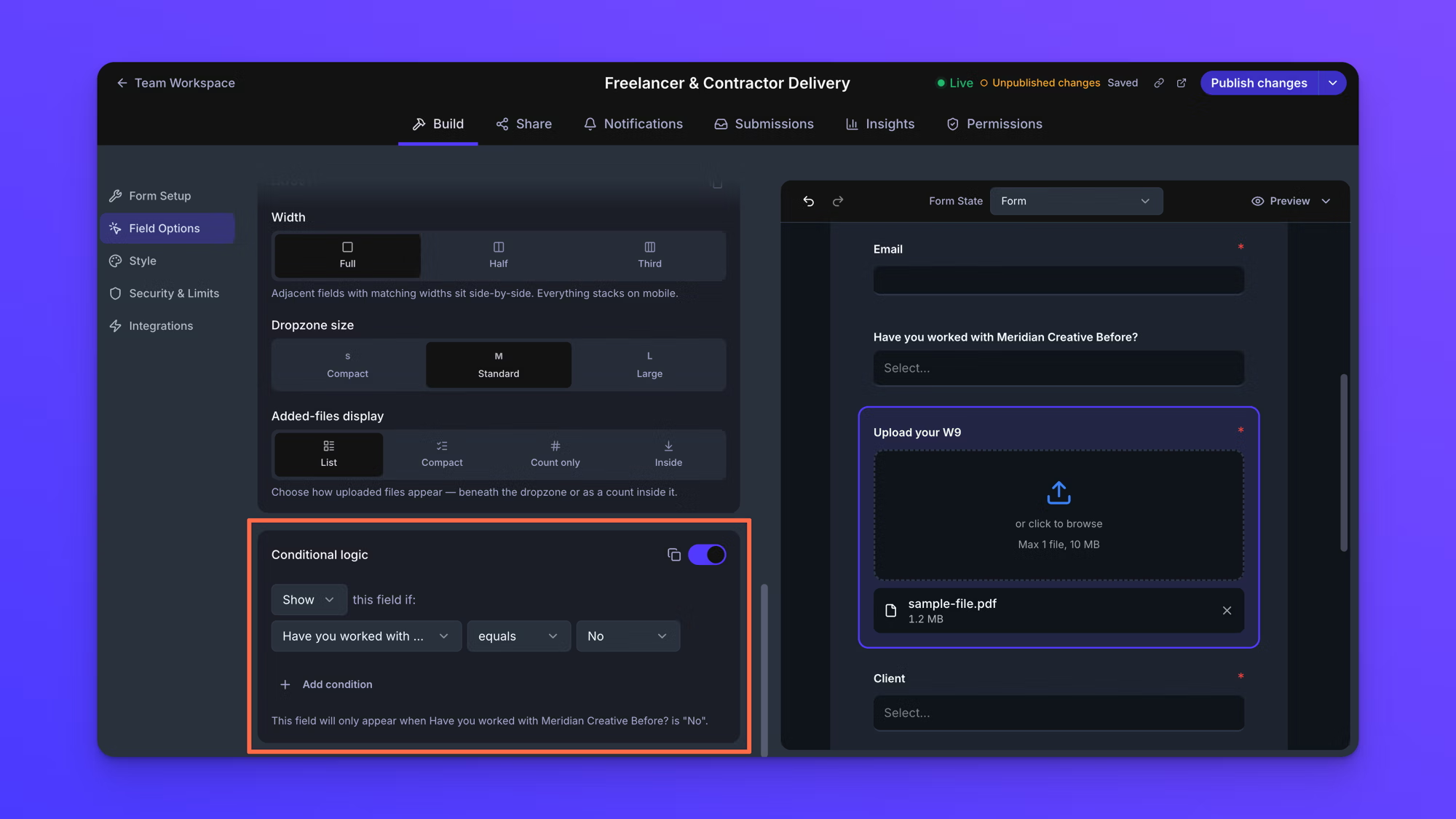
The example used here is a Freelancer & Contractor Delivery form. A Dropdown field asks Have you worked with Meridian Creative Before?, and a File Upload field asks for a W9. The W9 field appears only when the answer is No.
You need a form with at least two fields: the field that asks the question, and the field you want to show or hide. See Add form fields.
Set a condition on a field
Conditional logic is set on the field you want to show or hide, not on the field whose answer controls it. In the example, the condition goes on the W9 File Upload field.
- On the Upload Forms page, open your form.
- On the form canvas, click the field you want to show or hide. The left panel switches to Field Options and shows that field's settings.
- Scroll down the panel to Conditional logic and turn the toggle on.
- Set the first dropdown to Show or Hide.
- In the condition below it, open the first dropdown and choose the field whose answer controls this one.
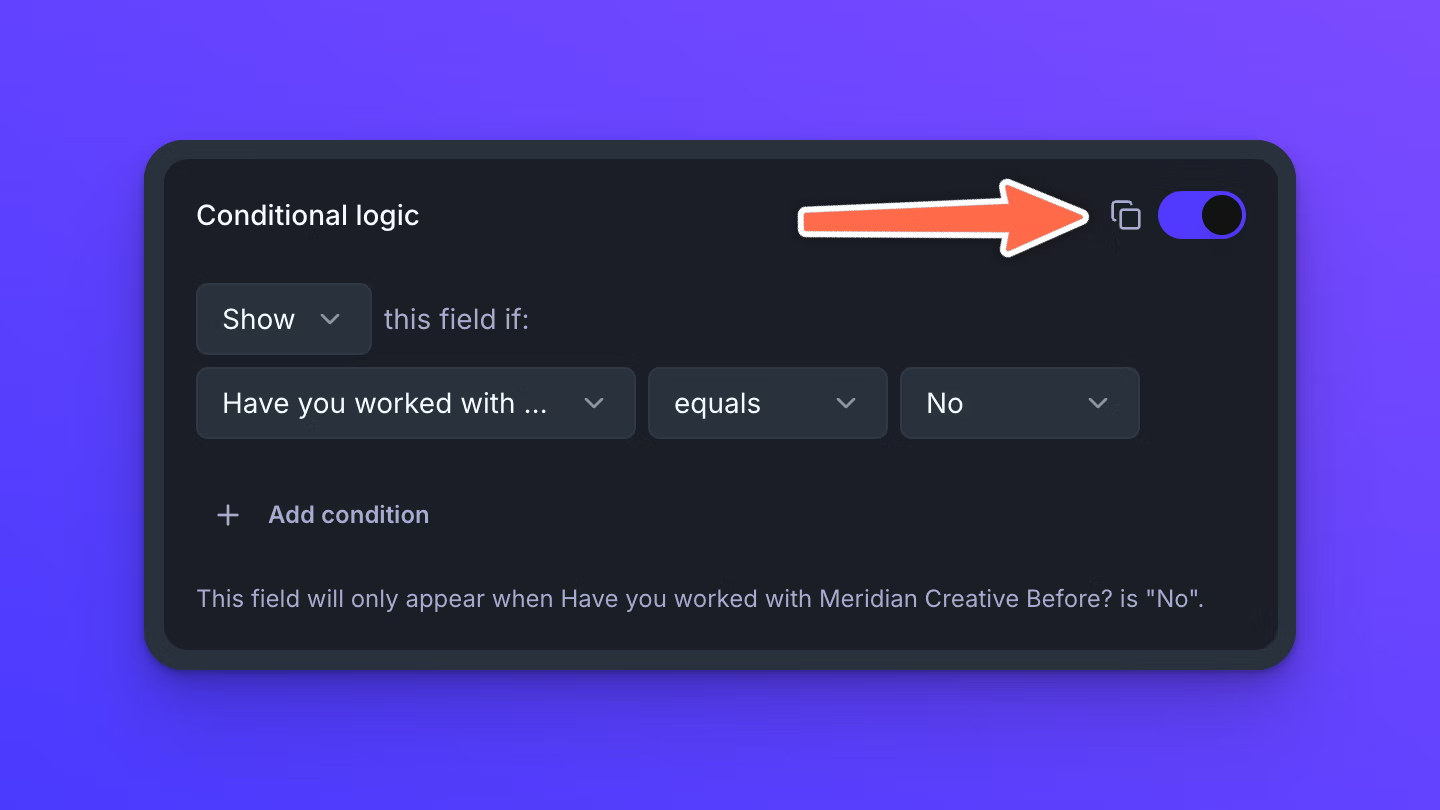
- Choose a comparison in the next dropdown, then set the value to match. In the example: Have you worked with Meridian Creative Before?, equals, No.
The panel writes the finished rule out as a sentence underneath the condition, so you can read back what you built. In the example it confirms that the field will only appear when Have you worked with Meridian Creative Before? is No.
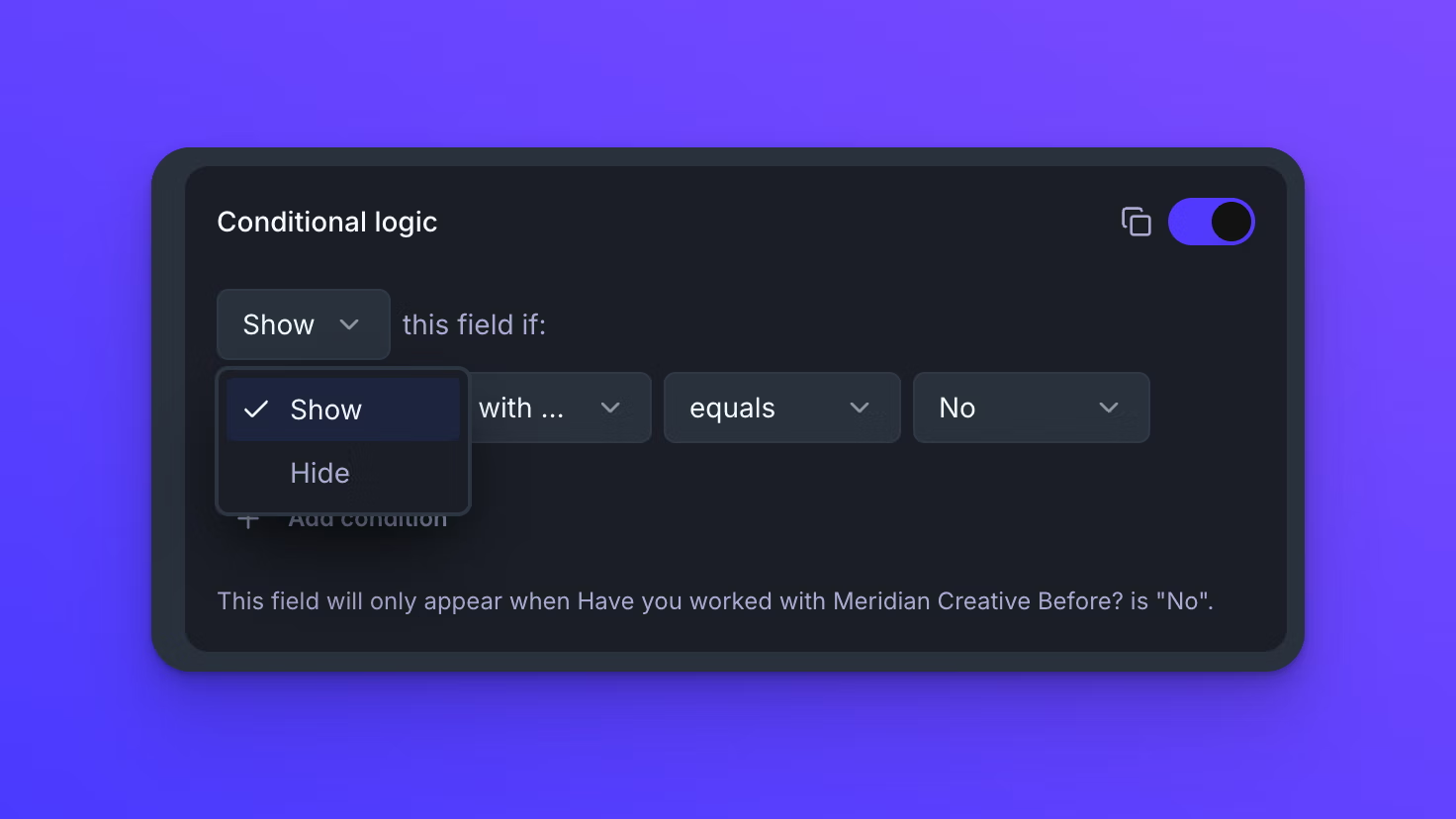
Show and Hide
The first dropdown sets which direction the rule works in. New conditions start on Show.
- Show keeps the field off the form until the condition is met. The example uses Show, so the W9 field is not on the form until someone answers No.
- Hide does the reverse. The field is on the form from the start and comes off when the condition is met.
Most rules are easier to read as Show, because the field only exists for the people it applies to. Hide is the better fit when a field should be there for almost everyone and only come off in one specific case.
The summary sentence under the condition follows whichever you pick, reading "will only appear when" for Show and "will only be hidden when" for Hide.
Test the rule in Preview
The form canvas shows every field at once, including fields a condition is holding back, so it is not where you check a rule. That is deliberate, since every field has to stay reachable while you are building the form.
Preview, at the top right of the form canvas, opens the form the way an uploader sees it, with conditional logic in force. Open Preview, answer the field that controls the rule, and watch the other field appear or disappear.
In the example, the W9 field is not on the form when Preview opens. Choosing No adds it.

Which fields can drive a condition
Any field can drive a condition, as long as it sits above the field it controls. Fields are compared in form order, so a field can only be controlled by an answer someone has already had the chance to give. If the field you want is not in the dropdown, move it above the field you are setting the condition on. See Add form fields for moving fields.
On the first field of a form there is nothing above it, so the Conditional logic toggle cannot be switched on and the panel tells you to add a field above it first.
Layout blocks cannot drive a condition. Heading 1, Heading 2, Title, Text, Divider, and New Page collect nothing from the uploader, so there is no answer for a condition to read.
A few field types read differently from the rest:
- A File Upload field cannot drive a condition. It appears in the list of fields to choose from, but nothing an uploader does to it reaches the rule, so a condition built on one will not behave the way you expect. Pick a different field to control the rule.
- An Authorization Checkbox is compared on whether it is checked.
- A Checkboxes field can hold several answers at once, and a rule reads them as one piece of text with the answers separated by commas. Use contains rather than equals to match a single answer, because equals only matches when that answer is the only one ticked.
Show or hide a layout block
A layout block cannot drive a condition, but it can carry one. Heading 1, Heading 2, Title, Text, and Divider are set up the same way a field is: select the block on the form canvas, turn the Conditional logic toggle on in the left panel, and build the condition. The summary sentence reads block instead of field.
This is how you put instructions in front of only the people who need them. In the example, the W9 File Upload field appears when someone answers No. A Text block set to the same condition appears alongside it, explaining why the W9 is needed before a first invoice can be paid. Everyone who answers Yes sees neither one, so the form stays short for the people it does not apply to.
The comparisons you can use
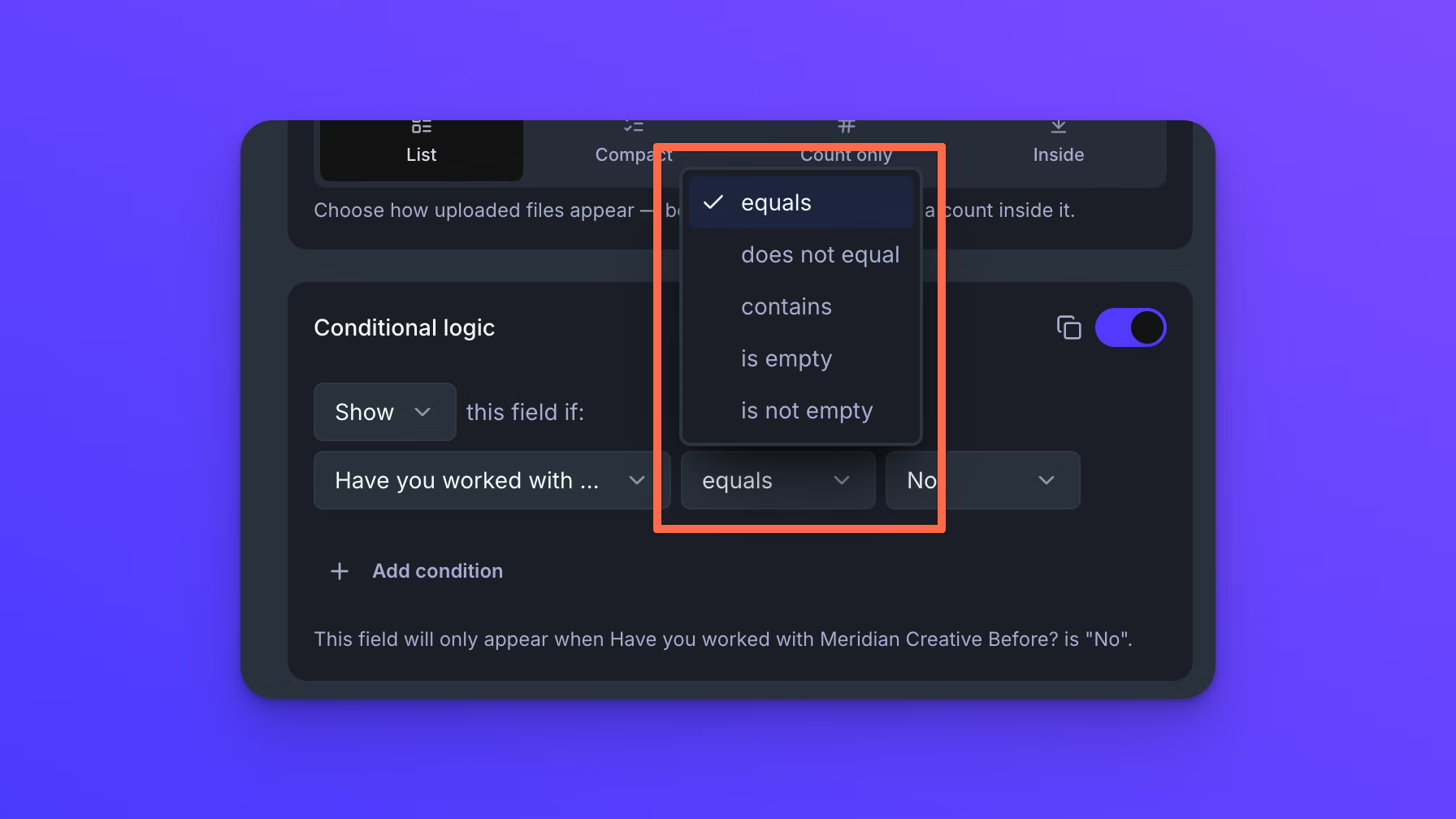
The comparison dropdown sets how the answer is measured. There are five comparisons: equals, does not equal, contains, is empty, and is not empty.
The first three compare the answer against a value, so a third control appears where you set that value. When the controlling field has set options, that control lists them for you to pick from instead of asking you to type a value. Dropdown, Multiple Choice, and Checkboxes fields all work that way. is empty and is not empty test whether the field was answered at all, so they take no value and the third control goes away.
Add more than one condition
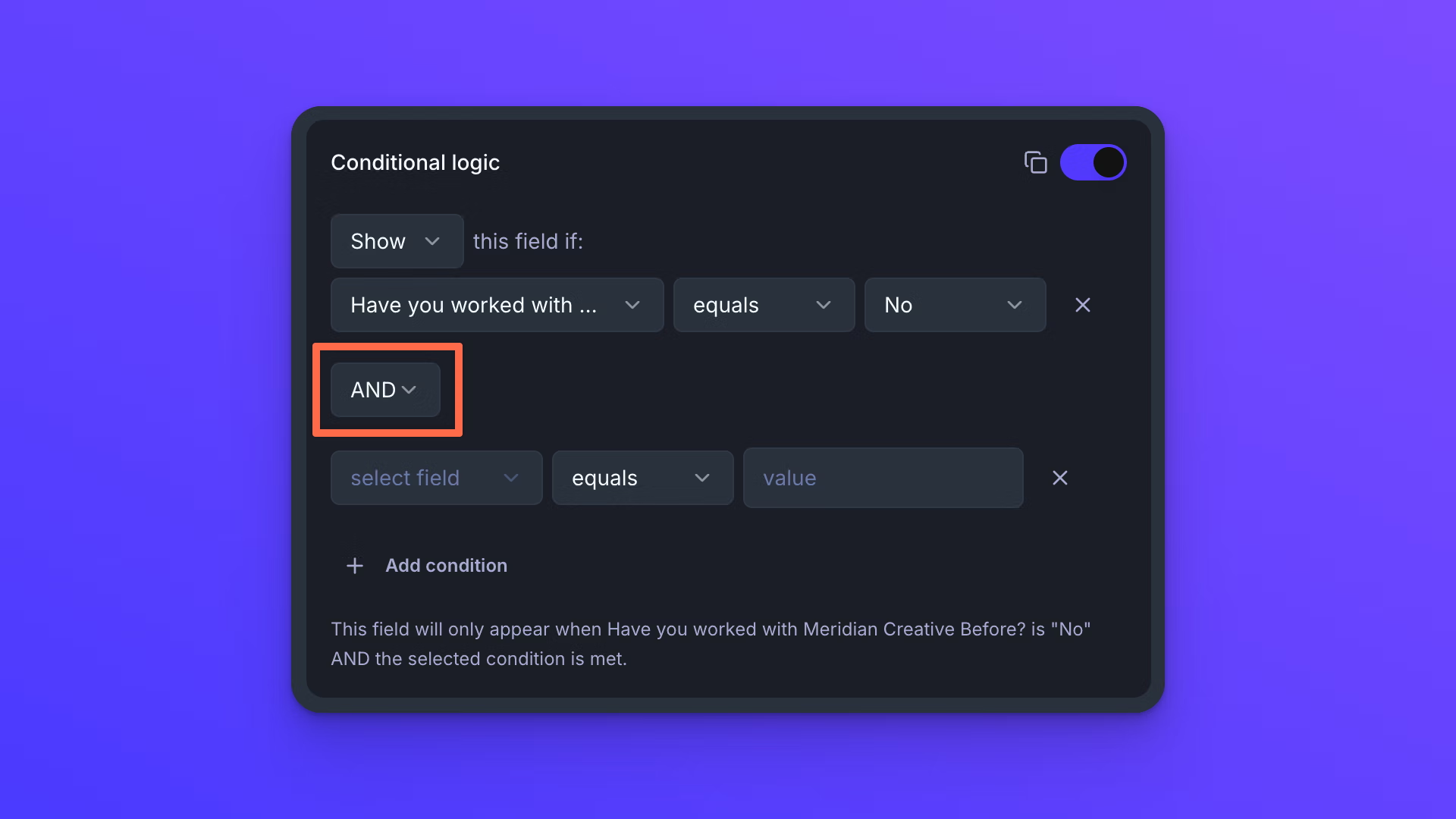
A field can have more than one condition on it. Click Add condition below the condition you already built, then set the new row's field, comparison, and value the same way.
Each condition after the first has an AND or OR dropdown that joins it to the one above. AND means both conditions have to be true. OR means either one is enough. Conditions are evaluated in the order they are listed, each one applied to the result of everything above it. There is no order of operations, so AND does not take priority over OR the way it would in a spreadsheet formula.
Copy conditional logic to another field
A rule can be copied from one field to another, which saves rebuilding it by hand when several fields need the same condition.
- Select the field whose rule you want to copy.
- At the top right of the Conditional logic section, click the copy icon, labeled Copy conditional logic.
- Select the field you want to give the rule to.
- In that field's Conditional logic section, click the paste icon, labeled Paste conditional logic. The label also names the field the rule came from.
Pasting drops any part of a rule that cannot apply to the new field, such as a reference to the field itself or to a field that is no longer on the form. If nothing is left after that, nothing is pasted and no message appears, so look at the section afterwards to check the rule arrived.
A pasted rule can also end up pointing at a field that sits below the one you pasted it onto. It still works for uploaders, but the builder cannot show you which field it is until you move the fields into order.
Behavior notes
- Conditional logic lives on the field being shown or hidden. The field whose answer drives the rule needs no settings of its own, and one field's answer can control several fields, each with its own condition.
- Turning a rule on does not change the form canvas. Conditions apply to what uploaders see, which is why Preview is the only place to check them.
- A rule with no controlling field chosen yet does nothing. The field stays on the form under either Show or Hide until the rule is finished.
- Answers stay with the submission even when the field is hidden. If someone fills in a field and a condition later hides it, that answer is still sent with the submission, and files added to a File Upload field are still delivered. If the condition shows the field again, the files are still attached to it.
- A required field that a condition is currently hiding does not hold up the form. A field is only required while it is on the form, so someone who never meets the condition can submit without it.
- Duplicating a field copies its conditional logic along with the rest of its settings.
- A rule keeps working if fields are later reordered so the controlling field is no longer above the field it controls. Uploaders still see the rule applied. In the builder the controlling field appears blank, because that dropdown only lists fields above the current one, so move the fields back into order to edit the rule.
- Deleting a field does not clear the conditions on other fields that were reading it. Those rules keep running with nothing to read, which usually makes them behave as though the answer were empty. In the builder the controlling field shows as blank, the same way it does after a reorder, so rebuild any rule that pointed at a field you removed.
- Conditional logic is not the only way to keep a field off a form. A field's own Hidden toggle, beside Required in the field's settings, takes it off the form for everyone and is available on the Business and Premium plans. Setting Query parameter mode to Hidden takes a field off the form while still letting a link fill in its value; see Pre-fill forms with URL query parameters. Both of those apply before the form opens, so a condition on a field hidden either way never comes into play.
- Changes to conditional logic are saved automatically a moment after you make them, and the indicator at the top of the form reads "Saving…" and then "Saved". Saving is not publishing. A Live form keeps showing its last published version until you click Publish changes in the top right.
- A copied rule is held only while you have the form open. Reloading the page clears it, and it is not carried to another browser tab.