


Private and team workspaces
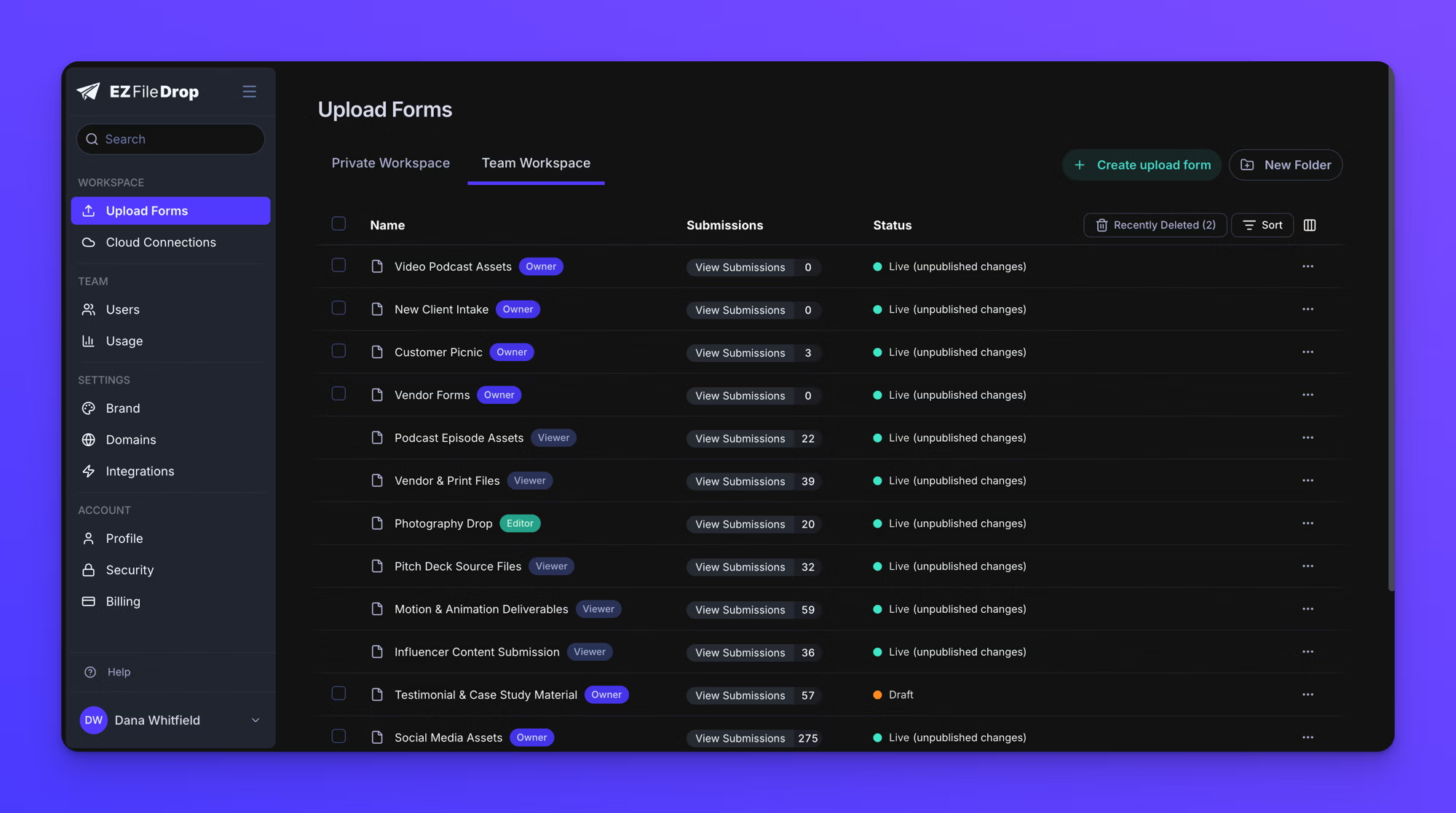
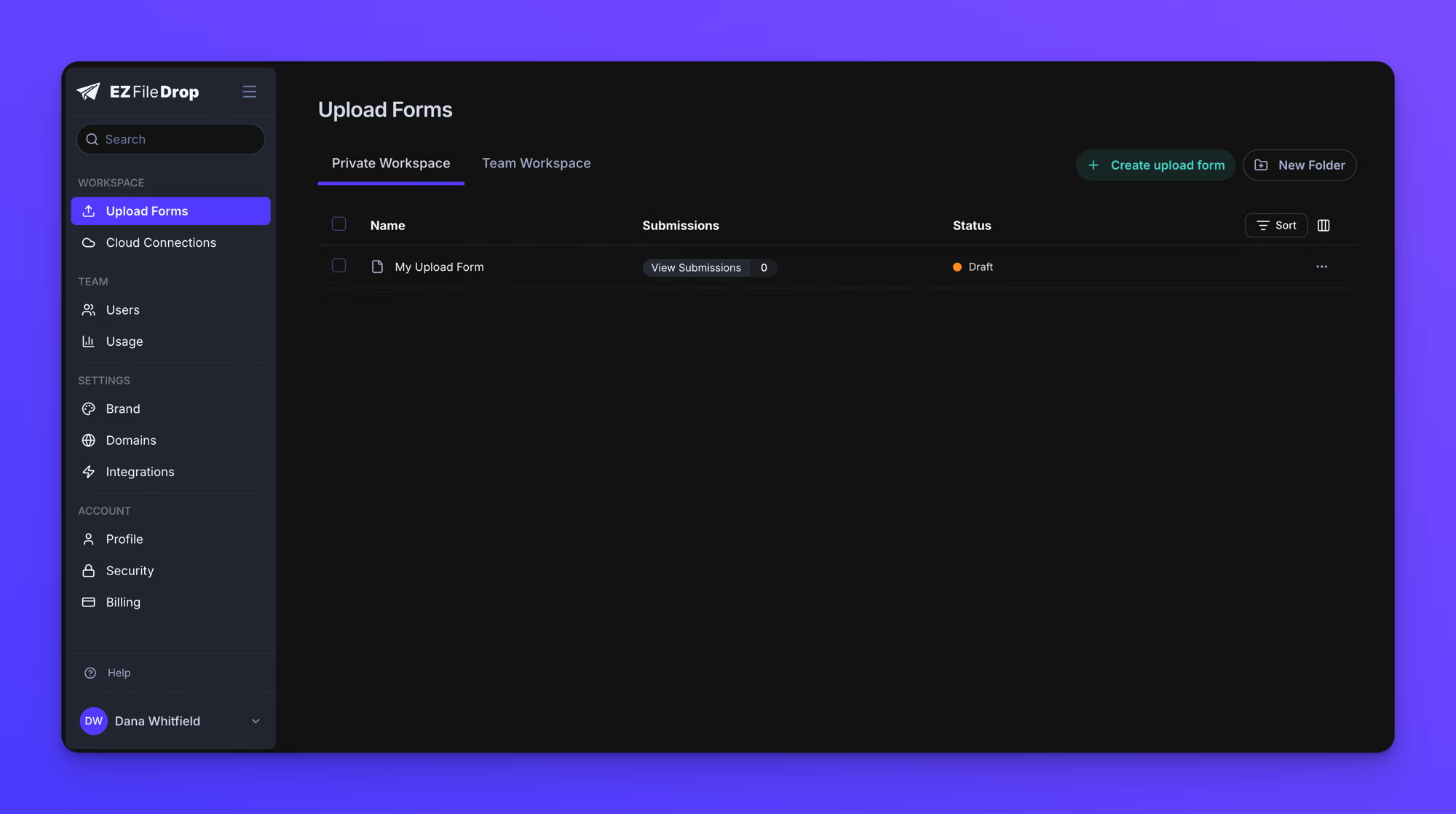
Your upload forms live in one of two workspaces on the Upload Forms page. The Private Workspace holds forms only you can see. The Team Workspace holds forms your whole team can find, open, and work on together. Adding team members is available on the Business and Premium plans.
When the Team Workspace appears
An account with a single user has one list of forms and no workspace tabs. Every form you create is private to you.
The Private Workspace and Team Workspace tabs appear at the top of the Upload Forms page as soon as your team has a second user, including someone you have invited who has not accepted yet. Your existing forms stay in your Private Workspace, and the Team Workspace starts empty until you create forms in it or move forms into it.
The Private Workspace
The Private Workspace holds forms only you can see. No one else on your team can see, open, or recover them, and that includes team owners. When you create a form here, the "Create a new upload form" dialog confirms it: "This form will be created in your Private Workspace. Only you can see it."
The Team Workspace
The Team Workspace holds the forms your whole team works from. Every team member can see the list, and each form row shows a badge for your access to that form: "Owner", "Viewer", or "Editor".
When you create a form in the Team Workspace, every other team member starts with Viewer access to it, and you can adjust each person's access from the form's Permissions tab. See Set form permissions. When a new person joins your team, they automatically receive Viewer access to the forms already in the Team Workspace.
A team form delivers files to the upload destination chosen on that form, and an upload destination is connected to one team member's cloud account, which is not always the person viewing the form. Check the destination on any shared form your team depends on.
Folders
Each workspace has its own folders. Click New Folder to create one in the workspace you are viewing. Folders in the Team Workspace are shared, and any team member can open them. Folders in your Private Workspace are visible only to you.
Folders never cross workspaces. When a form moves to the other workspace, it leaves its folder and is placed at the root of the destination workspace. See Move a form between workspaces.
Behavior notes
- Creating a form places it in the workspace you are viewing. The "Create a new upload form" dialog states which workspace the form will be created in.
- On an account with more than one user, the Upload Forms page opens to the workspace tab you last had open, and to the Team Workspace if you have not opened either tab yet.
- Seeing a form in the Team Workspace does not by itself grant edit rights. Access is set per person on each form. See Set form permissions.
- Workspaces organize forms for you and your team. They change nothing for uploaders: a form's link works the same from either workspace.