
How to Receive Large Files From Clients (Without Email Limits)
A client's self-recorded video, a set of high-res photos, or a 300-page scanned contract won't fit through email. Gmail and Outlook cap attachments at 20 to 25 MB, so the send bounces, the file shows up as a link to someone else's Google Drive, or the client gives up and asks what to do. This guide covers how to receive large files from clients without email limits: why attachments fail, where the usual workarounds fall short, and how to set up EZ File Drop, an upload form that delivers every file into your own cloud storage. Already living this problem? Jump to the setup steps.
Why large files from clients don't come through email
Email was built for messages, not media. Every provider caps how much one message can carry, and the limit applies at both ends of the exchange.
Gmail and Outlook attachment limits
Google's help page is plain about it: "For personal Gmail accounts, the limit is 25 MB." Microsoft sets Outlook's limit at 20 MB for internet accounts such as Outlook.com and Gmail, and at 10 MB by default for Exchange business mailboxes.
Work and school accounts can differ, because an administrator sets the limit. On Google Workspace, that includes how large a message your own inbox will accept, so a file your client can send may still never reach you.
"The attachment size exceeds the allowable limit"
That is the message Outlook shows when a client tries to attach more than the limit allows. It counts every attachment in the message together. A client with three 8 MB photos hits it as surely as a client with one video.
Most clients don't know the number. They see the error, try again with fewer files, and you end up with the project in four emails.
Gmail swaps big attachments for a Drive link
When a client's attachments go over 25 MB, Gmail removes them and adds a Google Drive link instead. The file now lives in your client's Drive, under their sharing settings. If they didn't give you access, you click the link and get a request-access screen, then wait.
Once you're in, you still download the file and move it to wherever your projects live. If the client later deletes or moves it, the link stops working.
What size file is too large to email?
Anything over about 20 MB is too large to email reliably. Gmail allows 25 MB per message, Outlook 20 MB, and Exchange business mail 10 MB by default. The limit covers all attachments combined, so several medium files can fail as easily as one big one.
In practice that rules out most video, layered design files, RAW photo sets, and large batches of scanned documents.
The usual workarounds, and where each one falls short
When email fails, clients reach for whatever they have. Most of these methods get the file to you eventually. The trouble is what happens after.
Two of these leave the file outside your storage. A transfer link is a pickup notice: you download the file before the link expires, then upload it again to wherever your work lives. Gmail's Drive link leaves the file in your client's account, where it can be moved or deleted.
The cloud request features come closest. Dropbox File Requests and OneDrive's Request files both take uploads without an account. But Dropbox caps File Request uploads by plan, OneDrive offers Request files only on work and school accounts, and Google Drive has no equivalent. We cover the details in whether Dropbox File Request can be used to collect files and letting anyone upload to OneDrive without signing in. For transfer services and other tools by name, see our roundup of EZ File Drop alternatives.
How to receive large files from clients with EZ File Drop
EZ File Drop puts an upload form in front of the cloud storage you already use. Clients open a link, add their files, and submit. The files are delivered into your storage, so there's nothing to download and nothing that expires.
1. Connect your cloud storage
In the left sidebar, click Cloud Connections and choose your provider. You can connect more than one, and each form picks its own destination. See connect Google Drive for the walkthrough.
Large files count against that storage like any file you save yourself, so check there's room for what you're asking clients to send.
2. Create the form
Click Upload Forms, then Create upload form. Name it after the request, like "Customer Videos" or "Project Files," so the link makes sense to clients. The full flow is in create your first upload form.
3. Set the limits clients will see
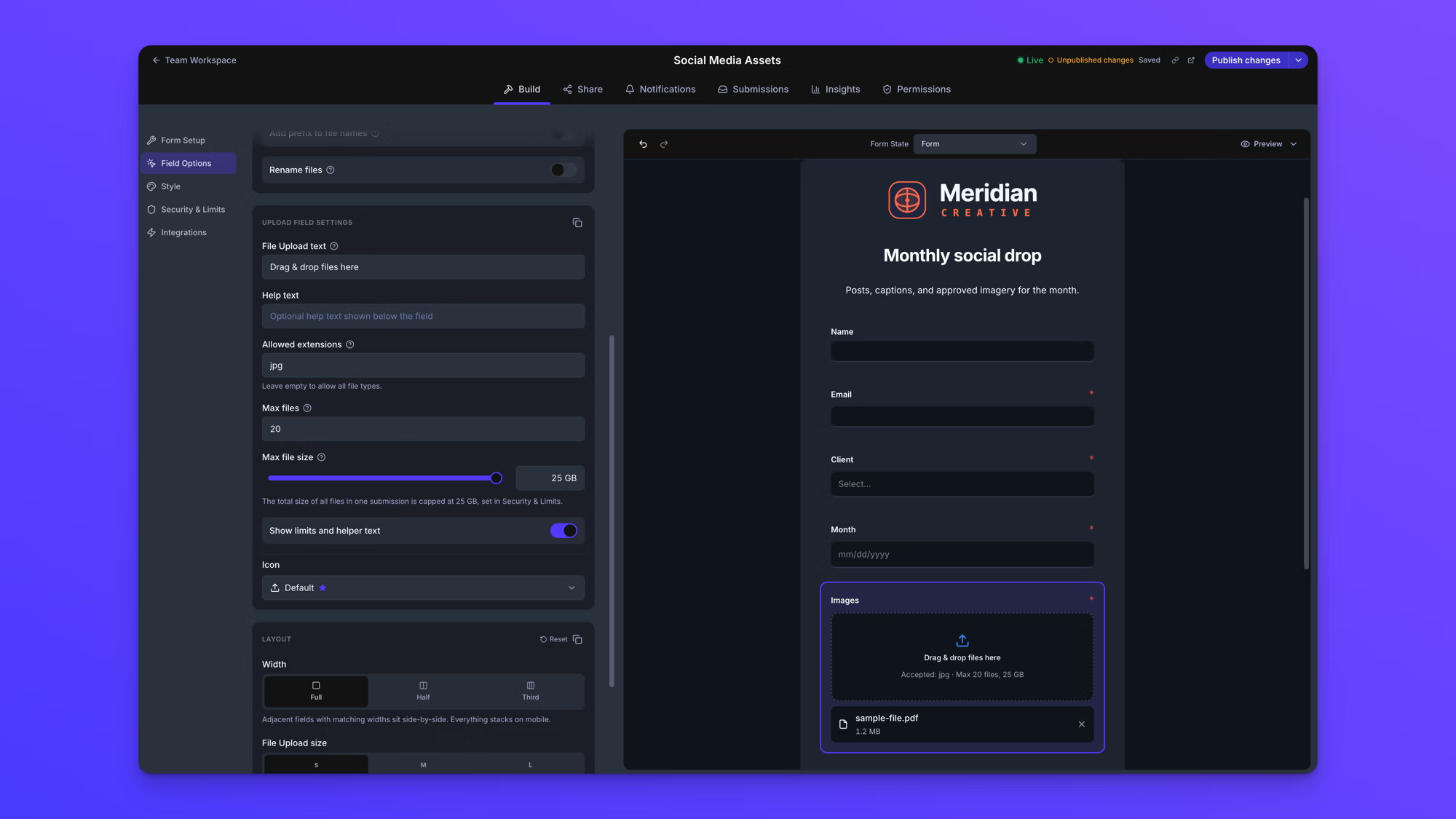
Select the File Upload field, open Upload Field Settings in Field Options, and set what the field accepts:
- Allowed extensions limits the file types, such as mov, mp4, or zip.
- Max file size caps each file.
- Max files caps how many files the field takes.
Leave Show limits and helper text on. Clients then see the accepted file types and limits under the upload area before they choose anything, so nobody finds out at 90 percent. These settings are available on the Business and Premium plans. See restrict file types and set upload limits.
Each submission can be up to 5 GB on Starter and 25 GB on Business and Premium, whether it's one file or forty. That's enough for a client to send a full photo shoot or a video project in one go instead of splitting it up.
4. Choose where the files go
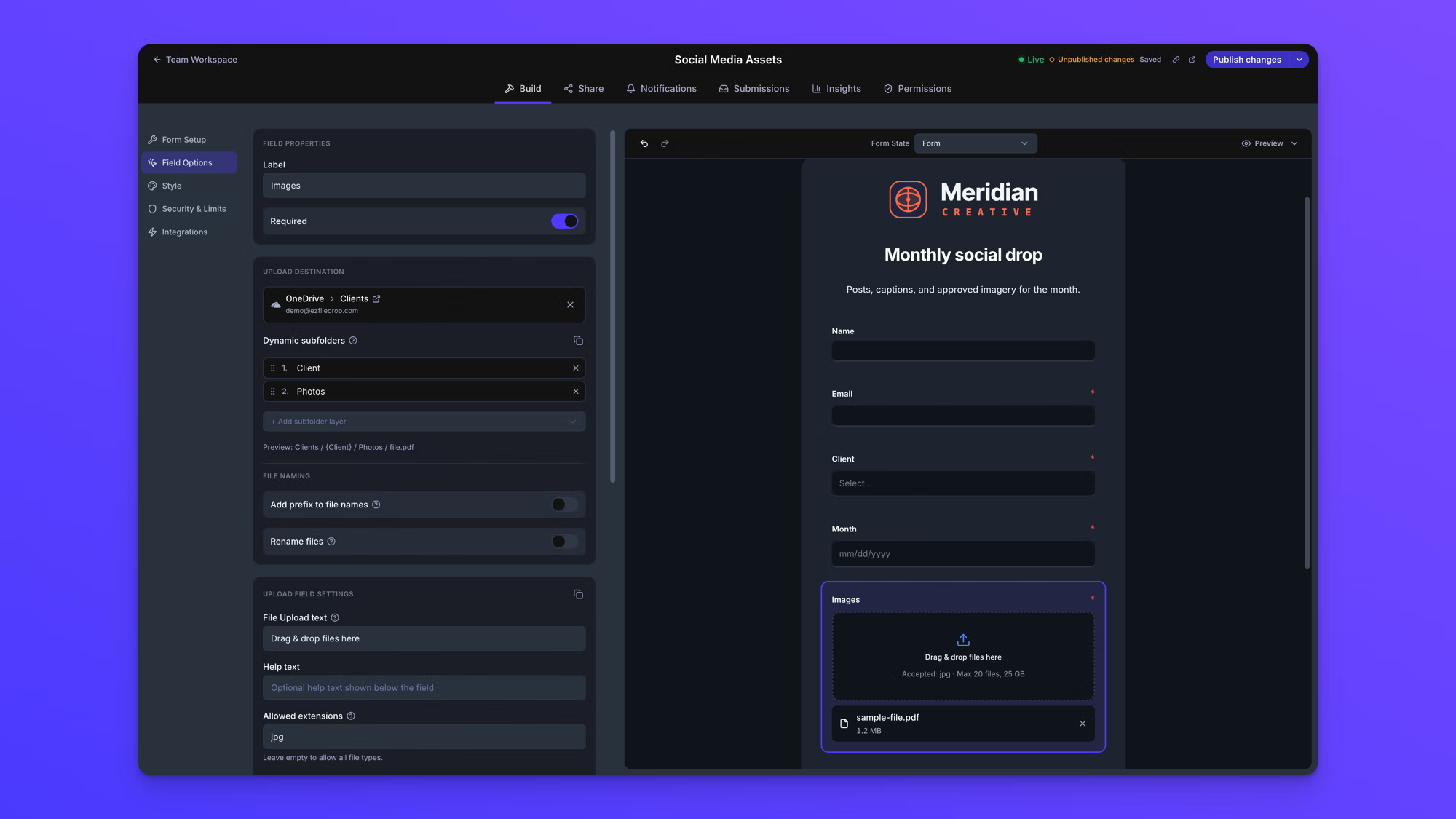
In the same Field Options panel, open Upload Destination and pick the folder. To sort as files arrive, click + Add subfolder layer under Dynamic subfolders and build the path from form answers, like client name and then project. Folder sorting is available on the Business and Premium plans. See dynamic file organization.
5. Turn on notifications and share the link
On the form's Notifications tab, have EZ File Drop email you when a submission arrives and send the client a confirmation. EZ File Drop also emails you if a delivery to your storage fails. See email notifications.
Then click Publish, open the Share tab, and click Copy URL. Put the link in your project kickoff email, or embed the form on your website.
A worked example: self-recorded customer videos
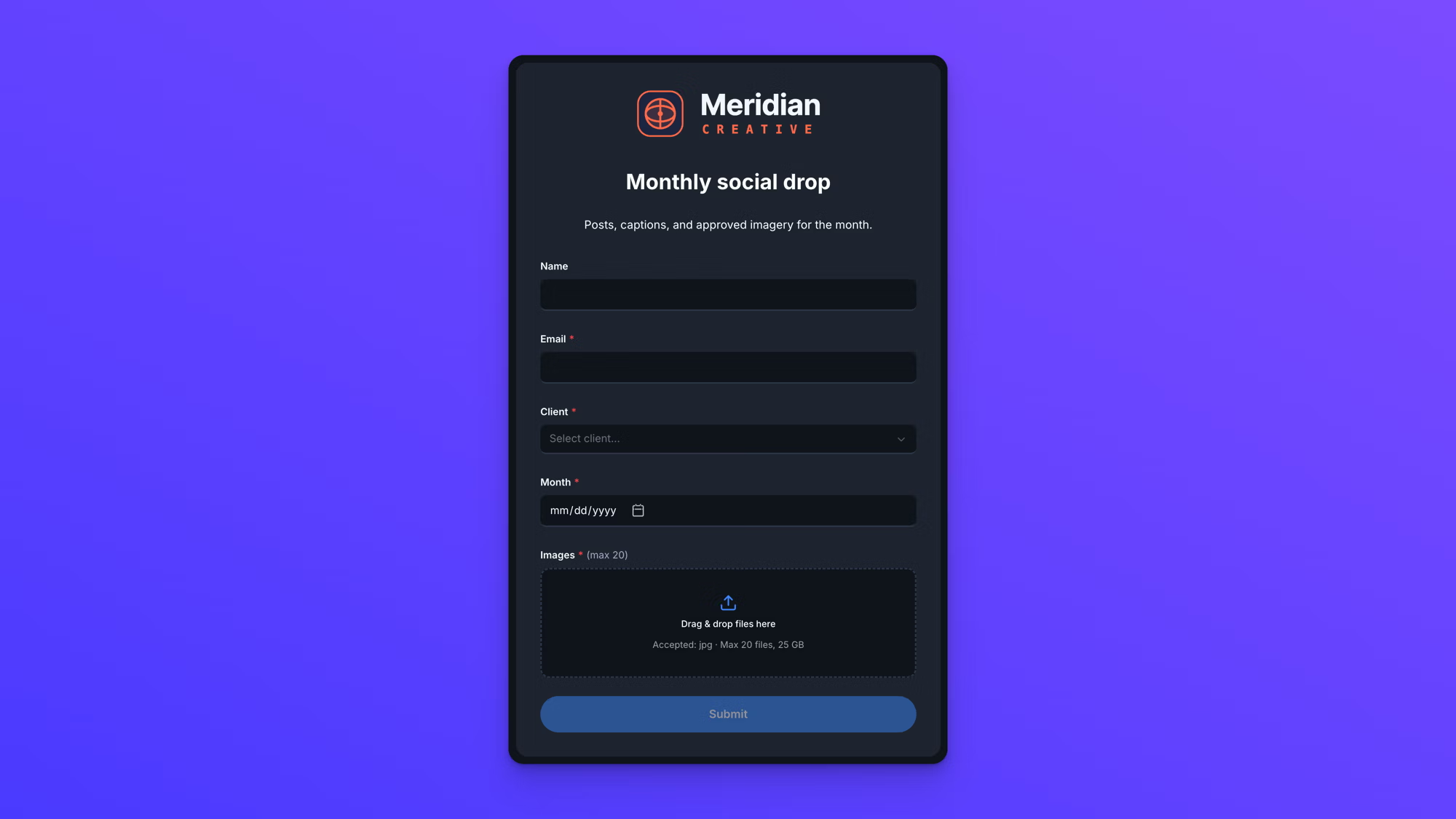
Say Meridian Creative is cutting a testimonial video and needs self-recorded clips from 20 customers. The form asks for each person's name, email, and company, then takes mov and mp4 files, the formats most phones record in. Subfolders are built from company, then name. A customer's clips arrive in your storage like this:
- Customer Videos
- Brightline Coffee
- Dana Ruiz
- IMG_4821.MOV
- IMG_4822.MOV
- Dana Ruiz
- Brightline Coffee
When Dana sends a second take, it goes into the same folder. EZ File Drop reuses folders that already exist instead of creating duplicates.
Tips for clients sending very large files
We also run a video production company, Gorilla Creative, so we've been on the receiving end of a lot of video. EZ File Drop is at its best when you need self-recorded videos shot on phones from a number of people, which more projects depend on every year. It isn't built for full original camera media, like RAW video files, or for a terabyte from one person. For that, use a service built for the scale, like MASV.
Per-submission limits top out at 25 GB on Business and Premium, but that isn't a hard ceiling. Email us and we can raise it; several customers already run higher limits. Bigger uploads ask more of the person sending them: a faster-than-average internet connection, a wired one rather than Wi-Fi, and the browser tab left open and active until the upload finishes.
A few habits decide whether a big upload goes through on the first try. Put them in your request email.
- Say the limit up front. Tell clients the largest upload the form takes, so a long recording gets sent in parts before they start, not after.
- Use Wi-Fi or a wired connection. Large uploads over cellular data are slow and burn through data plans.
- Keep the tab open and active until the confirmation appears. Closing the tab or letting the device go to sleep stops the upload partway.
- Don't zip video to save space. Video and JPEG photos are already compressed, so zipping barely shrinks them. Zip only when a folder's structure needs to arrive intact.
- Split by deliverable when a project is over the limit. Send each part as its own submission. With subfolders built from the project name, every part goes into the same folder.
When a file transfer service fits better
An upload form isn't the answer to every large-file problem. A file transfer service is the better choice when:
- You're the one sending. EZ File Drop only receives files. To deliver finished work to a client, use a sharing link or a transfer service.
- It's a one-off. If a client already sent you a transfer link, download it and move on. There's nothing to set up.
- It's original camera media or a terabyte from one person. Full camera originals and drive-sized deliveries belong in a service built for them, like MASV.
For everything in between, one upload link beats a new workaround every time. That covers the client who sends a photo set or a stack of scans every month, and the 30 customers each recording a clip on their phone.
Frequently asked questions
How do I receive large files from clients?
Send clients one upload link that needs no account and delivers files into your own cloud storage. Email stops at 20 to 25 MB, and most transfer links expire. With EZ File Drop, each submission can be up to 5 GB on Starter and 25 GB on Business and Premium, whether it's one file or many.
What size file is too large to email?
Anything over about 20 MB. Gmail allows 25 MB per message for personal accounts, Outlook 20 MB for internet accounts, and Exchange business mail 10 MB by default. The limit covers all attachments combined, so several medium files can fail as easily as one large one.
How do I receive large files in Gmail or Outlook?
You can't receive them as attachments past the sender's limit. When a Gmail user goes over 25 MB, Gmail swaps the attachment for a Google Drive link, and the file stays in the sender's Drive. Outlook stops the send with "The attachment size exceeds the allowable limit." An upload link avoids both.
How do I receive large video files from clients?
Use an upload form that accepts phone video formats like mov and mp4 and shows its size limit before the client starts. Ask clients to upload over Wi-Fi or a wired connection and keep the page open until the confirmation appears. Zipping video saves almost no space, so it isn't worth the extra step.
Do clients need an account to send me large files?
Not with EZ File Drop. Clients open the form link, add their files, and submit, with no account, no app, and no sign-in. They never see your cloud storage.
What is the largest upload a client can send through EZ File Drop?
Each submission can be up to 5 GB on Starter and 25 GB on Business and Premium, whether it's one file or many. On Business and Premium you can set lower limits per field, and clients see them on the form. If you need more than 25 GB at a time, email us and we can raise it. Larger uploads need a fast, wired connection and a browser tab left open until they finish.
Receive large files without the workarounds
How to receive large files from clients comes down to one change: stop depending on email. Give clients one upload link, tell them the limit, and let every file arrive in your own storage, already sorted. You can try EZ File Drop for free with no credit card required.
Written by Eric Stracke