
Can External Users Upload Files to SharePoint Without Signing In?
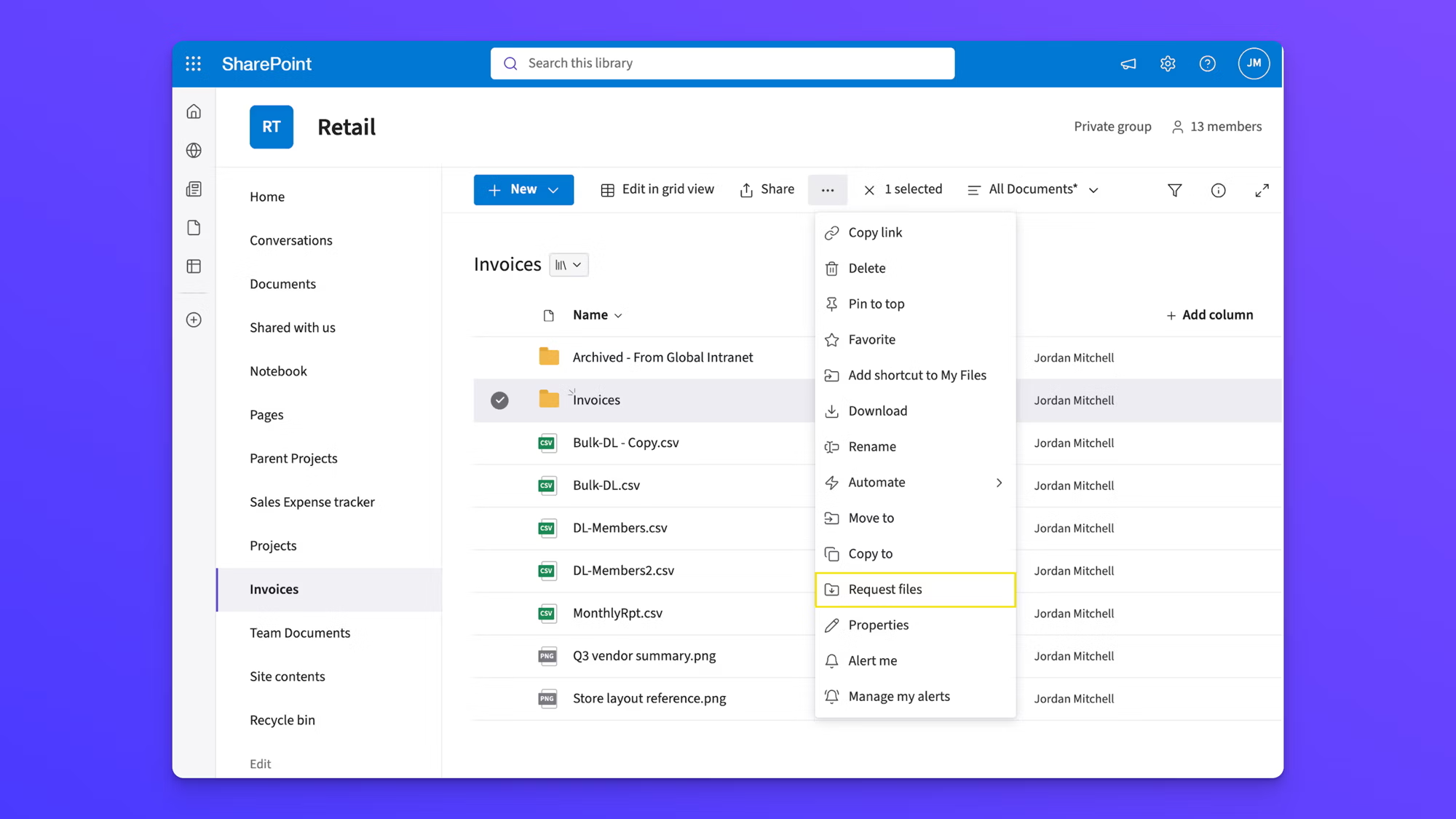
You want a client, a vendor, or an applicant to send files into your SharePoint library, and you don't want them creating a Microsoft account first. SharePoint does have a feature for this, called Request files. Most people never see it, because it stays hidden until a tenant admin enables Anyone links for the entire organization and runs a PowerShell command.
If you need SharePoint file upload without signing in and your admin won't open the whole tenant to get it, EZ File Drop is the tool we built for exactly that: a branded upload form anyone can use, with files delivered into the SharePoint library you choose. Jump to the setup steps. If you'd rather make the native feature work, the next sections cover what it does, where it stops, and what your admin has to change.
What SharePoint Request files can actually do
SharePoint's Request files feature turns a folder in a document library into an upload-only drop point. When it is switched on, it does the core job well:
- Anyone with the link can upload, with no Microsoft account and no sign-in.
- Uploaders can't see, edit, delete, or download anything already in the folder, and they can't see who else uploaded.
- Each file gets the uploader's name added to the front, and duplicate file names get a number so nothing is overwritten.
- You get an email notification when someone uploads.
- An admin can set request links to expire after a set number of days.
For an organization that already allows anonymous sharing, that is a free, built-in way to collect files. The trouble is getting it switched on.
Where SharePoint Request files breaks down
Every limitation below comes from one design choice. Request files is built on Anyone links, SharePoint's fully anonymous sharing link, so it inherits every rule and restriction that applies to them.
Request files is off until an admin turns it on
There is no switch for it in a site's settings, and a site owner can't enable it. Microsoft's own help page for creating a file request ends with a section titled "I don't see the Request Files option," and the answer there is that your administrator has to enable the feature. Enabling it means a SharePoint admin running a command in the SharePoint Online Management Shell.
It needs Anyone links for your entire tenant
Before the command does anything, Anyone links have to be allowed at the organization level. That setting lets every user share any file or folder with a link that works for whoever has it, no authentication required. Plenty of IT and security teams keep it off on purpose, and asking them to turn it on for one team's file collection is a hard sell.
The dependency also runs the other way. Microsoft's admin documentation says it plainly: "Disabling Anyone links also disables Request files on SharePoint and OneDrive." If your organization tightens sharing later, every request link you've sent stops working.
Uploaders can only give you their name
Someone who isn't signed in is asked for a first and last name, and that is all. Microsoft notes the name isn't validated. There is nowhere to collect an email address, a project number, a matter ID, or a note about what the files are.
Everything goes into one folder
All files sent to a request are saved in the single folder you chose. The name prefix tells you who sent each file, but sorting by client, project, or date is still manual work in the library.
No embed, and the page belongs to Microsoft
A file request is a link to a Microsoft upload page. You can't place it on your own website, and the uploader sees Microsoft's interface rather than your brand.
The other native options mean signing in or giving away access
If Request files isn't available, SharePoint offers two other ways to let outsiders add files, and neither is a clean fit:
- Guest sharing. You share the folder with specific people. Microsoft requires them to sign in with a work, school, or Microsoft account, or to enter a one-time verification code sent to their email. That is still a sign-in step, and each person has to be invited first.
- An editable Anyone link. Sharing a folder with an Anyone link set to edit lets people add files without signing in, but it also lets them open, change, and delete everything already in the folder. The link can be forwarded, and it depends on the same tenant-wide Anyone setting.
Why "Request files" is missing in SharePoint
If you went looking for Request files and it isn't there, one of these causes is almost always the reason. Work through them in order.
What your admin has to do to enable it
If your organization is comfortable with Anyone links, this is the full setup from Microsoft's admin documentation:
- In the SharePoint admin center, allow Anyone links at the organization level.
- In the advanced settings for Anyone links, set folder permissions to View, edit, and upload or View and upload.
- In the SharePoint Online Management Shell, run
Get-SPOTenantand checkCoreRequestFilesLinkEnabled. If it isn'tTrue, runSet-SPOTenant -CoreRequestFilesLinkEnabled $True. - Optionally, set an expiration with
Set-SPOTenant -CoreRequestFilesLinkExpirationInDays.
Six of the eight causes in the table are admin changes. The first one, Anyone links for the whole organization, is the sharing decision most security teams have already made on purpose.
How to let external users upload to SharePoint with EZ File Drop
EZ File Drop takes the place of a file request. Your uploaders get a web form with your name on it, they don't sign in to anything, and they never get access to your SharePoint. Files are delivered into the document library you pick, and from there they follow that library's existing permissions like any file your team adds.
One thing to know up front: some Microsoft 365 tenants require an admin to approve any third-party app before a user can connect it. If you see that message, it is a one-time request to IT for this one app. It doesn't change a single sharing setting in your tenant.
Here is the setup. Start a free trial of EZ File Drop if you want to follow along.
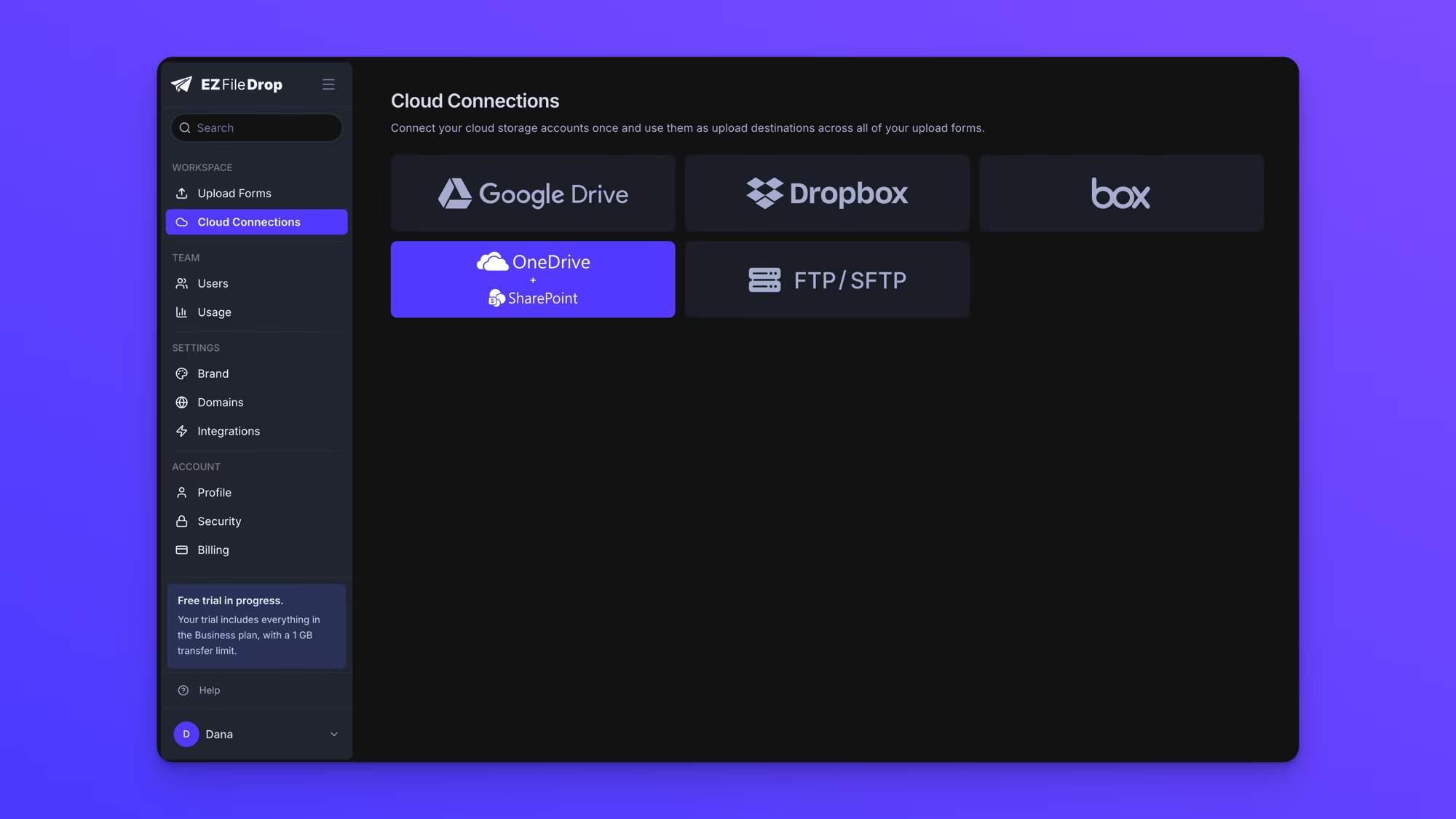
- Connect SharePoint. In your EZ File Drop account, click Cloud Connections, choose SharePoint, and sign in with the work account that can reach your site. You authorize once through Microsoft's own sign-in, so EZ File Drop never sees your password. The Connect SharePoint doc walks through each screen.
- Create a form and pick the library. On the form's Build tab, choose your SharePoint connection, then the site and document library where files should go. One connection reaches every site you can access, so an intake form and a vendor form can deliver to different libraries.
- Add the fields you need. Name, email, project or matter number, a dropdown, a date. Everything a file request can't ask for now arrives with the files. See Add form fields.
- Sort and name files automatically. In a field's options, turn on Upload Destination to create a subfolder from that field's answer, and use File Naming to add answers to the front of each file name. A form that asks for a client and a project can deliver every upload into
Client Name > Project Name. Both are part of dynamic file organization on Business and Premium.
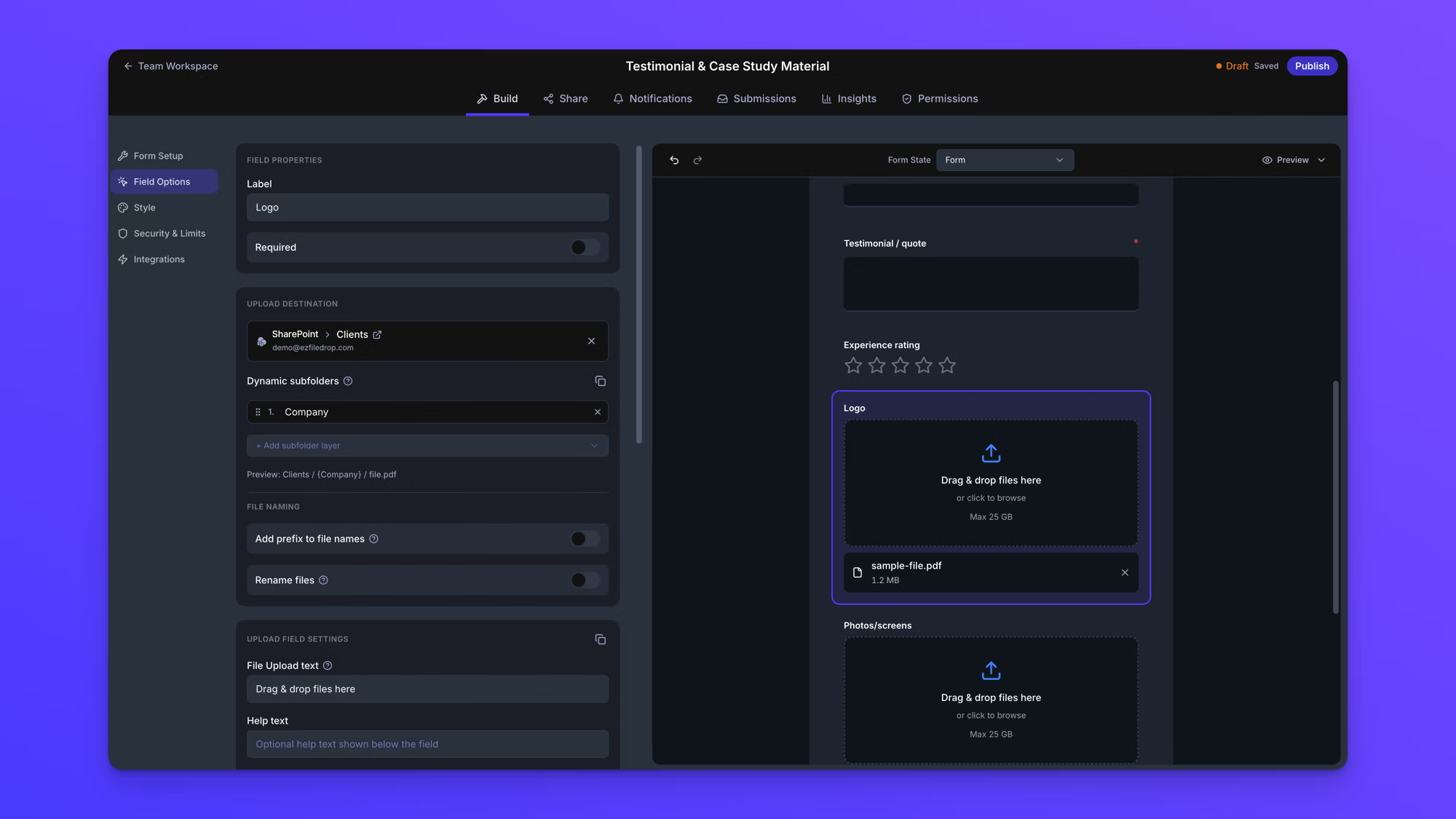
- Make it yours. Write your own instructions and confirmation message. On Business and Premium, add your logo, colors, and fonts so the form looks like your firm, not ours. See Style your form.
- Share it. From the Share tab, copy the link, download a QR code, or copy the embed code to place the form on your website.
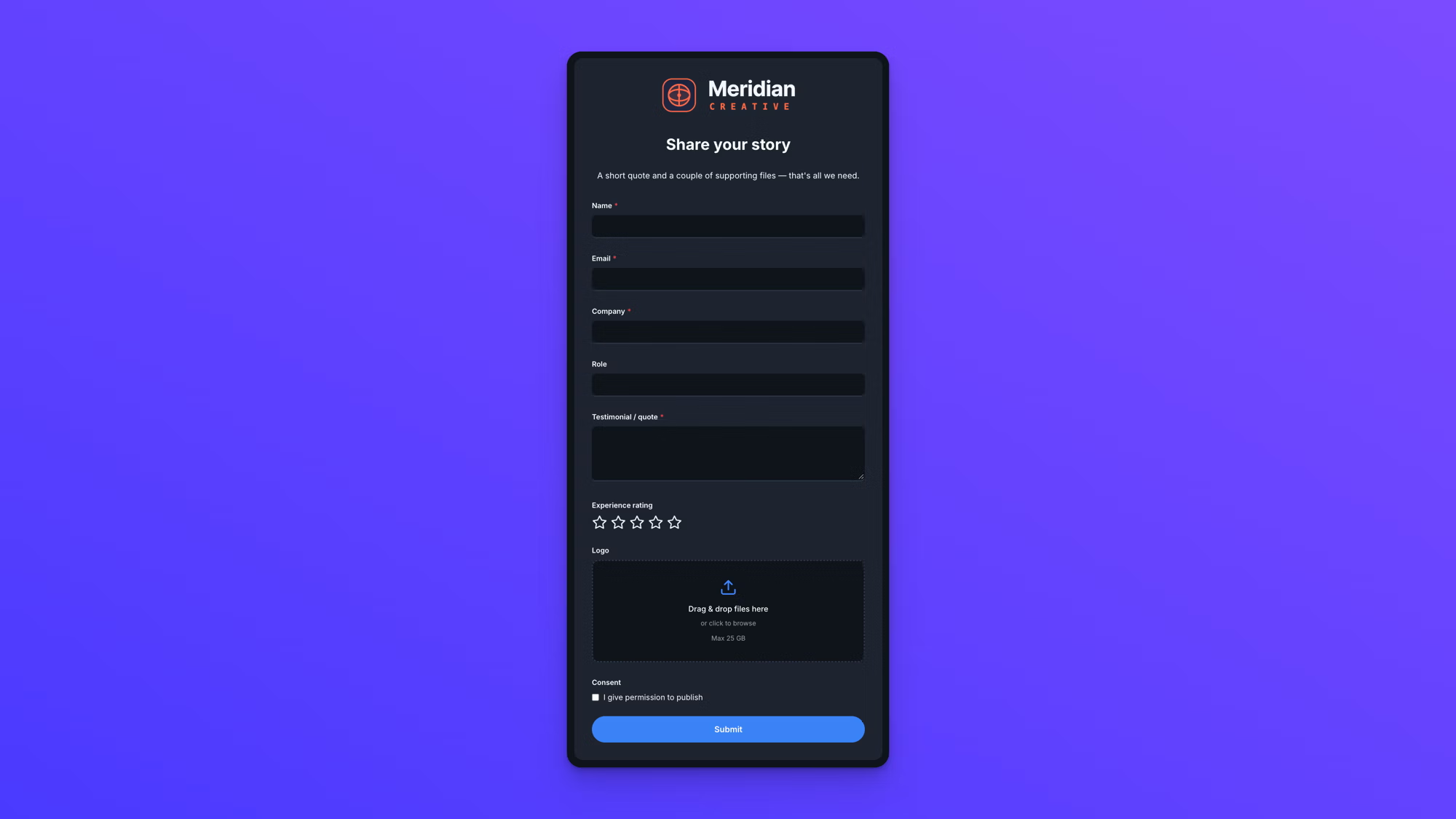
From the uploader's side, it is one web page. They open the link, fill in the fields, drop their files, and see your confirmation message. You get an email notification, the files are already in the right SharePoint folder, and every submission is searchable in your submission inbox with its form answers attached.
Per-submission upload limits scale with your plan, up to 25 GB on Business and Premium, so a client can send a full set of scans or a video project in one go.
SharePoint Request files vs. EZ File Drop
When SharePoint Request files is the right choice
Request files is a good fit when your organization already allows Anyone links and the collection is simple:
- A one-off request to a known contact, where you'll delete the link once the files arrive
- Photos or documents where the uploader's name is all the context you need
- A team that works in a single folder and sorts files by hand anyway
In those cases it is free, already built in, and the files arrive in SharePoint with names attached. There's no reason to add a tool.
The case for EZ File Drop starts when your admin won't enable Anyone links, or when you need more than a name. A client number, a matter ID, a folder per project, or a form that lives on your own website are all things Request files can't give you.
Frequently asked questions
Can external users upload files to SharePoint without signing in?
Yes, through SharePoint's Request files link, but only after a SharePoint admin allows Anyone links for the organization and turns on file requests in PowerShell. Without that, outsiders have to sign in as guests or enter a verification code. EZ File Drop lets anyone upload through a form with no tenant changes.
Why is "Request files" not showing in SharePoint?
Usually because Anyone links are turned off for your organization or for that site, or because the CoreRequestFilesLinkEnabled setting is False. Both need a SharePoint admin to change. Request files also isn't offered on Office 365 operated by 21Vianet or Office 365 Germany.
How do I enable Request files in SharePoint?
A SharePoint admin allows Anyone links at the organization level and sets Anyone link folder permissions to "View, edit, and upload" or "View and upload." Then they run Set-SPOTenant -CoreRequestFilesLinkEnabled $True in the SharePoint Online Management Shell.
Can external users access SharePoint without a Microsoft account?
Only through Anyone links, which work without signing in. Sharing with specific people requires a work, school, or Microsoft account, or a one-time code sent by email. Sharing a whole site always requires guests to authenticate.
Can people uploading through a SharePoint file request see other files?
No. They can't view, edit, delete, or download anything in the folder, and they can't see who else uploaded. The same is true with EZ File Drop, where uploaders only ever see the form.
Does EZ File Drop work with on-premises SharePoint?
No. EZ File Drop supports SharePoint Online in Microsoft 365. On-premises SharePoint Server isn't supported. See Connect SharePoint for setup.
Getting started
SharePoint file upload without signing in is possible natively, but only if your organization opens Anyone links for everyone. If it has, Request files is a free and capable option. If it hasn't, or you need more than a name and a single folder, EZ File Drop gives outsiders a form they can use without an account and gives you the files in SharePoint, sorted before you open the library. You can try it free, no credit card required.
Written by Matt Townley