
Can People Upload Files to Microsoft Forms Without Signing In?
You built the form, added an Upload file question, and everything looked right until you changed who can respond. The moment you picked "Anyone can respond," the file upload question either turned grey or threw a warning. That is not a bug, and there is no admin setting that fixes it.
If you already know that and just need the files, EZ File Drop is the tool we built for exactly this: a form anyone can upload to without signing in, delivered into your OneDrive or SharePoint. Jump to the setup steps. If you want to understand what Microsoft Forms can and cannot do first, the next few sections walk through it.
What Microsoft Forms file upload can actually do
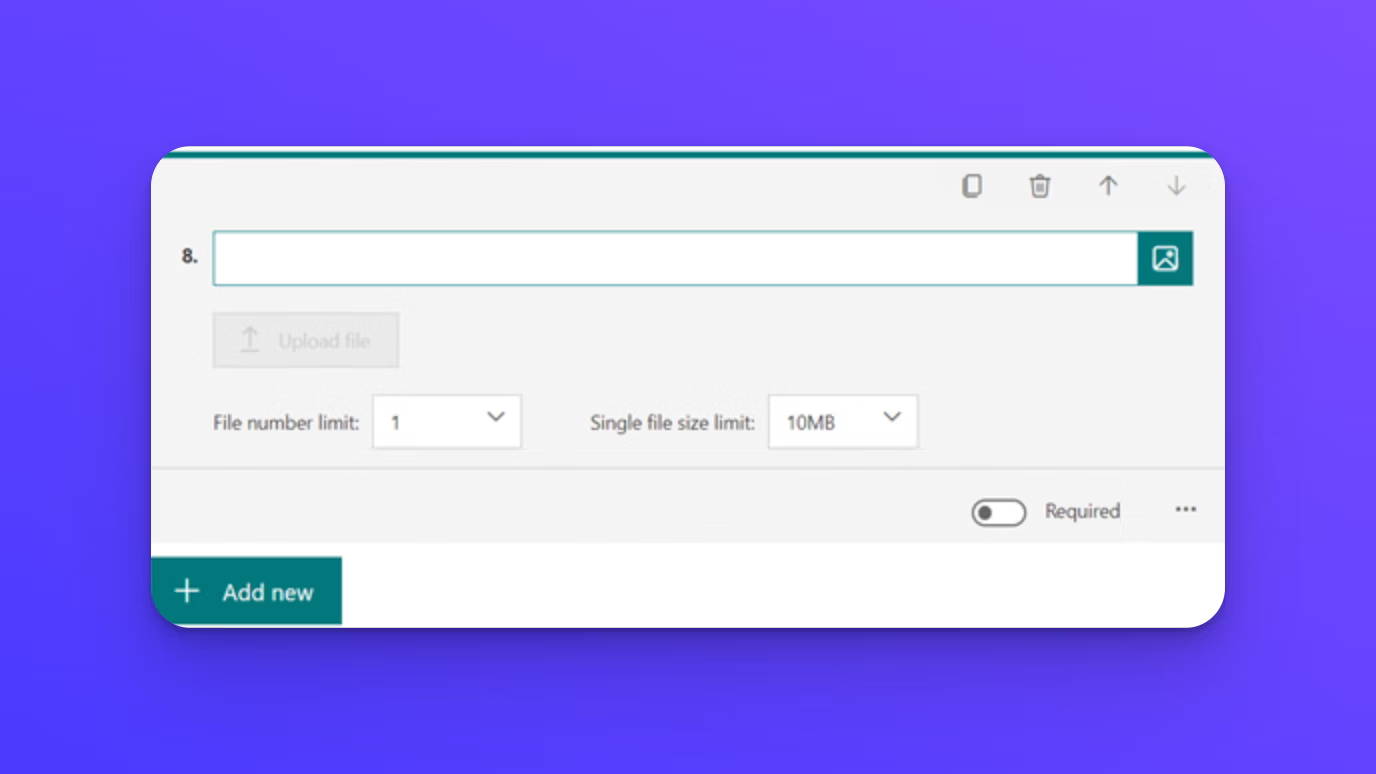
Microsoft Forms has a dedicated Upload file question type. When it is available, it works well for internal collection:
- Up to 10 files per question, with a per-file size limit you set at 10 MB, 100 MB, or 1 GB
- File type restrictions by category (Word, Excel, PowerPoint, PDF, image, video, or audio)
- Automatic filing: each form gets a folder under Apps > Microsoft Forms in your OneDrive for Business, with a subfolder per question
- Uploaded files are renamed with the responder's name, so you know who sent what
- Group forms deliver into the SharePoint site that belongs to the group instead of a personal OneDrive
For a manager collecting expense receipts from their own team, or a school collecting assignments from students who all have accounts in the tenant, this is a complete solution. Nothing below applies to that situation.
Where Microsoft Forms file upload breaks down
The Upload file question is built on one assumption: the person uploading has an account in your Microsoft 365 tenant. Every limitation below comes from that assumption.
External respondents cannot upload files
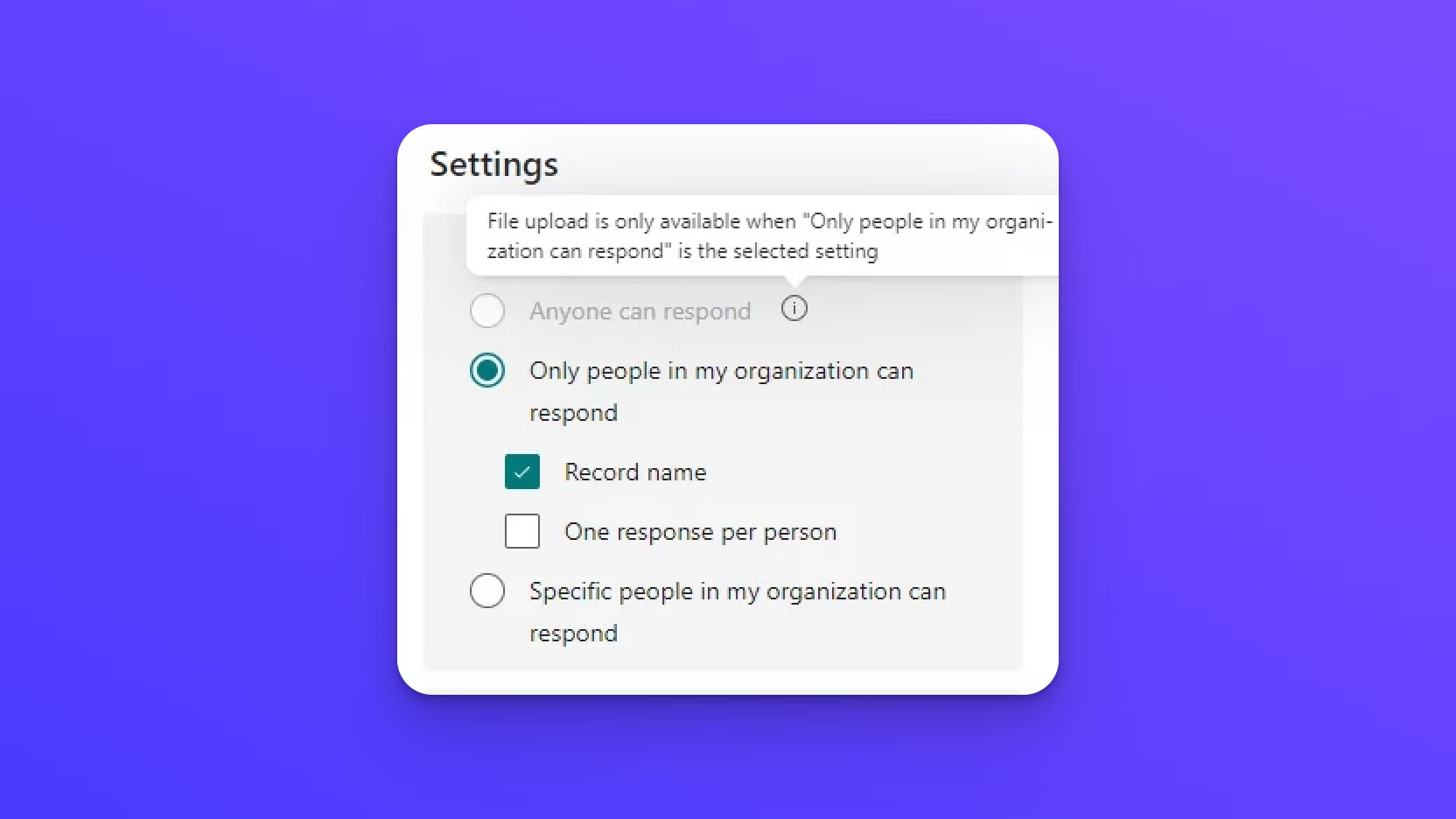
Microsoft's own documentation states that file upload "is only available when 'Only people in my organization can respond' or 'Specific people in my organization can respond' is the selected setting." Set the form to "Anyone can respond" and the Upload file question is no longer offered.
This is not a permission you can grant. It is not a tenant setting your admin can flip. Microsoft's support staff have said in their own forums that there is no configuration option in the admin center to override it, and that the restriction exists because uploaded files are written into your organization's OneDrive or SharePoint using the responder's credentials. Someone with no credentials in your tenant has nothing to write with.
For collecting from clients, vendors, applicants, or the public, that is the whole story.
Guest users cannot upload either
Adding external people as guests in your tenant does not solve it. Guest accounts do not have the storage routing that internal accounts do, so their uploads through Forms are rejected with an access denied or permission error even when the form itself is open to them. Granting a guest direct access to the destination folder does not change the outcome.
Personal Microsoft accounts do not get the question
If you use Forms with a personal Microsoft account (Outlook.com, Hotmail, Live), the Upload file question type is not available at all. It requires a work or school account, because the files have to have a OneDrive for Business or SharePoint library to be delivered into.
The workaround Microsoft suggests only half works
When people ask Microsoft how to collect files from outsiders, the answer they get is to create a OneDrive or SharePoint "Request files" link and paste it into the form as a text instruction. It does let outsiders upload. It also breaks the connection between the form and the files: the responder fills out your form in one place, then leaves to upload in another, and nothing ties the two together. People upload without submitting the form, submit the form without uploading, or upload under a nickname you cannot match to a response.
Request files also has its own conditions. It needs Anyone links enabled for your tenant, and on SharePoint it needs an additional command run by an administrator before the option appears at all. We cover those details in the OneDrive file request guide.
The form carries Microsoft's branding
Even for internal use, the form is visibly a Microsoft Form. You can set a theme and a header image, but the layout, the fonts, and the confirmation screen belong to Microsoft. For anything a client sees, that is a small but real miss.
Why the upload file option is greyed out in Microsoft Forms
If you are here because the question type is greyed out, missing, or disabled, one of these is almost always the reason. Check them in order.
- The form is set to "Anyone can respond." This is the most common cause by far. Open Settings, look under "Who can fill out this form," and you will see it. Changing it to "Only people in my organization can respond" restores the question, and also locks out everyone outside your tenant.
- You are signed in with a personal Microsoft account. The Upload file question only exists for work and school accounts.
- Microsoft Information Barriers is enabled in your tenant. In that case, the Upload file question is unavailable on personal forms. Microsoft's documented workaround is to create a group form instead, which stores files in the group's SharePoint site.
- The SharePoint site behind a group form moved to a different domain. Existing Upload file questions stop working and have to be recreated.
- Your administrator has restricted it. Less common, but on a managed tenant, Forms features can be limited by policy. If none of the above applies, ask IT.
Notice that only the last item is something an administrator can change. The first item, the one most people are hitting, has no fix inside Microsoft Forms.
How to collect files from anyone with EZ File Drop
If the people sending you files are not in your Microsoft 365 tenant, EZ File Drop gives them a form that never asks them to sign in, and delivers their files into the OneDrive or SharePoint library you already use.
Here is how to set one up. Start a free trial of EZ File Drop if you want to follow along.
- Connect your storage. In your EZ File Drop account, connect OneDrive or SharePoint. You sign in once with your own work account and authorize the connection. Your uploaders never see this step. The Connect OneDrive and Connect SharePoint docs walk through it.
- Create a form and pick the destination. Choose the folder in OneDrive or the SharePoint library where files should be delivered. Each form can have its own destination, so a client intake form and an event photo form can deliver to different places.
- Add the fields you need. Name, email, project, a dropdown, a short answer, whatever you would have collected in Microsoft Forms. Fields can show or hide based on earlier answers, so one form can serve several situations.
- Set up automatic organization. In a field's options, choose Upload Destination to create a subfolder from that field's answer, and use File Naming to add answers as a prefix on each file. A form that asks for a client name and a project name can deliver every upload into
Client Name > Project Name, with the uploader's name at the front of each filename. - Style it. Write your own instructions and confirmation text. On Business and Premium plans, add your logo, colors, and fonts so the form looks like yours, not ours.
- Share it. From the Share tab, copy the link, download a QR code, or copy the embed code to place the form on your own website.
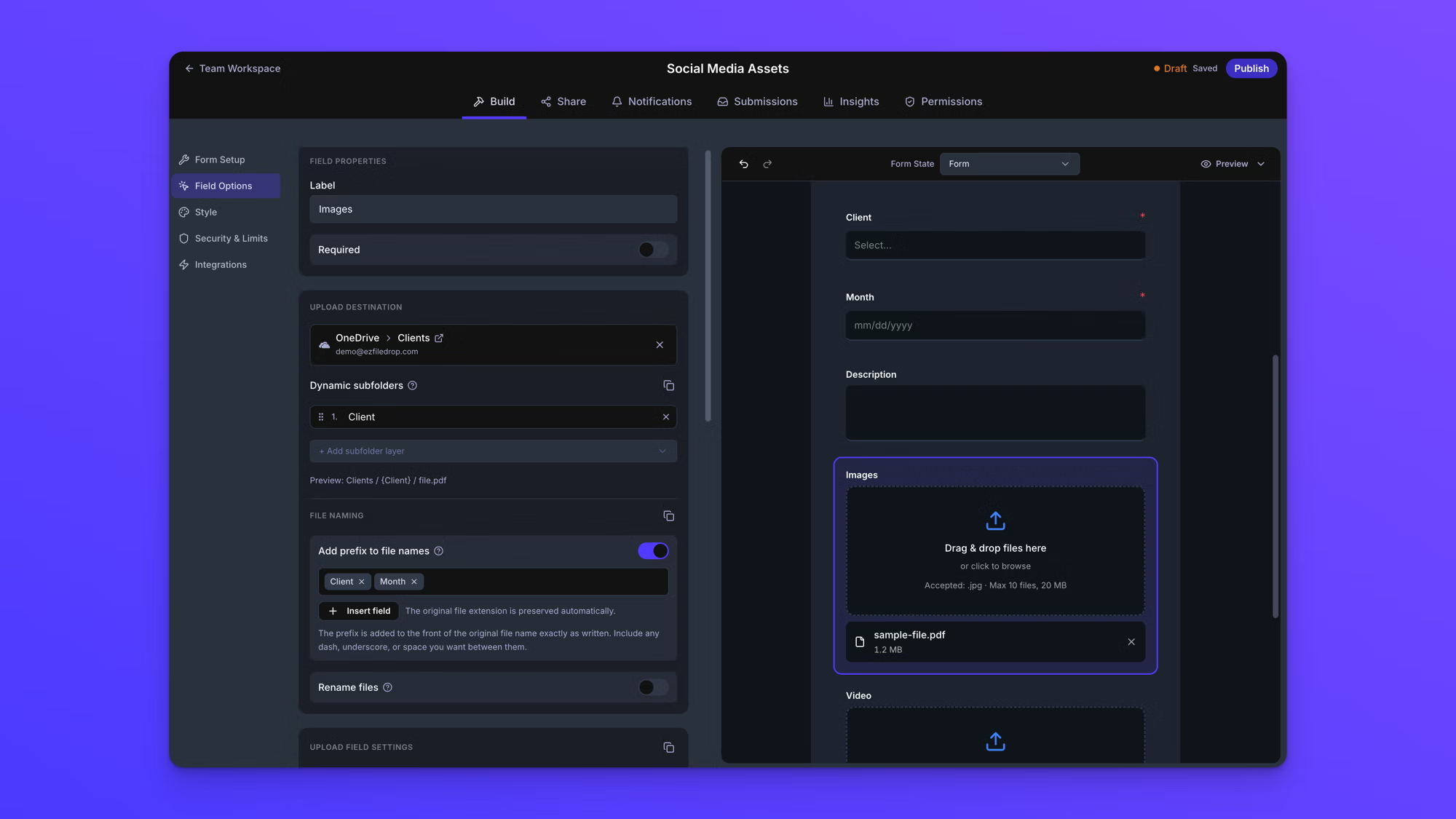

From the uploader's side, it is a web page with your name on it. They open the link, fill in the fields, drop their files, and see your confirmation message. You get an email notification, and the files are already in the right folder in OneDrive or SharePoint by the time you open it.
Per-submission upload limits scale with your plan, up to 25 GB on Business and Premium, so a client can send a full set of raw photos or a video project in one go rather than splitting it across attachments.
Microsoft Forms vs. EZ File Drop for collecting files
When Microsoft Forms is the right choice
Microsoft Forms is the right tool when everyone uploading already has an account in your tenant. That covers a lot of real work:
- A team lead collecting weekly reports or receipts from direct reports
- A teacher collecting assignments from students in the school's Microsoft 365
- An HR department collecting signed policy acknowledgments from employees
In those cases Forms is free, already deployed, and the files land in OneDrive with the responder's name attached. There is no reason to add a tool.
The case for EZ File Drop starts the moment one uploader is outside your organization. Clients sending assets, applicants sending resumes, customers sending photos for a warranty claim, event attendees sending video. If your form needs "Anyone can respond" and a file upload at the same time, Microsoft Forms cannot do it, and EZ File Drop is built for exactly that.
Frequently asked questions
Can external users upload files to Microsoft Forms?
No. The Upload file question is only available when the form is restricted to people in your organization. Setting the form to "Anyone can respond" removes the option, and there is no admin setting that overrides this.
Why is the upload file option greyed out in Microsoft Forms?
Most often because the form is set to "Anyone can respond." Other causes are signing in with a personal Microsoft account, Microsoft Information Barriers being enabled in your tenant, or the SharePoint site behind a group form having moved to a new domain.
Can guest users upload files to Microsoft Forms?
No. Even when a guest account can open and answer the form, file uploads from guests are rejected because guests do not have the internal storage routing the Upload file question depends on.
Does Microsoft Forms file upload work with a personal Microsoft account?
No. The Upload file question requires a work or school account, because responders' files are delivered into OneDrive for Business or a SharePoint library.
How do I let clients upload files to my OneDrive or SharePoint without a Microsoft account?
Use an upload form that does not require sign-in and delivers into your storage. EZ File Drop connects to OneDrive and SharePoint, lets anyone upload from a link or an embed on your site, and sorts the files into folders using the form answers. Microsoft's Request files feature is the other option, though it needs Anyone links enabled for your tenant and does not tie uploads to form responses.
What is the file size limit for Microsoft Forms uploads?
You choose 10 MB, 100 MB, or 1 GB per file, with up to 10 files per question. EZ File Drop's limits are set per submission and scale with the plan, up to 25 GB on Business and Premium.
Getting started
If your uploaders are all inside your Microsoft 365 tenant, Microsoft Forms already does the job. If they are not, no setting in Forms will change that. EZ File Drop gives them a form they can use without an account, and gives you the files in OneDrive or SharePoint, organized before you open the folder. You can try it free, no credit card required.
Written by Matt Townley