
How to Make a Branded Upload Portal for Box
When a client needs to send you files, the upload page they see is a touchpoint in your customer experience. If that page shows Box's logo and branding, your brand disappears at a moment that should feel seamless.
A branded upload portal solves that. It's a custom upload page that carries your logo, your colors, your fonts, and your voice, while still sending files into your existing Box account. The uploader has no idea there's a third-party tool involved. They just see your brand, upload their files, and get a branded confirmation.
This guide walks through how to build one using EZ File Drop, a purpose-built tool that connects your Box to a fully brandable upload experience with no coding, no hosting, and no design team required.
Why Box File Request Isn't Enough for Client Work
Box File Request has come a long way. It supports custom form fields, handles large files on Enterprise tiers, and gives you a drag-and-drop front for folder-directed file collection. For internal Box-native workflows, it's a capable option.
For client-facing work, it still has real gaps:
- Business plan or higher required. You can't create a Box File Request on a personal or Starter plan. The feature is gated to Box Business, Business Plus, Enterprise, and Enterprise Advanced. If you're on a lower tier, File Request isn't available at all.
- Box branding, not yours. Upload pages show Box's logo and styling. There's no way to add your logo, change the colors, or customize the page copy beyond basic form labels. After an uploader submits, they see a Box-branded success screen.
- No embed option. Box File Request gives you a shareable link, but there's no embed code. Clients always leave your site to upload.
- Notifications only go to the Box account owner. There's no way to notify the uploader, your team, or a third party about new submissions.
- No dynamic file organization. Files all land in the folder you created the File Request on; no automatic subfolders or file renaming.
For client-facing file collection, a branded upload portal closes these gaps while keeping the files exactly where you want them: in your Box account.
What a Branded Upload Portal Gives You
EZ File Drop's branded upload portals for Box work as a custom branded submission portal for file uploads. They include:
- Your logo on the upload page, in email notifications, and on the success screen
- Custom colors, fonts, and page layout to match your website
- Custom page copy (headline, welcome message, drop zone text, success message) so the portal speaks in your voice
- Form fields for collecting context alongside the files (client name, project ID, email, categories, etc.)
- Automatic file organization in Box using form field data
- White-labeling on Business and Premium plans (no EZ File Drop branding anywhere)
- Embeddable on any website (WordPress, Webflow, Squarespace, Wix, or any page that supports HTML embeds)
- Works with any Box plan, including Starter and personal tiers where Box File Request isn't available
Files all land directly in your Box account, in the folders you choose, using your existing Box storage. EZ File Drop is the branded front door. Box is still the storage.
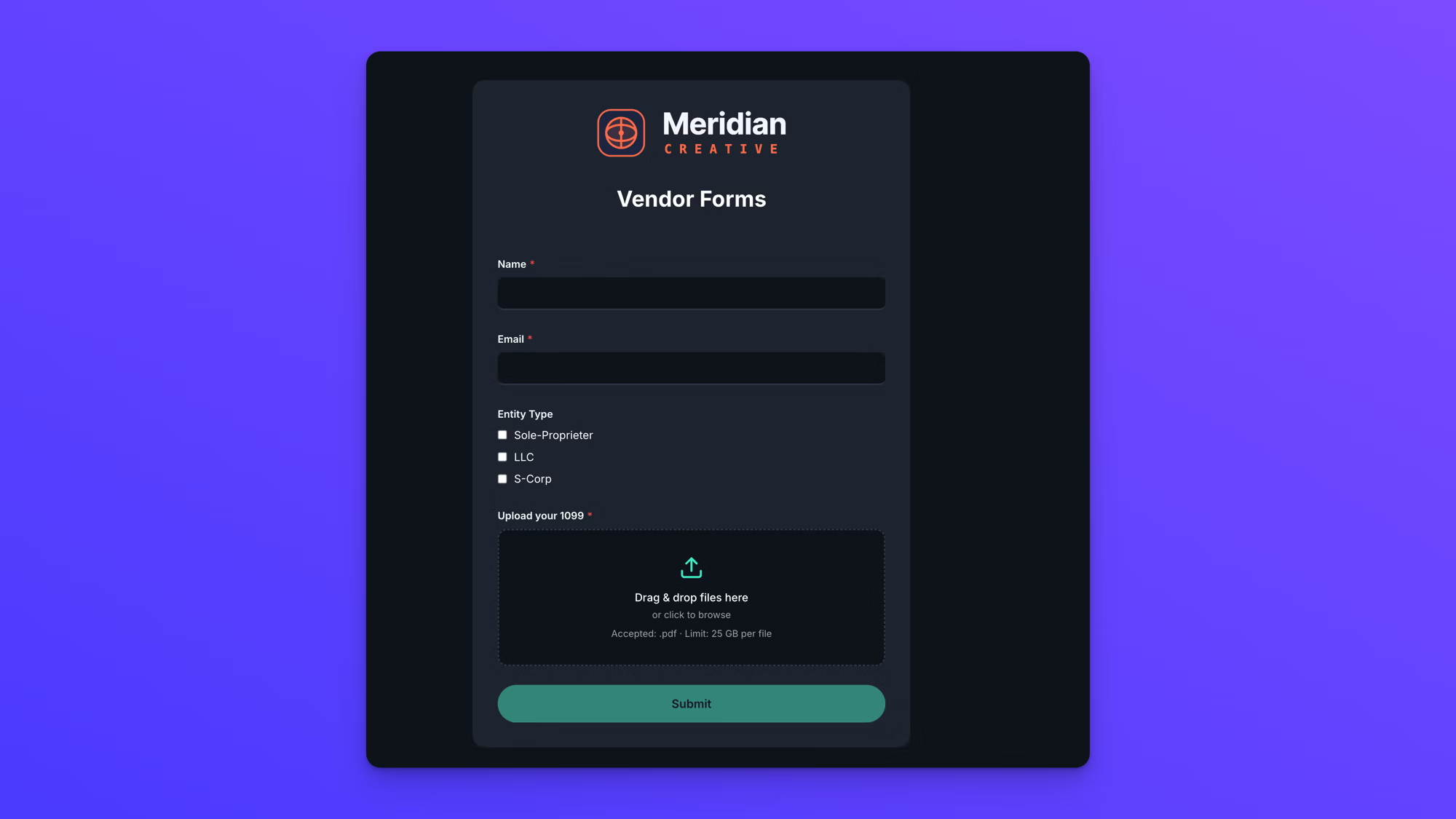
Step 1: Connect EZ File Drop to Box
Sign up here. Every new account starts on a 7-day Business plan trial, no credit card required.
Connect your Box account from the cloud connection settings: choose Box, approve the connection in the Box authorization window, and you're returned to EZ File Drop with Box connected.
Unlike Box File Request, EZ File Drop works with any Box plan. For details on what the connection can and can't access, see the Box integration page.
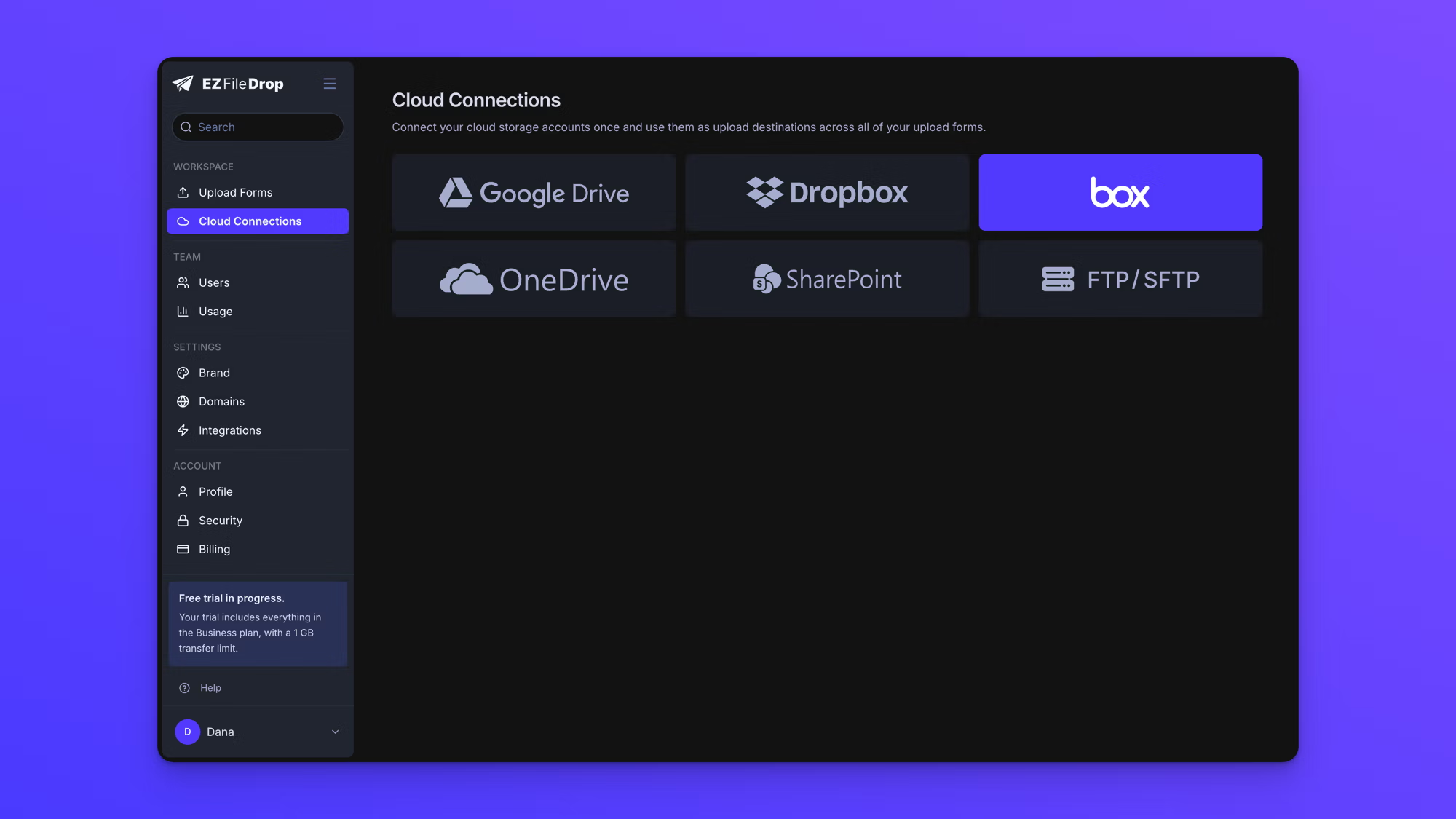
Step 2: Upload Your Logo and Brand Assets
Create a new form to launch the form editor, and give the portal a name. Your branding lives in the Style settings: upload your logo there, and set your colors and fonts in the same place.
A few things worth knowing about the logo:
- It appears at the top of the standalone upload portal page
- It appears in email notifications (upload confirmation, team notification, third-party notification)
- It appears on the upload success screen after a file is submitted
- If you plan to embed the portal on your website with a logo above the form, the logo is still used in emails, so upload one even if you plan to hide it in the embed
Then set the form title and description in Form Setup. This is your voice. Write copy that matches your brand, formal for legal or financial workflows, warm and conversational for creative work, whatever fits the relationship you have with the people sending you files.
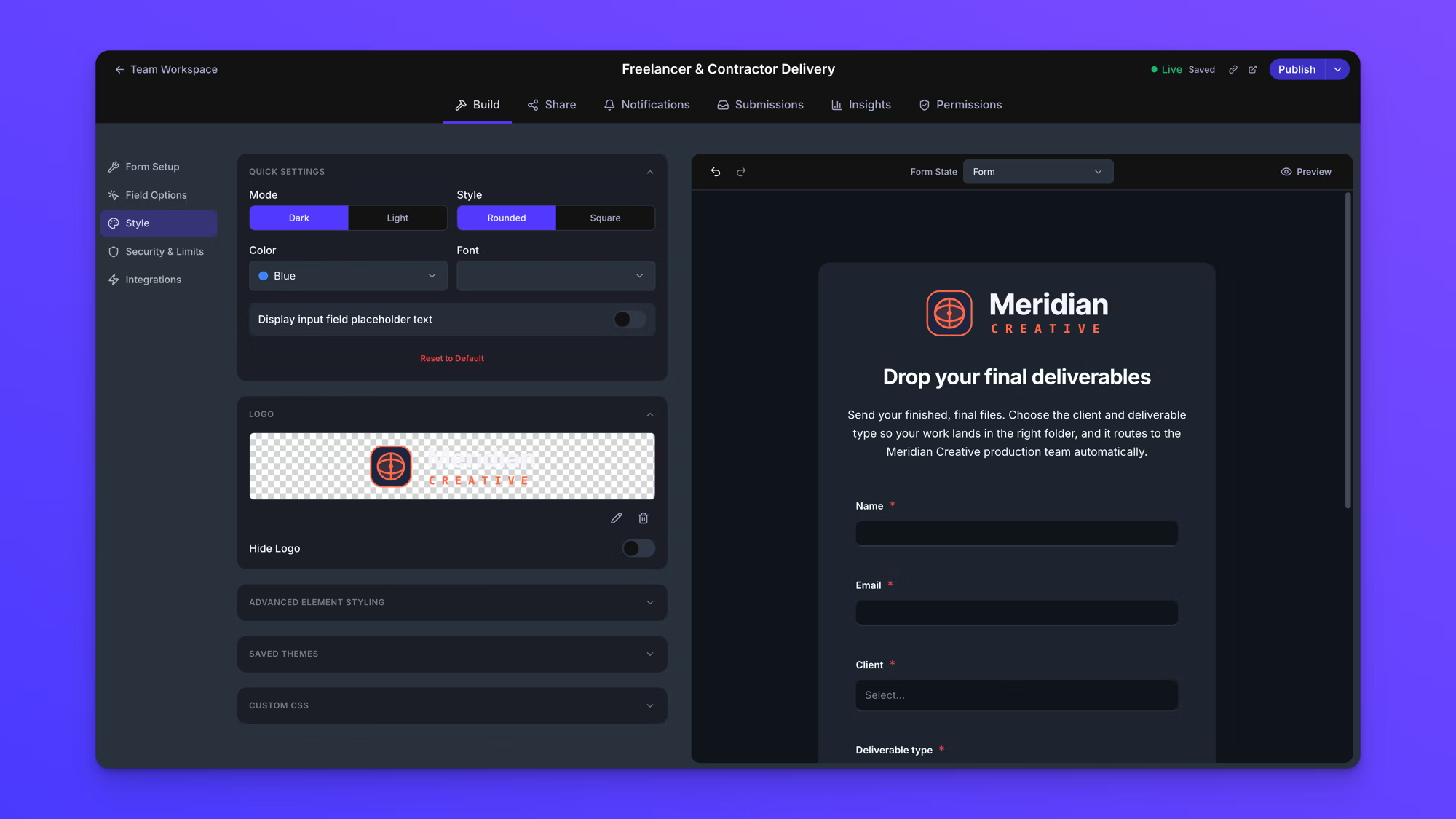
Step 3: Customize Colors, Fonts, and Layout
The Style settings let you make the portal match your brand, with every part of the portal styled individually: the page background, page header, page text, form, input labels, inputs, file drop zone, files list, and submit button.
You can match your website's typography, color palette, spacing, and visual tone. On Business and Premium plans, the portal is fully white-labeled: no "Powered by EZ File Drop" footer and no EZ File Drop branding anywhere on the page or in the emails.
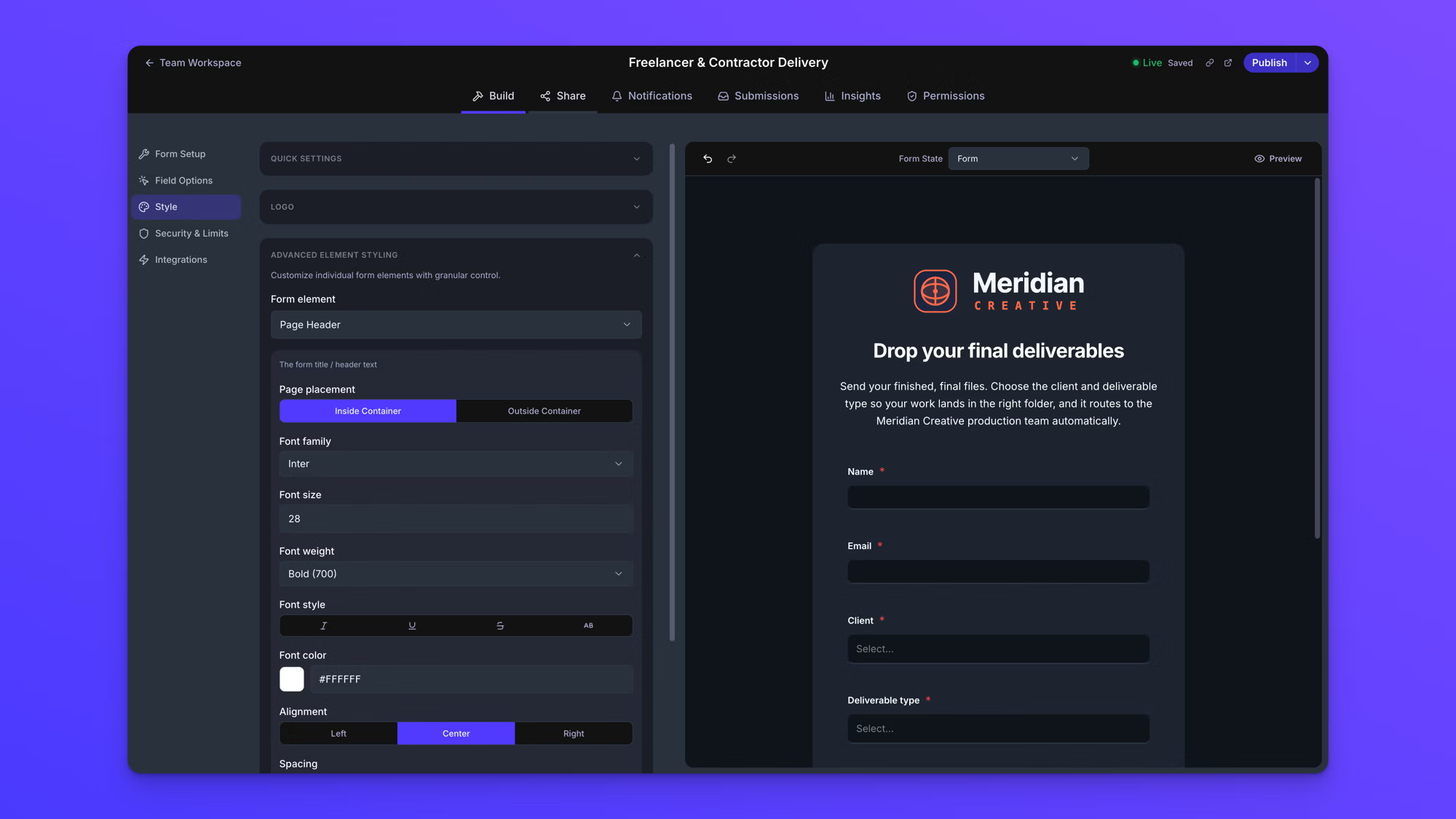
Step 4: Add Form Fields
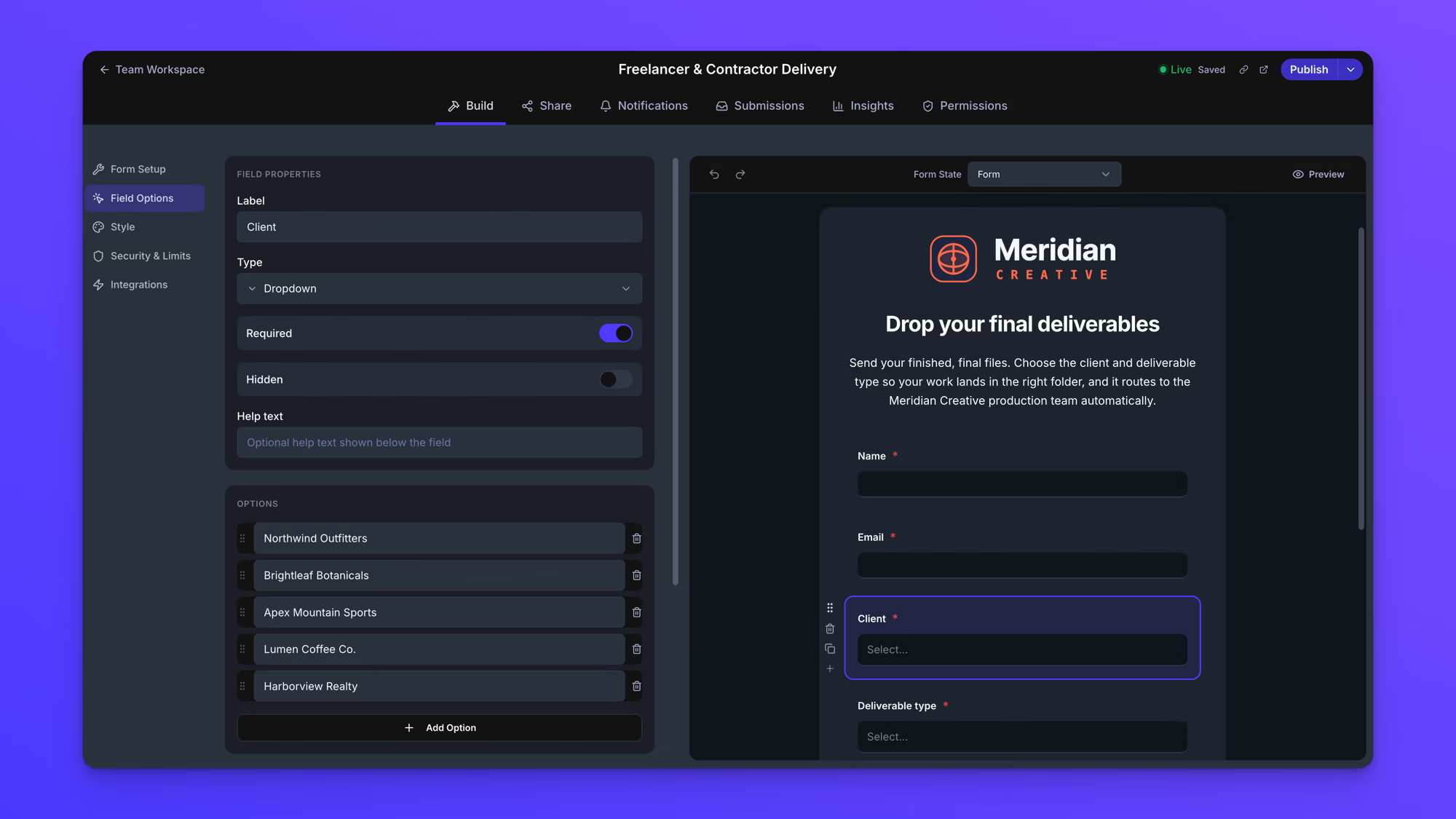
Form fields let your portal collect context alongside the files. EZ File Drop supports text fields, dropdown menus, checkboxes, and radio buttons. Any field can be marked required or optional.
Common fields for a branded upload portal include:
- Client or uploader name (used to organize incoming files)
- Email address (used to send upload confirmations)
- Project name or ID (used to route files into the right subfolder)
- Category or file type (dropdown for submission type)
- Notes or message (long text field for context)
Field values can also be used to automatically organize incoming files in Box. More on that in the next step.
The file upload field itself is also configurable. You can require it, set a maximum number of files per submission, and restrict which file types are accepted. Per-submission size caps are 5 GB on the Starter plan and 25 GB on Business and Premium.
Step 5: Point the Portal at Box and Set Up File Organization
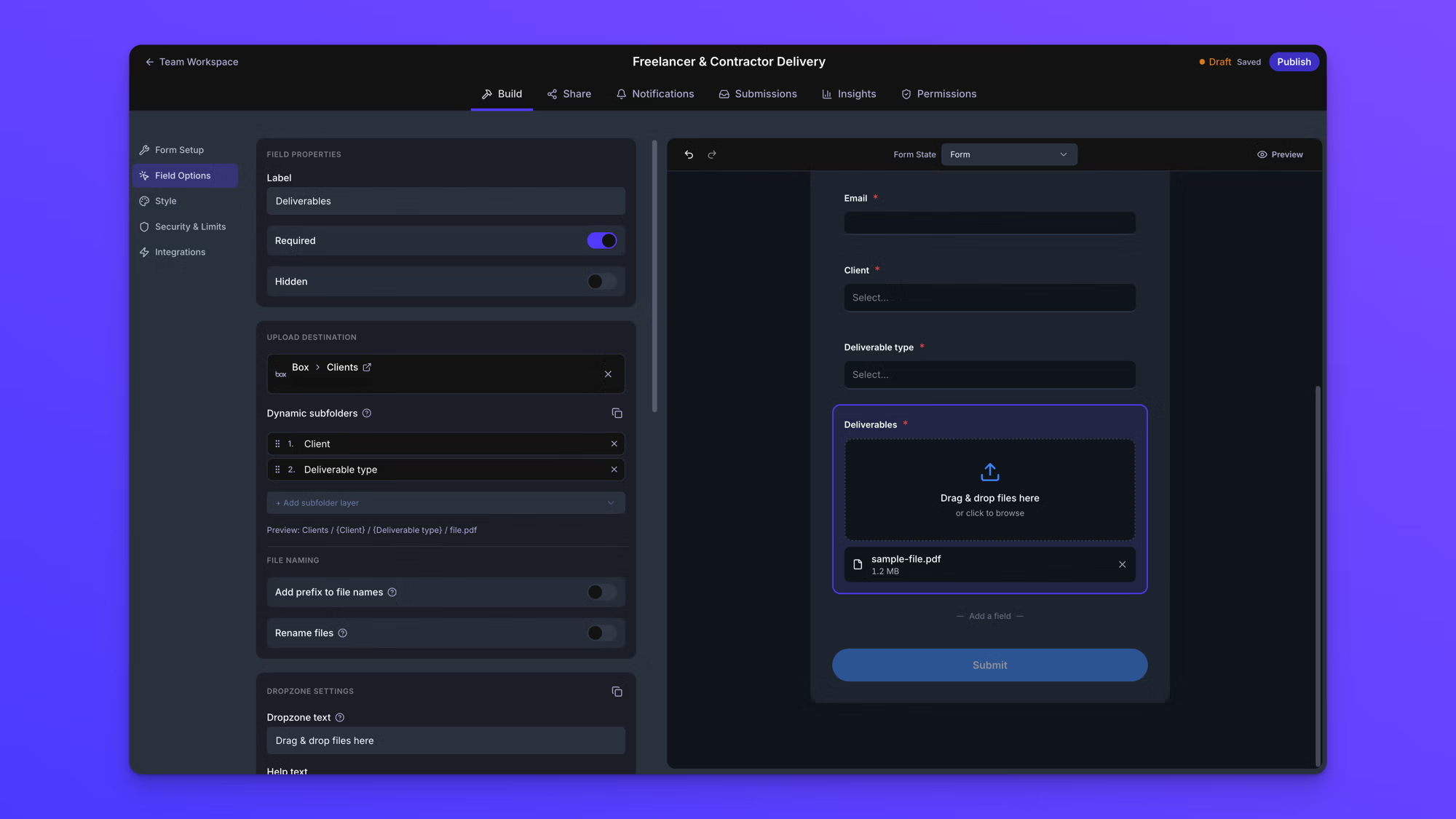
In the destination settings, select the Box folder where uploaded files should land. Then use the dynamic file organization settings to automatically create subfolders and add a prefix to file names based on form field data.
For example, a portal that collects a project name and an uploader name could route each file into a subfolder named after the project, with the uploader's name added as a prefix on each file. So a photo from Sarah Johnson for the Website Redesign project arrives in your Box as "Sarah Johnson - headshot.jpg" inside the "Website Redesign" folder. No manual sorting, no lost files.
If a project folder already exists, new uploads go into that same folder; no duplicate folders are created, so long-running projects stay consolidated.
Step 6: Publish and Share the Portal
Save and publish. Your branded upload portal is live immediately, and the Share tab gives you every way to distribute it.
Share as a Standalone Page
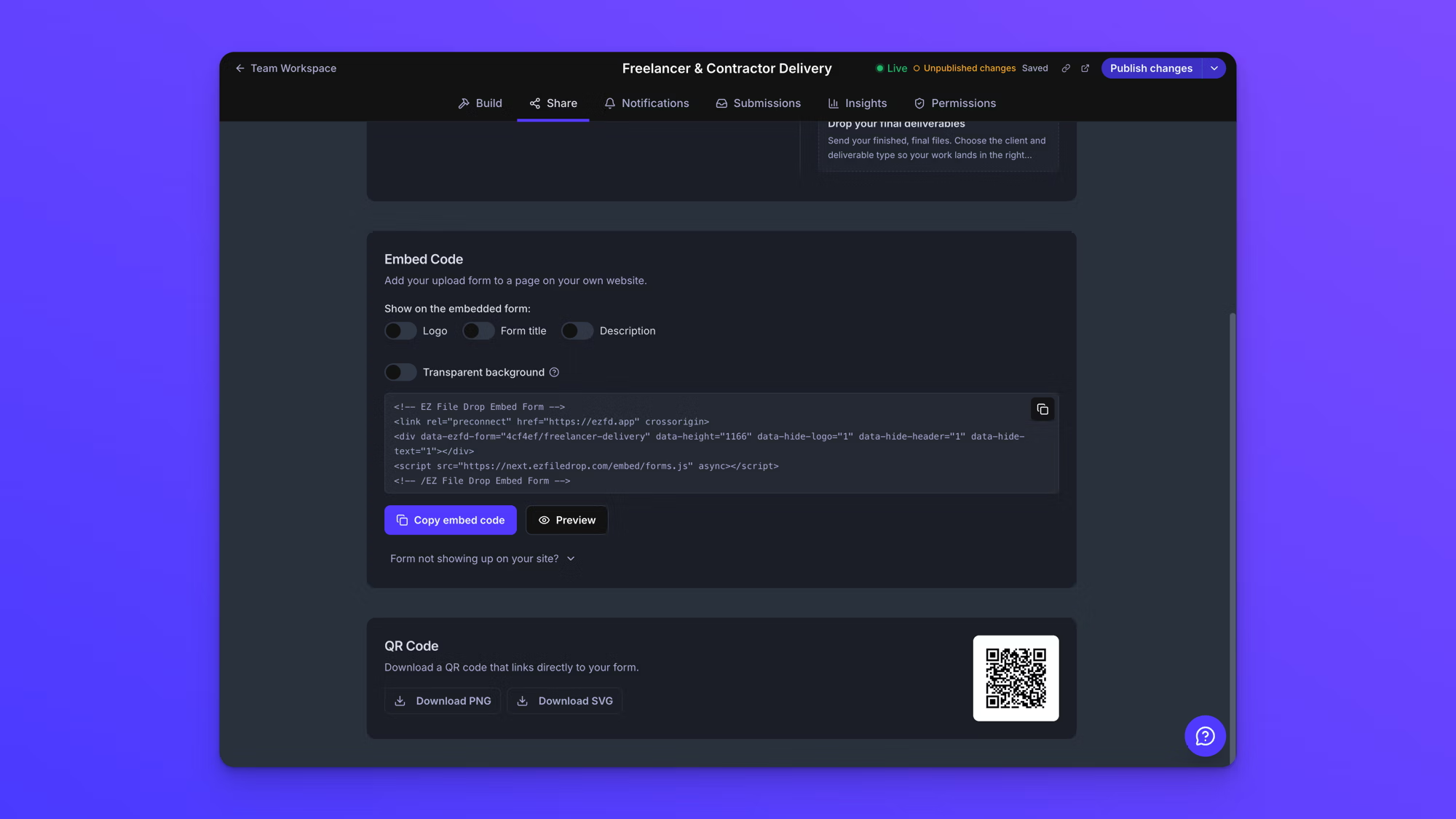
Every portal has a unique share link. Share the link directly over email, in a proposal, or in a contract. No hosting, no configuration. You can also download a QR code (PNG or SVG) that links directly to the portal, which is handy for printed materials, event signage, or on-set paperwork.
Embed on Your Website
The Share tab's Embed Code section generates a JavaScript snippet that loads the portal into your page and keeps it sized to fit, so the embedded portal never shows an inner scrollbar. Switches for Logo, Form title, Description, and Transparent background let you control what appears so the embedded version matches its surrounding page, and a Preview button shows the result before you touch your site. Works on WordPress, Webflow, Squarespace, Wix, or any HTML-supporting site.
Branded Portal vs. Box File Request
If you're considering Box File Request as an alternative, here's how the two compare on the branding dimensions that matter:
For a deeper look at how EZ File Drop works alongside Box File Request, see the Box integration page.
Frequently Asked Questions
Can you add your own branding to a Box File Request page?
No. Box File Request pages carry Box's logo and styling, and there's no way to add your logo, change colors, or customize the success screen. To put your brand on the upload experience while files still deliver into Box, you need a branded upload portal in front of your Box account.
Do uploaders need a Box account to use the portal?
No. Anyone with the portal link (or visiting the page it's embedded on) can upload without creating an account or signing in to anything. Files are delivered into your Box account using your connection, not theirs.
Which EZ File Drop plan do I need for a branded Box portal?
Custom branding (your logo, colors, and fonts) and full white-labeling are part of the Business and Premium plans, and every new account starts on a 7-day Business trial, so you can build a fully branded portal from day one. Starter includes the form builder, the Box connection, share links, and email notifications, with EZ File Drop attribution on the page.
How are uploaded files organized in Box?
You choose a destination folder, and form field data (like project name or uploader name) can automatically create subfolders and add a prefix to file names, so every submission arrives sorted and labeled. If a folder already exists, new uploads go into it; no duplicate folders are created.
Start Collecting Files Through a Branded Box Portal
Setting up a branded upload portal for Box takes about five minutes. The files still live in your Box account, organized exactly how you want; using your existing Box storage. The only thing that changes is the experience your clients see when they send files to you: now, it's yours.
Start a free trial with no credit card required. For more detail on how the Box integration works, see the Box integration page.
Written by Matt Townley