
How to Make a Branded Upload Portal for Dropbox
When a client needs to send you files, the upload page they see is a touchpoint in your customer experience. If that page shows Dropbox's logo and branding, it's a moment where your brand disappears, and the uploader is quietly reminded they're working with a tool, not with you.
A branded upload portal solves that. It's a custom upload page that carries your logo, your colors, your fonts, and your voice, while still sending files into your existing Dropbox account. The uploader sees your brand from the first click through the confirmation screen, and on Business and Premium plans the page is fully white-labeled, with no third-party branding anywhere.
This guide walks through how to build one using EZ File Drop, a purpose-built tool that connects your Dropbox to a fully brandable upload experience. No coding, no hosting, no design team required.
Why a Branded Upload Portal Matters
Dropbox File Request is the native Dropbox feature for receiving files from outside your account. It works, but every File Request page shows Dropbox's logo and a Dropbox-branded confirmation screen that prompts uploaders to sign up for a Dropbox account after they submit.
For an internal file swap, that's fine. For client-facing work, it costs you something:
- Your brand goes missing at a key touchpoint. Clients sending you assets or documents see Dropbox branding instead of yours. That's a small thing, but across hundreds of touchpoints it adds up.
- The upload experience doesn't match your website. A client comes from your polished site and lands on a generic Dropbox form. The contrast reads as unprofessional.
- Your logo doesn't appear in upload notifications. The confirmation email the uploader gets is plain Dropbox.
- Your copy options are minimal. A title and a short description, but no brand voice, no formatting, and no control over what the page says after someone submits.
A branded upload portal fixes all of this while keeping the files exactly where you want them: in your Dropbox.
What a Branded Upload Portal Gives You
EZ File Drop's branded upload portals for Dropbox include:
- Your logo on the upload page, in email notifications, and on the success screen
- Custom colors, fonts, and page layout to match your website
- Custom page copy (headline, welcome message, drop zone text, success message) so the portal speaks in your voice
- Form fields for collecting context alongside the files (client name, project ID, email, categories, etc.)
- Automatic file organization in Dropbox using form field data
- White-labeling on Business and Premium plans (no EZ File Drop branding anywhere)
- Embeddable on any website (WordPress, Webflow, Squarespace, Wix, or any page that supports HTML embeds)
Files still land directly in your Dropbox account, in the folders you choose, using your existing Dropbox storage. EZ File Drop is the branded front door. Dropbox is still the storage.
.avif)
Step 1: Connect EZ File Drop to Dropbox
Sign up here. Every new account starts with a 7-day free trial on the Business plan, no credit card required.
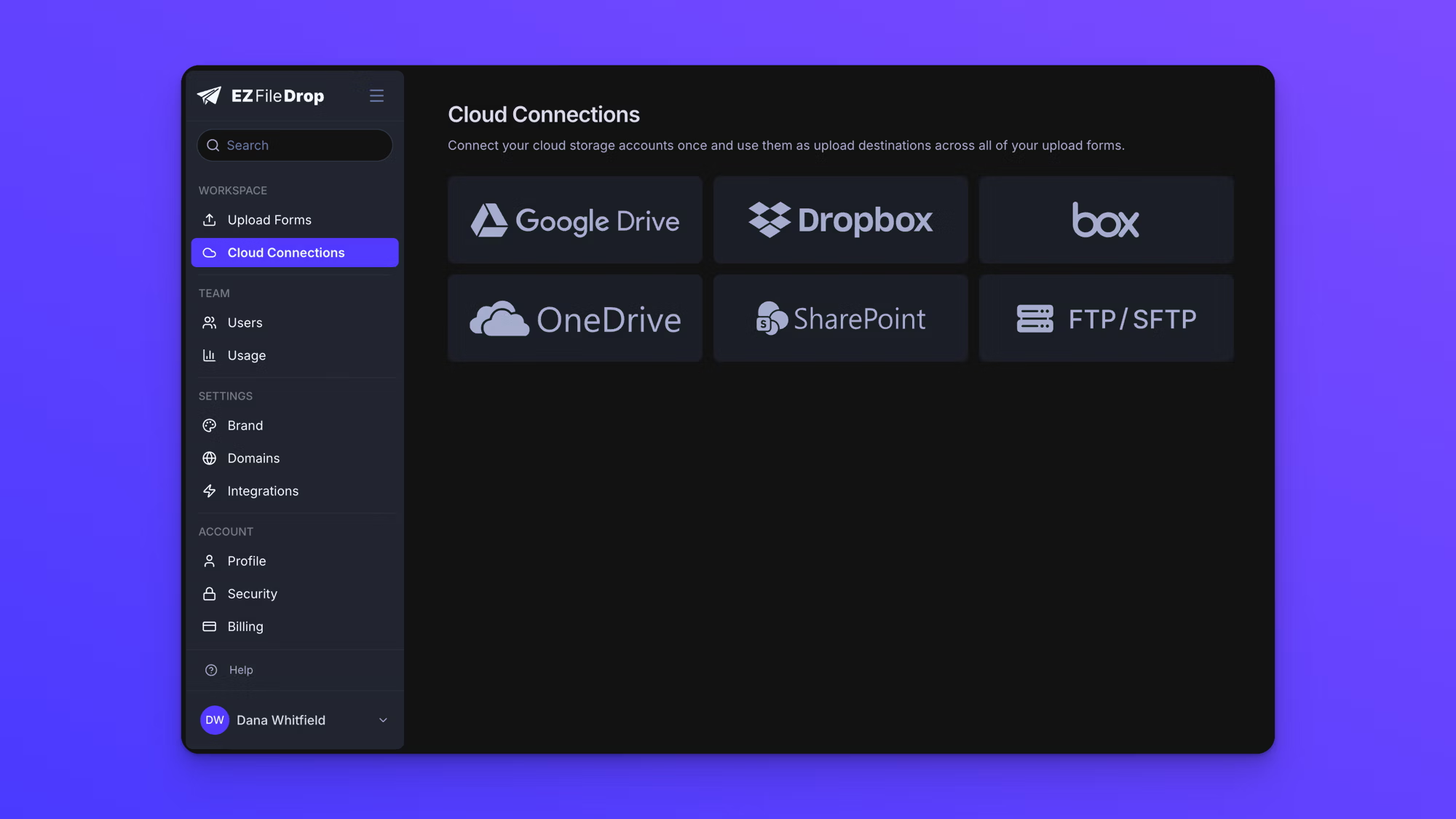
From the main dashboard, open Cloud Settings and click Connect to Dropbox. EZ File Drop uses OAuth2 to link to your account, so your Dropbox password never leaves Dropbox. Approve the connection in the Dropbox authorization window and you'll be returned to EZ File Drop with Dropbox connected.
Step 2: Upload Your Logo and Brand Assets
From the main menu, click Upload Forms, then Create New Form. In the form editor, give your portal a name and upload your logo.
A few things worth knowing about the logo:
- It appears at the top of the standalone upload portal page
- It appears in email notifications (upload confirmation, team notification, third-party notification)
- It appears on the upload success screen after a file is submitted
- If you plan to embed the portal on your website without a logo above the form, the logo is still used in emails, so upload one even if you plan to hide it in the embed
Then set the form title and description. This is your voice. Write copy that matches your brand: formal if you're working with law firms, warm and conversational if you're working with creatives, whatever fits.

Step 3: Customize Colors, Fonts, and Layout
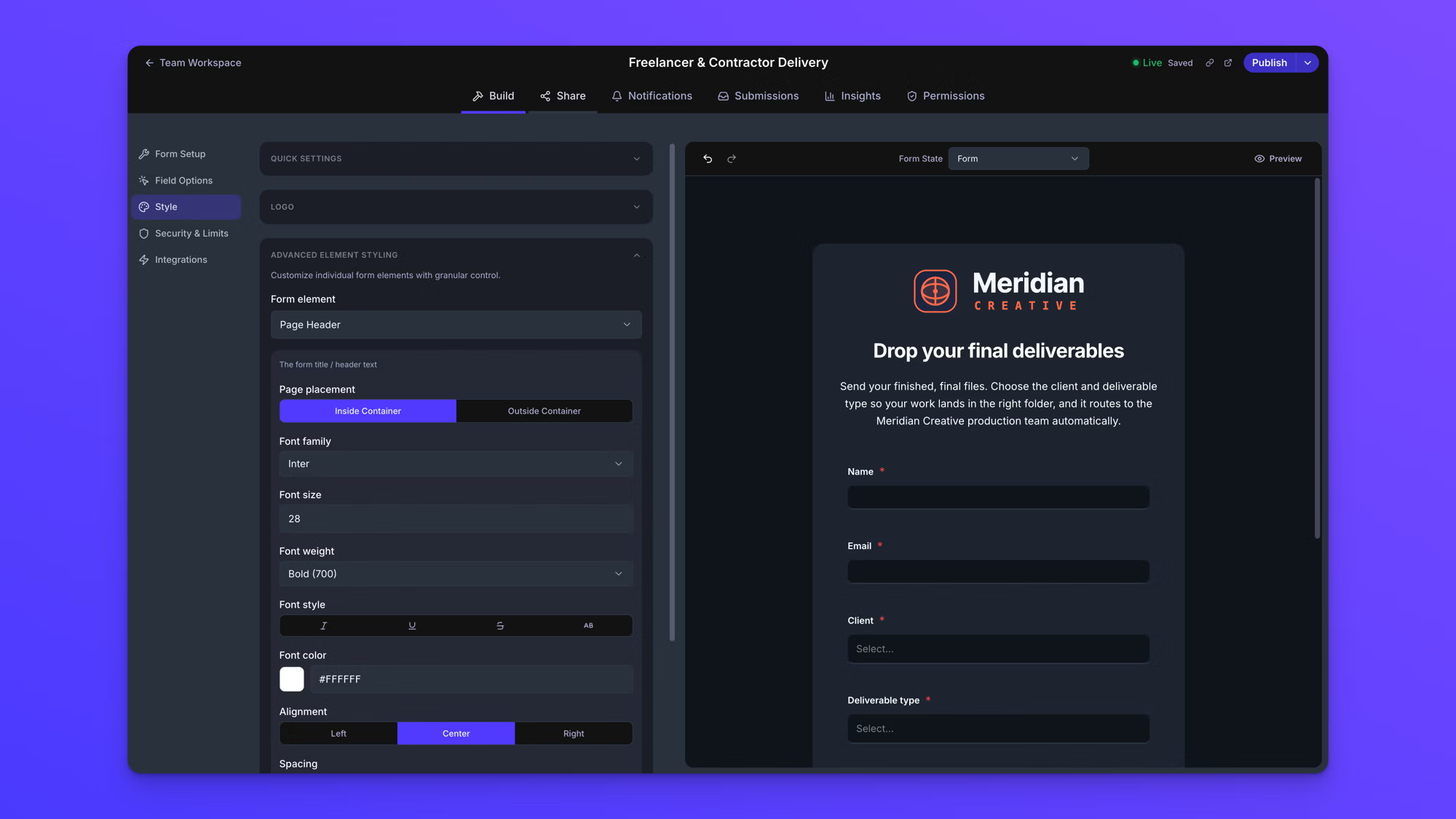
Open the Style editor to make the portal match the look and feel of your brand. The Form Element dropdown lets you toggle between every part of the portal and edit its styling individually:
- Logo area
- Form title
- Description and body text
- Form field labels and inputs
- Drop zone and upload button
- Submit button
- Success message
- Background color and page padding
You can match your website's typography, color palette, spacing, and visual tone. On Business and Premium plans, the portal is fully white-labeled with no "Powered by EZ File Drop" footer and no EZ File Drop branding anywhere on the page or in the emails.
Step 4: Add Form Fields
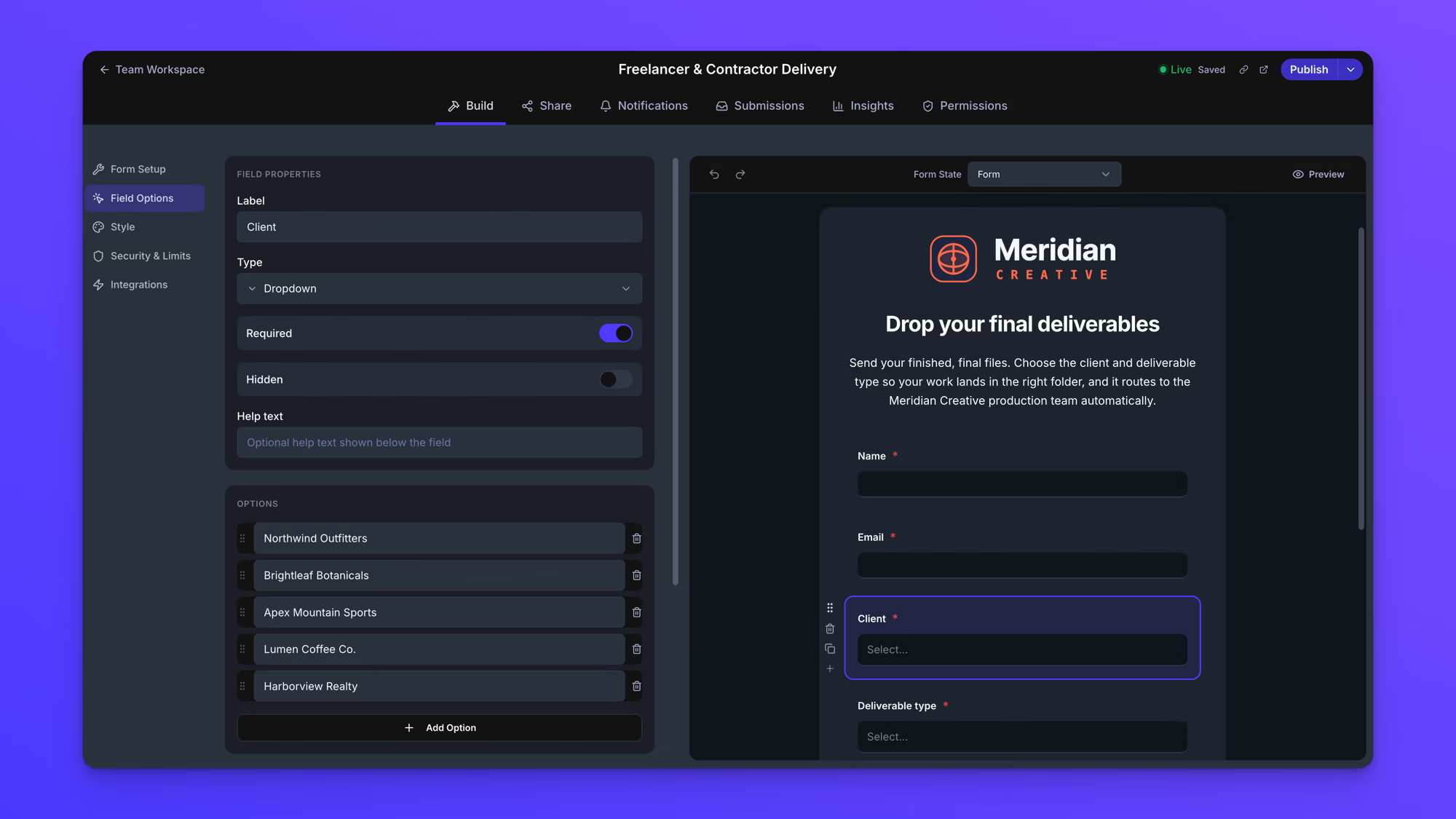
Form fields let your portal collect context alongside the files. EZ File Drop supports text fields, dropdown menus, checkboxes, and radio buttons. Any field can be marked required or optional.
Common fields for a branded upload portal include:
- Client or uploader name (used to organize incoming files)
- Email address (used to send upload confirmations)
- Project name or ID (used to route files into the right subfolder)
- Category or file type (dropdown for submission type)
- Notes or message (long-text field for context)
For longer intakes, conditional logic shows or hides fields based on earlier answers, so the form stays clean and each person only sees the questions that apply to them.
Field values can also be used to automatically organize incoming files in Dropbox. More on that in the next step.
Step 5: Point the Portal at Dropbox and Set Up File Organization
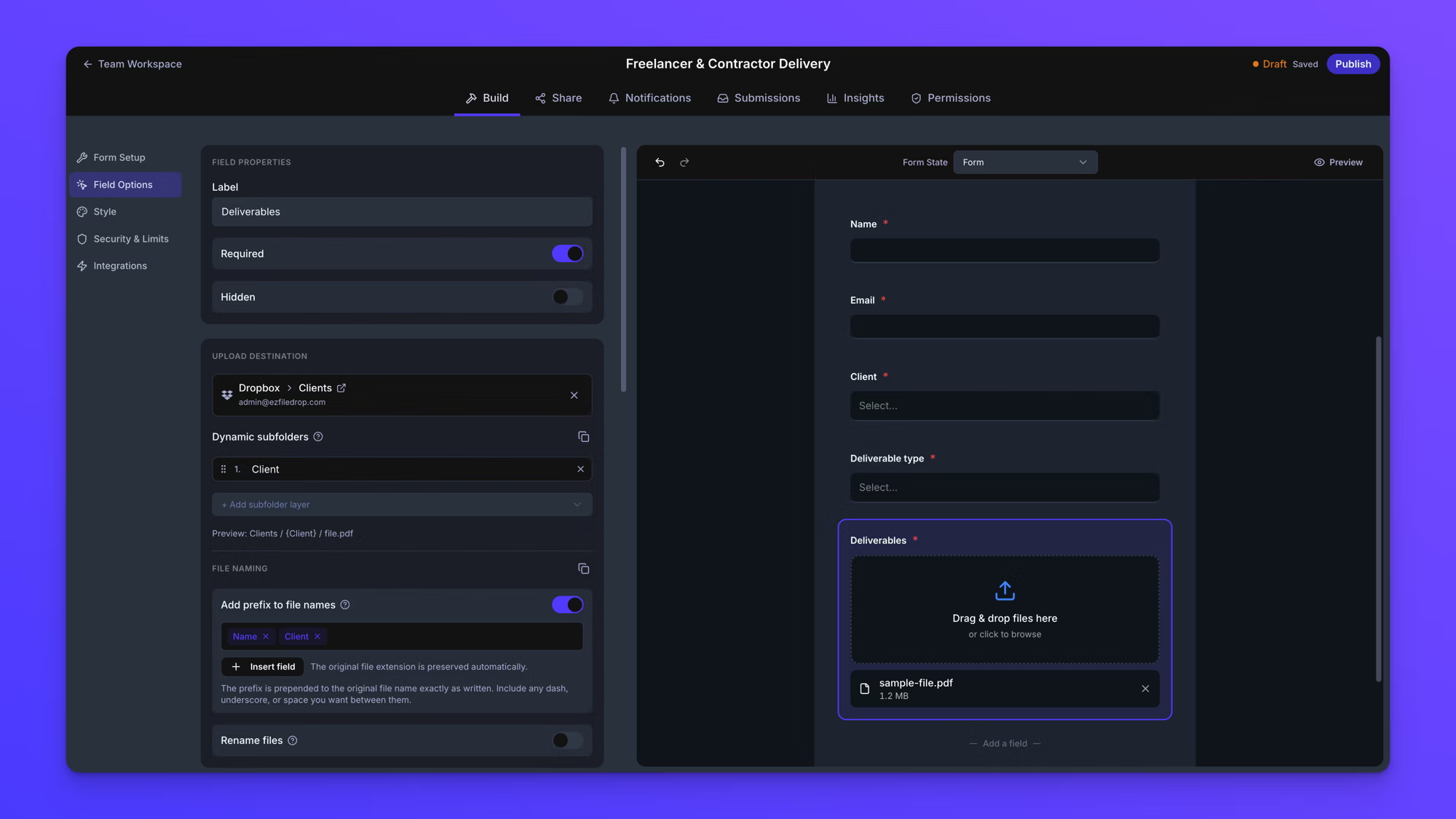
In the Cloud Destination section, select the Dropbox folder where uploaded files should land. Then use the dynamic file organization settings to automatically create subfolders and rename incoming files based on form field data.
For example, say you run a creative agency and use a portal to collect finished work from your freelancers. The form asks for their name, the client the work belongs to, and the deliverable type. Those dropdown values become your folder structure: a freelance editor named Sarah Johnson submits a final cut for the Northwind Outfitters account, and it arrives in your Dropbox as "Sarah Johnson - northwind-hero-video.mp4" inside Northwind Outfitters> Final Video. No manual sorting, no renaming, no asking who sent what.
Because EZ File Drop reuses folders that already exist, new uploads go to the right place instead of spawning duplicate folders. The next freelancer who submits a Final Video for Northwind Outfitters goes into that same folder, right next to Sarah's.
Step 6: Publish and Share the Portal
Click Save and Publish. Your branded upload portal is live immediately.
Share as a Standalone Page
Every portal has its own unique URL, and the URL slug is editable, so the link reads like something you chose instead of a random string. Share the link directly over email, in a proposal, or in a contract. No hosting, no configuration. If you want share links to run on your own domain, a custom domain is available on the Premium plan.
Embed on Your Website
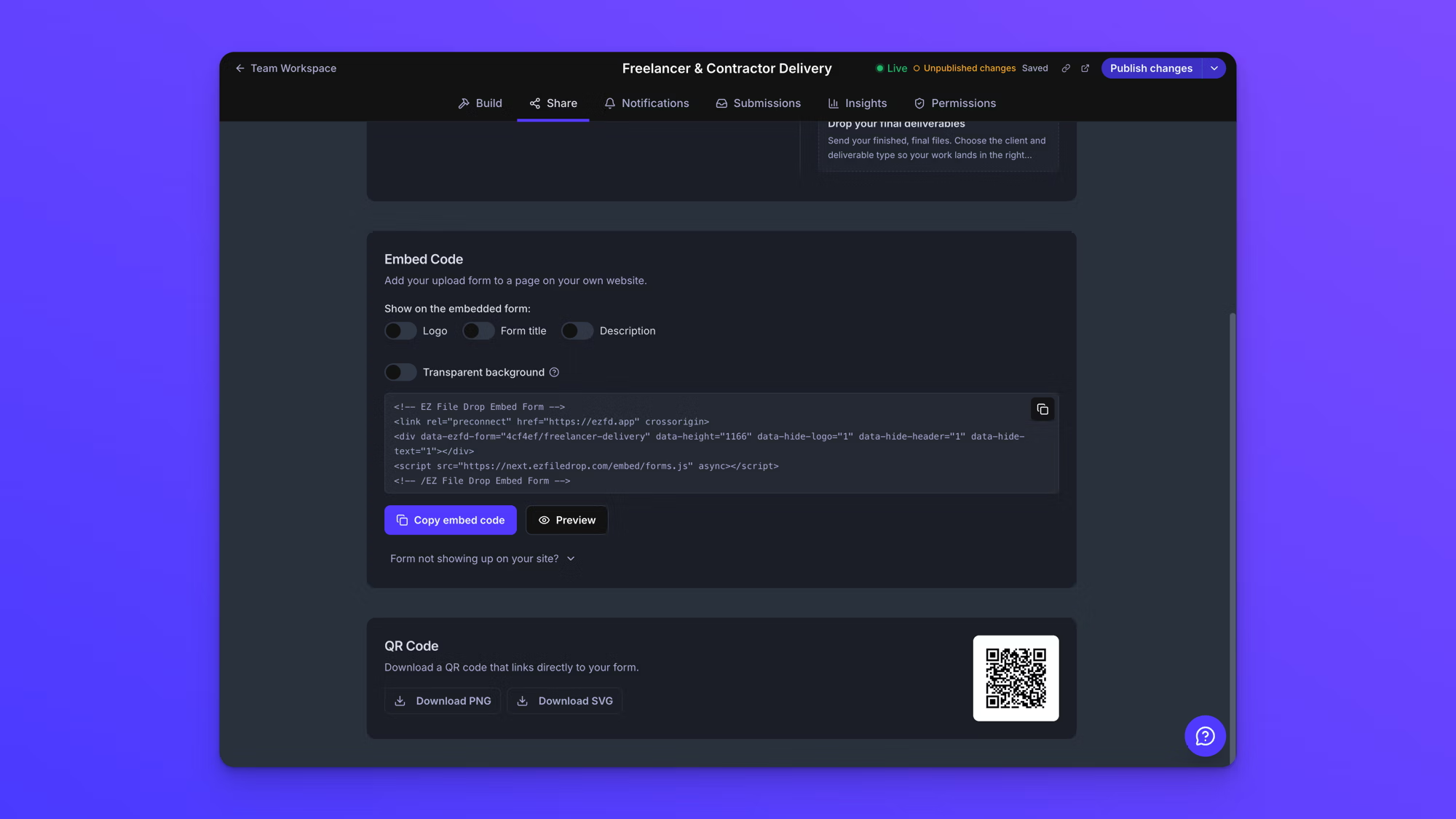
Copy the embed code and paste it into your site. The embedded portal carries all your branding and fits seamlessly into your page design. Switches let you show or hide the logo, form title, and page text, and a transparent background option lets your page show through behind the form, so the embedded version matches its surrounding page. Works on WordPress, Webflow, Squarespace, Wix, or any HTML-supporting site.
Once files start arriving, you don't have to dig through the Dropbox folder to see what came in. Every submission also appears in your EZ File Drop dashboard, where you can browse uploads, read the form fields attached to each one, and search by person or file name.
Branded Portal vs. Dropbox File Request
If you're considering Dropbox File Request as an alternative, here's how the two compare on the branding dimensions that matter.
For a deeper breakdown of the differences, see Can a Dropbox File Request Be Used to Collect Files From People? And if you're building the same kind of portal for a different cloud, the Google Drive version of this guide follows the same playbook.
Frequently Asked Questions
Do the people uploading need a Dropbox account?
No. Anyone with your form link can upload through your branded portal with no Dropbox account, no EZ File Drop account, and no sign-in of any kind. The Dropbox connection is yours alone; uploaders never touch it.
Where do the uploaded files actually go?
Into the Dropbox folder you choose when you build the form. EZ File Drop doesn't keep your files. Every submission routes through to your Dropbox and stays there, in the folders you already use.
Can I put the upload portal on my own domain?
Yes, in two ways. You can embed the form on a page of your own site so the URL the client sees is your domain, available on the Business and Premium plans. For share links and notification emails to run on a fully custom domain, that's available on the Premium plan.
Which branding features are on which plan?
Every plan connects Dropbox and includes the Quick Style Settings for basic styling. Uploading your own logo, custom colors and fonts, and removing EZ File Drop branding from the form are part of the Business and Premium plans. Custom domains on share links and email are Premium. The 7-day free trial runs on the Business plan, so you can test the full branded experience before deciding.
Does this work with free, Plus, Business, and Enterprise Dropbox accounts?
Yes, all of them. You can route a form into a free personal Dropbox or into a shared team folder your whole team can access. Files use your existing Dropbox storage either way.
Will the people uploading be able to see each other's files?
No. Each submission is private. Unlike a shared Dropbox folder, where anyone with folder access sees its contents, people uploading through your portal only ever see their own upload.
Start Collecting Files Through a Branded Dropbox Portal
Setting up a branded upload portal for Dropbox takes about five minutes. The files still live in your Dropbox, organized exactly how you want, using your existing Dropbox storage. The only thing that changes is the experience your clients, vendors, and collaborators see when they send files to you. Now, it's yours.
Start a free trial with no credit card required. For more detail on how the Dropbox integration works, see the Dropbox integration page.
Written by Matt Townley