
Receive file uploads into your own Dropbox account.
No credit card required · 7-day Business plan trial
How it works

Connect your Dropbox
You connect your account once, through Dropbox's own secure sign-in (OAuth2). EZ File Drop never sees or stores your password, and you can disconnect any time.
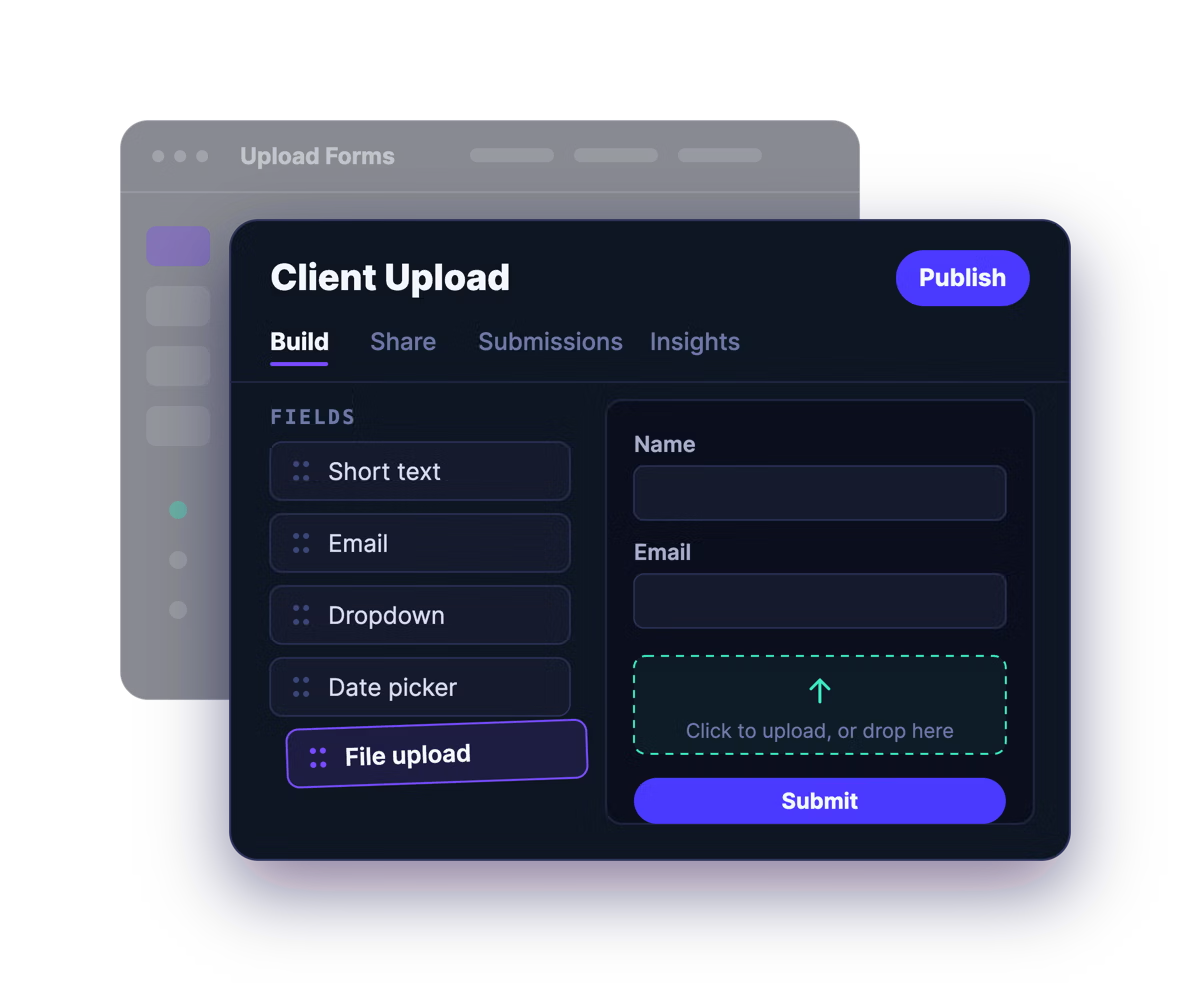
Build a branded upload form
Drag and drop the fields you need, add your logo, colors, and fonts, and write your own instructions. No design or developer help required.
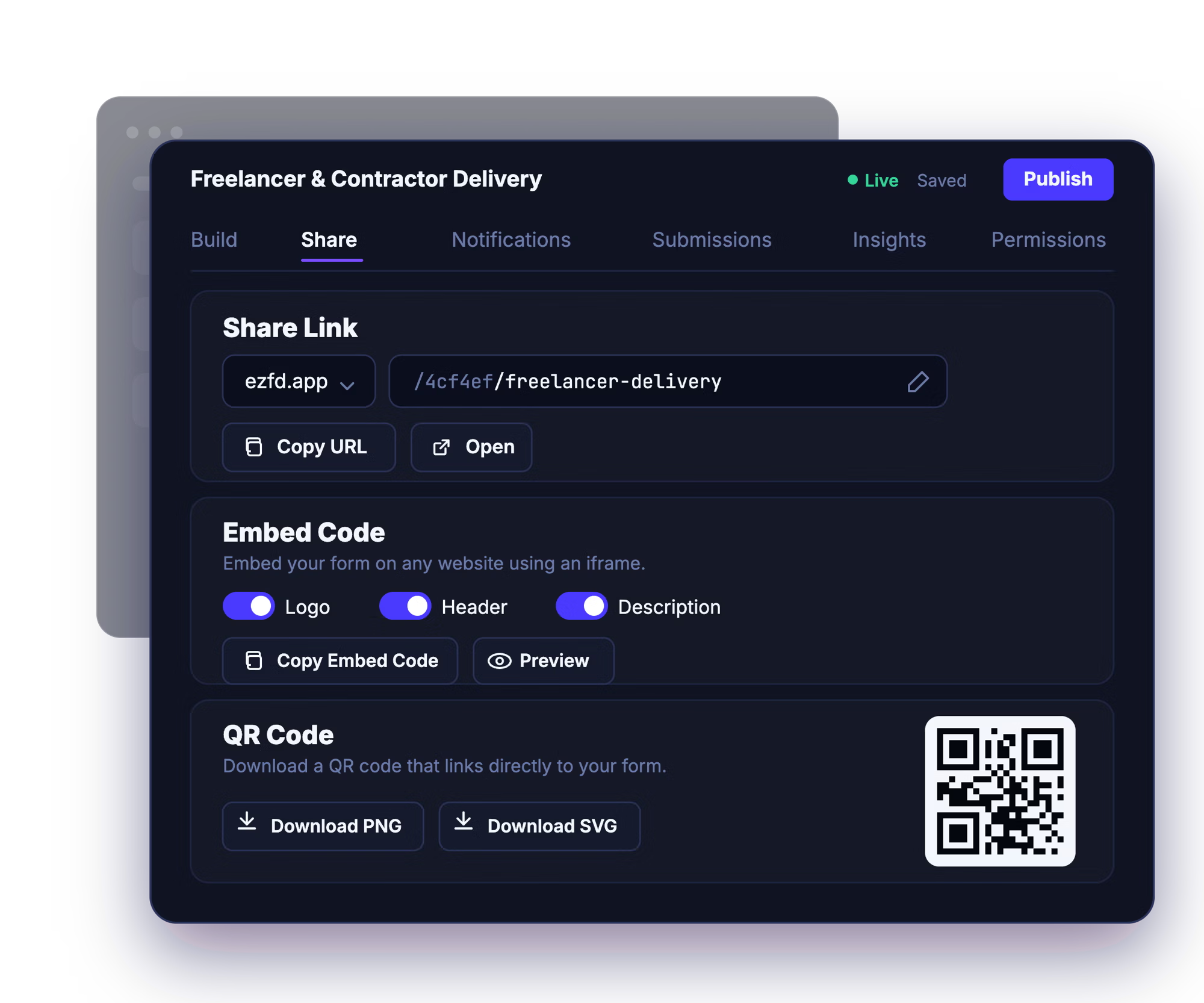
Share the link, embed it, or post the QR code
Send the share link by email, drop the form onto your website, or print the QR code for in-person collection. Uploaders just open it and go.
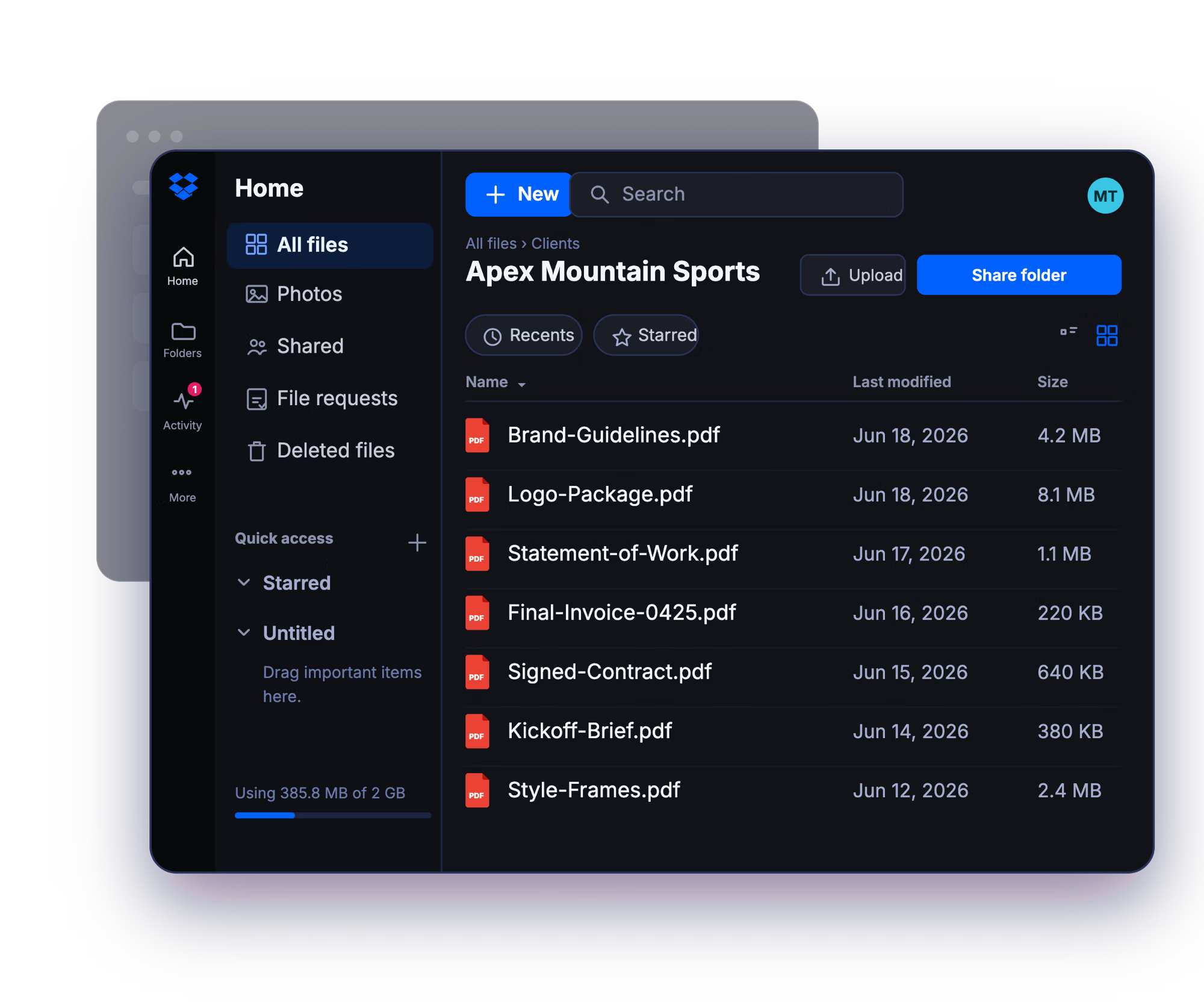
Files arrive organized in your folder
Every submission is delivered to the Dropbox folder you chose, automatically sorted into subfolders by submitter, project, or any form field.
Already using Dropbox File Request?
EZ File Drop and Dropbox File Request both put your files in the same place: your own Dropbox. What differs is everything that happens before they get there.
Dropbox File Request does the basics well. Someone opens your link, adds files, and they arrive in the folder you picked, with no Dropbox account needed on their end. The limits show up when you need more than that. The page carries Dropbox's branding rather than yours, it can't be embedded on your website, and the only thing it collects is the uploader's name and email address. Everything arrives in one flat folder, with the uploader's name added to the front of every file name. Collect from clients month after month and that's a folder you end up sorting by hand.
Whether you collect with Dropbox File Request or with EZ File Drop, the files end up in your Dropbox. The difference is everything that happens first: EZ File Drop gives you a branded form, the fields you actually need alongside the files, subfolders built from the answers, and a searchable record of who sent what.
Want the full breakdown? Read can a Dropbox File Request be used to collect files from people? →
Everything EZ File Drop can do with your Dropbox.

Connect EZ File Drop to Dropbox →
New to collecting files this way? Read the full walkthrough: How to let anyone upload files to your Dropbox without signing in →
Built for the way you already use Dropbox.
Marketing Agencies
Pull creative assets, brand files, and client approvals into the right Dropbox project folder, organized automatically.
Photography
Collect client selects, signed releases, and shoot references into a tidy per-client Dropbox folder, without the email back-and-forth.
Video content collection
Gather self-recorded clips, customer testimonials, and video submissions from lots of different people, without anyone needing an app or account to send them.
Real Estate
Take in transaction documents, disclosures, and listing photos from clients and agents, each delivered to the right Dropbox folder.
Freelancers
Give every client one branded link to send you files, so your Dropbox stays organized without you chasing email attachments.
And many more…
FAQ

No, and they don't need an EZ File Drop account either. Anyone with your form link can open it and upload without signing in to anything. The Dropbox connection is yours alone, and the people uploading never touch it.
In the exact Dropbox folder you chose when you set up the form. Every submission to that form is delivered to that same folder, and different forms can point at different folders. If a form collects something like a client name or a project number, EZ File Drop can create a subfolder for each one automatically, so files arrive sorted instead of stacking up in one place. See Set up dynamic file organization.
Yes. The connection works with any Dropbox account, including free personal accounts, and you can point a form at your own Dropbox or at a shared team folder your whole team can already see. For anything a team relies on, the shared folder is usually the better setup, since it doesn't route client work through one person's personal folder. See Connect Dropbox.
Yes, on every plan. You can connect as many Dropbox accounts as you want to a single EZ File Drop login and point each form at whichever one it belongs to. Useful if you keep client work in one account and internal work in another. See Connect multiple cloud accounts.
Every form has a submission viewer in your EZ File Drop dashboard, on every plan. You can browse all the submissions to a form, read the form responses attached to each one, and search by person or file name without digging through the Dropbox folder. See View and manage submissions.
Yes. Your files are delivered into your Dropbox and live there, so they use your Dropbox storage the same way any file you added yourself would. That's the point of working this way: the files are yours, in an account you control, and they stay there whatever happens to your EZ File Drop subscription.
Yes. EZ File Drop connects through Dropbox's own sign-in using OAuth2, so we never see or store your Dropbox password, and you can revoke access at any time from your Dropbox account settings. Files move over TLS-encrypted connections the whole way.
Dropbox's permission screen asks you to allow EZ File Drop to edit the content of your files and folders, which reads broader than what actually happens. The permission has to cover that range because you can point a form at any folder you own. What EZ File Drop does with it is write the files people send through your forms and create subfolders when a form organizes them. It also reads basic account information, like your username and email, to set up the connection. It doesn't read or browse the files you already keep in Dropbox. See Connect Dropbox and the security page.
EZ File Drop retries automatically, several times with a growing gap between attempts, which clears most failures without you doing anything. Two situations retries can't fix are a disconnected account that needs reauthorizing and a destination folder that's been moved, renamed, or deleted. Failed files stay in staging so you can retry the delivery from your dashboard. See Fix upload errors.
Every plan, including Starter, connects all six cloud destinations, Dropbox included. The features built on top of it are split by plan: dynamic file organization, your own colors, fonts, and logo, and white-labeled forms are on Business and Premium. Full breakdown on the pricing page.
Dropbox File Request is a feature built into Dropbox. EZ File Drop is a separate product that connects to your Dropbox account, so it takes the place of a File Request rather than adding anything to one. Files end up in your Dropbox either way.
What changes is the form. A Dropbox File Request page carries Dropbox's branding, collects the uploader's name and email address and nothing else, and drops everything into a single folder. A form you build in EZ File Drop carries your branding, collects whatever fields you add, sorts files into subfolders based on the answers, can be embedded on your own website, notifies anyone who needs to know, and keeps a searchable record of every submission.
Start collecting with your own Dropbox file request form.
Build your first branded form, connect your Dropbox, and share the link in minutes.