.svg)
How to collect videos and content for virtual events
Running a virtual event, hybrid conference, or online summit means collecting a lot of content from a lot of people before the event goes live. Speakers need to send pre-recorded sessions, presentation decks, headshots, and bios. Sponsors send logos, overlay graphics, and video clips. Sometimes attendees contribute content too, especially for post-event highlight videos or community campaigns.
The logistics of gathering all of that, organizing it so your production team can actually find what they need on show day, and chasing down the stragglers who haven't uploaded yet can eat up more producer hours than the event itself.
This guide covers a workflow for virtual event content collection that scales from a single webinar to a multi-day conference with dozens of speakers. It names the real options available (from free to paid, from scrappy to polished), explains where each works and where each breaks down, and walks through how to use a dedicated file collection tool to keep the whole process organized.
What "Content Collection" Actually Covers for Virtual Events
Before picking a tool, it helps to be clear about what you're collecting. Virtual event content generally falls into four categories, each with its own deadline and file-size profile:
Speaker content (pre-event). Pre-recorded session videos (often large MP4 files), presentation slides in Keynote, PowerPoint, or PDF, speaker headshots, bios, session descriptions, and sometimes a signed release or speaker agreement. This is the highest-volume, most time-sensitive collection category. If speaker content doesn't arrive on time, the event can't go live.
Sponsor assets (pre-event). Logos in multiple formats, overlay graphics, sizzle reels or intro videos, and occasionally full sponsored segments. Sponsors usually need explicit file format and size specs because the content gets integrated into your production workflow.
Live session support (during event). For multi-track events, producers sometimes collect additional content in real time: Q&A screenshots, chat exports, audience poll results, or supplemental documents that speakers reference but didn't include in their original decks.
Post-event content. Session recordings from speakers who presented live, attendee-submitted photos or videos from networking sessions or community segments, testimonials, and survey responses. Post-event is often the largest volume by file size because it includes recorded video.
Each category has a different deadline, a different set of contributors, and different file requirements. The collection tool you pick should handle all four without forcing you into separate workflows.
The Real Options for Collecting Virtual Event Content
There are several common approaches, each with trade-offs:
Email attachments. The default for many first-time event producers. Works for speaker bios and headshots, fails hard on large video files. Most email providers cap attachments at 25 MB, so anything bigger gets bounced or compressed. Tracking who has submitted what across dozens of threads is a full-time job. Appropriate only for very small events with light content requirements.
WeTransfer or similar link-based services. Speakers upload to WeTransfer, send you a download link, you download, you re-upload to your production team's storage. Handles large files, but every transfer is a separate manual step, nothing is organized by speaker or session until you do it yourself, and links expire in 7 days on the free tier.
Dropbox File Request or Google Drive file upload. Free if you're already paying for Dropbox or Google Workspace. Anyone can upload without an account. The limitations: no branding, no custom form fields (so you can't collect session title, format, or speaker details alongside the file), limited notifications, and file caps depending on your plan.
Google Forms with file upload. Google Forms supports file uploads but requires every uploader to sign in with a Google account first. For virtual events where you're collecting content from dozens of external speakers who may not have or want to use Google accounts, this is a friction wall that leads to abandoned submissions.
Jotform or similar form builders. Files route to Jotform's servers on their free and basic tiers, and storage limits get tight quickly (100 MB on free, with paid tiers needed for typical event video volumes). Better than email, but introduces a second storage system your team has to manage alongside your actual production storage.
Dedicated file collection tools like EZ File Drop. Branded upload forms with custom fields that route files directly to your existing Google Drive, Dropbox, OneDrive, Box, or FTP. Files go into named folders automatically (using the speaker's name or session title), enforce your file type and size requirements, and send customized notifications when each submission arrives. This is the workflow covered in the walkthrough below.
Large file transfer services like MASV. If you're collecting hundreds of gigabytes or multiple terabytes of video content per event (think large-scale video production shops working with raw footage from dozens of speakers or multi-day conferences with full recordings), MASV's pay-as-you-go pricing scales for that volume. For most virtual events where the total collection per event fits inside a typical monthly transfer allotment, a subscription-based dedicated tool is cheaper.
For the rest of this guide, we'll focus on the dedicated file collection tool approach because it handles the widest range of event content types without forcing workarounds.
A Workflow for Virtual Event Content Collection
Here's how an event producer collecting speaker content for a multi-session conference might set up the workflow:
1. Build a Speaker Intake Form with the Right Fields
The form should collect everything your production team needs about each submission, not just the file itself. For a typical conference, that means:
- Speaker name (used for folder organization)
- Email (for notifications and follow-up)
- Phone (for urgent production issues on show day)
- Session title (used for file naming)
- File format dropdown (Keynote, PowerPoint, PDF) so production knows what software is needed
- Audio content checkbox (some presentation formats embed audio differently)
- Policy agreement checkbox (speaker agreement, recording release)
- File upload (the actual content)
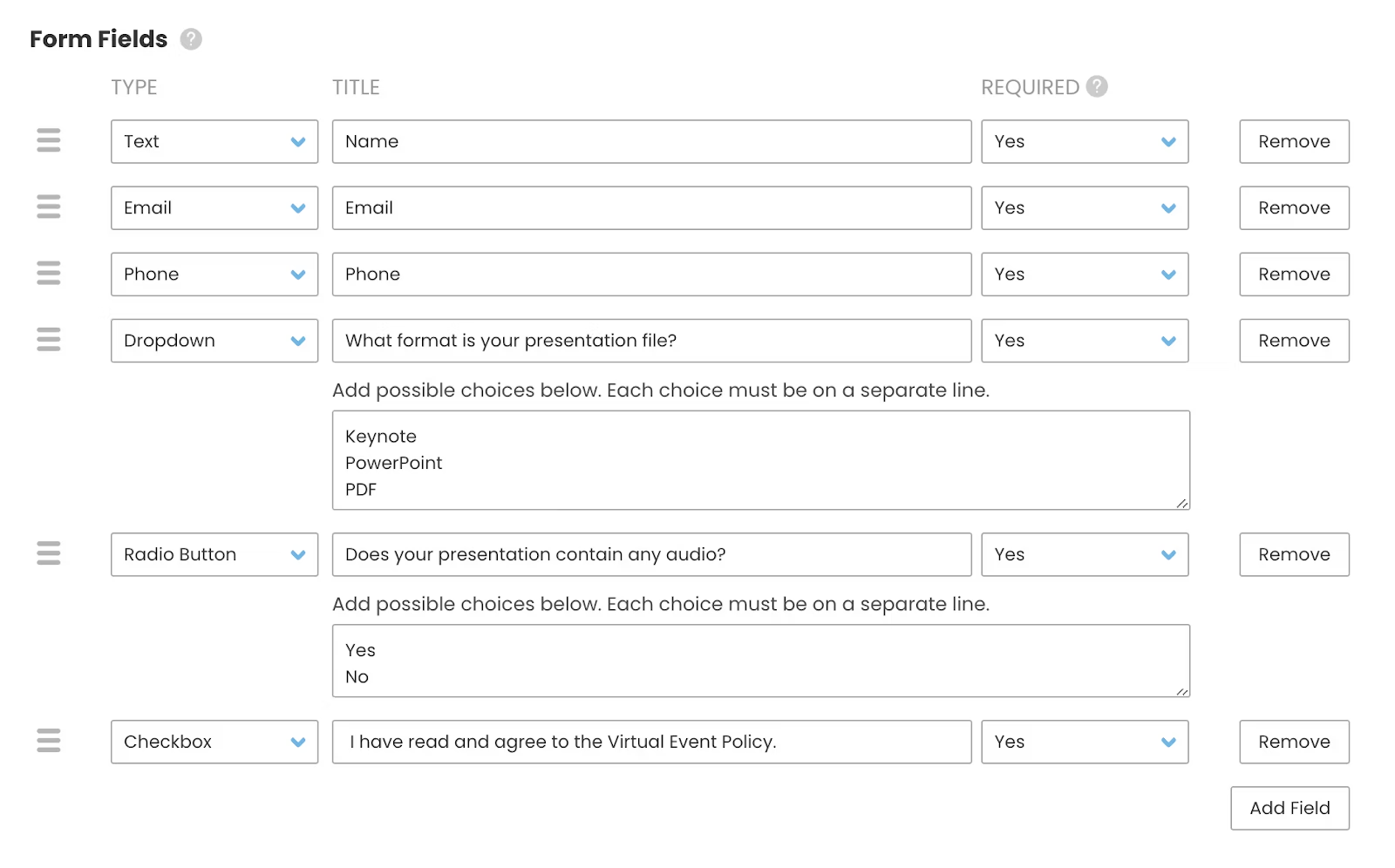
Custom form fields turn unstructured submissions into structured data. When your production team opens the shared folder the day before the event, they can see at a glance which speakers have submitted, what format their files are in, and whether any production adjustments are needed.
2. Set File Type and Size Restrictions
Restricting which file types the form accepts prevents submission mistakes before they become production problems. For speaker content, you might allow:
- Presentation formats:
.key,.ppt,.pptx,.pdf - Video formats:
.mp4,.mov
Everything else gets rejected with a clear message, so no one submits a .docx or .zip that your production pipeline can't use.

The size cap should match your production reality. For most virtual events, a 5 GB per-file ceiling handles large session recordings without being so permissive that you get a 50 GB raw export uploaded by mistake.
3. Set a Submission Deadline
Virtual event timelines are tight. Every piece of speaker content should be in hand 48 to 72 hours before show day so your production team can review, test, and troubleshoot. A submission deadline on the form stops accepting uploads after your cutoff and displays a custom message directing late submissions to your producer's email.
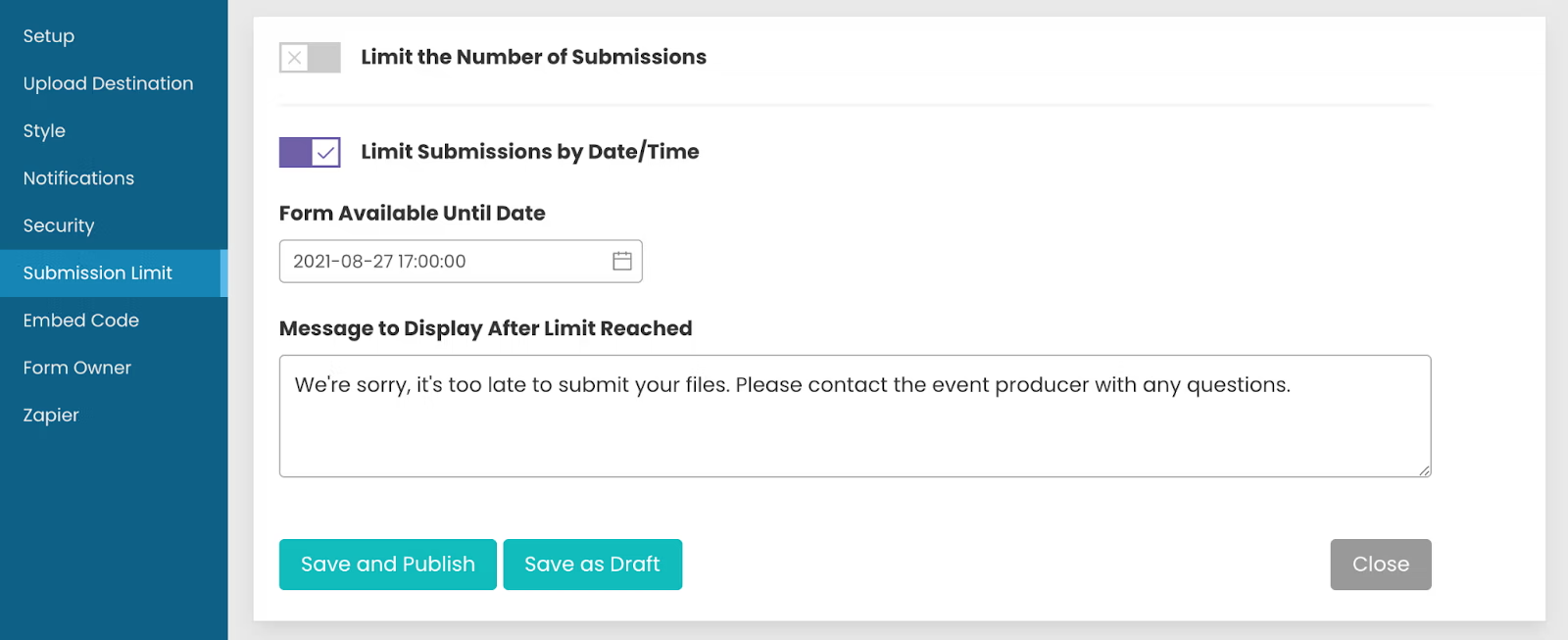
The custom message is the detail that matters. A generic "form is closed" error leaves late speakers confused and can trigger a flurry of support emails. A specific message pointing them to the right contact preserves your producer's focus on the event itself.
4. Configure Notifications for Every Stakeholder
Event production involves multiple people who need to know when content arrives. A good notification setup covers three groups:
- The speaker (uploader) gets an automatic confirmation when their submission goes through, so they know they're done and won't re-upload.
- Your production team gets a notification with the file details, the submitter's info, and any form field data (session title, format, audio notes) so they can plan production work immediately.
- The event client or AV team gets a separate notification if they need visibility into speaker submissions without direct access to the production folder.
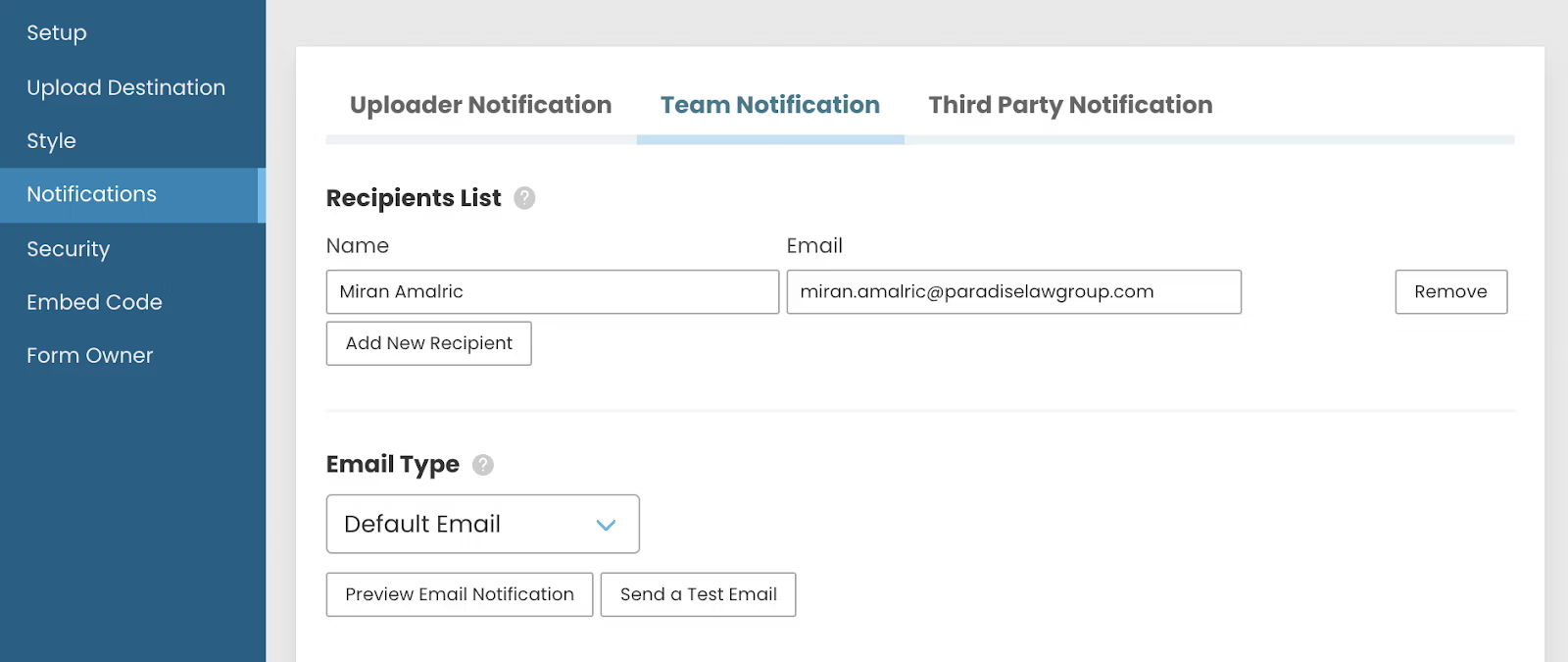
Each notification group can use the default email template or custom HTML, with variables for file count, form field data, and file URLs. The end result: everyone who needs to know what's arrived knows immediately, and no one is manually forwarding emails to the production team.
5. Organize Files Automatically as They Arrive
The trick to managing content from 20+ speakers is not letting files pile into a single folder. Use form field values to automatically create named subfolders.
For a conference collecting speaker content, the folder structure might be:
/Speakers/[SpeakerName]/[SessionTitle]
Every submission from a given speaker lands in their folder, every session's content sits in its own subfolder, and production can pull content by session without hunting through a flat file list. This is how the EVENTNAME_SpeakerName_MMDD.filetype naming convention you'll see in virtual event production guides becomes automatic rather than a manual file-renaming task. Learn more about dynamic file organization.
6. Embed the Form on Your Event Site
Most virtual events have a speaker portal, sponsor portal, or registration site. The upload form embeds there via a single HTML snippet, so speakers go to the event site (which they already know how to find) rather than a separate upload tool they've never heard of.
EZ File Drop embed code works on WordPress, Squarespace (on the Core plan and above), Webflow, Wix, and any HTML-capable platform. If your event site is a simple speaker-portal page, this is probably the single biggest reduction in speaker friction you can make: they don't have to navigate a third-party tool, they just upload directly from the same page where they got their event briefing.
Common Virtual Event Content Collection Patterns
The workflow above adapts to different event types. A few common patterns:
Single-speaker webinars. One form, one folder, simple deadline. The only real work is making sure your speaker gets the upload link and a clear file spec. 30 minutes of setup, handles dozens of future webinars.
Multi-track conferences. One form per track, or one form with a track dropdown that dynamically routes files into track-specific folders. The dropdown approach is cleaner because speakers only see a single link to share, but track-specific forms give production teams cleaner folder structures if different tracks have different processes.
Speaker plus sponsor collection. Two separate forms with different fields, different file type restrictions, and different destination folders. Sponsors submitting logo packages need different form fields (file format checkboxes, logo variants) than speakers submitting session content.
Post-event attendee content. After the event, a separate form (often embedded in the event's follow-up email) invites attendees to upload photos or videos from networking sessions. Lower volume, less time-sensitive, but valuable for highlight reels and social content.
Recurring event series. Build the form once, reuse it for every event in the series with only minor tweaks to the deadline and session list. This is where the unlimited forms feature pays off: each event series can have its own branded form without starting from scratch.
Tips for Running Virtual Event Content Collection Smoothly
A few practical patterns learned from running this workflow:
Send the upload link in the speaker confirmation email. Not in a separate follow-up email later. The moment a speaker confirms they're presenting, they should know exactly where and how to send their content. This cuts submission-chasing time in half.
Give a clear spec upfront. File format, file size cap, deadline, and what you'll do with the content. Every piece of ambiguity becomes a support email.
Set the deadline 48–72 hours before the event. Not the day before. Production needs time to review, test playback, and catch problems. A "day before" deadline feels responsive but it's a trap.
Follow up with non-submitters 24 hours before your deadline. A short reminder email to speakers who haven't uploaded yet is usually enough. Automated reminder sequences aren't currently a feature in EZ File Drop, but exporting the list of who has submitted vs. who hasn't and sending a manual bulk email works fine for most events.
Test with your own upload before sharing. Upload a dummy file through your own form. Check that the notification lands, the file arrives in the right folder, and the confirmation email looks right. Ten minutes of testing prevents problems during the event.
Keep the form live for a few days after the event. For late post-event submissions (session recordings, attendee photos, highlight content). Set a second deadline rather than closing it immediately after the event ends.
Frequently Asked Questions
What's the best way to collect large video files from virtual event speakers?
A dedicated file collection tool like EZ File Drop handles speaker video uploads directly into your cloud storage of choice (Google Drive, Dropbox, OneDrive, Box, or FTP) with branded forms and custom fields for session details. Plans range from 5 GB per month on Starter to 1 TB per month on Premium, which covers most virtual event workflows. If you're regularly collecting hundreds of gigabytes or multiple terabytes of video per event (typical for large-scale video production shops), a pay-as-you-go service like MASV may be more cost-effective at that volume.
Do virtual event speakers need to create an account to upload their content?
No, not if you use a branded file collection tool or most link-based services. Speakers open the upload link, drop their files, and they're done. This is a major reason to avoid Google Forms for speaker content collection. Google Forms requires every uploader to sign in with a Google account, which is friction most external speakers won't tolerate.
How do I organize files from multiple speakers automatically?
Use dynamic file organization: configure your upload form to create named subfolders based on form field values like speaker name, session title, or event date. Every submission lands in a correctly-named folder without manual sorting. EZ File Drop does this natively using form field data to generate the folder path.
What file types should I accept for virtual event speaker content?
For presentations: .key (Keynote), .ppt and .pptx (PowerPoint), and .pdf. For video: .mp4 and .mov are the most widely compatible. Reject everything else at the form level so speakers don't accidentally submit a .zip or .docx your production pipeline can't process.
When should I set the submission deadline for speaker content?
48 to 72 hours before the event. This gives your production team enough time to review each file, test playback, flag problems, and follow up with speakers if something needs to be re-uploaded. A deadline the day before the event leaves no margin for issues.
Can I use the same upload form for multiple events in a series?
Yes. Reset the deadline, update any session-specific form fields, and reuse the form for each event in a series. EZ File Drop supports unlimited forms per account, so you can also build event-specific forms if different events have meaningfully different content requirements.
Try EZ File Drop free for 7 days and set up your next virtual event content collection workflow in under an hour.
Written by Matt Townley
Try EZ File Drop Today!
Start Free TrialIntegrations
EZ File Drop + Google DriveEZ File Drop + DropboxEZ File Drop + OneDriveEZ File Drop + BoxStay in Touch


