
How to Allow Others to Upload to a Google Drive Folder Without Signing In
Google Drive is great for storing and sharing files, but receiving files from someone who doesn't have a Google account is where it gets complicated. The good news is there are real options for letting anyone upload to your Google Drive, even without a Google sign-in.
This guide walks through your options. What Google offers natively, where those native tools fall short, and how EZ File Drop fills the gap with a branded, secure upload form that doesn't require a login from the person sending files.
.avif)
How Do I Allow Others to Upload Files to My Google Drive?
There are two main paths. Google's native tools (Forms, shared folders, and visitor sharing for Workspace accounts), and third-party tools like EZ File Drop that skip the sign-in requirement entirely.
Option 1: Google Forms (with limitations)
Google Forms has a File Upload question type that drops submissions into a Drive folder. The specific limitations are worth knowing before you rely on it:
- Uploaders must sign in with a Google account before they can attach a file.
- If the form is part of a Google Workspace organization, responses can be restricted to users inside that organization.
- Google Forms with file upload questions cannot be embedded on external websites.
- File type and maximum file size are limited per question.
The pattern here is that Forms assumes the uploader is already inside your Google world. For collecting from clients, vendors, or the public, that assumption breaks. We've written a more detailed look at using Google Forms for file uploads if you want to dig in to the specific limitations.
Option 2: Shared Folders (risky for external collection)
You can share a folder from Google Drive and give Editor access to the people you want to upload. That lets them drop files in, but Editor access is a blunt instrument, and it comes with real exposure:
- Every editor can see all the files in the folder, including files submitted by other people.
- Editors can rename, move, or delete any file, including yours.
- There's no automatic log of who uploaded which file.
- Google Drive doesn't send you an email alert when a new file shows up in a shared folder.
For one-off file swaps with a trusted colleague, shared folders are fine. For client work or collecting from multiple people into the same folder, the privacy and control gaps are real problems.
Google Workspace also offers "visitor sharing" for non-Google users, but it requires a paid Workspace plan, admin configuration, and the visitor still has to verify via a PIN. It's a workaround, not a fit-for-purpose solution.
Option 3: EZ File Drop (the purpose-built option)
EZ File Drop is built specifically for this: letting anyone upload files directly into your Google Drive without a Google account, folder share, or permission change. The uploader sees a simple branded page, drops their files in, and the files land exactly where you told EZ File Drop to put them.
Here's how it works.
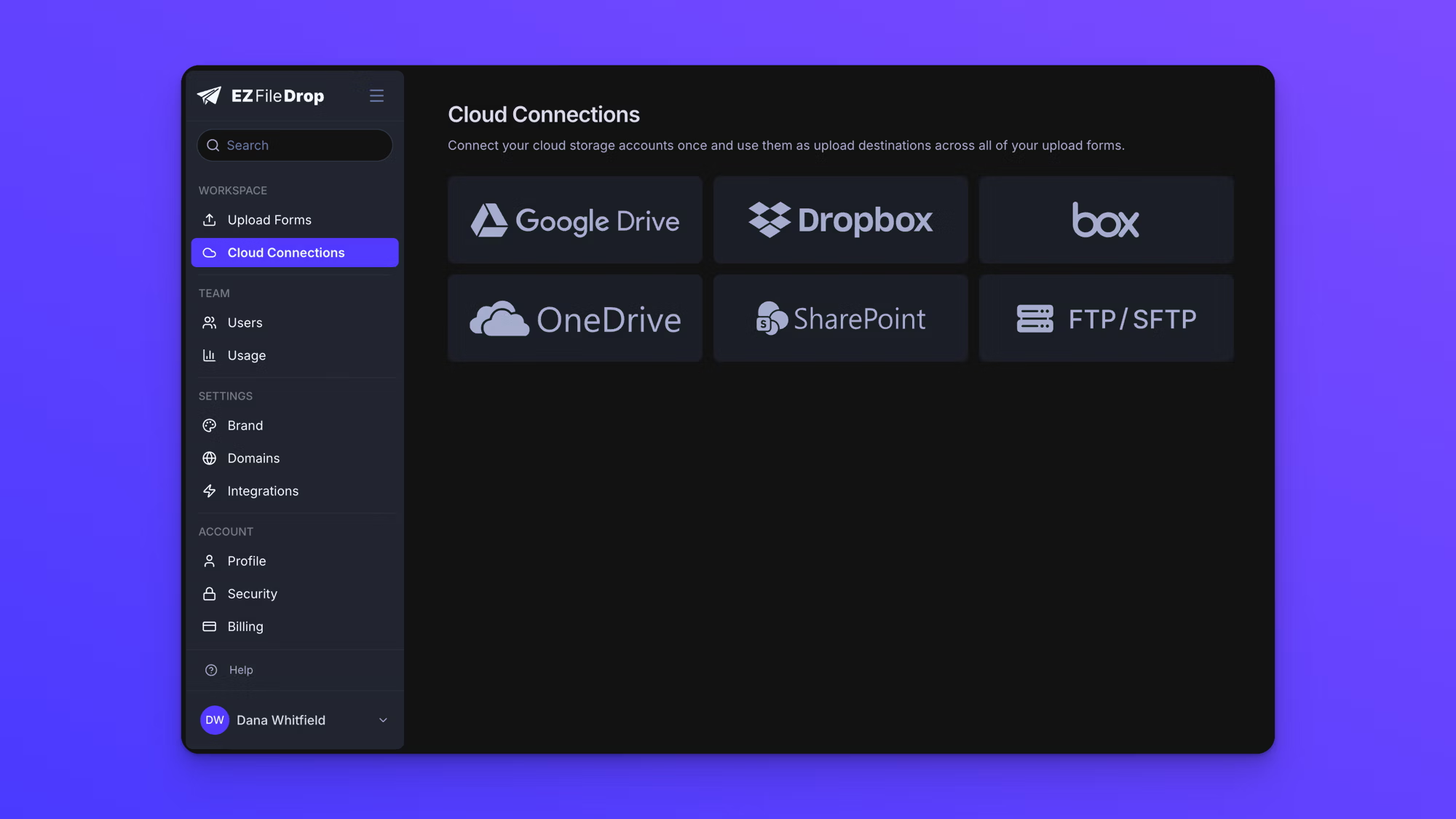
Connect EZ File Drop to Google Drive. From the main menu, open Cloud Connections and choose Google Drive. EZ File Drop uses OAuth2 to link to your Drive account, so your Google password never leaves Google. You authorize the connection once, and Google Drive becomes available as a destination for any form you build.
Create an upload form. Click Create Form to open the form builder. Under Form Setup you set the form's name, page header, and the messaging your uploader sees. Under Style you add your logo, pick light or dark mode, and set your colors so the page looks like yours, not ours.

Point the form at your Google Drive folder. In Field Options, select your file upload field and set its upload destination to the Google Drive folder you want. This is the step that does the real work: every file submitted through this form is delivered into that folder. You can pick any folder in your connected Drive.
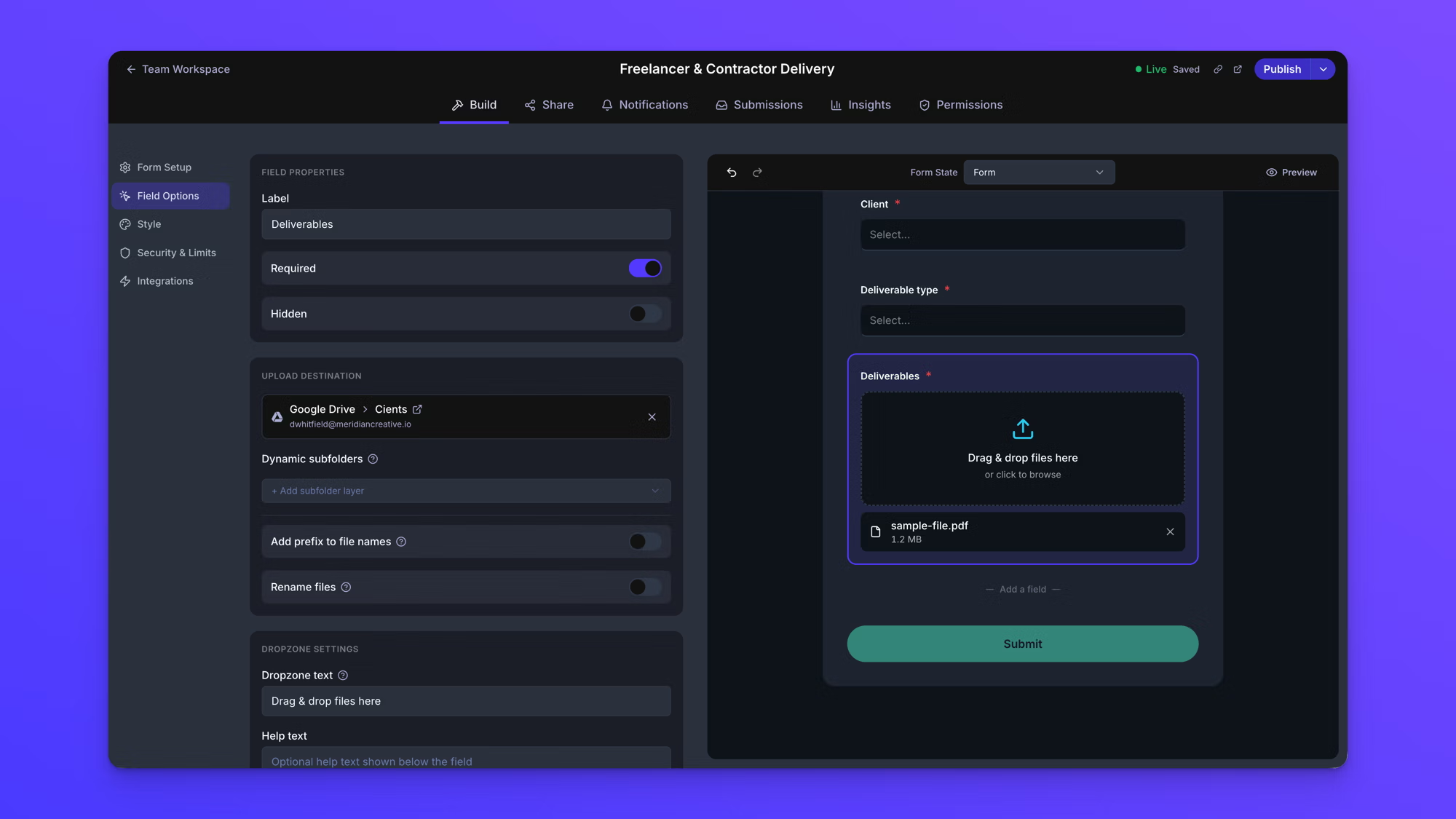
Add any fields you need (optional). Alongside the file upload, you can collect context like name, email, project number, or a category dropdown. EZ File Drop's form builder supports a full range of field types, conditional logic so fields appear only when they're relevant, and multi-page forms when you're collecting a lot at once. For a simple "drop your files here" form you don't need any of this, but it's there when the workflow calls for it.
Set your file rules (optional). Under Security & Limits you can set a maximum submission size, and under the field's dropzone settings you can restrict which file types are accepted. File type and size controls are available on the Business plan and above.
Publish and share. Hit Publish, then open the Share tab. Your form gets its own shareable link, plus an embed code and a QR code. Send the link by email or text, or embed the form on your own website.

Receive uploads automatically. Every submission is delivered into the Google Drive folder you selected, with no need to share the folder or grant access to the uploader. Each upload appears under the Submissions tab with the file, the size, and any details you collected, so you always have a record of what arrived and when.
Every submission can also sync to a Google Sheet automatically. EZ File Drop writes a new row to your Sheet for each upload, with the form field data and links back to the files in Drive. The sync is live, so new submissions appear as new rows without any manual export, which makes it easy to run totals, build dashboards, or feed submissions into downstream automations through Sheets formulas or Apps Script. The Sheet lives in the same Google account you connect here, so with Google Drive as your destination your files and a running log of every submission sit side by side. And it isn't limited to Drive: once a Google account is connected, you can turn on Sheets sync for any form, including forms that deliver files to another destination.
For a full walkthrough of the connection step, see the Google Drive integration page.
Google Drive vs. EZ File Drop at a glance
Across the dimensions that matter for real file collection, here's how the approaches stack up.
A few of those rows deserve the detail the table can't hold. The Google Forms login means a full Google account; shared-folder access means Editor rights, which is what makes it risky, since every editor can see, rename, and delete everything in the folder. EZ File Drop's file-type and size control is set per form, and its notifications can go to the uploader, your team, and third parties like a client or a CRM. Google Forms can't be embedded at all once file upload is enabled.
EZ File Drop isn't a different place to store files. It's a front door to your existing Google Drive, built so that the person uploading doesn't have to know anything about Google Drive to use it.
How to Provide a Google Drive Upload Link to Users
Every published form gets two sharing options:
A direct link. Each upload form has a unique URL that you can share directly over email, text, or a proposal. No hosting or configuration required.
An embedded form. Copy the embed code and paste it into your own website. It works on WordPress, Webflow, Squarespace, Wix, or any page that supports HTML embeds. The embed code includes toggles to show or hide the logo, header, and page text so the form fits the design of your site.
How EZ File Drop Organizes Files in Google Drive
When someone submits through your form, each file is delivered into the Google Drive folder you chose. For most setups, that's all you need: one folder, every upload arriving in the same place, no manual sorting on your end. Because the form always routes to that folder, new uploads are added to it rather than creating duplicate folders.
If you want more structure, you can go further. By adding form fields like client name or project ID, EZ File Drop can use that data to create a subfolder per submission automatically, and even add form values as a prefix to the file name. A photographer collecting from multiple weddings, or an accountant collecting tax documents by client and year, can have every upload sort itself into the right folder on arrival. That's optional, and most people start with a single destination folder and add organization later if they need it. For the full walkthrough, see the Dynamic File Organization tutorial.
Security and Privacy When Collecting Files in Google Drive
When you collect client files through any third-party tool, the question of where those files actually live and who can see them matters. Here's what happens to a file uploaded through an EZ File Drop form on its way to your Google Drive.
The uploader's browser connects to EZ File Drop over HTTPS with TLS encryption. The file is encrypted in transit. Once it arrives at our infrastructure, the file is temporarily staged on Amazon S3 with encryption at rest and no public access. EZ File Drop then transfers the file to your Google Drive using the OAuth2 connection you set up when connecting your account. After successful transfer, the temporary copy on S3 is deleted, with a three-day retry window if the initial transfer fails for any reason.
The OAuth2 connection means your Google password never leaves Google's systems. EZ File Drop receives a token that grants access only to the Drive folders you've authorized, and you can revoke that access at any time from your Google account settings.
If you want to limit who can upload, EZ File Drop forms can require a password before the upload page loads, so only people you've given it to can reach the form. CAPTCHA protection is also available to filter out bot submissions. Two-factor authentication is available on your EZ File Drop account itself.
The end result is that files spend the minimum possible time outside your own cloud storage. There's no long-term EZ File Drop file repository, so your files live in your Google Drive, organized the way you specified, accessible only to people you've shared the Drive folders with. For a deeper look at the security model, see the security page.
Key Advantages of Using EZ File Drop
EZ File Drop's advantages for collecting files into Google Drive come down to five practical things:
No login required for the person sending files, so clients and vendors can upload in seconds. Uploads are private, since each submitter only sees the form, never your Drive contents or anyone else's files. Files route to whatever folder you choose, and can auto-organize by form fields if you set that up. Forms can be shared as a direct link or embedded on your website with no plugins. And uploaders can be restricted to specific file types and sizes per form.
The same workflow also works for Dropbox, OneDrive, Box, SharePoint, and FTP destinations if your team uses different cloud storage. See the equivalent guides for Dropbox without signing in and OneDrive without signing in if those fit your stack better.
When EZ File Drop Isn't the Right Fit
EZ File Drop is purpose-built for collecting files from external uploaders into your Google Drive, but there are situations where simpler or different tools work better.
If you need to send files out rather than collect them, EZ File Drop isn't the tool. It's built for one direction: receiving files from other people into your own cloud storage. It doesn't send files to recipients, and it isn't a two-way sharing space where people swap files back and forth. For sending, a tool like WeTransfer or your cloud's own share links is the right choice.
If you're uploading your own files to Google Drive, the built-in Google Drive web interface, desktop app, or mobile app handle this efficiently. Our guide to four easy ways to upload files to Google Drive covers each method.
Some organizations operate under formal compliance mandates and can only use tools that carry specific security certifications. EZ File Drop isn't built for certified-compliance workflows, so if your work requires that level of formal certification, a compliance-focused file transfer tool is the right call.
That isn't a knock on security. Files uploaded through your form travel over encrypted connections and are delivered into your own Google Drive, so they live in the storage you already control, not in some separate repository. The section above on security and privacy covers exactly how that works.
For most receive-side file collection from clients, contractors, vendors, or anyone outside your organization, EZ File Drop is the right fit. Knowing when it isn't is just as useful as knowing when it is.
Frequently Asked Questions
Do uploaders need a Google account to use the form?
No. Anyone can upload to your Google Drive through an EZ File Drop form without signing in or creating any kind of account. The uploader sees a branded upload page, drops their files in, and submits. The files arrive in your Google Drive automatically through the OAuth2 connection you set up when you connected your account. The uploader never touches Google's interface and never needs to know that Google Drive is the destination.
Can I accept uploads from mobile devices?
Yes. EZ File Drop forms work on any device with a modern web browser, including phones and tablets. Mobile uploaders can submit full-resolution files including photos and video without compression. This makes EZ File Drop especially useful for workflows where uploaders are in the field, including construction site documentation, event photography, and mobile-first agency clients who need to upload from a phone.
Is there a file size limit?
Each form can have its own per-upload file size cap that you set in the form's dropzone settings. Practical file size limits are bounded by your monthly upload bandwidth (5 GB on Starter, 100 GB on Business, 1 TB on Premium) and by the uploader's connection speed and stability. There's no hard per-file ceiling other than what your plan's monthly bandwidth allows in practice.
Can I restrict which file types are accepted?
Yes, on the Business plan and above. The form's dropzone settings let you specify which file extensions are accepted and which are rejected. This is useful for ruling out file types that don't fit your workflow, for example a print shop accepting only PDF and EPS files, or a legal practice accepting only PDF and DOCX. Restricting file types up front saves time on the receiving side and reduces the number of clarifying messages you'd otherwise have to send.
What happens to the files after they're uploaded?
Files transfer immediately to the Google Drive folder you selected when you built the form. They stay in your Drive permanently, organized however you specified using form field data. EZ File Drop temporarily stages the file on encrypted Amazon S3 storage during transfer, and the staged copy is deleted after the transfer completes successfully. There's no long-term EZ File Drop file repository, so your files live in your Google Drive, under your control, accessible only to people you've shared the relevant Drive folders with.
Can I use this with Google Workspace (formerly G Suite)?
Yes. EZ File Drop connects to both personal Google Drive accounts and Google Workspace accounts. The connection uses OAuth2, the same authentication standard apps in the Google Workspace Marketplace use. For Workspace administrators, EZ File Drop's permission scope is read/write access to the specific folders you authorize, not your entire Drive. Your Google Workspace admin policies for third-party apps apply normally.
Getting Started
EZ File Drop connects to your Google Drive through OAuth2. Files live in Drive, in the folders you point each form at, using your existing storage. Nothing about your Drive changes, and if you disconnect EZ File Drop, your account is exactly as it was. You can read more about how the connection is secured on the security page.
You can try EZ File Drop for free with no credit card required. The 7-day trial runs on the Business plan with 1 GB of upload bandwidth, enough to connect Drive, build a branded form, and run real submissions through it. For a deeper dive, see the Google Drive integration page.