
Receive file uploads into your own Google Drive.
No credit card required · 7-day Business plan trial
How it works
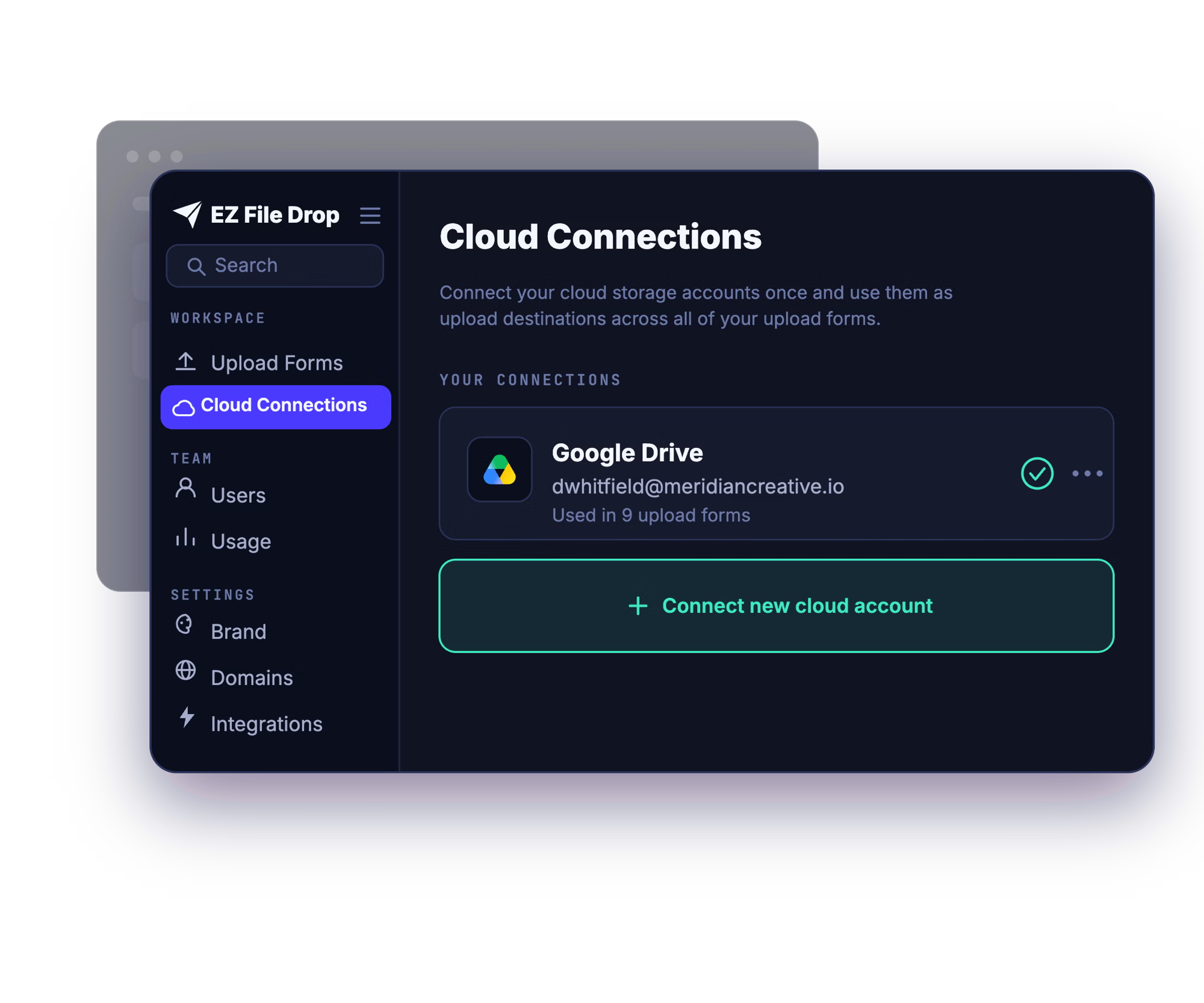
Connect your Google Drive
You connect your account once, through Google's own secure sign-in (OAuth2). EZ File Drop never sees or stores your password, and you can disconnect any time.
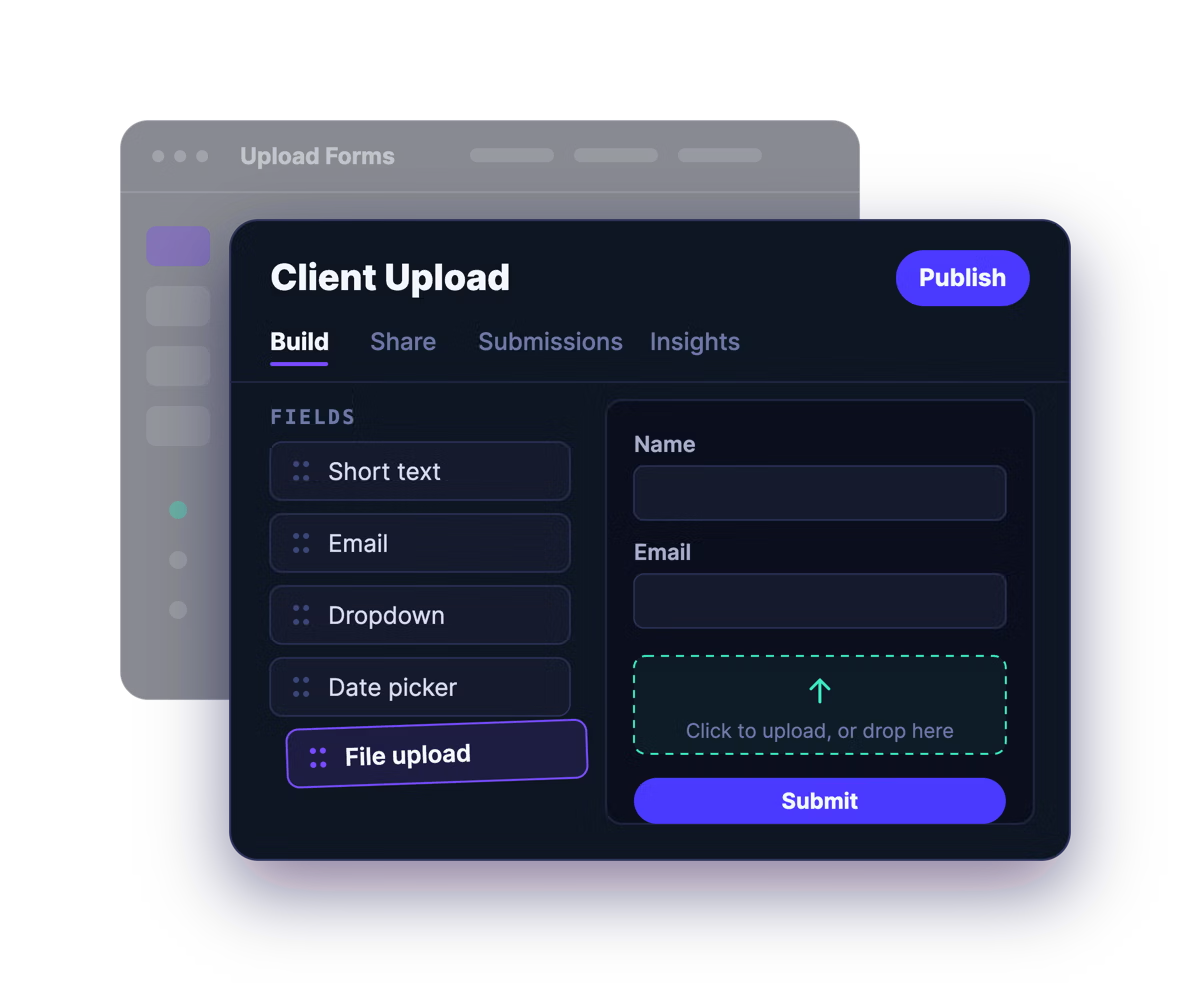
Build a branded upload form
Drag and drop the fields you need, add your logo, colors, and fonts, and write your own instructions. No design or developer help required.
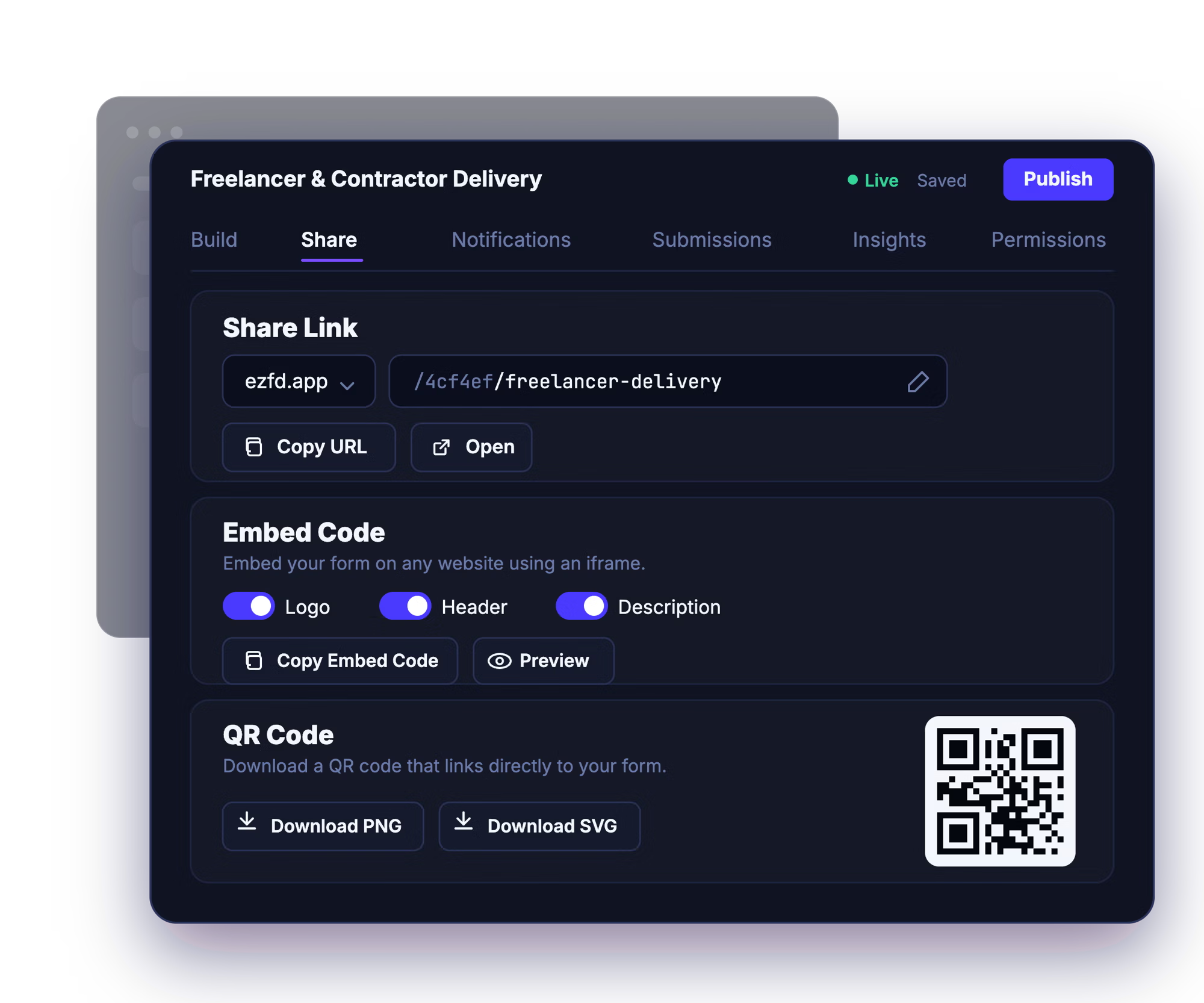
Share the link, embed it, or post the QR code
Send the share link by email, drop the form onto your website, or print the QR code for in-person collection. Uploaders just open it and go.
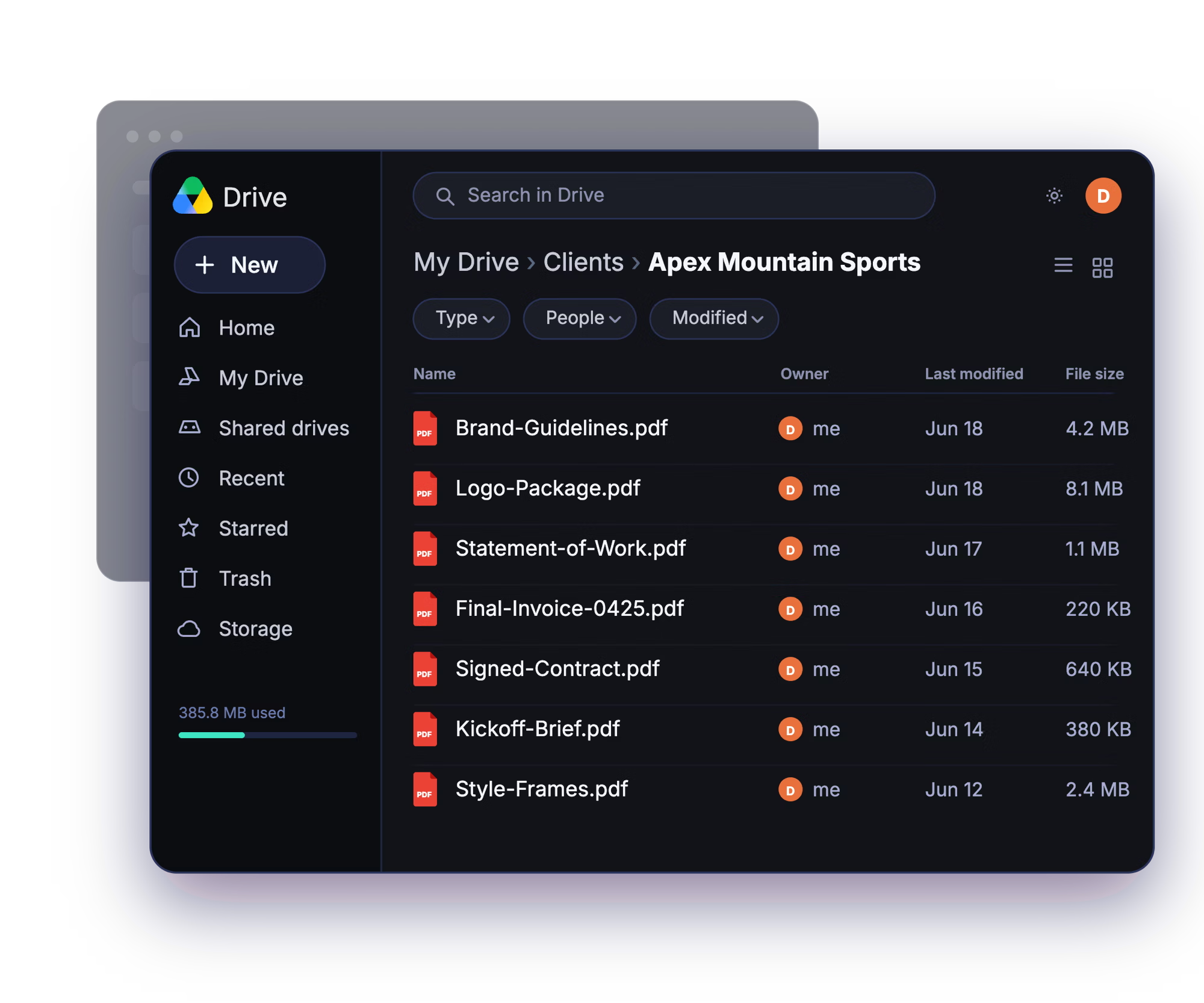
Files arrive organized in your folder
Every submission is delivered to the Google Drive folder you chose, automatically sorted into subfolders by submitter, project, or any form field.
Already collecting files with Google Forms?
EZ File Drop and Google Forms both put your files in the same place: your own Google Drive. What differs is what the person sending them has to do first.
Google Forms is the usual first stop, and for colleagues inside your own organization it works fine. The trouble starts the moment you add a File Upload question. From that point Google requires every respondent to sign in to a Google account before they can upload, and there is no setting that turns it off. Making the form public doesn't change it. A form with an upload question can't be embedded on your website either. If you're collecting from clients, applicants, or the public, the sign-in wall is where submissions quietly go missing.
Whether you collect with Google Forms or with EZ File Drop, the files end up in your Google Drive. The difference is everything that happens first: EZ File Drop gives you a branded form anyone can open without signing in, collects the details you need alongside the files, and sorts and names everything the way you work before it reaches your Drive.
Want the full breakdown? Read can Google Forms be used to upload files to my Google Drive? →
Everything EZ File Drop can do with your Google Drive.

Connect EZ File Drop to Google Drive →
New to collecting files this way? Read the full walkthrough: How to let anyone upload files to your Google Drive without signing in →
Built for the way you already use Google Drive.
Accounting & Bookkeeping
Collect tax documents, receipts, and statements from clients into a tidy folder per client, with no shared-folder permission headaches. See how accounting firms use it →
Marketing Agencies
Pull creative assets, brand files, and approvals from clients into the project folder, organized automatically.
Education
Collect assignments, permission forms, and applications from students and parents who don't need a Google Workspace account to send them. See how schools use it →
Video content collection.
Gather self-recorded clips, customer testimonials, and video submissions from lots of different people, phone footage and all, without anyone needing an app or account to send them.
Photography.
Take in selects, RAW files, and signed releases from clients without emailing giant files back and forth.
And many more…
FAQ

No, and they don't need an EZ File Drop account either. Anyone with your form link can open it and upload without signing in to anything. The Google connection is yours alone, and the people uploading never touch it.
In the exact Google Drive folder you chose when you set up the form, and every submission to that form is delivered to that same folder.
That is the starting point rather than the whole story. On the Business and Premium plans, dynamic file organization builds subfolders out of your form responses, so uploads sort themselves into a folder per client, per project, per date, as many layers deep as you need. When a folder already exists, new uploads go into it rather than creating a duplicate. Files can also be renamed on the way in using that same form data, so they arrive named the way you file things instead of as Scan_039.pdf. See Set up dynamic file organization.
Yes, both. You can point a form at a folder in your personal My Drive or at a folder in a Shared Drive your team manages, including Drives inside a Google Workspace organization account. Each form picks its own destination, so one form can deliver into a Shared Drive the whole team sees while another goes somewhere only you can reach. See Connect Google Drive.
Yes, on every plan. You can connect as many Google Drive accounts as you want to a single EZ File Drop login and point each form at whichever one it belongs to. Useful if you keep client work in one Drive and internal work in another. See Connect multiple cloud accounts.
No. Someone filling out your form sees only their own upload. There is no file list, nothing to browse, and no way for one person to open, download, or delete what anyone else sent. Submissions are visible to you and to the teammates you have given access to that form, and nobody else.
Every form has a submission inbox in your EZ File Drop dashboard, on every plan. You can browse all the submissions to a form, read the form responses attached to each one, and search by person or file name without digging through the Drive folder. See View and manage submissions.
Yes, on the Business and Premium plans, and you set it up per form. As long as you have a Google account connected, you'll find a Save form data to a Google Sheet toggle on the form's setup page, and you can either create a new Sheet there or pick an existing one. It doesn't depend on where the form's files are going, so a form delivering into Dropbox can still write its responses to a Sheet. See Send form data to a Google Sheet.
Yes. Your files are delivered into your Drive and live there, so they use your Google Drive storage the same way any file you added yourself would. That's the point of working this way: the files are yours, in an account you control, and they stay there whatever happens to your EZ File Drop subscription.
Yes. EZ File Drop connects through Google's own sign-in using OAuth2, so we never see or store your Google password, and you can revoke access at any time from your Google account. Files move over TLS-encrypted connections the whole way.
Google's permission screen asks you to allow EZ File Drop to see, edit, create, and delete Drive files, which reads broader than what actually happens. The permission has to cover that range because you can point a form at any folder you own. What EZ File Drop does with it is write the files people send through your forms, create subfolders when a form organizes them, and write a Sheet if you've turned that on. It doesn't read or browse the files you already keep in Drive. See Connect Google Drive and the security page.
EZ File Drop retries automatically, several times with a growing gap between attempts, which clears most failures without you doing anything. Two situations retries can't fix are a disconnected account that needs reauthorizing and a destination folder that's been moved, renamed, or deleted. Failed files stay in staging so you can retry the delivery from your dashboard. See Fix upload errors.
Every plan, including Starter, connects all six cloud destinations, Google Drive included. The features built on top of it are split by plan: dynamic file organization, your own colors, fonts, and logo, and white-labeled forms are on Business and Premium. Full breakdown on the pricing page.
Start collecting with your own Google Drive file request form.
Build your first branded form, connect your Google Drive, and share the link in minutes.