.svg)
How to Make a Google Form Public
Google Forms lets you share a form with anyone on the web and collect responses without requiring a Google account. Here's how to configure it, plus one important limitation to know about before you start: public Google Forms can't accept file uploads. Adding a file upload question forces sign-in, and there's no way around it. Everything else (text fields, multiple choice, dropdowns, checkboxes) works fine in public mode.
Step-by-Step: Making a Google Form Public
Step 1: Open Settings and Expand Responses
Open your form at forms.google.com. Click the Settings tab at the top of the editor, then expand the Responses section.
Step 2: Turn Off All Sign-In Requirements
Set Collect email addresses to "Do not collect" from the dropdown. Leave Send responders a copy of their response off (this setting requires email collection anyway). Under the Requires sign in heading, turn off Limit to 1 response. Leave Allow response editing off.

Step 3: Get the Sharing Link
Click Send in the top right corner. A Send form modal opens with three sharing tabs: email, link, and embed HTML. Click the link icon (the chain-link in the middle tab) to display the form's shareable URL.
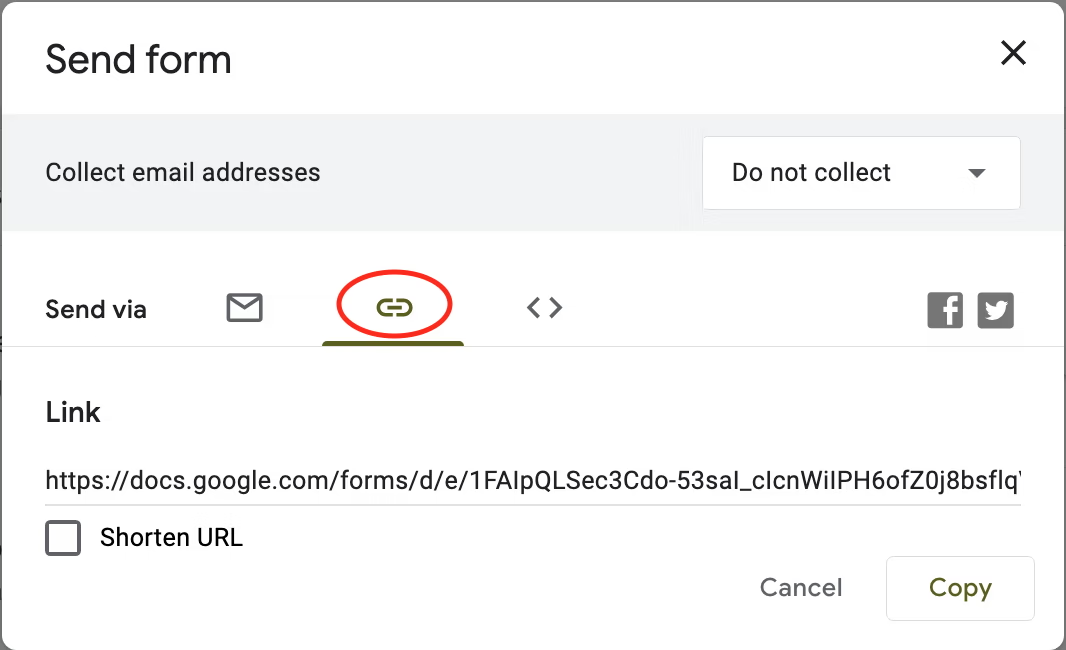
The URL is the form's public link. Optionally check Shorten URL for a cleaner version. Click Copy to send it anywhere: email, SMS, a social post, or directly into a page on your website.
Step 4: Test the Link in Incognito Mode
This is the step that catches most problems. Open a browser window where you're not signed in to Google (incognito or private browsing works fine). Paste the form URL and load it.
If the form loads directly without asking for a Google sign-in, it's genuinely public. If it prompts for sign-in or shows an "access denied" message, something in your settings (or your Workspace organization policy) is still blocking public access. Go back to Settings and double-check each toggle.
This test matters because the form owner's own browser session is already authenticated. Everything looks fine from your side even when the form is restricted. Only an incognito test reveals the actual respondent experience.
Sharing the Form
Once the form is public, there are four effective ways to share it:
Link. The simplest approach. The URL from the Send form modal can go anywhere a link goes: email, chat, social media, a page on your website, a QR code.
Email. Google Forms can send the form directly via email through the first tab in the Send modal. The recipient gets either an embedded form (they can fill it out without clicking away) or a link to the form, depending on their email client. Useful for sending to a known list.
Embed HTML. The third tab in the Send modal provides an iframe embed code. Paste it into a WordPress block, Squarespace Embed Block, Webflow embed, or any HTML-capable site. The form renders in place, styled to match your site as much as Google's iframe allows.
Social media. The Send modal has direct share buttons for Facebook and X (formerly Twitter). These post the form's public URL with a preview card.
Managing Collaboration
If others on your team need to edit the form (add questions, review responses, change settings), they're editors, not respondents. Adding editors happens through the three-dot menu in the top right of the form editor.
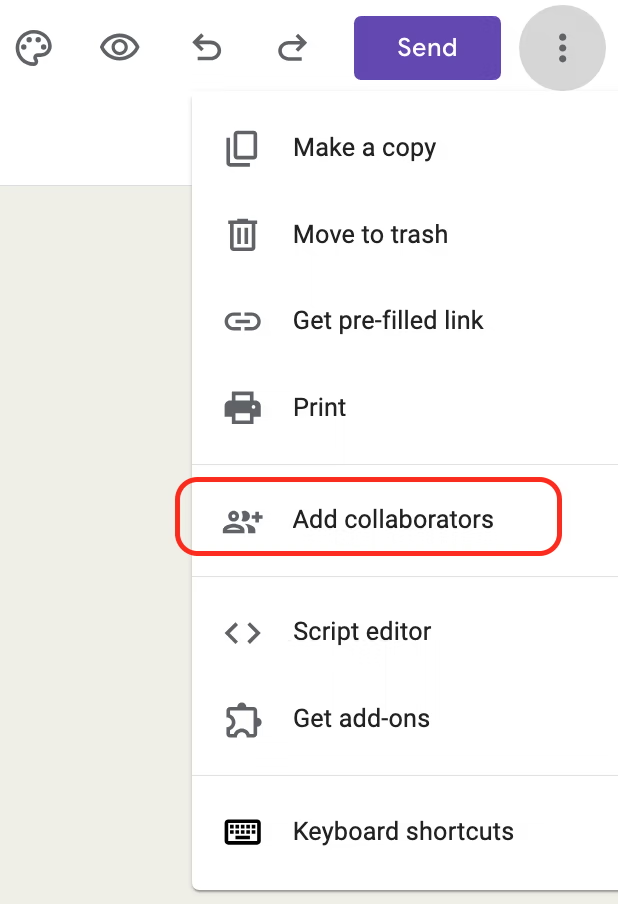
Click Add collaborators and choose the access level under General Access:
- Restricted: only people you explicitly add can edit
- Your organization: anyone in your Workspace org with the link can edit (Workspace accounts only)
- Anyone with the link: anyone who has the link can edit (generally not recommended)
For most forms, Restricted plus explicit editor invites is the safest choice. Never use "Anyone with the link" for edit access on a form collecting real data. It means anyone who receives the link can modify questions or delete responses.
Google Forms' Public Mode Limitations
Public forms work for text-based data collection: surveys, sign-ups, feedback, event registrations, contact forms. They don't work for:
File uploads. As noted above, the moment you add a file upload question, Google Forms forces sign-in. There's no setting to override this. If you need file uploads from a public audience, Google Forms is not an option.
Response deduplication. Without "Limit to 1 response" (which requires sign-in), you can't prevent the same person from submitting multiple times. For contests, quizzes, or surveys where duplicates matter, this is a problem.
Respondent identification. Without email collection or sign-in, you can't tell who submitted what. This is fine for anonymous feedback and often desirable for surveys; it's a dealbreaker for anything that needs accountability.
Branding. Google Forms lets you choose a theme color, header image, and font style. That's the full extent of customization. The Google Forms footer stays visible, the URL starts with docs.google.com/forms, and you cannot white-label the form.
Workspace form inheritance. If the form was built in a Workspace account and shared organization-wide, unwinding those inherited restrictions can be fiddly. An incognito test is the only reliable way to know the form is actually public.
What Changed in Google's 2025 Sharing Controls
In August 2025, Google rolled out granular sharing controls to all Google Forms. The visible impact for most form owners:
- Trusted domain restrictions were phased out on September 8, 2025. If your form had previously been restricted to specific trusted domains (a common setup in education and regulated industries), those restrictions no longer apply, and some previously-allowed respondents may have lost access until settings were updated.
- Workspace admins now have more granular control over which forms can be made public and how. If your organization blocks public forms by default, a Workspace admin needs to change that at the account level. It's not something a form owner can override.
- Existing forms were automatically upgraded to the new controls, sometimes surfacing previously-hidden restriction settings that form owners need to review.
If a form that worked fine before late 2025 has suddenly stopped accepting external responses, the 2025 changes are a likely cause. Check your form's access settings and, for Workspace forms, ask your admin whether organization-wide form sharing policies have changed.
If You Need File Uploads from a Public Audience: Try EZ File Drop
Google Forms' sign-in-for-files rule is a hard ceiling. If you're trying to collect files (documents, photos, videos, contracts) from respondents who don't have Google accounts or don't want to sign in, Google Forms cannot do it, and there's no workaround inside the platform.
EZ File Drop is built specifically for this case.
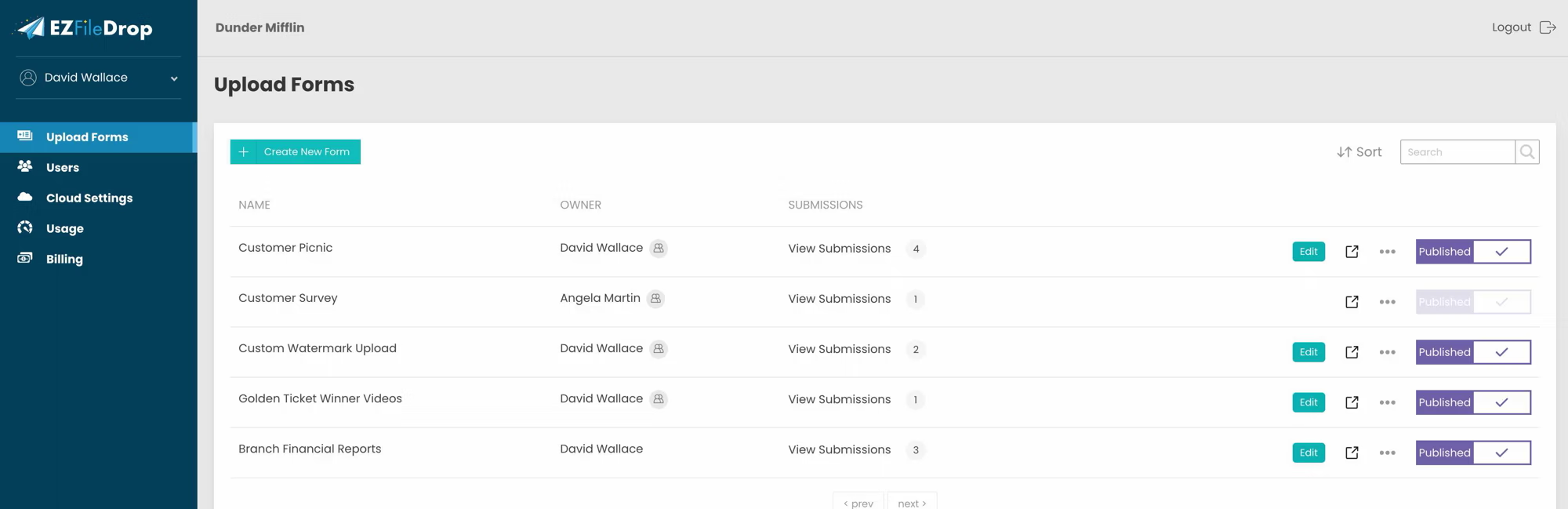
How it differs from Google Forms in public mode:
No sign-in required for anyone. Respondents drag and drop files, add any other form data you request, and submit. No Google account, no email verification, no login step.
Files route directly to your cloud storage. Connect your Google Drive, Dropbox, OneDrive, Box, or FTP destination once, and every uploaded file lands in the folder you designate. There's no intermediate "File responses" storage you have to manage.
Custom form fields alongside the file. Collect text, email, phone, dropdowns, radio buttons, and checkboxes in the same form as the file upload, so context arrives with the file.
Branded upload pages. On the Business and Premium plans, forms are fully white-labeled with your logo, colors, fonts, and messaging. No Google Forms footer, no third-party branding.
Automatic file organization. Use form field values (like respondent name or submission type) to automatically create named subfolders in your cloud storage, so files are organized as they arrive.
Embed anywhere. Drop a single HTML snippet into WordPress, Squarespace, Webflow, Wix, or any HTML-capable site, and the form appears in-page.
Frequently Asked Questions
Can I make a Google Form public without requiring sign-in?
Yes, as long as the form doesn't include a file upload question. In the Settings tab, expand Responses, set Collect email addresses to "Do not collect," and turn off both Limit to 1 response and Allow response editing. For Workspace accounts, also verify that the form isn't restricted to your organization under the sharing settings. Test the result in an incognito browser window to confirm external respondents can access the form without logging in.
Can I collect file uploads on a public Google Form?
No. Google Forms requires every respondent to sign in to a Google account before uploading files, and this rule cannot be disabled. If you need to collect files from respondents who don't have Google accounts or don't want to sign in, you'll need a different tool. EZ File Drop handles file uploads with no account required for the uploader.
Why does my public Google Form still require sign-in?
The most common causes are: a file upload question somewhere in the form (forces sign-in automatically), Workspace organization restrictions that override individual form settings, "Limit to 1 response" or email collection still toggled on, or a carryover from Google's 2025 sharing control changes that reset some restriction behavior. Test the form in incognito mode to see exactly which restriction is being applied.
What's the difference between a public Google Form and one limited to my organization?
A public Google Form can be filled out by anyone on the internet who has the link, with no Google account required. An organization-restricted form (a Workspace default for many accounts) requires respondents to sign in with an email from your Workspace domain. Workspace admins control whether forms can be public at all, so if public sharing is blocked account-wide, a form owner can't override it.
How do I share a public Google Form?
Click Send in the form editor, then choose a sharing method: direct link (copy and paste anywhere), email (Google Forms sends the form directly to recipients), embed HTML (paste the iframe code into your website), or social media (share directly to Facebook or X). The direct link is the most flexible option for mixed audiences.
Try EZ File Drop free for 7 days if you need to collect files from a public audience without sign-in requirements.
Written by Eric Stracke
Try EZ File Drop Today!
Start Free TrialIntegrations
EZ File Drop + Google DriveEZ File Drop + DropboxEZ File Drop + OneDriveEZ File Drop + BoxStay in Touch


